動画はこれだよ
ControlRig と KawaiiPhysicsを接続してるよ

4分岐


1L

1R

2L

2R

ちなみに最後のこれはデバッグであってもなくても動く

で完成!
今後の参考
参考
管理者用 ZIP
https://drive.google.com/file/d/1l5EAxrJS8_Ll6ElZsOLRPNZ7p1tXPgUZ/view?usp=sharing
動画はこれだよ
ControlRig と KawaiiPhysicsを接続してるよ

4分岐


1L

1R

2L

2R

ちなみに最後のこれはデバッグであってもなくても動く

で完成!
今後の参考
参考
管理者用 ZIP
https://drive.google.com/file/d/1l5EAxrJS8_Ll6ElZsOLRPNZ7p1tXPgUZ/view?usp=sharing
Checkout AssetとCheckout Directoryは前からあったが。
Editor Scripting
Asset
f Checkout Asset
f Checkout Directory
Editor Revision Control Helpers
f Check in File
1つのファイルをPERFORCEにチェックイン=アップロード+読み取り専用へ
f Check in Files
複数のファイルをPERFORCEにチェックイン=アップロード+読み取り専用へ
f Check Out File
1つのファイルをPERFORCEにチェックアウト=自分だけ書き込み許可
f Check Out or Add File
1つのファイルをPERFORCEにチェックアウトまたはファイルを追加+自分だけ書き込み許可
今回の場合
https://docs.unrealengine.com/5.2/en-US/PythonAPI/class/StaticMesh.html
から引用すると
・asset_import_data (AssetImportData): [Read-Write] Importing data and options used for this mesh
の場合
Pythonでは、「asset_import_data」
Blueprintでは「AssetImportData」だ。
だれもそこんところ教えてはくれないぜ笑
BlancではC++フォルダができなかった。
ThirdPersonでやった。

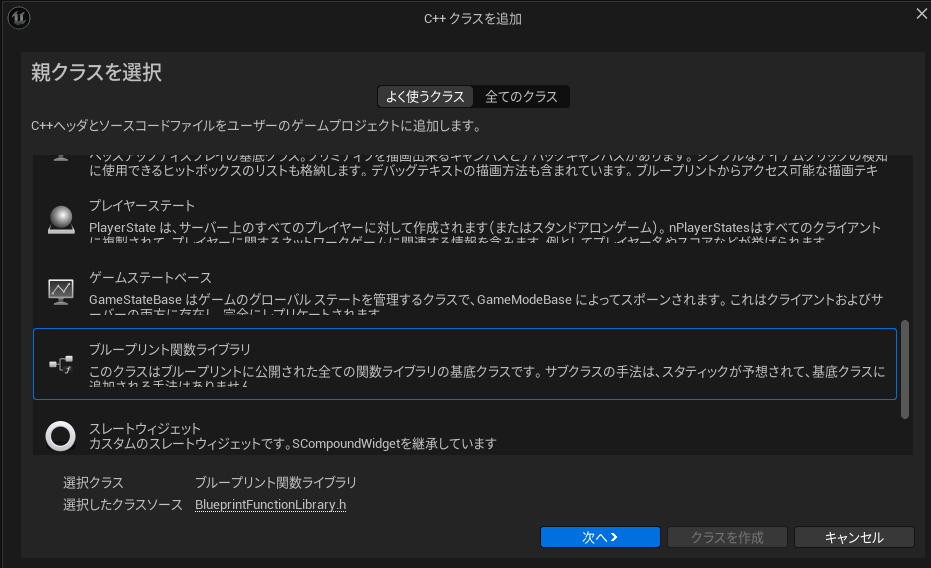
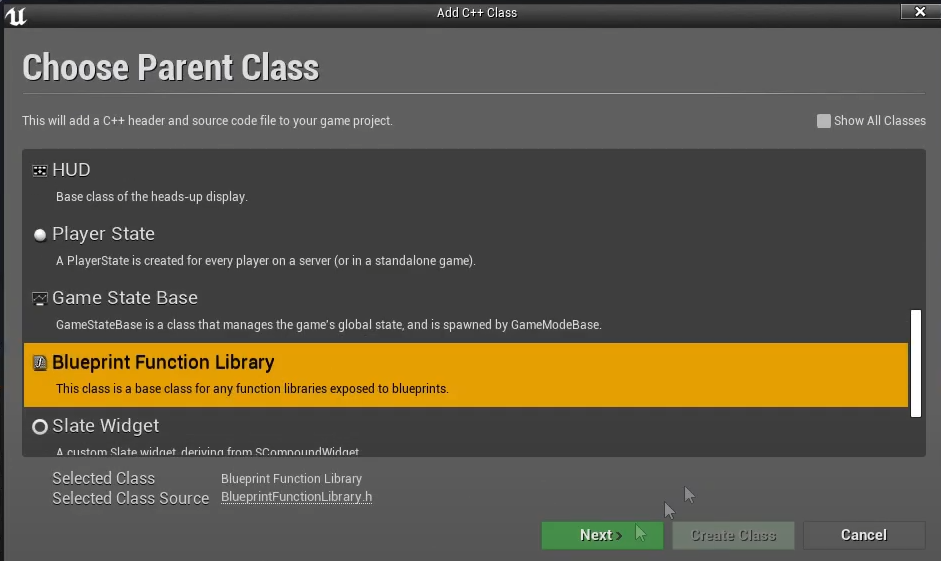
親クラスに Blueprint Function Libraryを選択

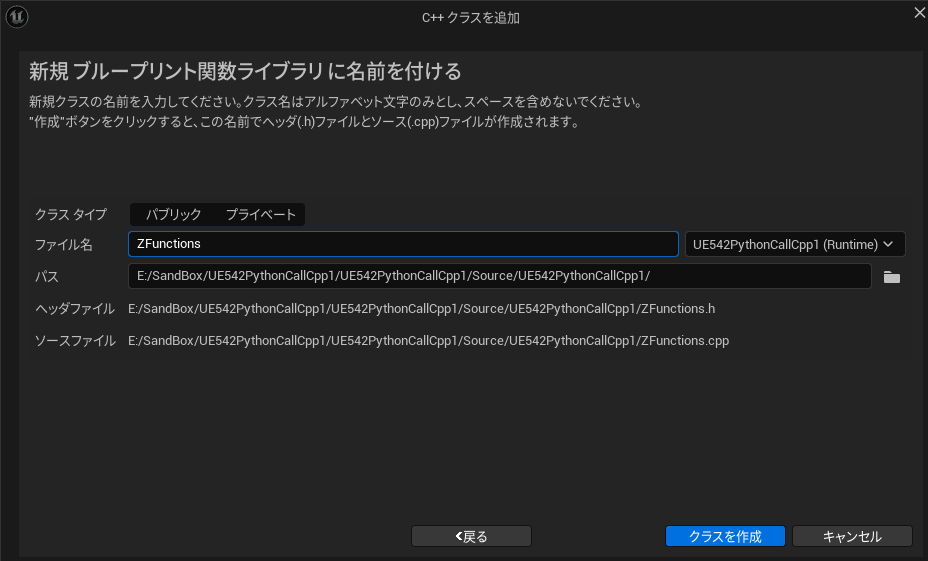
Nameに適当にZFunctionsと入れCreate Class。


VisualStudioへ移動し
ZFunctions.h
// Fill out your copyright notice in the Description page of Project Settings.
#pragma once
#include "CoreMinimal.h"
#include "Kismet/BlueprintFunctionLibrary.h"
#include "ZFunctions.generated.h"
/**
*
*/
UCLASS()
class UE542PYTHONCALLCPP1_API UZFunctions : public UBlueprintFunctionLibrary
{
GENERATED_BODY()
//ここから追加////////
public:
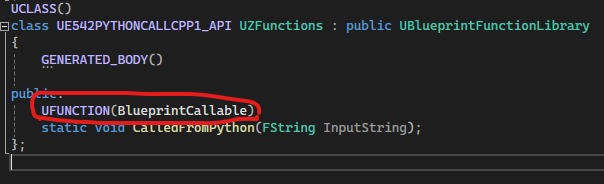
UFUNCTION(BlueprintCallable)
static void CalledFromPython(FString InputString);
//ここまで追加//////
};
ZFunctions.cpp
// Fill out your copyright notice in the Description page of Project Settings.
#include "ZFunctions.h"
//ここから追加////////
void UZFunctions::CalledFromPython(FString InputString) {
UE_LOG(LogTemp, Error, TEXT("%s"), *InputString);
}
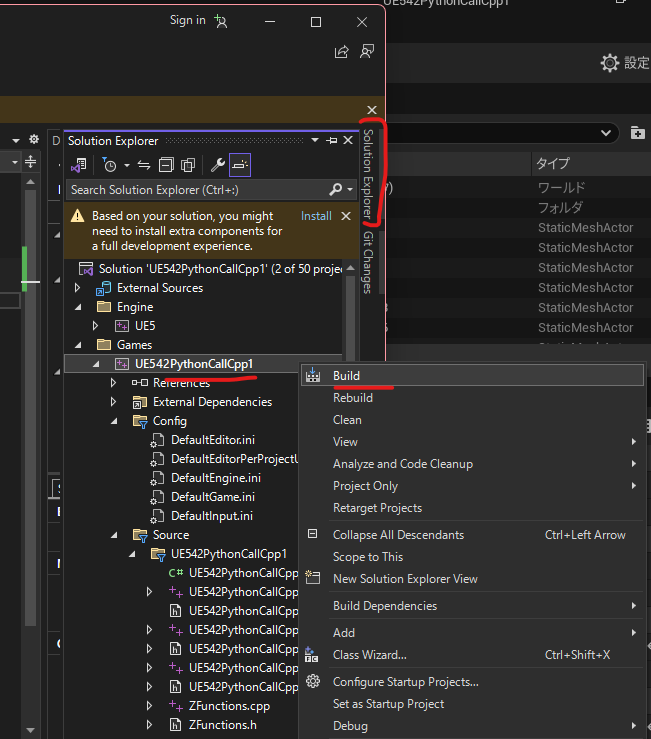
//ここまで追加//////SolutionExplorer > your Project Name (right click)>Build

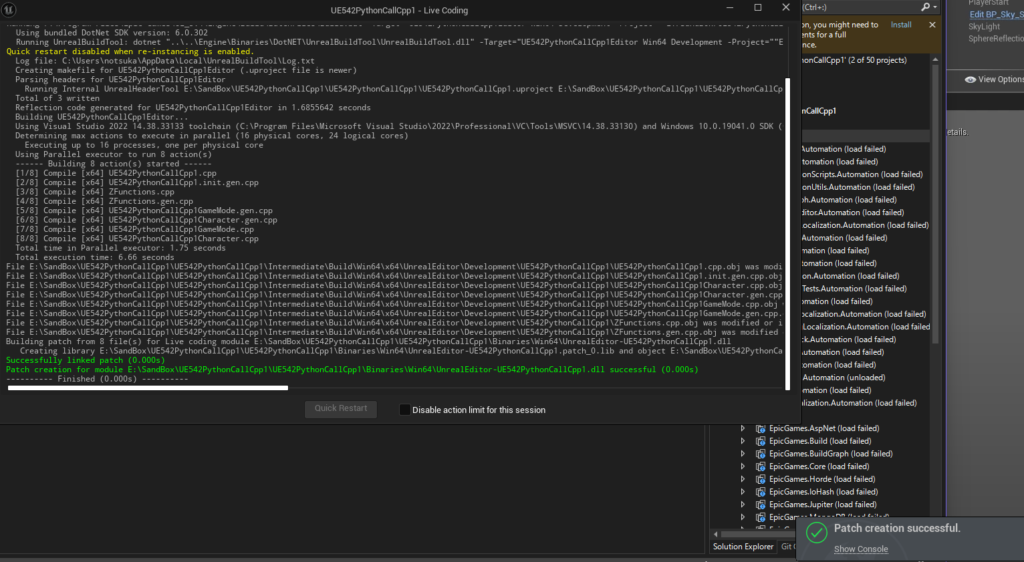
実行する。(Local Windows Debagger)
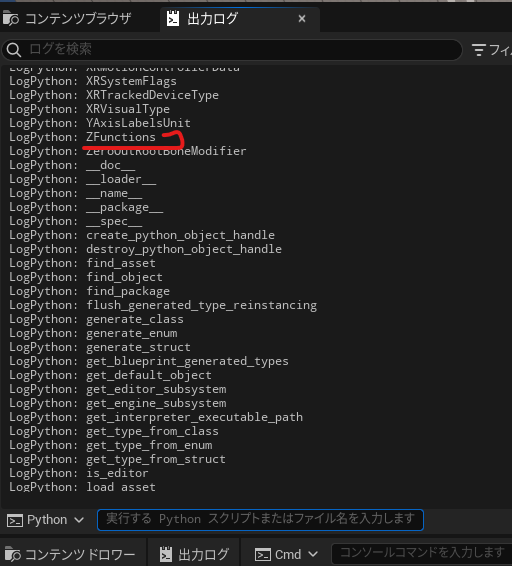
Outputlogで実行する unrealのクラス一覧
import unreal
for x in sorted(dir(unreal)):
print(x)めっちゃ重い
ZFunction が出る

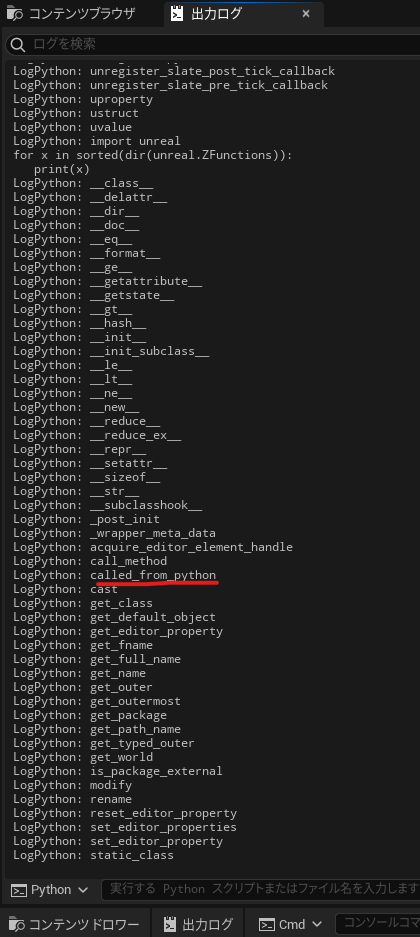
クラスを使ってみる unreal.ZFunctionsのメソッド一覧
import unreal
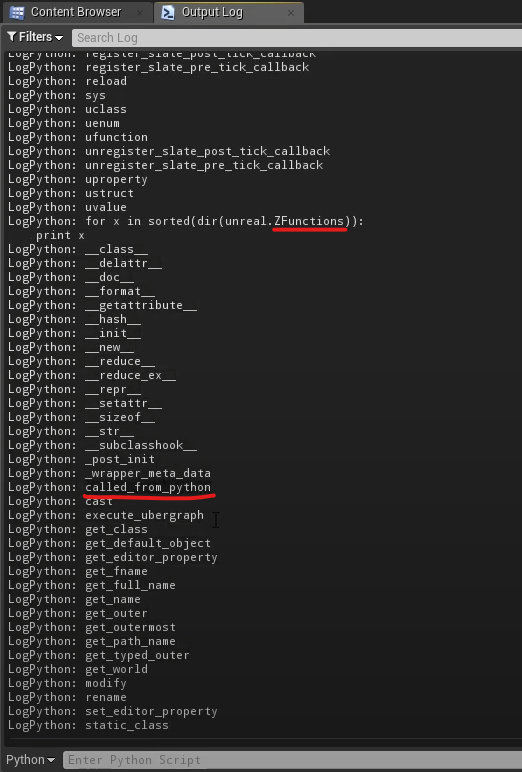
for x in sorted(dir(unreal.ZFunctions)):
print(x)
called_from_python が出てくる。
呼んでみる
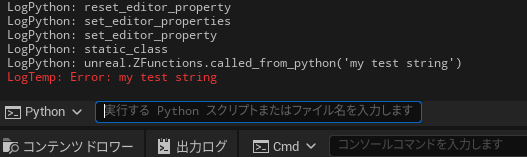
unreal.ZFunctions.called_from_python('my test string')

作った関数によりエラーのメッセージが返ってきた。
参考URL
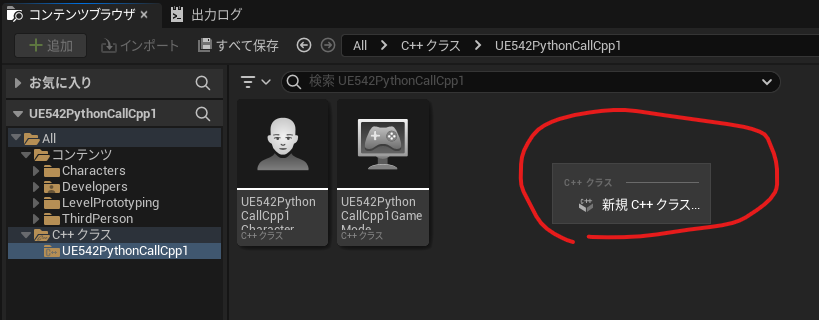
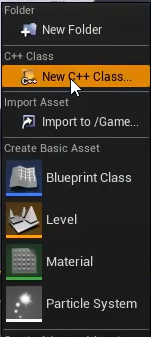
コンテンツブラウザを右クリックしてNew C++ Class

親クラスに Blueprint Function Libraryを選択

Nameに適当にZFunctionsと入れCreate Class。
VisualStudioが起動し

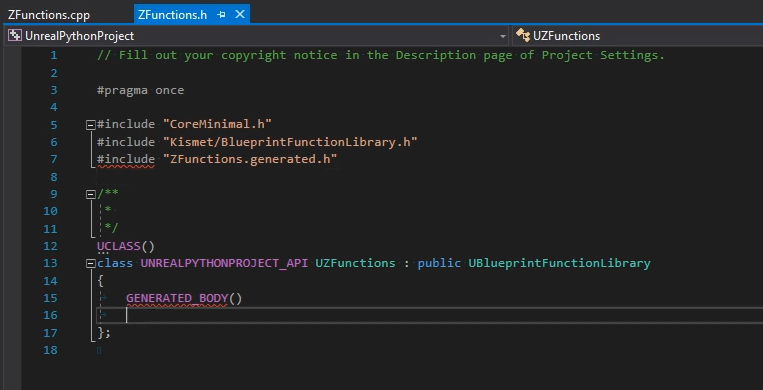
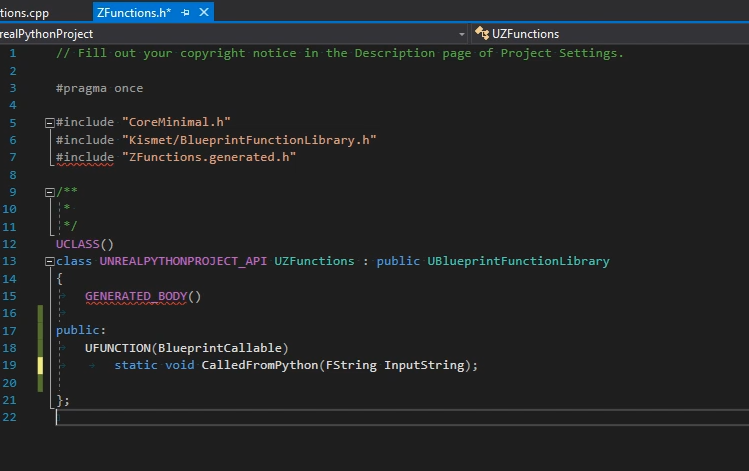
ZFunctions.h
public:
UFUNCTION(BlueprintCallable)
static void CalledFromPython(FString InputString);
を追加してこうなる。
//.Fill out your copyright notice in the Description page of Project Settings.
#pragma once
#include "CoreMinimal.h"
#include "Kismet/BlueprintFunctionLibrary.h"
#include "ZFunctions.generated.h"
UCLASS()
class UNREALPYTHONPROJECT_API UZFunctions : public UBlueprintFunctionLibrary
{
GENERATED BODY()
public:
UFUNCTION(BlueprintCallable)
static void CalledFromPython(FString InputString);
};
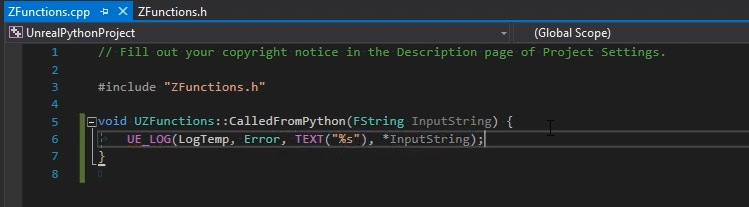
ZFunctions.cpp
//.Fill out your copyright notice in the Description page of Project Settings.
#include "ZFunctions.h"
void UZFunctions::CalledFromPython(FString InputString) {
UE_LOG(LogTemp, Error, TEXT("%s"), *InputString);
}
実行する。(Local Windows Debagger)
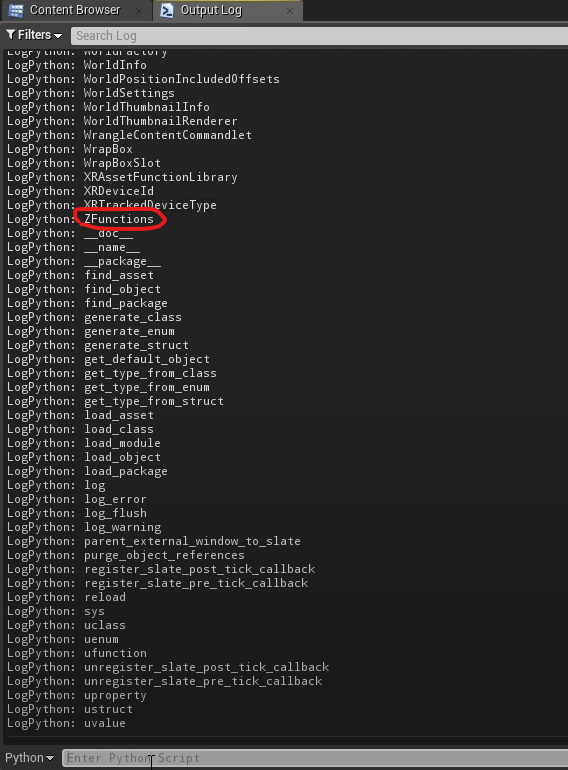
Outputlogで実行する
import unreal
for x in sorted(dir(unreal)):
print(x)ZFunction が出る

import unreal
for x in sorted(dir(unreal.ZFunctions)):
print(x)
called_from_python が出てくる。
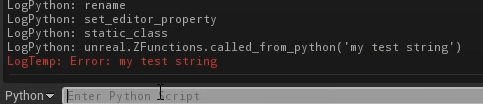
呼んでみる
unreal.ZFunctions.called_from_python('my test string')

呼ばれて作ったエラーメッセージが出た
参考URL
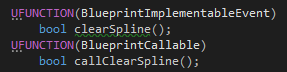
現時点では、Python はブループリント関数にアクセスできませんが、C++ メソッドにはアクセスできます。したがって
、解決策としては、C++ でブループリント関数を として宣言しBlueprintImplementableEvent、ブループリントでそれをオーバーライドします。
BlueprintImplementableEvent先に進む前に、を C++ から呼び出して、それが機能するかどうかを確認することをお勧めします。
次に、 を呼び出すための 2 番目の C++ 関数を作成しますBlueprintImplementableEvent。この関数は、Python に公開されるものであるため、
として実装する必要があります。BlueprintCallable
最後に、C++ とブループリントがコンパイルされたら、Python から呼び出し元関数を呼び出すだけです。
C++ クラスは、次のように通常の C++ モジュールとして表示されます。unreal.YourClassName.yourCallerFunctionName(yourClassInstance, args)
引数と戻り値は、期待どおりに処理されます。
関数を実行するクラス インスタンスを関数に渡す必要があります。特定の AActor インスタンスを操作するときに非常に便利です。
最後にもう 1 つ注意点があります。関数を、私が行ったようにブループリントイベントではなくブループリント関数として実装する必要がある場合は、関数を定数にするか、戻り値 (使用しない場合でも) を指定する必要があります。そうしないと、ブループリントのオーバーライドにイベントとして表示されます。
私のユースケースからの画面。明らかに、ブループリント関数の実装の詳細は関係ありません。
ブループリント関数

.h

.cpp

.py

参考
https://forums.unrealengine.com/t/is-it-possible-to-call-a-blueprint-function-from-python/447078/3
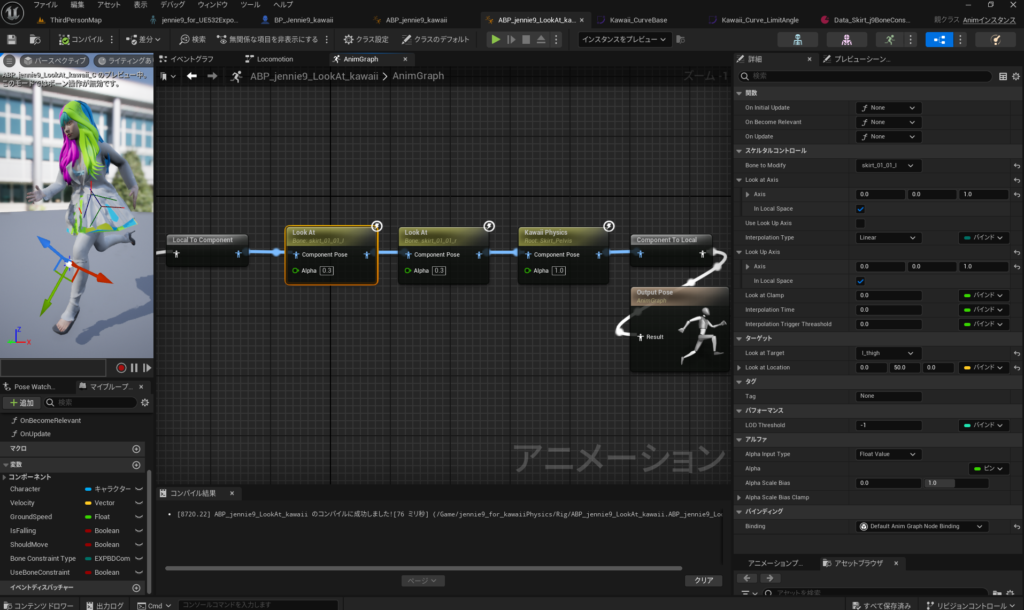
Animブループリント系のLookAtを左右足と対応するスカートのボーンに設定する。
スカートのボーンの向きによるが、LcokAtの矢印が膝にくるように設定したら完成したよ。

走った感じ
作業の様子
参考URL
管理者用zip
https://drive.google.com/file/d/1y9-PM9VpUy1HCVeuKxWDzk1qEIFJjmoS/view?usp=sharing
[UE5] How to upgrade the project version in a CPP project
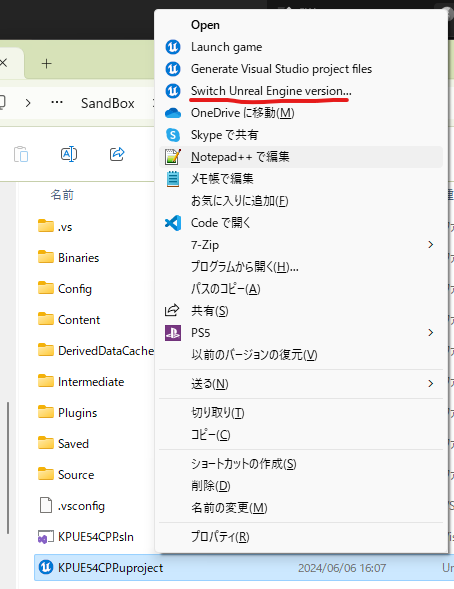
.uprojectを右クリックして>その他のオプションを確認>Switch Unreal Engine version …
Right-click on .uproject > Check other options > Switch Unreal Engine version…

モジュールのプロジェクト名は変更しないでください。
"Modules": [
{
"Name": "KPUE532CPP",KPUE54CPP.uprojectの中身も変更されます。
"EngineAssociation": "5.4",こんな感じです
変更前
{
"FileVersion": 3,
"EngineAssociation": "5.4",
"Category": "",
"Description": "",
"Modules": [
{
"Name": "KPUE532CPP",
"Type": "Runtime",
"LoadingPhase": "Default"
}
],
"Plugins": [
{
"Name": "ModelingToolsEditorMode",
"Enabled": true,
"TargetAllowList": [
"Editor"
]
}
]
}
変更後
{
"FileVersion": 3,
"EngineAssociation": "5.4",
"Category": "",
"Description": "",
"Modules": [
{
"Name": "KPUE532CPP",
"Type": "Runtime",
"LoadingPhase": "Default"
}
],
"Plugins": [
{
"Name": "ModelingToolsEditorMode",
"Enabled": true,
"TargetAllowList": [
"Editor"
]
}
]
}内部的に他のファイルもたくさん変更されるようです。
Pythonを使うパターンであれば、tkinterモジュールを使います。
from tkinter import filedialog
"""
# ファイルーダイアログでファイルを選択する
typ = [('テキストファイル','*.txt')]
dir = 'C:\\pg'
fle = filedialog.askopenfilename(filetypes = typ, initialdir = dir)
print("WorkData="+fle)
"""
# フォルダーダイアログでフォルダーを選択する
dir = 'D:/Design/WorkData'
fld = filedialog.askdirectory(initialdir = dir)
print("WorkData="+fld)
参考URL
https://pg-chain.com/python-filedialog-dir
https://pg-chain.com/python-filedialog
import unreal
class hoge:
def show_messageDialog(self):
title="タイトル"
message="メッセージ"
message_type=unreal.AppMsgType.OK_CANCEL
unreal.EditorDialog.show_message(title,message,message_type, default_value=unreal.AppReturnType.NO, message_category=unreal.AppMsgCategory.WARNING)
class_Ins=hoge()
hoge.show_messageDialog()
参考URL
https://docs.unrealengine.com/5.3/en-US/PythonAPI/class/EditorDialog.html#unreal.EditorDialog