is Valid ノードを使ってオブジェクト参照を切り分ける。
参照
UE4 Blue Print Reference Null


DESIGN AND FUTURE SCIENCE.
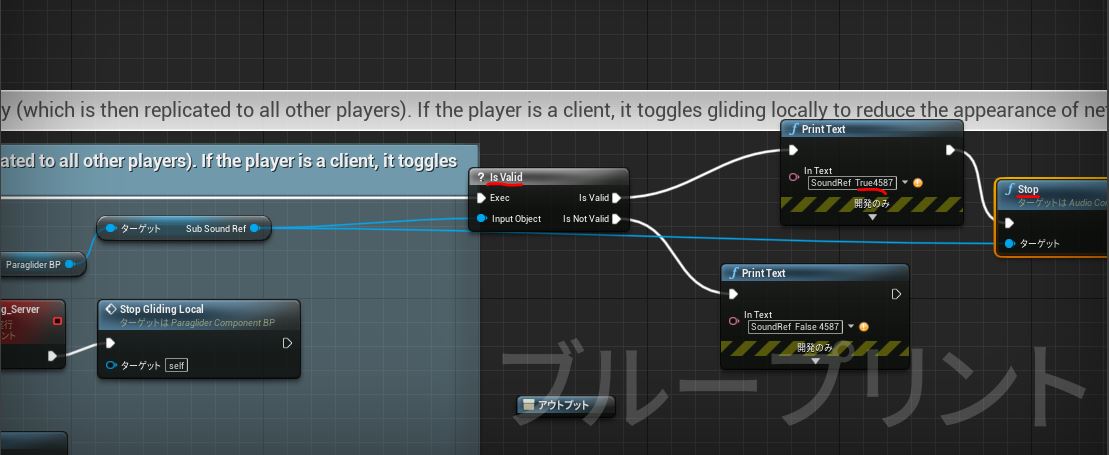
is Valid ノードを使ってオブジェクト参照を切り分ける。
参照
UE4 Blue Print Reference Null
UE4 でパッケージ化のエラーを特定する方法
アウトプットログは右クリックして
ログをクリアしてからパッケージ化することで
しっかり
パッケージ化のエラーだけを
表示してくれるようになる。
あたりまえだけどしっかりやらないと他の関係ないエラーを追う結果になる。
プログラムを含んでないコンテンツの場合だいたいが
UATHelper: パッケージ化 (Windows (64-bit)): BUILD COMMAND COMPLETED
UATHelper: パッケージ化 (Windows (64-bit)): COOK COMMAND STARTED
コンテンツのクックが始まり
ここらへんのエラーを治したら直った。
いらないアニメーションブレンド1Dを削除したら解決した。
UATHelper: パッケージ化 (Windows (64-bit)): LogCook: Display: Cooked packages 587 Packages Remain 44 Total 631
UATHelper: パッケージ化 (Windows (64-bit)): LogCook: Display: Cooked packages 588 Packages Remain 16 Total 604
UATHelper: パッケージ化 (Windows (64-bit)): LogCook: Display: Cooked packages 588 Packages Remain 0 Total 588
UATHelper: パッケージ化 (Windows (64-bit)): LogCook: Display: Finishing up…
となるみたい。
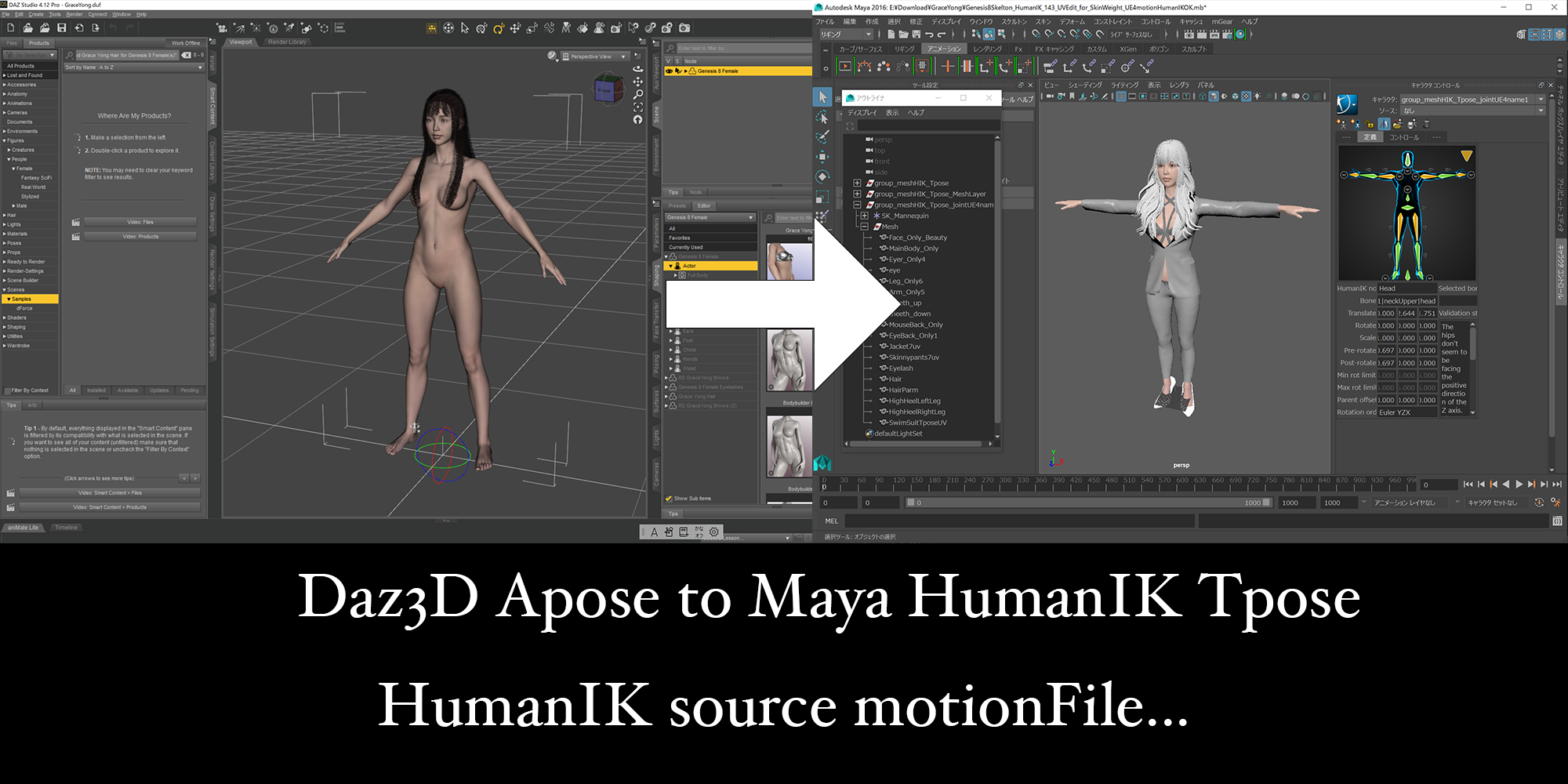
AポーズからTポーズにしてモーションの流し込みやすいMaya HumanIKスケルトンにキレイにモデルを合わせる方法1~Duplicateで固まるメッシュ※0 を使う方法~
きれいにというのは「もとのAポーズのモデルのスキンウェイトをつかってTポーズにしようとしてる」と「新しいjointはできるだけHumanIKのジョイントで作ることでHumanIKでバグらせないことが目標」
大きな流れは
ジョイントをHIKに差し替え→AポーズからTポーズ→Tポーズでのバインド
1,AposeモデルにMeshEdit用のApose JointをHumanIKスケルトンを複製して作る
(これでHumanIKのベースのジョイント方向や階層構造をキープすると流し込みが完璧になる)
2,そのMeshEdit用のjointをスケールしないで移動と回転などしてApose Meshに合わせる。
2.5,MayaHumanIKにはない頭のジョイントをコピーして親子付けする※1
3,Apose MeshにあわせたそのMeshEdit用のApose jointとApose meshをスキンのバインドする
3.5 元のAposeモデルからのAposeのスキンウェイトのコピーをする。
4.1見る用にHumanIKスケルトンデフォルトのTposeを複製して作る
4.2 AposeジョイントをAポーズからTポーズにアニメーション30でTポーズに全部「S」でキーを打つ 必要なのは肩のキーだけだ。他に見る用にHumanIKスケルトンに足幅が合ってなければもも関節もキーを打つ。
5,Tposeへ変形+バインドされたApose MeshグループをTポーズの30フレームで「Mesh+Joint」のグループごと複製したグループC(groupMeshHIK_Tpose)とする
6.Cのスキンバインドを外す、
6a. フレームヘッドを0フレームに移動し、
6b. Tポーズのジャケットなどをインポートして、
6c. 0 frame Tposeでスキンバインドここ重要
6d. 30 frameでスキンウェイトをコピーここが肝
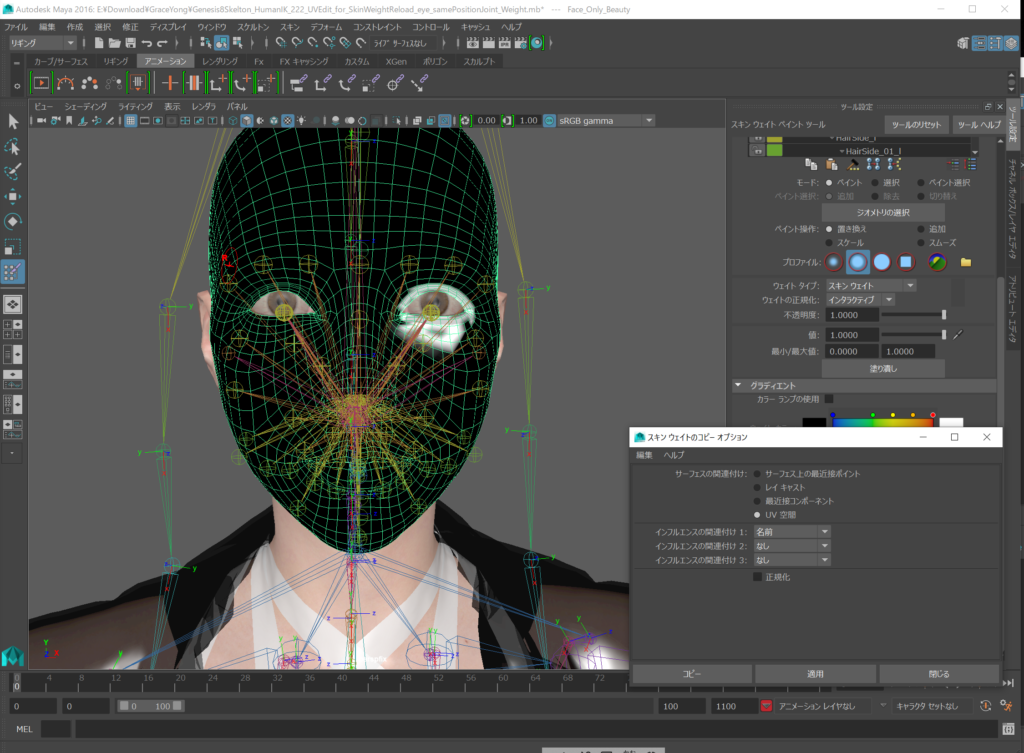
※Genesis8Femaleの場合スキンウェイトのコピーの設定※
7a,CをHumanIKスケルトン(groupMeshHIK_TposeSK)として定義
モーション流し込みなおすならこのファイルから
Genesis8Skelton_HumanIK_049_group_meshHIK_AposeToTposeFr30humanIKfinger.mb
https://www.mediafire.com/file/n4ekyeubv6c4m96/Genesis8Skelton_HumanIK_049_group_meshHIK_AposeToTposeFr30humanIKfinger.zip/file
これに下のMotionMergeツールで作成したmbアニメーション全体を読み込む
>>full_end_python_saved__all_onetimeline.mb 読み込まれるファイル
7b.HumanIkの青のボタン>定義>スケルトン
HumanIkの青のボタン>編集>定義>名前の変更
SK_manequinを「Character_SK_Mannequin」としてHumanIKに定義する。
全身Assainしていくことになるが、アサイン結果が左右ミラーされるのでちょっと楽
手の指先までやる。
8,groupMeshHIK_TposeSKに2段目のソースにアニメーションを指定してモーションを流し込む 詳細は※2
8a, スケルトン定義に移動して青のボタンから編集>定義>プロパティを編集
8b.リターゲット指定からソースの一致をONにすると歩く歩幅が合わせることが可能
8c.達成度の項目の左手首を1に右手首を1に指定すると手の位置が合ってテーブルのコップがつかめます。ここでやっとアニメーションの見た目が完璧近い状態で合う。
8d.HumanIKパネルに戻って、青いボタンからベイク処理>コントロールリグのベイク処理
8f. ソースのモーションスケルトンをアウトライナから削除とソースキャラクタ定義へ移動しをゴミ箱アイコンで削除。
8f2ここまでやったらアニメーションレイヤー使うかどうかはモーション作業内容次第。
8g.アニメーションレイヤーでの調整作業。
ベイクしたTポーズ定義でなく「コントロール」タブで背景を
ダブルクリックしてコントロールリグを全選択し
(とビデオではいっているがアウトライナで選択しないと指が全部にならなかった。)、
チャネルボックス・レイヤエディタ・アニメーションタブを開く。
8h.アニメーションタブで「選択項目からレイヤを作成」でAnimLayer1が
作成され上乗せでキーをうつことが可能になる。
8i.二つのアニメーションレイヤーを選択して右クリックから
レイヤーのマージでアニメーションをベイクします。
10a groupMeshHIK_TposeSK にコントローラのアニメーションをベイクします。
ジョイントツリーを全部開いて選択後、タイムレンジを0~1000(最終fr)に設定
アニメーションタブのアニメーションのベイクボタンを押す。
10b,FBXをエクスポート スムーズメッシュをオン FBX2014/2015 で書き出し。
E:\Download\Game\UE4_SK_Mannequin_Motions\scenes\OneTimeLine\Unity_fbx
motion_000_000_all_unkeyReduction_fbx.fbx
を上書きします。
10c,UE4で編集>プラグイン>プラグインウィンドウで検索pythonと入力し
Python Editor Script Pluginの Enables をチェックを入れONにします。
プラグインウィンドウで検索Editorと入力し
Editor Scripting Utilitiesの Enables をチェックを入れONにします。
UE4を再起動してプラグインをアクティブにします。
10d.UE4で
見た目でいうと
/コンテンツ/UE4_OneTimeLineGenesis8Tpose/
パスでいうと
/Game/UE4_OneTimeLineGenesis8Tpose/
にmotion_000_000_all_unkeyReduction_fbx.fbxを
インポートウィンドウでスケルトン設定を「なし」で
スケルタルメッシュとしてインポートします。
スケルタルメッシュmotion_000_000_all_unkeyReduction_fbxと
ひとつなぎのアニメーション motion_000_000_all_unkeyReduction_fbx_Anim
ができていたら
/Game/UE4_OneTimeLineGenesis8Tpose/motion/ フォルダを作成しておきます
command + shift + s またはファイル>すべて保存します。
10d.アニメーションスプリットツールでインポートします。
UE4_SK_Mannequin_Motions\script\
UE4_chara_anim_split_importer.py
をテキストエディタで開き
E:\Download\Game\UE4_SK_Mannequin_Motions\
を自分のパスに検索置換します。
それをすべて選択して
UE4 >ウィンドウ>デベロッパーツール>アウトプットログの一番下のCmdのプルダウンをPython(無印)を選択して
Enter Python script…の部分に
さきほどのコピーしたものをペーストし+Enterを押します。
8~10分で読み込まれます。
~やっと終わり~
モーションを修正する場合には
と思ったが
Paragliderのプロジェクトに入れたら問題が出てきた。
UE4のジョイント名でないとr_handからik_handが探せないエラー
できあがったモーションセットをソースとしてSK_mannequinに戻す作業が必要そうだ。
motion_000_000_all_unkeyReduction_fbx.fbxを
つづく。。。
※0 Duplicateで固まるメッシュ というのは スキンバインドしてアニメーションさせたMeshをモーション後のフレームでDuplicate するとその複製されたメッシュがその形状のまま固まる現象をいう。ちょっとしたバグなのか仕様なのかわからない。都合がいい。
※1 MayaHumanIKにはない頭のジョイントをコピーして親子付けすると変なtransformができるが、全ジョイントのスケールをフリーズして、ヒストリ削除したら親子付けできる。
https://www.deathponta.com/entry/190724_parentingAjointProduceMysteriousTransformNode
※2 HumanIKモーションの流し込みのビデオ
https://area.autodesk.jp/movie/start-at-maya/24.html
https://www.youtube.com/watch?v=S214-96uXqc
使用+橋渡しができたプラットフォームのデータ
ここでは DAZ 3D Studio のGenesis8FemaleはAposeなのでHumanIKのTposeにする。
モーションはUnrealEngine4のデフォルトSK_Mannequinのモーションを
書き出して使った。
UE4 FBX Export Options 設定は
▼Exporter
Fbx Export Compatibility > FBX2013
▼Mesh
Vertex Color OFF
Level Of Detail OFF
▼Static Mesh
コリジョン OFF
▼Skeletal Mesh
Export Morph Targets OFF
▼Animation
Export Preview Mesh ON
Map Skeletal Motion to Root OFF
全モーションのマージにはこれを作った (書き直したが疲れた。)
https://www.mediafire.com/file/x9tdw9jtrl0t2p2/MotionMerge_p030motionbuilder_chimera_0_Start2.zip/file
インストール方法
C:\Users\whaison\Documents\maya\2016\ja_JP\scripts
にpythonフォルダごと突っ込む。
Maya起動後
プロジェクト設定で指定するワークスペースのディレクトリ構造はこう。
scenes\motion\motionbuilder_fbx\ にUE4SK_mannequinのモーションfbxを全部突っ込む
ファイル名は名前順で並ぶようにちゃんとリネームしておくこと。
C:\Users\whaison\Documents\maya\2016\ja_JP\scripts\python\MotionMerge\p030motionbuilder_chimera_0_Start
Motionbuilder_chimera_0_Start_______Maya_____Starter.py
の内容をスクリプトエディタで実行する。と30分後?ぐらいに
scenes\OneTimeLine\
full_end_python_saved__all_onetimeline.mb
ができあがる。
フレームのどこの部分に該当のモーションが入ってるかは下に出力した。
scenes\motion に
frameCSV.txt
motion_[C0000]_000_Tstance,0,0,OnMotionStart,0.0,OnMotionEnd,1.0,
motion_0000_00_000_Tstance_manual,10,10,OnMotionStart,0.0,OnMotionEnd,1.0,
motion_0000_00_000_Tstance,20,20,OnMotionStart,0.0,OnMotionEnd,1.0,
motion_ZZZZ_ZZ_999_TposeEnd,30,30,OnMotionStart,0.0,OnMotionEnd,1.0,
ThirdPersonIdle,40,103,OnMotionStart,0.0,OnMotionEnd,1.0,
ThirdPersonJump_Loop_previewMesh2,113,130,OnMotionStart,0.0,OnMotionEnd,1.0,
ThirdPersonJump_Start,140,151,OnMotionStart,0.0,OnMotionEnd,1.0,
ThirdPersonRun,161,175,OnMotionStart,0.0,OnMotionEnd,1.0,
ThirdPersonSwordAttack2,185,206,OnMotionStart,0.0,OnMotionEnd,1.0,
ThirdPersonWalk,216,240,OnMotionStart,0.0,OnMotionEnd,1.0,
ThirdPerson_Jump,250,254,OnMotionStart,0.0,OnMotionEnd,1.0,
TJ_Paraglider_Deploy_Additive,264,356,OnMotionStart,0.0,OnMotionEnd,1.0,
TJ_Paraglider_Idle,366,606,OnMotionStart,0.0,OnMotionEnd,1.0,
TJ_Paraglider_Idle_AdditiveBase,616,616,OnMotionStart,0.0,OnMotionEnd,1.0,
TJ_Paraglider_Moving_Additive,626,650,OnMotionStart,0.0,OnMotionEnd,1.0,
TJ_Paraglider_Turning_Additive,660,684,OnMotionStart,0.0,OnMotionEnd,1.0,
TK_0-26_A_LedgeClimb,694,720,OnMotionStart,0.0,OnMotionEnd,1.0,
TK_30-102_A_LedgeHold,730,802,OnMotionStart,0.0,OnMotionEnd,1.0,
TK_120-144_A_wallclimb,812,836,OnMotionStart,0.0,OnMotionEnd,1.0,
TK_160-184_A_wallclimbDown,846,870,OnMotionStart,0.0,OnMotionEnd,1.0,
TK_200-249_A_wallCling_01,880,929,OnMotionStart,0.0,OnMotionEnd,1.0,
これをUE4読み込み時にUE4Pythonスクリプトで使う
同じZIPの
https://www.mediafire.com/file/d82x4dd6o1a4k28/MotionMerge_p030motionbuilder_chimera_0_Start4.zip/file
UE4_chara_anim_split_importer.py
E:\Download\Game\UE4_SK_Mannequin_Motions\script\UE4_chara_anim_split_importer.py
に移動して使う
E:/Download/Game/UE4_SK_Mannequin_Motions/scenes/OneTimeLine/
Unity_fbx/motion_000_000_all_unkeyReduction_fbx.fbxが入ってる前提で動く
必要な場合はパスを検索置換したらうごく。
※Genesis8Femaleの場合スキンウェイトのコピーの設定※は
サーフェースの関連付け:UV空間 or レイキャスト
インフルエンスの関連付け1:名前
インフルエンスの関連付け2:なし
インフルエンスの関連付け3:なし
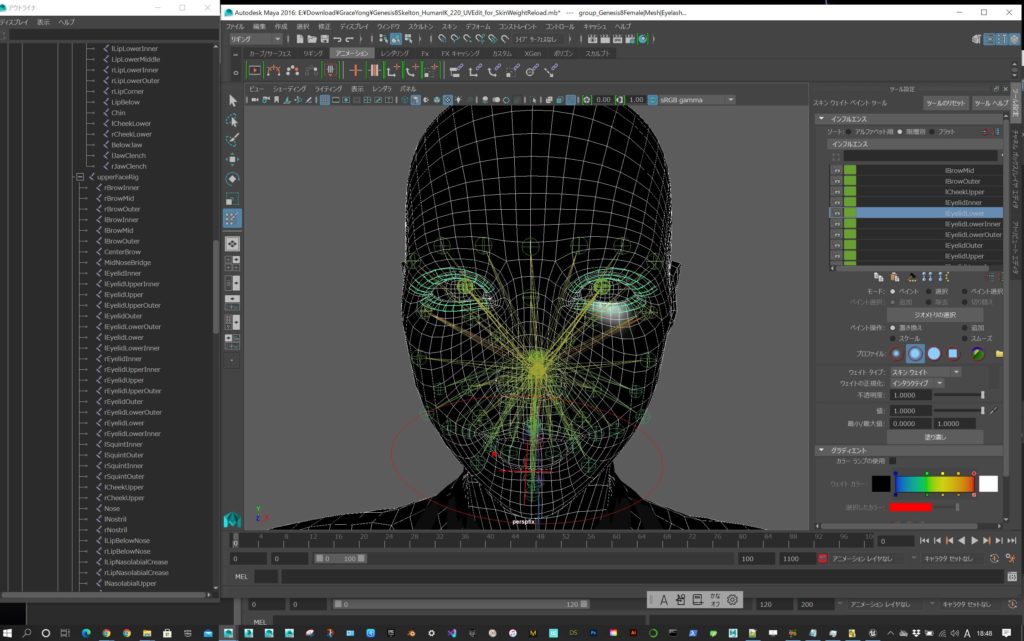
にしたら顔のウェイトが比較的良く転送できた。目の周りのジョイントは位置が同じでUVは違うのでこうなったようだ。
といってもこんなもん
コピー元
コピー先
ほかの設定だと全くコピーされないか、完全におかしいコピーだった。
キーワード
Daz3D,DazStudio
UE4,UnrealEngine4,UnrealEngine
HumanIK
Apose,Tpose,AposeからTposeへの変換
スキニング,スキンウェイト
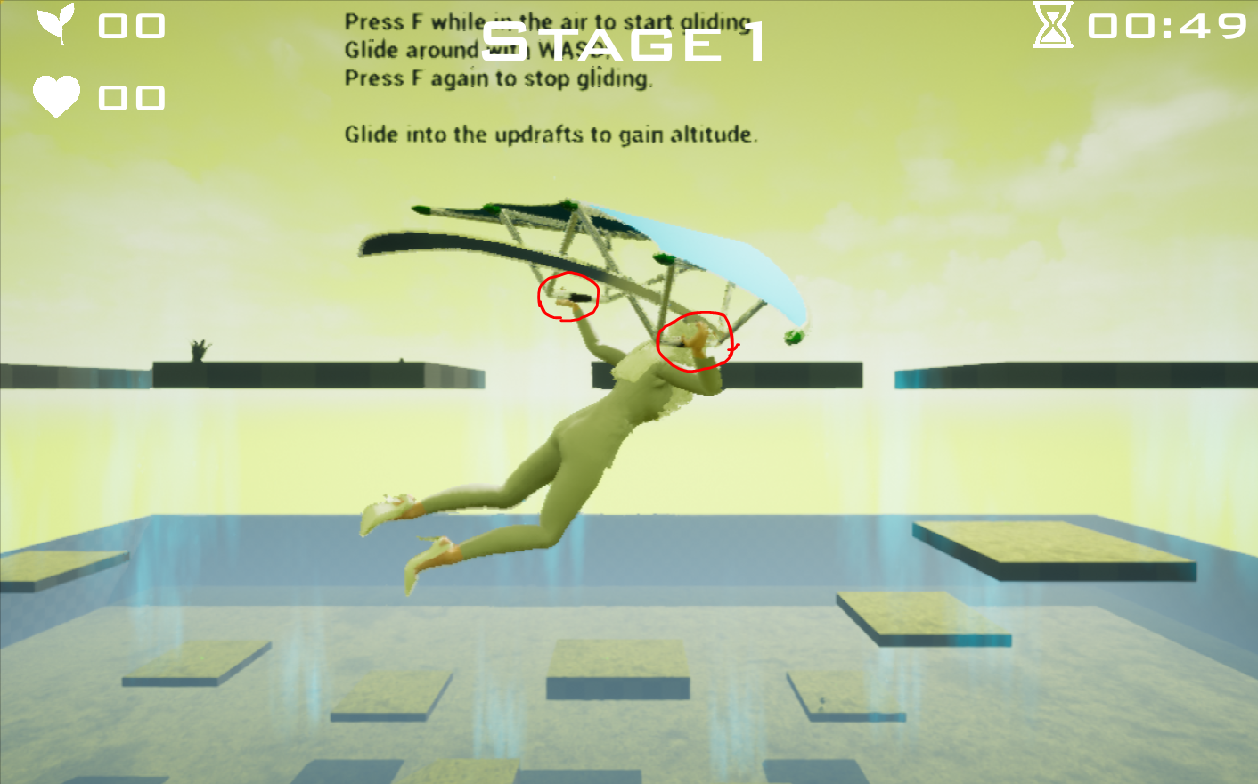
UE4 IK Two Bone IKノード Paraglider アセットで手をグライダーにかける方法
モデルを変更した結果
Paragliderのプロジェクトに入れたら問題が出てきた。
UE4のジョイント名でないとr_handからik_hand、lowerarm_lが探せないエラー
LogAnimation: Warning: FBoneReference::Initialize BoneIndex for Bone ‘lowerarm_l’ does not exist in Skeleton ‘motion_000_000_all_unkeyReduction_fbx_Skeleton’
lowerarm_lだけならTwo Bone IKノードのJointTarget>JointTarget>lowerarm_lを別のヒジジョイント名に変えるだけでOKだ。
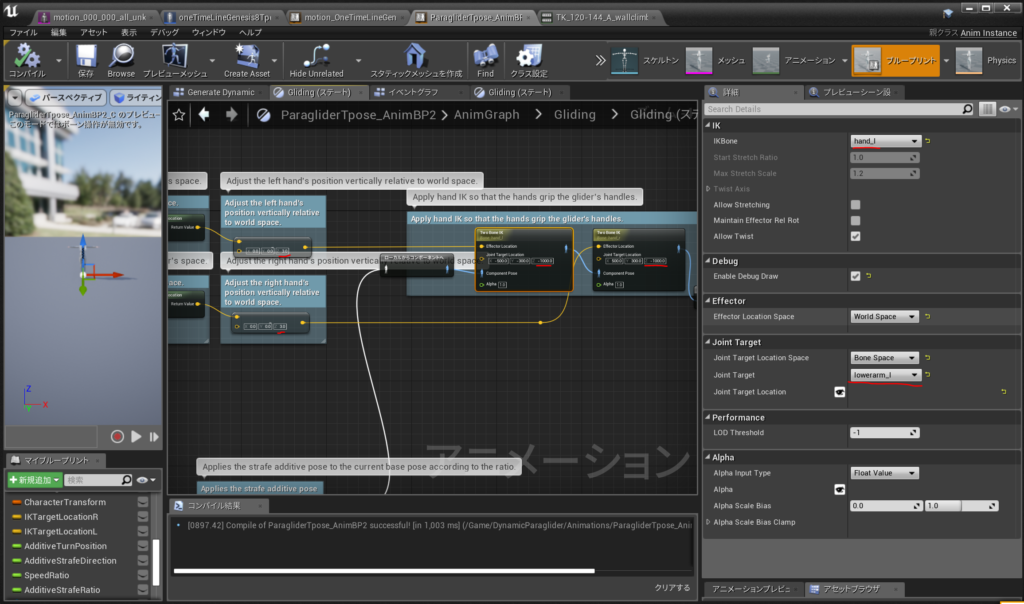
そんなことは後で知ったので
Mayaでjointの名前を変更した。>大変だったが必要なのは
root>ik_hand_root>ik_hand_r と
root>(hipあってもなくてもいい)>pelvis >spine_01>spine_2>spine_03>clavicle_r>upperarm_r>lowerarm_r>hand_r
の流れだった。
実はヒジのジョイント名だけでいいかもしれない
あとはちゃんとik_hand がhandジョイントにコンストレインされて同じように動いていることかもしれない。
いがいと、ジョイント名が変わっても
ジョイント位置+メッシュ頂点位置でスキンウェイトコピーが反応してくれて大丈夫だった
「余裕がないとかからない」ので
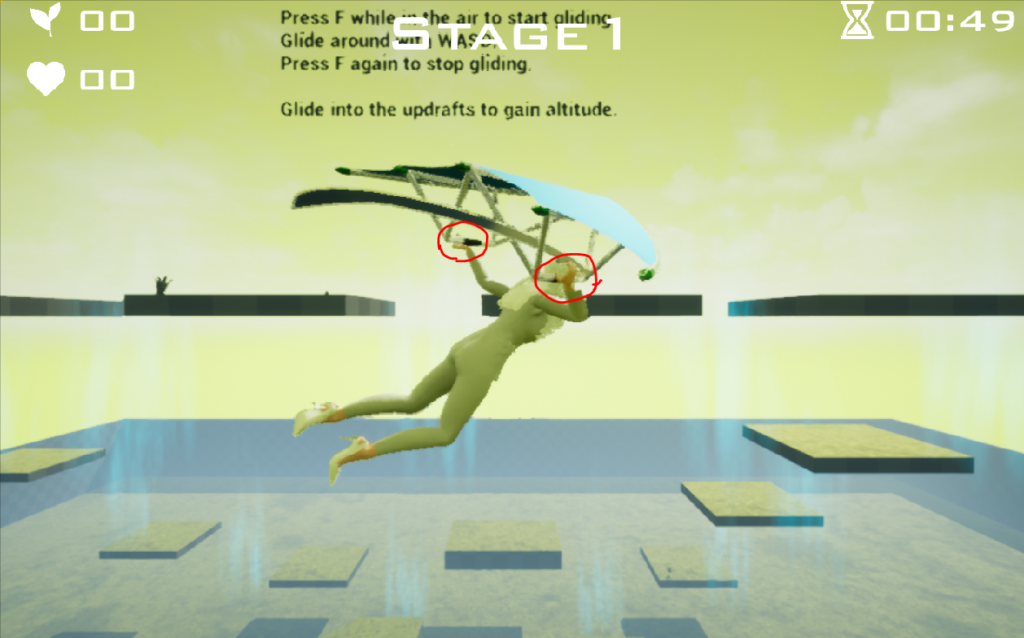
ThirdPersonCharactor_BPのビューポートでParagliderComponent_BPの位置を
位置
z:109.897697
から
z:85にして近づけたら
グライダーとモデルの間隔がせばまって届くようになった。
# coding: UTF-8
import unreal
import os
import re
Path=myDir+"../scenes/OneTimeLine/Unity_fbx/motion_000_000_all_unkeyReduction_fbx.fbx"
Path=os.path.abspath(Path)
Path=re.sub(r'\\', '/', Path)
unreal.log_warning("Path = "+Path)アニメーションフレームを指定して読み込み python
python
元々読み込み可能なスケルタルメッシュを推奨します。
# coding: UTF-8
import unreal
import sys
import os
import re
import datetime
import subprocess
import uuid
unreal.log_warning("--------------chara_anim_split_importer.py--start000-----------------")
unreal.log_warning("    ")

class CharaAnimSplitImporter:

    def mainWay(self):
        unreal.log_warning("mainWay 010")
        self.AssetRegistryLoaded=False
        #----------------------------------------------------------
        unreal.log_warning("mainWay 011")
        self.tickhandle = None
        unreal.log_warning("mainWay 012")

        unreal.log_warning("mainWay 0121 10s")
        self.tickhandle = unreal.register_slate_pre_tick_callback(self.testRegistry)
        unreal.log_warning("mainWay 013 tickhandle="+str(self.tickhandle))
        #self.main_way_start2()
        #self.timeloop()

    def testRegistry(self,deltaTime):
        unreal.log_warning("testRegistry ticking...mainWay")
        asset_registry = unreal.AssetRegistryHelpers.get_asset_registry()
        if asset_registry.is_loading_assets():
            unreal.log_warning("still loading...mainWay")
        else:
            unreal.log_warning("ready!.....mainWay")
            if(self.AssetRegistryLoaded==False):
                self.AssetRegistryLoaded=True
                self.main_way_start2()

            unreal.unregister_slate_pre_tick_callback(self.tickhandle)
            unreal.unregister_slate_pre_tick_callback(self.tickhandle)


    def getUE4EXT(self,file_path):
        basename_without_ext = os.path.splitext(os.path.basename(file_path))[0]
        underBarArr=basename_without_ext.split("_")
        UE4EXT=underBarArr[0]
        return UE4EXT

    def Add_Env_Variable(self):
        #pythonDir=os.path.dirname(sys.argv[0])
        #MyDir=os.path.dirname(__file__)
        MyDir=os.path.dirname(self.get__file__())
        MyDir=os.path.abspath(MyDir)
        MyDir=re.sub(r'\\', '/', MyDir)
        #MyDir=MyDir+"/"
        MyDir=MyDir
        print("MyDir="+MyDir)
        self.MyDir=MyDir
        #K:/Test_Env_Enlighten/Tool/Environment/UnUpResourceData/
        #K:/Test_Env_Enlighten/Tool/Environment/UnUpResourceData/

        print("------------sys.path-------------")
        for path in sys.path:
            print("path="+path)
        print("------------sys.path-------------")
        for path in sys.path:
            path=os.path.abspath(path)
            path=re.sub(r'\\', '/', path)
            #print("path ="+path)
            #print("MyDir="+MyDir)
            if(path==MyDir or path+"/"==MyDir):
                print("Hit")
                sys.path.pop()
        print("-----------DELETED------------")
        for path in sys.path:
            print("path="+path)
        print("-----------DELETED--------------")

        sys.path.append(MyDir)
        print("-----------ADDED------------")
        for path in sys.path:
            print("path="+path)
        print("-----------ADDED--------------")


    def setting_txt_to_dict(self,myDir):
        print(" setting.txt file Open!!")
        test_data = open(myDir+'/setting.txt', "r")

        # 行ごとにすべて読み込んでリストデータにする
        lines = test_data.readlines()

        dict = {}
        # 一行ずつ表示する
        for line in lines:
            print(line)
            if(line.find("#")>-1):
                #print("comment line= "+line)
                pass
            elif(line=="\n"):
                pass
            else:
                lines=line.split("=")
                lines[1]=lines[1].replace('\n','')
                lines[1]=lines[1].replace('"','')
                lines[1]=lines[1].replace(' ','')
                lines[0]=lines[0].replace(' ','')
                dict[lines[0]] = lines[1]

        for k, v in dict.items(): # for/if文では文末のコロン「:」を忘れないように
            print("key= "+k+" ,value= "+v)
        # ファイルをクローズする
        test_data.close()
        return dict

    def main_way_start2(self):
        self.Add_Env_Variable()

        myDir=self.getmyDir()

        myCharaPath=myDir+"Female_A_V3_GameJoint.fbx"

        # アニメーションフレーム範囲を読み込む
        self.loadAnimChara(myCharaPath,12,100,"Female_A_V3_GameJoint_Anim_01")
        self.loadAnimChara(myCharaPath,120,180,"Female_A_V3_GameJoint_Anim_02")

    def loadAnimChara(self,myCharaPath,startFrame,endFrame,AnimName):
        # FBXインポート時の設定
        mesh_data = unreal.EditorAssetLibrary.find_asset_data("/Game/Mannequin/Character/Mesh/SK_Mannequin")
        #mesh_data = unreal.EditorAssetLibrary.find_asset_data("/Game/UE4_Female_A/Female_A_V3_GameJoint.Female_A_V3_GameJoint")

        mesh = mesh_data.get_asset()
        mesh.skeleton

        op = unreal.FbxImportUI()
        #op.import_materials = True # マテリアルもインポート
        op.import_animations=True
        op.set_editor_property("automated_import_should_detect_type", False)
        op.set_editor_property("create_physics_asset", False)
        op.set_editor_property("import_as_skeletal", False)
        op.set_editor_property("import_materials", False)
        op.set_editor_property("import_mesh", False)
        op.set_editor_property("import_rigid_mesh", False)
        op.set_editor_property("import_textures", False)
        op.set_editor_property("is_obj_import", False)
        op.set_editor_property("mesh_type_to_import", unreal.FBXImportType.FBXIT_ANIMATION)

        #op.static_mesh_import_data.combine_meshes = True # メッシュを1つにまとめる
        op.skeleton= mesh.skeleton
        #op.set_editor_property("anim_start_frame", 12)#[Read-Only]
        #op.set_editor_property("anim_end_frame", 100)#[Read-Only]
        #anim_sequence_import_data=op.set_editor_property("anim_sequence_import_data", 100)
        anim_sequence_import_data=op.get_editor_property("anim_sequence_import_data")
        anim_sequence_import_data.set_editor_property("animation_length", unreal.FBXAnimationLengthImportType.FBXALIT_SET_RANGE)
        startEnd=unreal.Int32Interval()
        #startEnd.min=12
        #startEnd.max=100
        startEnd.set_editor_property("min", startFrame)
        startEnd.set_editor_property("max", endFrame)
        #anim_sequence_import_data.frame_import_range  = startEnd
        anim_sequence_import_data.set_editor_property("frame_import_range", startEnd)


        # FBXインポートのタスクを生成
        task = unreal.AssetImportTask()
        task.automated = True
        #task.destination_path = '/Game/UE4_Female_A_Auto/' # アセットを保存するフォルダ
        task.destination_path = '/Game/UE4_Female_A/Pose/' # アセットを保存するフォルダ
        task.destination_name = 'Female_A_V3_GameJoint' # UE4上のアセット名
        task.destination_name = AnimName # UE4上のアセット名
        task.filename = "E:/download/Sculpt_forger_Girl17_Model_Download_UE4_Checked_EyeLash/Sculpt_forger_Girl17_Model_Download_UE4_Checked_EyeLash/Female_A/Female_A_V3_GameJoint.fbx" # 読み込みたいFBXファイル名を指定する
        task.options = op

        tasks = [task]

        # タスクを実行
        # FBXとマテリアルがインポートされる
        atool = unreal.AssetToolsHelpers.get_asset_tools()
        atool.import_asset_tasks(tasks)

    def get__file__(self):
        # 他のファイルから呼べば__file__で取れる。
        return "E:\download\Sculpt_forger_Girl17_Model_Download_UE4_Checked_EyeLash\Sculpt_forger_Girl17_Model_Download_UE4_Checked_EyeLash\Female_A\chara_anim_split_importer.py"

    def getmyDir(self):
        #myDir=os.path.dirname(__file__)
        myDir=os.path.dirname(self.get__file__())
        myDir=os.path.abspath(myDir)
        myDir=re.sub(r'\\', '/', myDir)
        myDir=myDir+"/"
        print("myDir="+myDir)
        self.myDir=myDir
        return myDir


    def debug_Write(self,s):
        #s= self.debug_data+"\n"
        dt_now = datetime.datetime.now()
        dt_format=dt_now.strftime('%Y_%m_%d__%H_%M_%S')
        #path_w=self.getmyDir()+"/debug_un_up_resource_data_log.csv"
        path_w=self.getmyDir()+"/chara_anim_split_importer_"+dt_format+".csv"
        with open(path_w, mode='w') as f:
            f.write(s)

        with open(path_w) as f:
            print(f.read())


unreal.log("---------------chara_anim_split_importer.py--start class_ins Make-------------------------------")
classIns=CharaAnimSplitImporter()
unreal.log("---------------chara_anim_split_importer.py--start class_ins MainWay()-------------------------------")
classIns.mainWay()

unreal.log_warning("--------------chara_anim_split_importer.py--end000-----------------")
unreal.log_warning("  END PYTHON. ")
unreal.log_warning("  END PYTHON. ")