
[VS2022][UE5]Azure Dev OpsでUE5プロジェクトをGitで管理する

ここ

https://historia.co.jp/archives/12245

でVS2022だと画面が違うのでキャプチャを張りなおします。

Azure DevOpsからVSへ接続しながらクローンします。

VS で View > TeamExplorer

コマンドプロンプトは見つからなかったので

Explorer 右クリックして その他のオプションを確認 > Open Git Bash here します。

git lfs install します。

git lfs install

git lfs track “*.uasset” します。

git lfs track "*.uasset"

.gitattributes が生成されます。

VS にもどって Git Changes

Commit And Push します。

UEProjectName/Content/BP_GitLFSTestActor.assetというファイルを作成し、

ファイルに 123456789 //1byte以上ないと git lfs ls-files 反応しない を書き込みますl。

123456789 //1byte以上ないと git lfs ls-files 反応しない

チームエクスプローラーからリモートリポジトリにPushします。

git lfs ls-filesで確認します。

git lfs ls-files

15e2b0d3c3 * ActionCombat/Content/BP_GitLFSTestActor.uasset が出てくればOKです

最後に.gitattributesファイル内を以下にして   Commit And Push します。

#以下のサイトを参考に作成
#https://historia.co.jp/archives/12245/

*.uasset filter=lfs diff=lfs merge=lfs -text
*.umap filter=lfs diff=lfs merge=lfs -text
*.bmp filter=lfs diff=lfs merge=lfs -text
*.float filter=lfs diff=lfs merge=lfs -text
*.pcx filter=lfs diff=lfs merge=lfs -text
*.png filter=lfs diff=lfs merge=lfs -text
*.psd filter=lfs diff=lfs merge=lfs -text
*.tga filter=lfs diff=lfs merge=lfs -text
*.jpg filter=lfs diff=lfs merge=lfs -text
*.exr filter=lfs diff=lfs merge=lfs -text
*.dds filter=lfs diff=lfs merge=lfs -text
*.hdr filter=lfs diff=lfs merge=lfs -text
*.wav filter=lfs diff=lfs merge=lfs -text
*.mp4 filter=lfs diff=lfs merge=lfs -text
*.obj filter=lfs diff=lfs merge=lfs -text
*.fbx filter=lfs diff=lfs merge=lfs -text
*.zip filter=lfs diff=lfs merge=lfs -text
*.xlsx filter=lfs diff=lfs merge=lfs -text
*.docx filter=lfs diff=lfs merge=lfs -text
*.pptx filter=lfs diff=lfs merge=lfs -text

VS2022UE5_ProjectBase2.zip

https://drive.google.com/file/d/1wQLoI0ESbsJF_K172fo8lcMZWwSWCxz-/view?usp=sharing

[UE5.7][VisualStudio]C++プラグインを作る方法 2025/12/13再度検証済み

ポジTAさんのこのぺーじをvs2022でやる

https://zenn.dev/posita33/books/ue5_starter_cpp_and_bp_001/viewer/chap_01_vs2019_setup

C++Pluginの作り方

C++ Pluginの作成

プロジェクトを作成する際に「C++」でプロジェクトを作成します。

[Edit] > [Plugins]を選択します。

独自のPluginを作成するには左上の「Add」ボタンをクリックします。

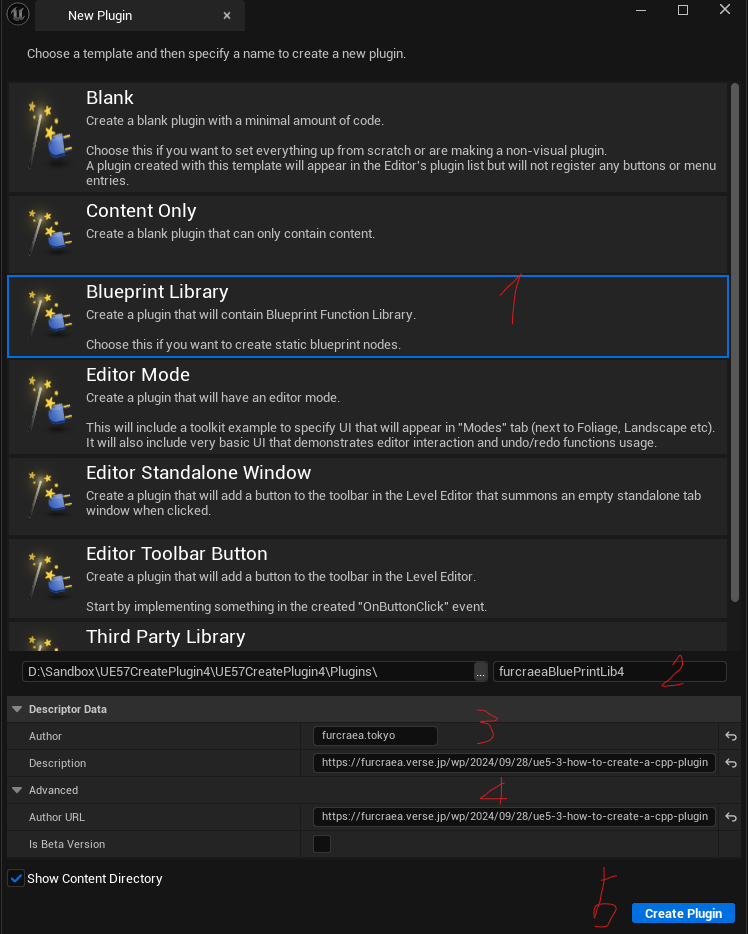
プラグインの作成手順は以下の手順になります。

  1. Pluginのテンプレートを選択する
  2. Plugin名を入力する
  3. Plugin情報を入力する(任意)
  4. Create Pluginをクリック

Author制作者名
DescriptionPluginの説明
Author URL制作者のPlugin説明用のURLを書いておくとPluginの制作者名をクリックするとURLに移動する
Is Beta Versionチェックボックスを有効にすると、Plugin名の横にBetaが表示される

Create Plugin 」を押す。2分ぐらいかかる?

Pluginのウィンドウで作成したPlugin名を検索すると一覧に登録されています。

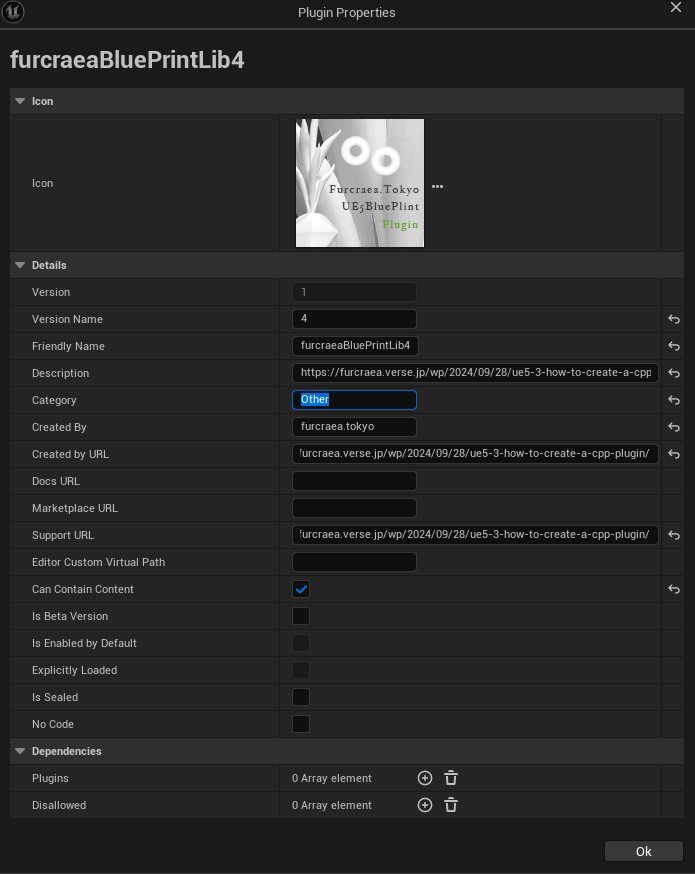
Editボタンで(Plugin名).pluginファイルで設定をより詳細に変更できます。

色々設定して128×128のアイコン設定して。。

ContentsBrowserやVisualStudioに追加されたPluginが表示されます。

以下の感じで吐き出される

furcraeaBluePrintLib.h

// Copyright Epic Games, Inc. All Rights Reserved.

#pragma once

#include "Modules/ModuleManager.h"

class FfurcraeaBluePrintLibModule : public IModuleInterface
{
public:

	/** IModuleInterface implementation */
	virtual void StartupModule() override;
	virtual void ShutdownModule() override;
};

furcraeaBluePrintLib.cpp

// Copyright Epic Games, Inc. All Rights Reserved.

#include "furcraeaBluePrintLib.h"

#define LOCTEXT_NAMESPACE "FfurcraeaBluePrintLibModule"

void FfurcraeaBluePrintLibModule::StartupModule()
{
	// This code will execute after your module is loaded into memory; the exact timing is specified in the .uplugin file per-module
	
}

void FfurcraeaBluePrintLibModule::ShutdownModule()
{
	// This function may be called during shutdown to clean up your module.  For modules that support dynamic reloading,
	// we call this function before unloading the module.
	
}

#undef LOCTEXT_NAMESPACE
	
IMPLEMENT_MODULE(FfurcraeaBluePrintLibModule, furcraeaBluePrintLib)

furcraeaBluePrintLibBPLibrary.h

// Copyright Epic Games, Inc. All Rights Reserved.

#pragma once

#include "Kismet/BlueprintFunctionLibrary.h"
#include "furcraeaBluePrintLibBPLibrary.generated.h"

/* 
*	Function library class.
*	Each function in it is expected to be static and represents blueprint node that can be called in any blueprint.
*
*	When declaring function you can define metadata for the node. Key function specifiers will be BlueprintPure and BlueprintCallable.
*	BlueprintPure - means the function does not affect the owning object in any way and thus creates a node without Exec pins.
*	BlueprintCallable - makes a function which can be executed in Blueprints - Thus it has Exec pins.
*	DisplayName - full name of the node, shown when you mouse over the node and in the blueprint drop down menu.
*				Its lets you name the node using characters not allowed in C++ function names.
*	CompactNodeTitle - the word(s) that appear on the node.
*	Keywords -	the list of keywords that helps you to find node when you search for it using Blueprint drop-down menu. 
*				Good example is "Print String" node which you can find also by using keyword "log".
*	Category -	the category your node will be under in the Blueprint drop-down menu.
*
*	For more info on custom blueprint nodes visit documentation:
*	https://wiki.unrealengine.com/Custom_Blueprint_Node_Creation
*/
UCLASS()
class UfurcraeaBluePrintLibBPLibrary : public UBlueprintFunctionLibrary
{
	GENERATED_UCLASS_BODY()

	UFUNCTION(BlueprintCallable, meta = (DisplayName = "Execute Sample function", Keywords = "furcraeaBluePrintLib sample test testing"), Category = "furcraeaBluePrintLibTesting")
	static float furcraeaBluePrintLibSampleFunction(float Param);
};

furcraeaBluePrintLibBPLibrary.cpp

// Copyright Epic Games, Inc. All Rights Reserved.

#include "furcraeaBluePrintLibBPLibrary.h"
#include "furcraeaBluePrintLib.h"

UfurcraeaBluePrintLibBPLibrary::UfurcraeaBluePrintLibBPLibrary(const FObjectInitializer& ObjectInitializer)
: Super(ObjectInitializer)
{

}

float UfurcraeaBluePrintLibBPLibrary::furcraeaBluePrintLibSampleFunction(float Param)
{
	return -1;
}

参考URL

全部ポジTAさんですありがとうございます。

https://zenn.dev/posita33/books/ue5_posilab_ue_research_and_development/viewer/category_350_pulugin_start

[UE5][python]selected staticmesh delete collision python

地形アセットを購入したら大量のスタティックメッシュのおかしなコリジョンがついてきた場合にどうぞ!

選択したスタティックメッシュのコリジョンを削除

assets = unreal.EditorUtilityLibrary.get_selected_assets()
AssetDataList = unreal.EditorUtilityLibrary.get_selected_asset_data() 

for a in AssetDataList:
    if a.asset_class_path.asset_name == "StaticMesh":
        mesh = unreal.EditorAssetLibrary.find_asset_data(a.package_name).get_asset()
        unreal.EditorStaticMeshLibrary.remove_collisions(mesh)

[UE5.4.2]UE 5.4.2 – Python を使用して C++ 関数を呼び出す方法

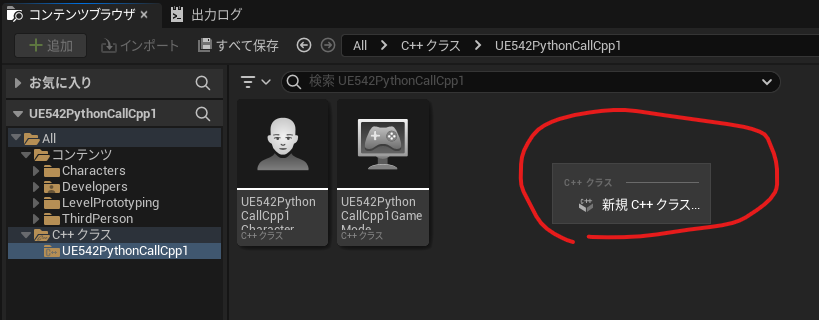
BlancではC++フォルダができなかった。

ThirdPersonでやった。

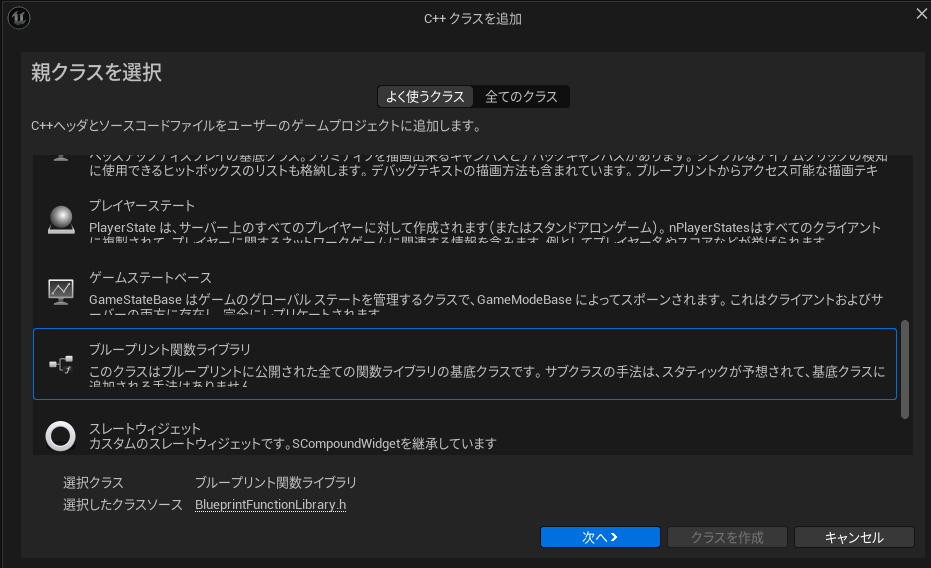
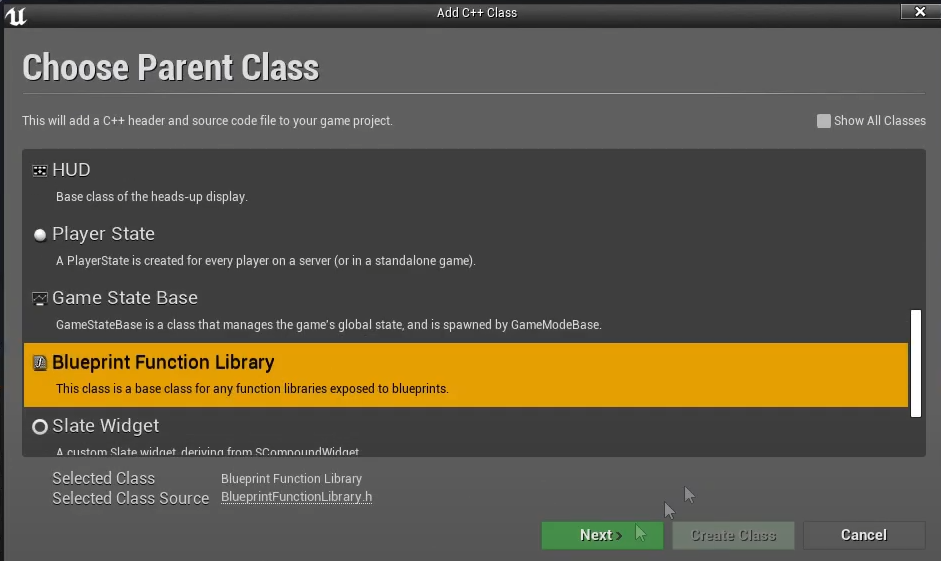
親クラスに Blueprint Function Libraryを選択

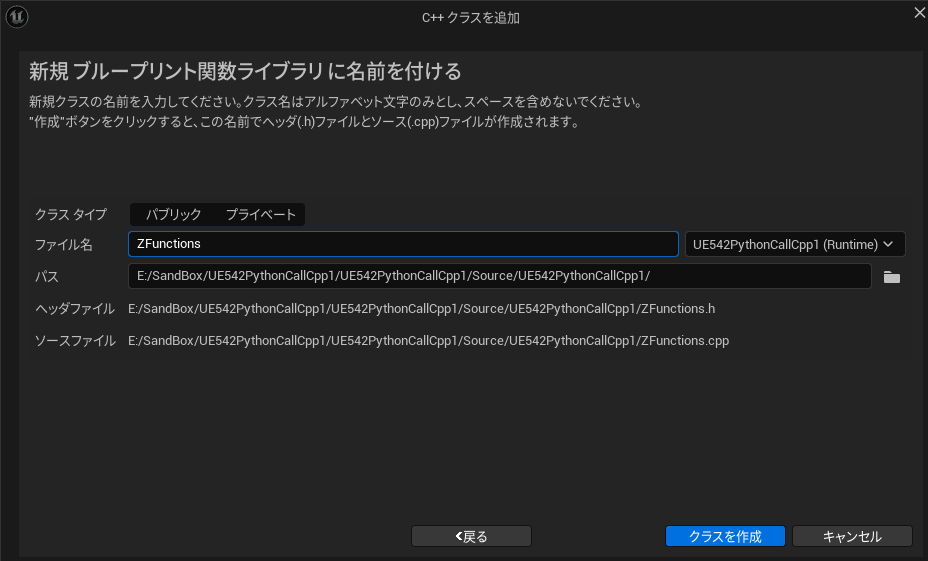
Nameに適当にZFunctionsと入れCreate Class。

VisualStudioへ移動し

ZFunctions.h

// Fill out your copyright notice in the Description page of Project Settings.

#pragma once

#include "CoreMinimal.h"
#include "Kismet/BlueprintFunctionLibrary.h"
#include "ZFunctions.generated.h"

/**
 * 
 */
UCLASS()
class UE542PYTHONCALLCPP1_API UZFunctions : public UBlueprintFunctionLibrary
{
	GENERATED_BODY()
//ここから追加////////
public:
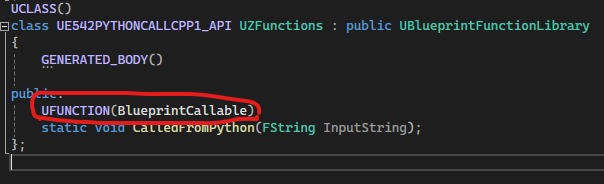
	UFUNCTION(BlueprintCallable)
	static void CalledFromPython(FString InputString);
//ここまで追加//////
};

ZFunctions.cpp

// Fill out your copyright notice in the Description page of Project Settings.


#include "ZFunctions.h"
//ここから追加////////
void UZFunctions::CalledFromPython(FString InputString) {
	UE_LOG(LogTemp, Error, TEXT("%s"), *InputString);
}
//ここまで追加//////

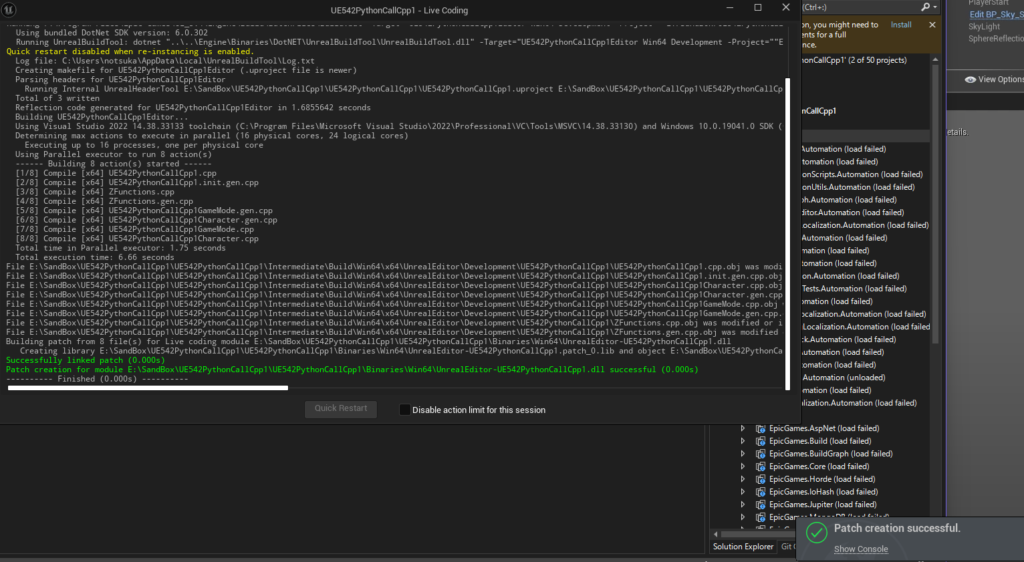
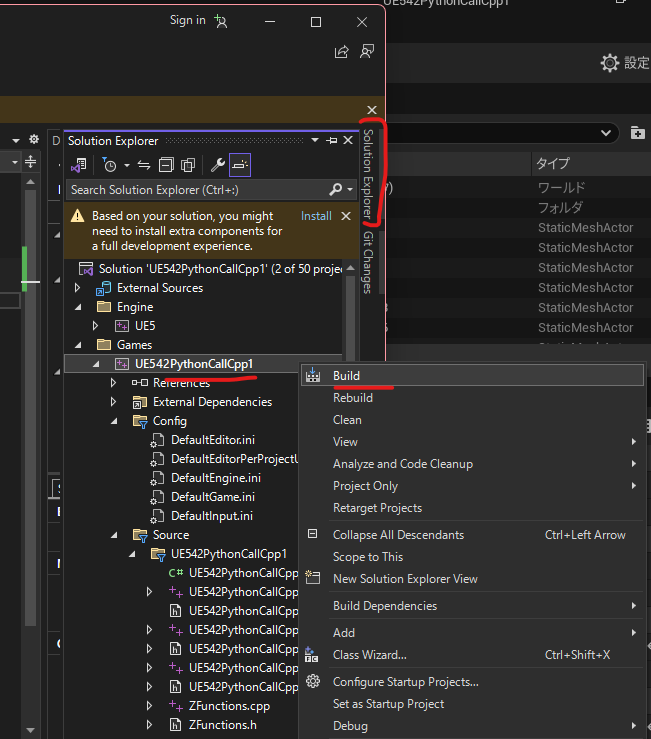
SolutionExplorer > your Project Name (right click)>Build

実行する。(Local Windows Debagger)

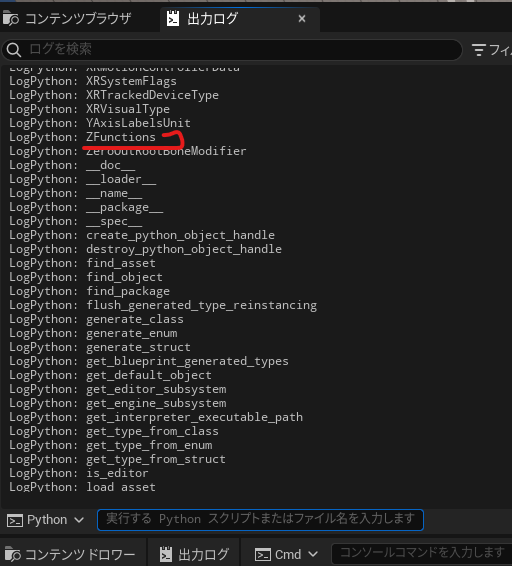
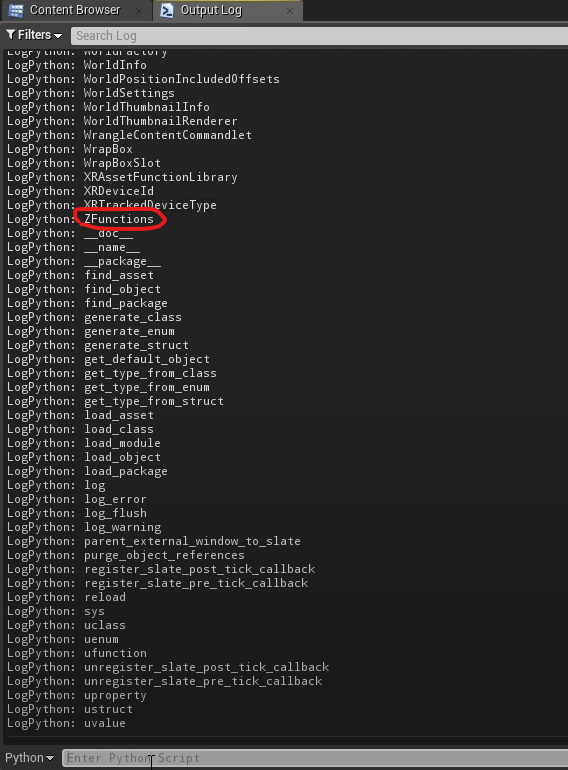
Outputlogで実行する unrealのクラス一覧

import unreal
for x in sorted(dir(unreal)):
   print(x)

めっちゃ重い

ZFunction が出る

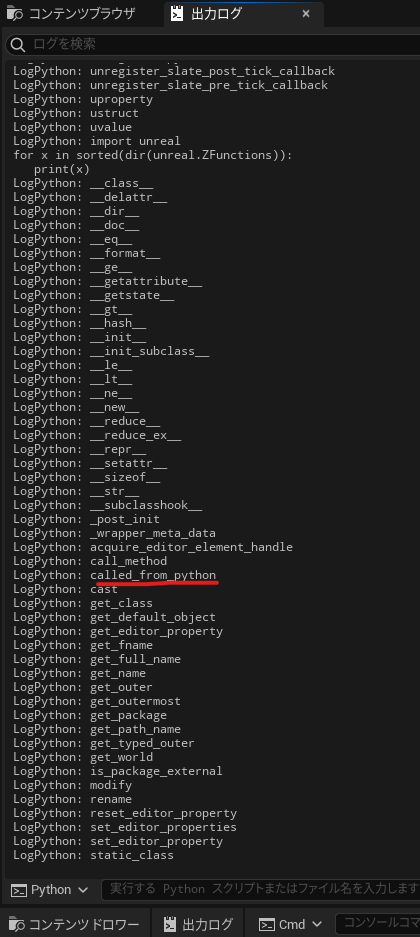
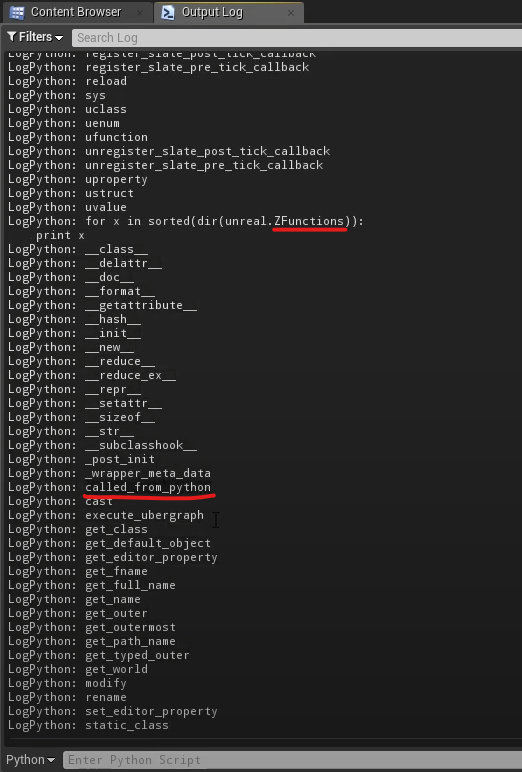
クラスを使ってみる unreal.ZFunctionsのメソッド一覧

import unreal
for x in sorted(dir(unreal.ZFunctions)):
   print(x)

called_from_python が出てくる。

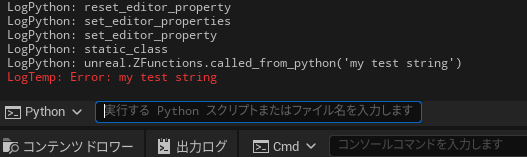
呼んでみる

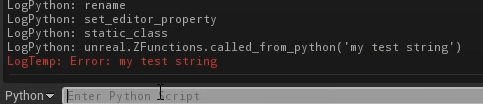
unreal.ZFunctions.called_from_python('my test string')

作った関数によりエラーのメッセージが返ってきた。

参考URL

[UE4.21]UE 4.21 – Python を使用して C++ 関数を呼び出す方法

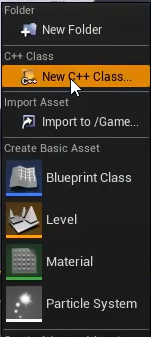
コンテンツブラウザを右クリックしてNew C++ Class

親クラスに Blueprint Function Libraryを選択

Nameに適当にZFunctionsと入れCreate Class。

VisualStudioが起動し

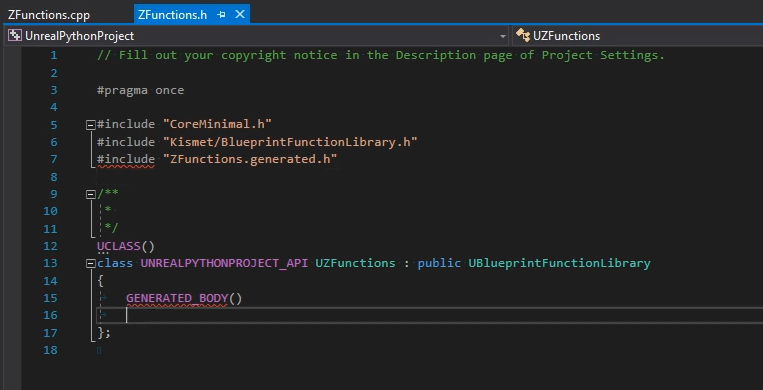
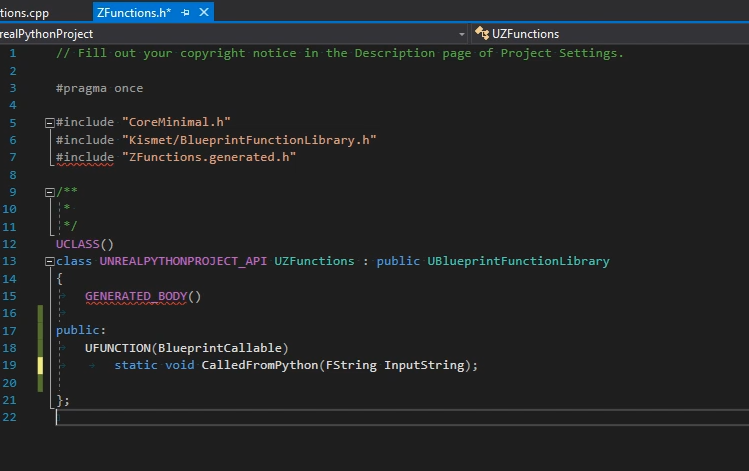
ZFunctions.h

public:
UFUNCTION(BlueprintCallable)
static void CalledFromPython(FString InputString);

を追加してこうなる。

//.Fill out your copyright notice in the Description page of Project Settings.

#pragma once

#include "CoreMinimal.h"
#include "Kismet/BlueprintFunctionLibrary.h"
#include "ZFunctions.generated.h"


UCLASS()
class UNREALPYTHONPROJECT_API UZFunctions : public UBlueprintFunctionLibrary
{
GENERATED BODY()

public:
   UFUNCTION(BlueprintCallable)
      static void CalledFromPython(FString InputString);
};

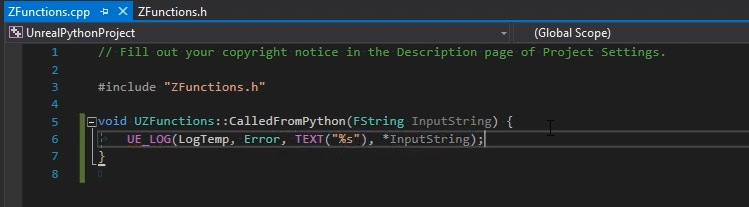
ZFunctions.cpp


//.Fill out your copyright notice in the Description page of Project Settings.

#include "ZFunctions.h"

void UZFunctions::CalledFromPython(FString InputString) {
UE_LOG(LogTemp, Error, TEXT("%s"), *InputString);
}

実行する。(Local Windows Debagger)

Outputlogで実行する

import unreal
for x in sorted(dir(unreal)):
   print(x)

ZFunction が出る

import unreal
for x in sorted(dir(unreal.ZFunctions)):
   print(x)

called_from_python が出てくる。

呼んでみる

unreal.ZFunctions.called_from_python('my test string')

呼ばれて作ったエラーメッセージが出た

参考URL

[UE5][C++]Python からブループリント関数を呼び出すことはできますか?

現時点では、Python はブループリント関数にアクセスできませんが、C++ メソッドにはアクセスできます。したがって
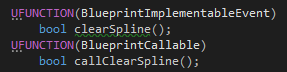
、解決策としては、C++ でブループリント関数を として宣言しBlueprintImplementableEvent、ブループリントでそれをオーバーライドします。

BlueprintImplementableEvent先に進む前に、を C++ から呼び出して、それが機能するかどうかを確認することをお勧めします。
次に、 を呼び出すための 2 番目の C++ 関数を作成しますBlueprintImplementableEvent。この関数は、Python に公開されるものであるため、
として実装する必要があります。BlueprintCallable

最後に、C++ とブループリントがコンパイルされたら、Python から呼び出し元関数を呼び出すだけです。
C++ クラスは、次のように通常の C++ モジュールとして表示されます。unreal.YourClassName.yourCallerFunctionName(yourClassInstance, args)
引数と戻り値は、期待どおりに処理されます。
関数を実行するクラス インスタンスを関数に渡す必要があります。特定の AActor インスタンスを操作するときに非常に便利です。

最後にもう 1 つ注意点があります。関数を、私が行ったようにブループリントイベントではなくブループリント関数として実装する必要がある場合は、関数を定数にするか、戻り値 (使用しない場合でも) を指定する必要があります。そうしないと、ブループリントのオーバーライドにイベントとして表示されます。

私のユースケースからの画面。明らかに、ブループリント関数の実装の詳細は関係ありません。
ブループリント関数

.h

.cpp

.py

参考

https://forums.unrealengine.com/t/is-it-possible-to-call-a-blueprint-function-from-python/447078/3

[UE5]CPPプロジェクトでプロジェクトのバージョンを上げる方法

[UE5] How to upgrade the project version in a CPP project

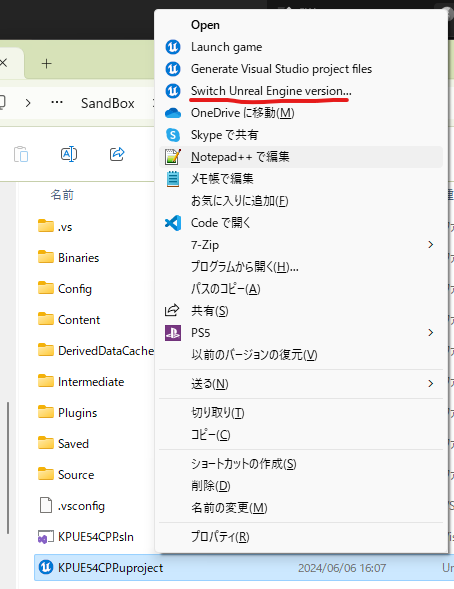
.uprojectを右クリックして>その他のオプションを確認>Switch Unreal Engine version …

Right-click on .uproject > Check other options > Switch Unreal Engine version…

モジュールのプロジェクト名は変更しないでください。

	"Modules": [
		{
			"Name": "KPUE532CPP",

KPUE54CPP.uprojectの中身も変更されます。

	"EngineAssociation": "5.4",

こんな感じです

変更前

{
	"FileVersion": 3,
	"EngineAssociation": "5.4",
	"Category": "",
	"Description": "",
	"Modules": [
		{
			"Name": "KPUE532CPP",
			"Type": "Runtime",
			"LoadingPhase": "Default"
		}
	],
	"Plugins": [
		{
			"Name": "ModelingToolsEditorMode",
			"Enabled": true,
			"TargetAllowList": [
				"Editor"
			]
		}
	]
}


変更後

{
	"FileVersion": 3,
	"EngineAssociation": "5.4",
	"Category": "",
	"Description": "",
	"Modules": [
		{
			"Name": "KPUE532CPP",
			"Type": "Runtime",
			"LoadingPhase": "Default"
		}
	],
	"Plugins": [
		{
			"Name": "ModelingToolsEditorMode",
			"Enabled": true,
			"TargetAllowList": [
				"Editor"
			]
		}
	]
}

内部的に他のファイルもたくさん変更されるようです。

when i create a C++ project in UE5.3 but I create a project it gives me this error message

WindowsTargetRules.Compiler to VisualStudio2019. The current compiler version was detected as: 14.29.30152

Error Message

Running F:/Program Files/Epic Games/UE_5.3/Engine/Build/BatchFiles/Build.bat  -projectfiles -project="F:/Download/Game/CppFuncToBluePrint/CppFuncToBluePrint4/CppFuncToBluePrint4.uproject" -game -rocket -progress
Using bundled DotNet SDK version: 6.0.302
Running UnrealBuildTool: dotnet "..\..\Engine\Binaries\DotNET\UnrealBuildTool\UnrealBuildTool.dll" -projectfiles -project="F:/Download/Game/CppFuncToBluePrint/CppFuncToBluePrint4/CppFuncToBluePrint4.uproject" -game -rocket -progress
Log file: C:\Users\abcd\AppData\Local\UnrealBuildTool\Log_GPF.txt

Generating VisualStudio project files:
Discovering modules, targets and source code for project...
Microsoft platform targets must be compiled with Visual Studio 2022 17.4 (MSVC 14.34.x) or later for the installed engine. Please update Visual Studio 2022 and ensure no configuration is forcing WindowsTargetRules.Compiler to VisualStudio2019. The current compiler version was detected as: 14.29.30152

日本語 メッセージ

F:/Program Files/Epic Games/UE_5.3/Engine/Build/BatchFiles/Build.bat -projectfiles -project="F:/Download/Game/CppFuncToBluePrint/CppFuncToBluePrint4/CppFuncToBluePrint4.uproject" -game -rocket -progress を実行します。
バンドルされている DotNet SDK バージョンの使用: 6.0.302
UnrealBuildTool の実行: dotnet "..\..\Engine\Binaries\DotNET\UnrealBuildTool\UnrealBuildTool.dll" -projectfiles -project="F:/Download/Game/CppFuncToBluePrint/CppFuncToBluePrint4/CppFuncToBluePrint4.uproject" -game -rocket -progress
ログ ファイル: C:\Users\abcd\AppData\Local\UnrealBuildTool\Log_GPF.txt

VisualStudio プロジェクト ファイルの生成:
プロジェクトのモジュール、ターゲット、ソース コードを検出しています...
Microsoft プラットフォーム ターゲットは、インストールされているエンジンに対して Visual Studio 2022 17.4 (MSVC 14.34.x) 以降でコンパイルする必要があります。 Visual Studio 2022 を更新し、WindowsTargetRules.Compiler を VisualStudio2019 に強制する構成がないことを確認してください。 現在のコンパイラのバージョンは 14.29.30152 として検出されました。

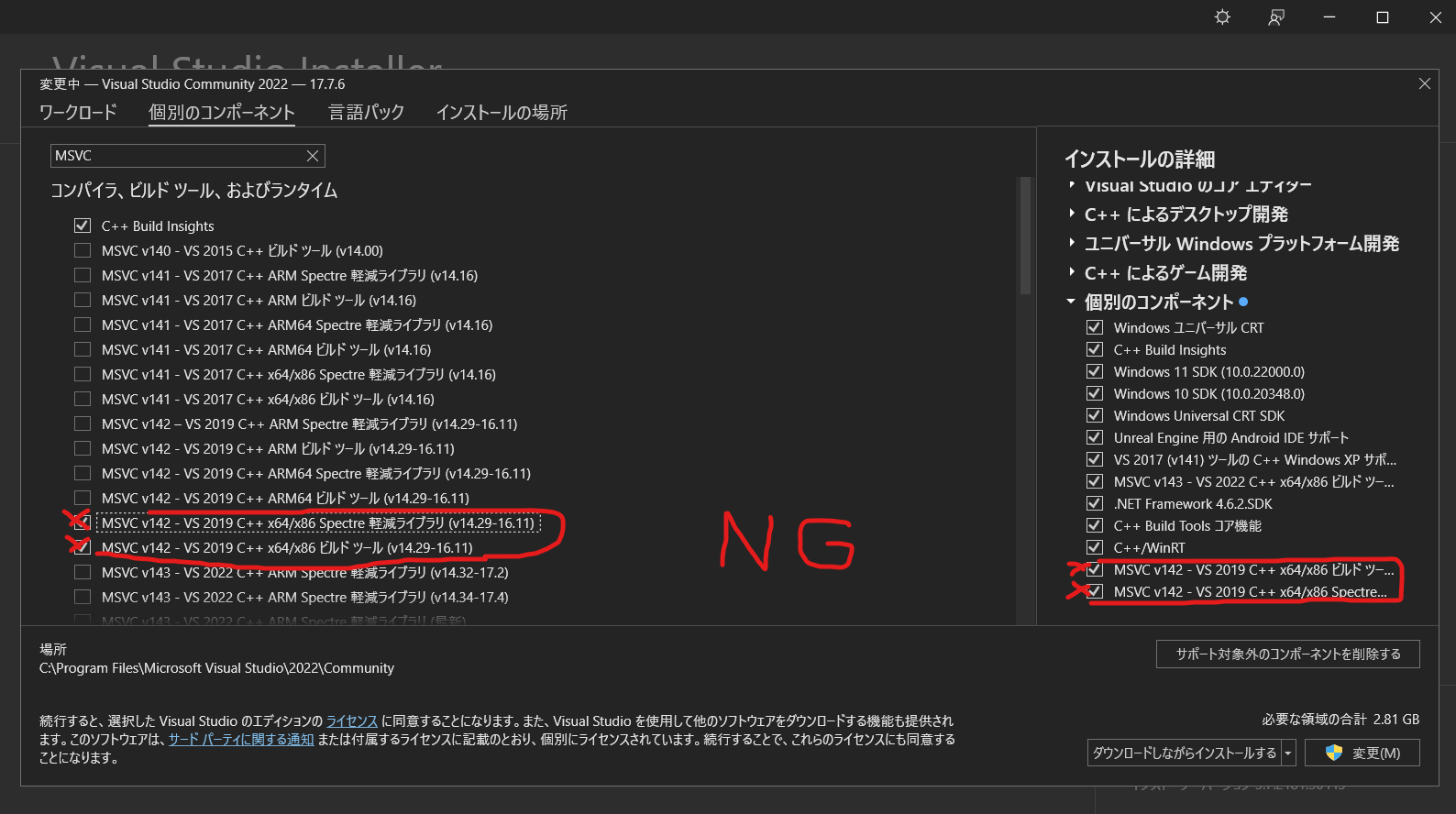
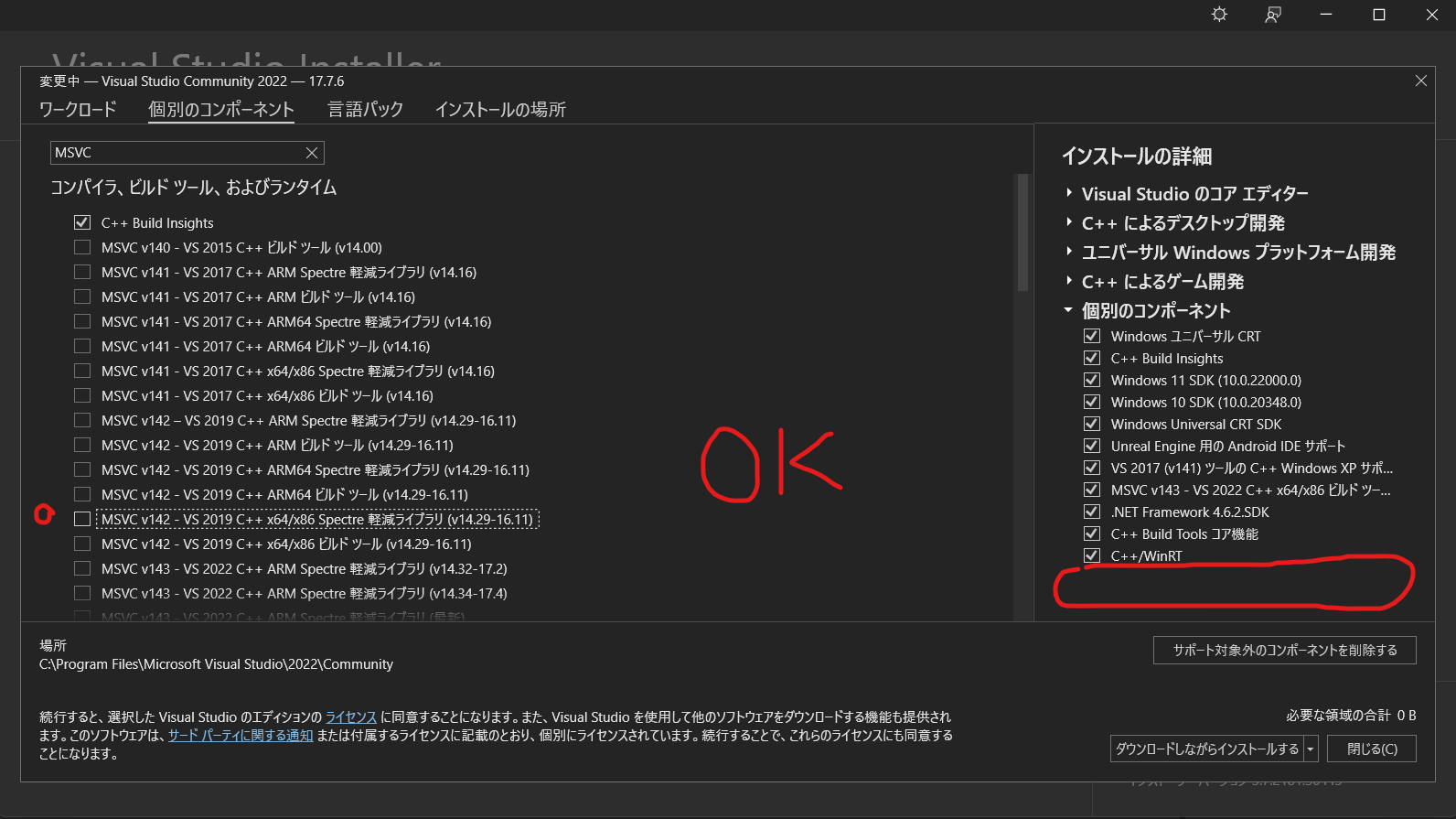
直し方はVisual Studio Installer で個別のコンポーネントタブからMSVC のなかから14.29.30152のチェックを外すこと

参考

https://forums.unrealengine.com/t/help-when-i-create-a-c-project-in-ue5-3-but-i-create-a-project-it-gives-me-this-error-message/1305945

[UnrealEngine]C++ シンプルなクラス構文

クラスの定義はヘッダファイルで行います。

#include <string>
using namespace std;
class Class1
{
// 
private:
	string name; //メンバ変数
// 
public:
	void print1(); //メンバ関数のプロトタイプ宣言
	void print2(); //メンバ関数のプロトタイプ宣言
// 
};

cppでのメソッドの実装

void クラス::実装するメソッド名()

#include "Class1.h"
#include <iostream>
using namespace std;

// 
void Class1::print1()
{
	name = "print1";
	cout << name << "が処理されました\n";

	return;
}
// 
void Class1::print2()
{
	name = "print2";
	cout << name << "が処理されました。どうしてニンニク味のガムってないんだろう?\n";

	return;
}

クラスからインスタンスを生成して利用するサンプルです。

Class1 *インスタンス名 = new Class1();

インスタンス名 – > 使用するメソッド名();

#include "Class1.h"

int main() {

	Class1 *cla2 = new Class1();
	cla2->print1(); //print1が処理されました
	cla2->print2(); //print2が処理されました
	delete cla2;

	return 0;
}