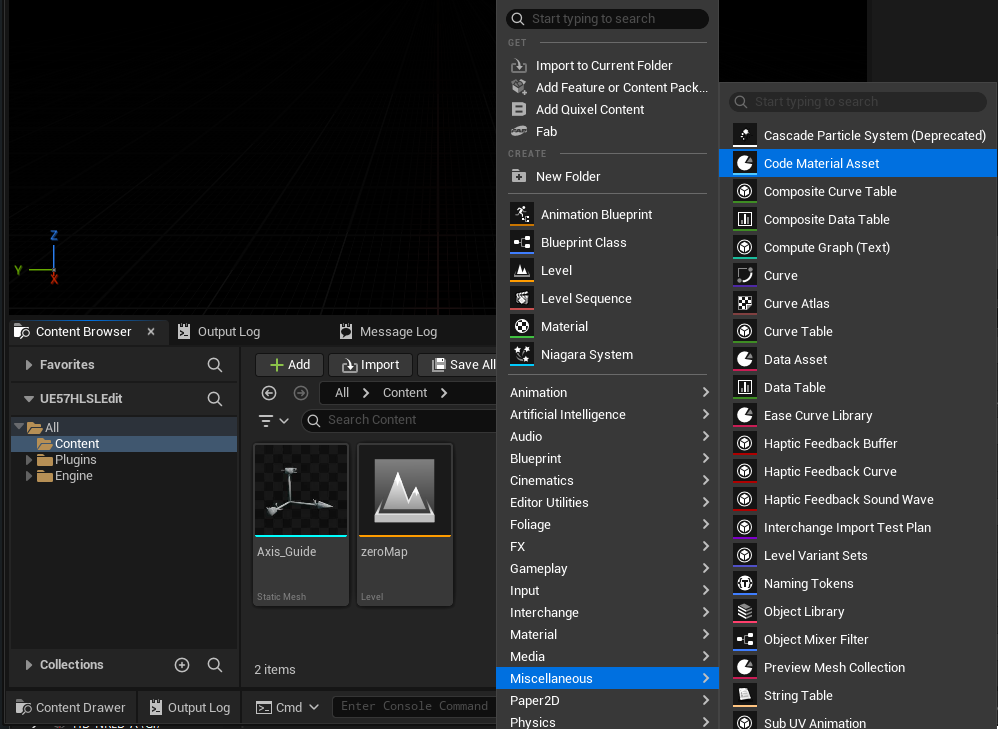
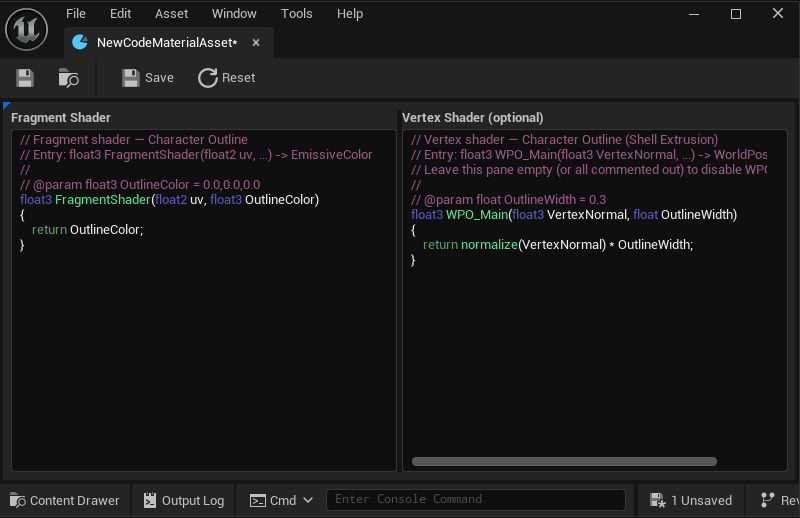
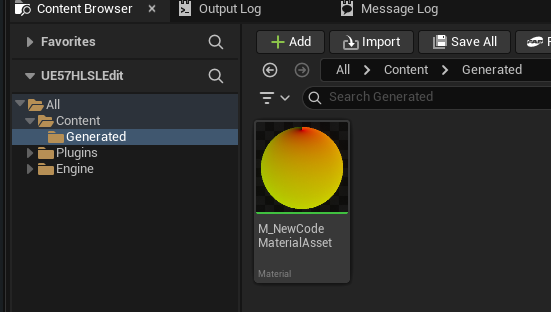
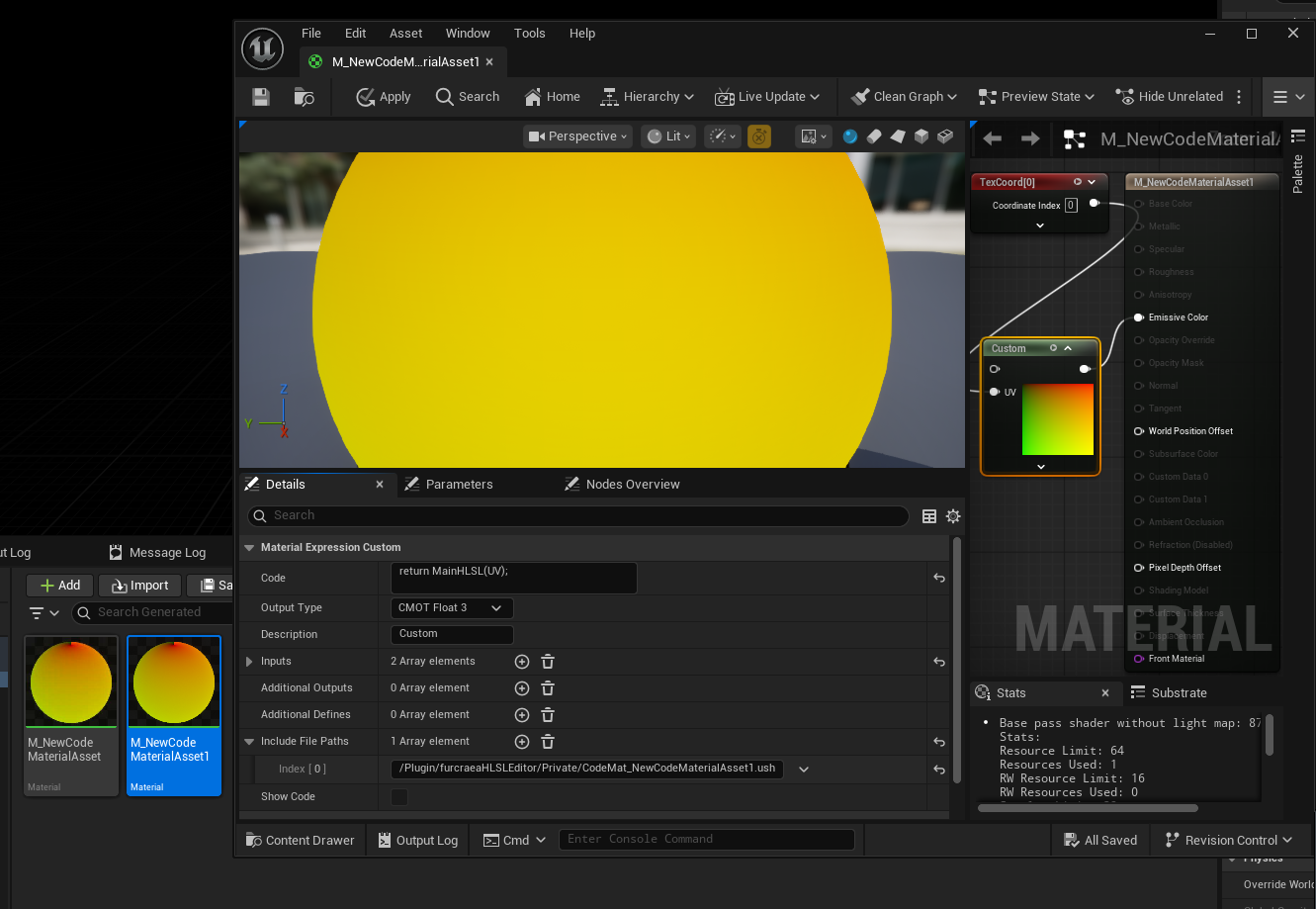
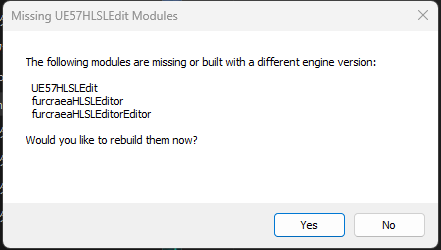
[UE5][C++] The following modules are missing or built with a different engine version: プラグイン名 Would you like to rebuild them now?

出る時の必殺リセット(確実)

UE を閉じてからプロジェクト直下で削除:

Binaries/

Intermediate/

(あれば)Plugins/furcraeaHLSLEditor/Binaries/

(あれば)Plugins/furcraeaHLSLEditor/Intermediate/

その後

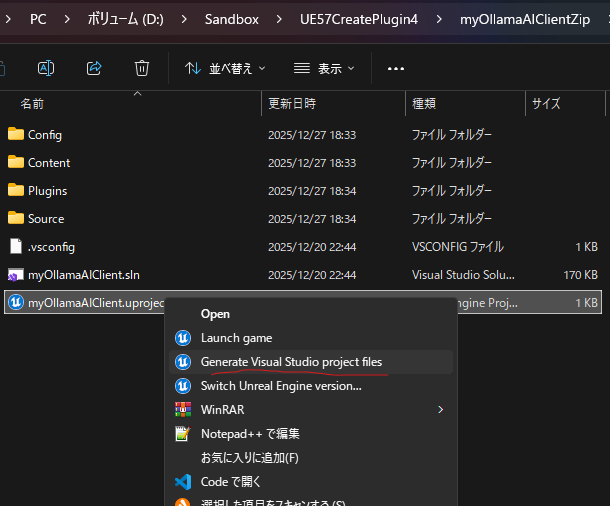
.uproject 右クリック → Generate Visual Studio project files

VS で Development Editor / Win64 で Rebuild

起動

[UE5.7][C++]unrealengine5 C++プロジェクト VisualStudio いらないファイル消す Zipしたい時

これだけにする

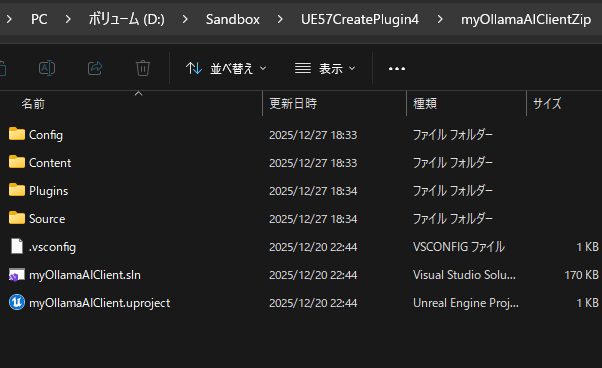
プロジェクトフォルダ直下にある以下のフォルダを削除してください。

  • .vs: Visual Studio のキャッシュやユーザー設定が保存されている隠しフォルダ。
  • Binaries: コンパイルされた実行ファイルやライブラリが保存されるフォルダ。
  • Intermediate: ビルドプロセス中の中間ファイルが保存されるフォルダ。
  • Saved: セーブデータ、スクリーンショット、ログ、クラッシュレポートなどが保存されるフォルダ。
  • DerivedDataCache (DDC): エディタがアセットを処理したキャッシュデータが保存されるフォルダ。容量が非常に大きくなることがあります。 

注意点:

  • Content フォルダと .uproject ファイル、Source フォルダ (C++プロジェクトの場合) は絶対に削除しないでください。これらがプロジェクトの本体です。
  • これらのフォルダを削除した後、プロジェクトを開く前にVisual Studioのソリューションをクリーンアップし、必要に応じてソリューションを再生成.uproject ファイルを右クリックし Generate Visual Studio project files を選択)すると、より確実です。
  • その後、残った必要なファイル(ContentSource.uproject.slnConfig など)をZIP圧縮します。

[UE5][CPP]Failed to compile plugin source code. See output log for more information.

Failed to compile plugin source code. See output log for more information.

プラグインのソースコードをコンパイルできませんでした。詳細は出力ログを参照してください。

‘furcraeaUEOpenAI2’ already defines a member called ‘furcraeaUEOpenAI2’ with the same parameter types
Expecting to find a type to be declared in a target rules named ‘furcraeaUEOpenAI2EditorTarget’. This type must derive from the ‘TargetRules’ type defined by UnrealBuildTool.

‘furcraeaUEOpenAI2’ は既に同じパラメータ型を持つ ‘furcraeaUEOpenAI2’ というメンバーを定義しています。
‘furcraeaUEOpenAI2EditorTarget’ というターゲットルールで宣言される型が見つかることを期待しています。この型は、UnrealBuildTool で定義された ‘TargetRules’ 型から派生している必要があります。

【UE5.3】シェーダーファイルのインクルード方法について(Customノード編)についてをやってみた。

こちらの記事を丸っと参考にさせていただいて

【UE5】シェーダーファイルのインクルード方法について(Customノード編)

確認をとった

プロジェクト名はProjects_CustomNode

プロジェクトフォルダの直下にShadersフォルダを作成します。

Glitter.usf


float3 Glitter = float3(0.0,1.0,0.0);

return Glitter;

先ほど作成したシェーダーファイルを適用させるために、Projects_CustomNode.Build.cs に RenderCore を追加します。

// Copyright Epic Games, Inc. All Rights Reserved.

using UnrealBuildTool;

public class Projects_CustomNode : ModuleRules
{
	public Projects_CustomNode(ReadOnlyTargetRules Target) : base(Target)
	{
		PCHUsage = PCHUsageMode.UseExplicitOrSharedPCHs;
	
		PublicDependencyModuleNames.AddRange(new string[] { "Core", "CoreUObject", "Engine", "InputCore","RenderCore" });

		PrivateDependencyModuleNames.AddRange(new string[] {  });

		// Uncomment if you are using Slate UI
		// PrivateDependencyModuleNames.AddRange(new string[] { "Slate", "SlateCore" });
		
		// Uncomment if you are using online features
		// PrivateDependencyModuleNames.Add("OnlineSubsystem");

		// To include OnlineSubsystemSteam, add it to the plugins section in your uproject file with the Enabled attribute set to true
	}
}

Projects_CustomNode.h を開き、新しく “Modules/ModuleManager.h” を インクルードします。
さらに、継承クラスとして FDefaultGameModuleImpl を宣言し、StartupModule関数 と ShutdownModule関数 を一緒にオーバライドします。

// Copyright Epic Games, Inc. All Rights Reserved.

#pragma once

#include "CoreMinimal.h"
#include "Modules/ModuleManager.h"


class FProjects_CustomNodeModule : public FDefaultGameModuleImpl
{
public:
	virtual void StartupModule() override;
	virtual void ShutdownModule() override;
};

Projects_CustomNode.cpp を開き、IMPLEMENT_PRIMARY_GAME_MODULE の最初の引数を Projects_CustomNode.h 側のクラス名に書き換えます。

// Copyright Epic Games, Inc. All Rights Reserved.

#include "Projects_CustomNode.h"
#include "Modules/ModuleManager.h"

void FProjects_CustomNodeModule::StartupModule()
{
	FString ShaderDir = FPaths::Combine(FPaths::ProjectDir(), "Shaders");
	AddShaderSourceDirectoryMapping("/Project", ShaderDir);
}
void FProjects_CustomNodeModule::ShutdownModule()
{
}
IMPLEMENT_PRIMARY_GAME_MODULE(FProjects_CustomNodeModule, Projects_CustomNode, "Projects_CustomNode" );

以上の流れが完了しましたら、一度ビルドを行います。

マテリアル作成しCustomノードのCodeに

#include "/Project/Glitter.usf"
return 0;

と入力したらOKでした。

プロジェクトデータ

https://drive.google.com/file/d/1Ro4pcatwqWKCQ64ZUObSndKtIyagYKE7/view?usp=sharing

[UE5][C++]Python からブループリント関数を呼び出すことはできますか?

現時点では、Python はブループリント関数にアクセスできませんが、C++ メソッドにはアクセスできます。したがって
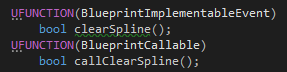
、解決策としては、C++ でブループリント関数を として宣言しBlueprintImplementableEvent、ブループリントでそれをオーバーライドします。

BlueprintImplementableEvent先に進む前に、を C++ から呼び出して、それが機能するかどうかを確認することをお勧めします。
次に、 を呼び出すための 2 番目の C++ 関数を作成しますBlueprintImplementableEvent。この関数は、Python に公開されるものであるため、
として実装する必要があります。BlueprintCallable

最後に、C++ とブループリントがコンパイルされたら、Python から呼び出し元関数を呼び出すだけです。
C++ クラスは、次のように通常の C++ モジュールとして表示されます。unreal.YourClassName.yourCallerFunctionName(yourClassInstance, args)
引数と戻り値は、期待どおりに処理されます。
関数を実行するクラス インスタンスを関数に渡す必要があります。特定の AActor インスタンスを操作するときに非常に便利です。


最後にもう 1 つ注意点があります。関数を、私が行ったようにブループリントイベントではなくブループリント関数として実装する必要がある場合は、関数を定数にするか、戻り値 (使用しない場合でも) を指定する必要があります。そうしないと、ブループリントのオーバーライドにイベントとして表示されます。

私のユースケースからの画面。明らかに、ブループリント関数の実装の詳細は関係ありません。
ブループリント関数

.h

.cpp

.py

参考

https://forums.unrealengine.com/t/is-it-possible-to-call-a-blueprint-function-from-python/447078/3

[UnrealEngine]C++ シンプルなクラス構文

クラスの定義はヘッダファイルで行います。

#include <string>
using namespace std;
class Class1
{
// 
private:
	string name; //メンバ変数
// 
public:
	void print1(); //メンバ関数のプロトタイプ宣言
	void print2(); //メンバ関数のプロトタイプ宣言
// 
};

cppでのメソッドの実装

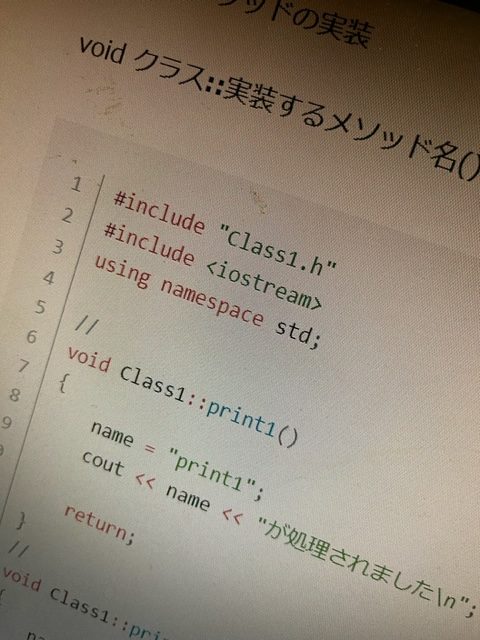
void クラス::実装するメソッド名()

#include "Class1.h"
#include <iostream>
using namespace std;

// 
void Class1::print1()
{
	name = "print1";
	cout << name << "が処理されました\n";

	return;
}
// 
void Class1::print2()
{
	name = "print2";
	cout << name << "が処理されました。どうしてニンニク味のガムってないんだろう?\n";

	return;
}

クラスからインスタンスを生成して利用するサンプルです。

Class1 *インスタンス名 = new Class1();

インスタンス名 – > 使用するメソッド名();

#include "Class1.h"

int main() {

	Class1 *cla2 = new Class1();
	cla2->print1(); //print1が処理されました
	cla2->print2(); //print2が処理されました
	delete cla2;

	return 0;
}

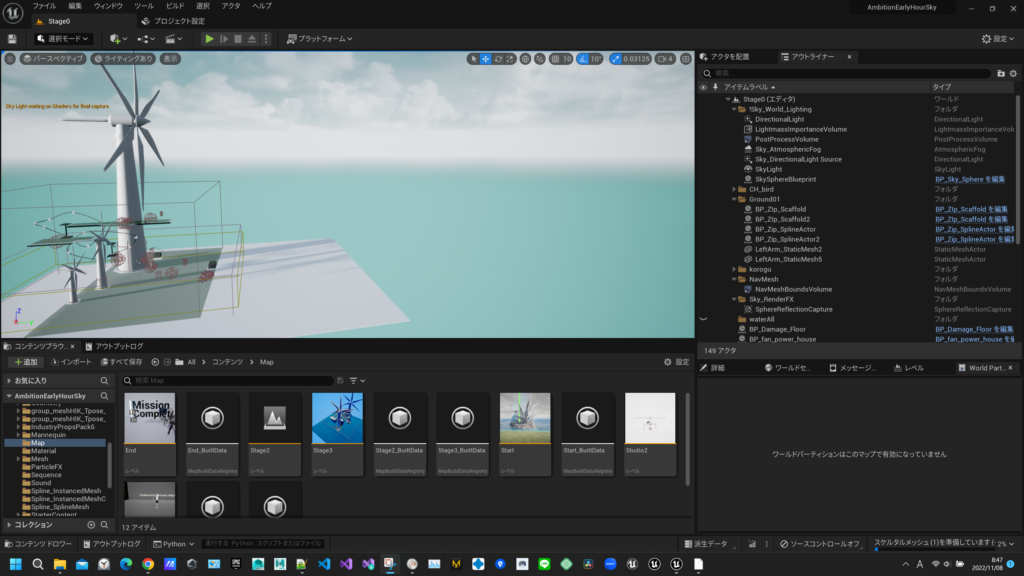
AmbitionEarlyHourSky

#アンリアルクエスト に出したゲームのクオリティをアップした。

キャラクターの作り直しを何度もやった。

ハイヒールのカラーをルブタンみたいにして

ニーアみたいなマスクをつけて
kawaiiphysicsでスカートをひらひらさせた。
kawaiiphysicsで胸も揺らした
kawaiiphysicsで髪をなびくようにジョイントを入れ

レベルデザインも少しちゃんとした。

#kawaiiphysics #UE4 #Unrealお兄さん と#塩谷さん と #おかず さん の おかげです。

ダウンロードはこちら

https://drive.google.com/file/d/1q6O0NIBkd-oH1zD50XCDv74sUi6QfIai/view?usp=sharing

最近開いてみたらこんなエラーが出た

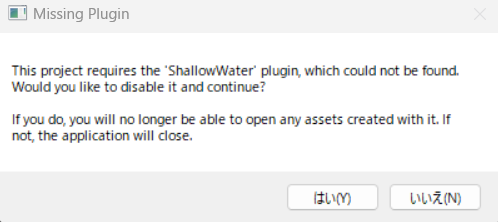
This Project requires the ‘ShallowWater’ plugin whitch could not be found.Would you like to desable it continue?If you do you will no longer be able to open any assets created with it. if not the application will close.

このプロジェクトには、見つからなかった「ShallowWater」プラグインが必要です。引き続き無効にしますか?そうすると、それで作成されたアセットを開くことができなくなります。 そうでない場合、アプリケーションは終了します。

ビルドの必要がありそうなので

A案

cd C:\Program Files\Epic Games\UE_5.0\Engine\Build\BatchFiles
Build.bat AmbitionEarlyHourSky Win64 Development "F:\Download\Game\AmbitionEarlyHourSky6.0NoCascade\AmbitionEarlyHourSky.uproject" -rocket

B案

cd C:\Program Files\Epic Games\UE_5.0\Engine\Binaries\DotNET\UnrealBuildTool
UnrealBuildTool.exe AmbitionEarlyHourSky Win64 Development "F:\Download\Game\AmbitionEarlyHourSky6.0NoCascade\AmbitionEarlyHourSky.uproject" -rocket

ERROR: Unable to find plugin ‘ShallowWater’ (referenced via AmbitionEarlyHourSky.uproject). Install it and try again, or remove it from the required plugin list.

と言われるので。

AmbitionEarlyHourSky.uprojectの Plugin から ShallowWaterを消す。

{
	"FileVersion": 3,
	"EngineAssociation": "5.0",
	"Category": "",
	"Description": "",
	"Modules": [
		{
			"Name": "AmbitionEarlyHourSky",
			"Type": "Runtime",
			"LoadingPhase": "Default",
			"AdditionalDependencies": [
				"Engine"
			]
		}
	],
	"Plugins": [
		{
			"Name": "ShallowWater",
			"Enabled": true
		},
		{
			"Name": "Water",
			"Enabled": true
		},
		{
			"Name": "PythonScriptPlugin",
			"Enabled": true
		},
		{
			"Name": "EditorScriptingUtilities",
			"Enabled": true
		},
		{
			"Name": "Bridge",
			"Enabled": true,
			"SupportedTargetPlatforms": [
				"Win64",
				"Mac",
				"Linux"
			]
		}
	]
}

Build.batできたっぽい


C:\Users\furcr>cd C:\Program Files\Epic Games\UE_5.0\Engine\Binaries\Win64\

C:\Program Files\Epic Games\UE_5.0\Engine\Binaries\Win64>cd ../../

C:\Program Files\Epic Games\UE_5.0\Engine>cd C:\Program Files\Epic Games\UE_5.0\Engine\Build\BatchFiles

C:\Program Files\Epic Games\UE_5.0\Engine\Build\BatchFiles>Build.bat AmbitionEarlyHourSky Win64 Development "F:\Download\Game\AmbitionEarlyHourSky6.0NoCascade\AmbitionEarlyHourSky.uproject" -rocket
Using bundled DotNet SDK
Log file: C:\Users\furcr\AppData\Local\UnrealBuildTool\Log.txt
Creating makefile for AmbitionEarlyHourSky (Build.version is newer)
ERROR: Unable to find plugin 'ShallowWater' (referenced via AmbitionEarlyHourSky.uproject). Install it and try again, or remove it from the required plugin list.

C:\Program Files\Epic Games\UE_5.0\Engine\Build\BatchFiles>Build.bat AmbitionEarlyHourSky Win64 Development "F:\Download\Game\AmbitionEarlyHourSky6.0NoCascade\AmbitionEarlyHourSky.uproject" -rocket
Using bundled DotNet SDK
Log file: C:\Users\furcr\AppData\Local\UnrealBuildTool\Log.txt
Creating makefile for AmbitionEarlyHourSky (Build.version is newer)
Parsing headers for AmbitionEarlyHourSky
  Running UnrealHeaderTool "F:\Download\Game\AmbitionEarlyHourSky6.0NoCascade\AmbitionEarlyHourSky.uproject" "F:\Download\Game\AmbitionEarlyHourSky6.0NoCascade\Intermediate\Build\Win64\AmbitionEarlyHourSky\Development\AmbitionEarlyHourSky.uhtmanifest" -LogCmds="loginit warning, logexit warning, logdatabase error" -Unattended -WarningsAsErrors -abslog="C:\Users\furcr\AppData\Local\UnrealBuildTool\Log_UHT.txt" -installed
Reflection code generated for AmbitionEarlyHourSky in 6.3933034 seconds
Building AmbitionEarlyHourSky...
Using Visual Studio 2019 14.29.30141 toolchain (C:\Program Files (x86)\Microsoft Visual Studio\2019\Community\VC\Tools\MSVC\14.29.30133) and Windows 10.0.18362.0 SDK (C:\Program Files (x86)\Windows Kits\10).
[Adaptive Build] Excluded from AmbitionEarlyHourSky unity file: MyBlueprintFunctionLibrary.cpp, SaveToText.cpp, TextFileToString.cpp, AmbitionEarlyHourSky.cpp, AmbitionEarlyHourSkyCharacter.cpp, AmbitionEarlyHourSkyGameMode.cpp
Distributing 23 actions to XGE
--------------------Build System Warning---------------------------------------
License is invalid:
    License information is invalid. Please try reloading your license file using the Coordinator Monitor application on the Coordinator machine, or reinstall IncrediBuild.
    This build will run in standalone mode.

-------------------------------------------------------------------------------

Build ID: {5E64F7BF-47B0-4AF8-8F9B-4464A50705EC}

--------------------Project: Default-------------------------------------------
[1/23] SharedPCH.Engine.ShadowErrors.cpp (0:51.37 at +0:00)
[2/23] OpenImageDenoise.dll (0:00.64 at +0:51)
[3/23] tbb.dll (0:00.26 at +0:52)
[4/23] d3d12SDKLayers.dll (0:00.31 at +0:52)
[5/23] D3D12Core.dll (0:00.28 at +0:52)
[6/23] tbb12.dll (0:00.31 at +0:52)
[7/23] AmbitionEarlyHourSkyCharacter.cpp (0:01.64 at +0:53)
[8/23] AmbitionEarlyHourSkyGameMode.cpp (0:01.01 at +0:54)
[9/23] SaveToText.cpp (0:00.60 at +0:55)
[10/23] MyBlueprintFunctionLibrary.gen.cpp (0:00.62 at +0:56)
[11/23] AmbitionEarlyHourSkyCharacter.gen.cpp (0:00.92 at +0:57)
[12/23] MyBlueprintFunctionLibrary.cpp (0:00.57 at +0:58)
[13/23] TextFileToString.gen.cpp (0:00.62 at +0:58)
[14/23] AmbitionEarlyHourSky.cpp (0:00.70 at +0:59)
[15/23] AmbitionEarlyHourSky.init.gen.cpp (0:00.64 at +1:00)
[16/23] TextFileToString.cpp (0:15.11 at +1:00)
[17/23] AmbitionEarlyHourSkyGameMode.gen.cpp (0:01.00 at +1:15)
[18/23] Default.rc2 (0:00.48 at +1:16)
[19/23] Module.KawaiiPhysics.cpp (0:03.53 at +1:17)
[20/23] Module.KawaiiPhysics.gen.cpp (0:03.40 at +1:20)
[21/23] SaveToText.gen.cpp (0:00.65 at +1:24)
[22/23] AmbitionEarlyHourSky.exe (0:26.03 at +1:24)
   Creating library F:\Download\Game\AmbitionEarlyHourSky6.0NoCascade\Binaries\Win64\AmbitionEarlyHourSky.lib and object F:\Download\Game\AmbitionEarlyHourSky6.0NoCascade\Binaries\Win64\AmbitionEarlyHourSky.exp
[23/23] AmbitionEarlyHourSky.target (0:00.34 at +1:50)
---------------------- Done ----------------------

    Rebuild All: 1 succeeded, 0 failed, 0 skipped

1 build system warning(s):
   - License is invalid

Total time in XGE executor: 111.50 seconds
Total execution time: 128.20 seconds

C:\Program Files\Epic Games\UE_5.0\Engine\Build\BatchFiles>

リビルドするか聞かれる。リビルドで、30秒後ぐらいに起動した!

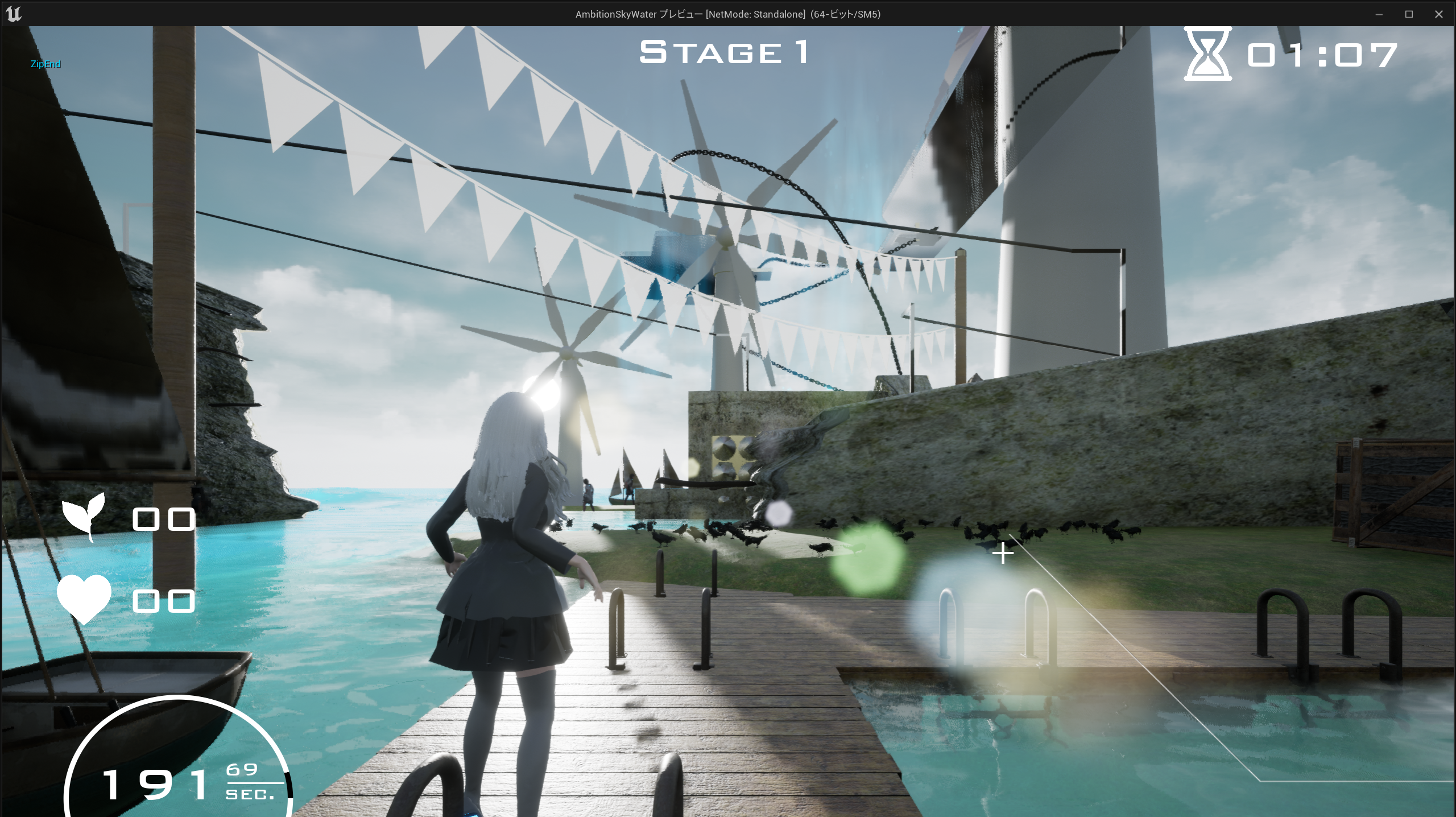
スカートのリグなどを頑張ったオリジナル作品のAmbitionSkyWaterをUE5でビルドしなおして、ポスプロなどブラッシュアップして動画を取り直した #UE5 #UnrealEngine5 #スカート #リグ #Rig #skirts

Unreal Engine C++ Developer: Learn C++ and Make Video Games | Udemy UE4.26 Simple Shooterで自分なりに理解したこと。01300 ~NavMeshとAIの動き~

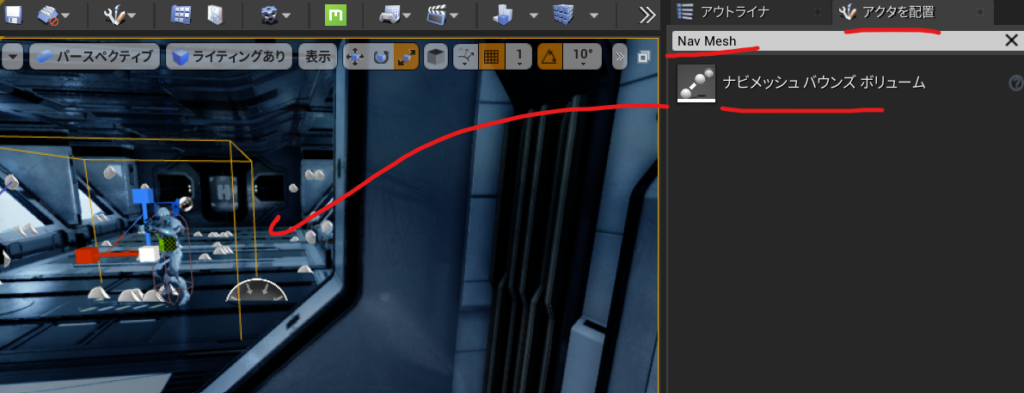
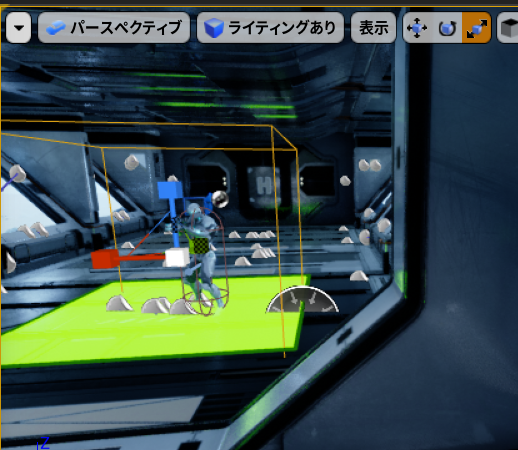
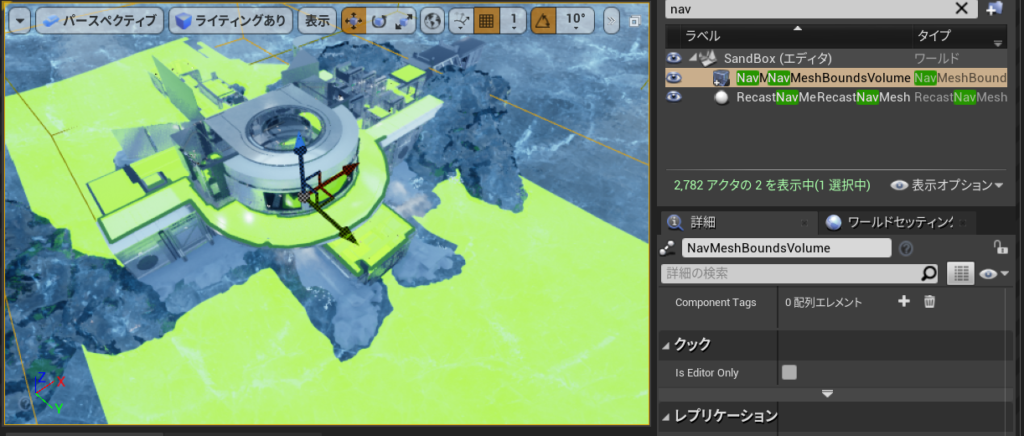
NavMeshを配置して

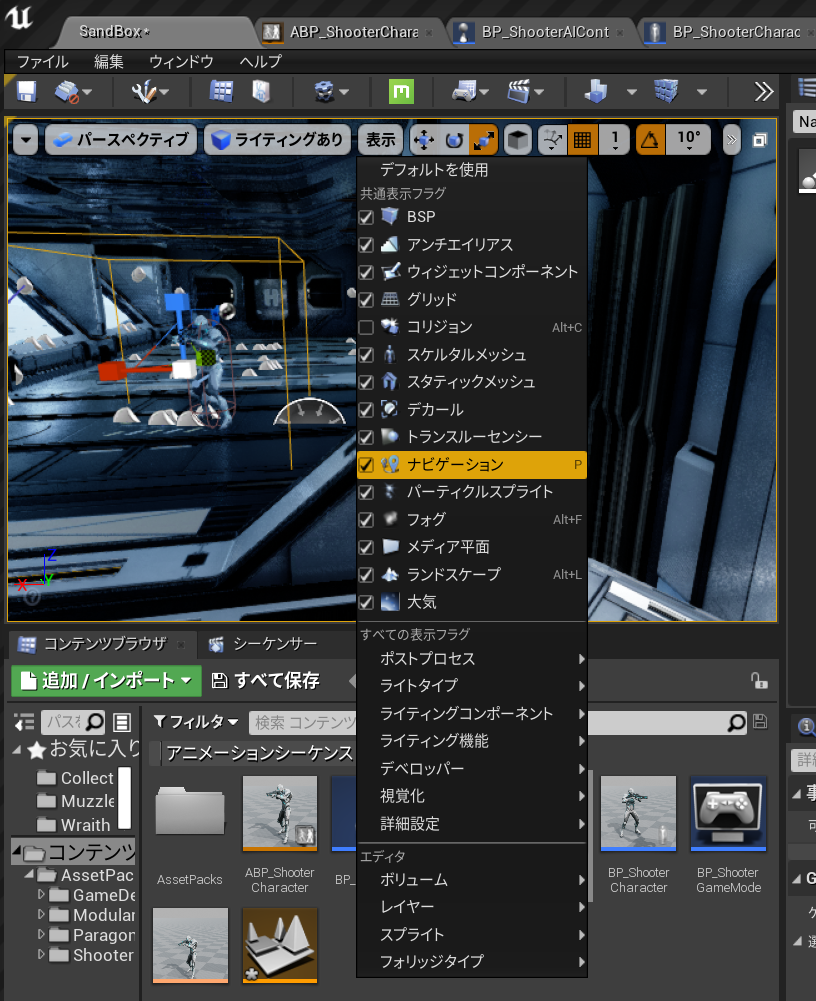
表示できるようにします。

表示されました。

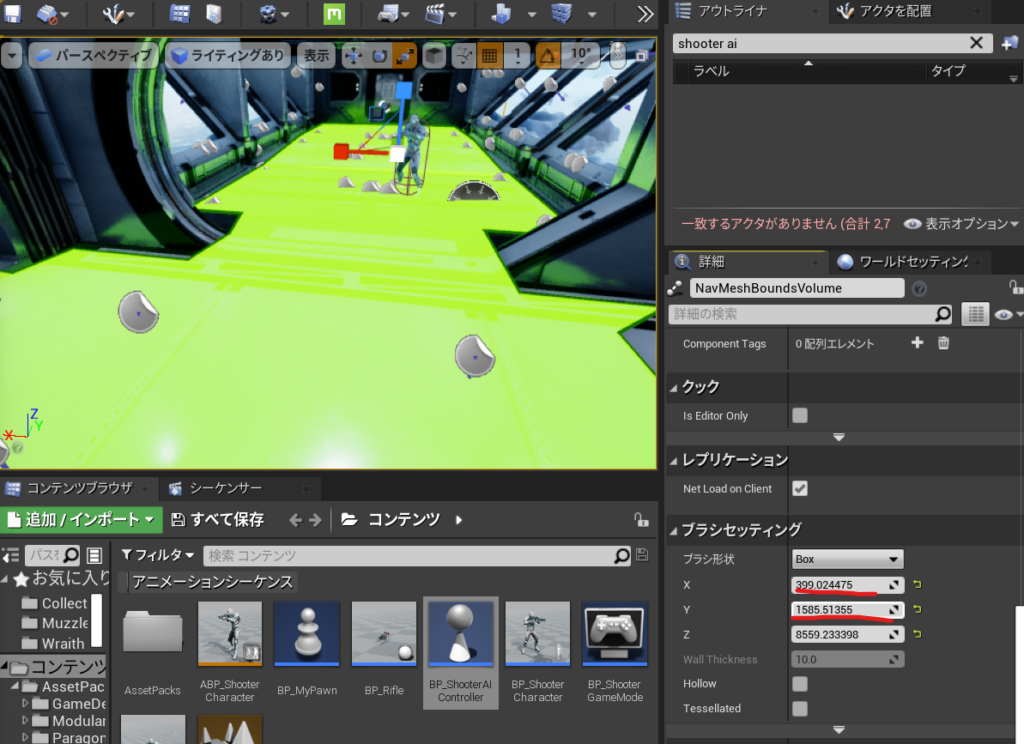
ブラシセッティングで広げます。

BP_ShooterAIControllerを開いてPathFollowingComponentが作用しているからです。

C:\Program Files\Epic Games\UE_4.26\Engine\Source\Runtime\AIModule\Classes\AIController.h

MoveToを見ると

MoveToActor

MoveToLocation

MoveTo

の3つがあります。

	/** AIを指定されたゴールアクターに向けて移動させ(宛先は継続的に更新されます)、
次のアクティブなパスを中止します
* @ paramAcceptanceRadius-ポーンが十分に近づいたら移動を終了します
* @ parambStopOnOverlap-ポーンの半径をAcceptanceRadiusに追加します
* @param bUsePathfinding-ナビゲーションデータを使用してパスを計算します
(そうでない場合は直線になります)
* @param bCanStrafe-フォーカス関連フラグを設定します:bAllowStrafe
* @ paramFilterClass-パスファインディング調整用のナビゲーションフィルター。
指定されていない場合、DefaultNavigationFilterClassが使用されます
* @ parambAllowPartialPath-目標に到達できない場合は不完全なパスを使用します
* @note AcceptanceRadiusは、ヘッダーパーサーが
UPathFollowingComponent :: DefaultAcceptanceRadiusを認識できないため、
デフォルト値または-1になります。*/
	UFUNCTION(BlueprintCallable, Category = "AI|Navigation", Meta = (AdvancedDisplay = "bStopOnOverlap,bCanStrafe,bAllowPartialPath"))
	EPathFollowingRequestResult::Type MoveToActor(AActor* Goal, float AcceptanceRadius = -1, bool bStopOnOverlap = true,
		bool bUsePathfinding = true, bool bCanStrafe = true,
		TSubclassOf<UNavigationQueryFilter> FilterClass = NULL, bool bAllowPartialPath = true);

なので

\ShooterAIController.cpp

// Fill out your copyright notice in the Description page of Project Settings.


#include "ShooterAIController.h"

#include "Kismet\GameplayStatics.h"

void AShooterAIController::BeginPlay()
{
    Super::BeginPlay();
    APawn* PlayerPawn= UGameplayStatics::GetPlayerPawn(GetWorld(),0);

    SetFocus(PlayerPawn);
    MoveToActor(PlayerPawn,200);

}


これでプレイしてみると一度動きます。が一度しかついてきません。

C:\Program Files\Epic Games\UE_4.26\Engine\Source\Runtime\Engine\Classes\GameFramework\Actor.h

	virtual void Tick( float DeltaSeconds );

をコピーしてShooterAIController.hにTickをオーバーライドしてこうしました。

// Fill out your copyright notice in the Description page of Project Settings.

#pragma once

#include "CoreMinimal.h"
#include "AIController.h"
#include "ShooterAIController.generated.h"

/**
 * 
 */
UCLASS()
class SIMPLESHOOTERCP2_API AShooterAIController : public AAIController
{
	GENERATED_BODY()
public:
	virtual void Tick( float DeltaSeconds ) override;

protected:
	virtual void BeginPlay() override;	
};

C:\Download\Game\SImpleShooter\SImpleShooterCp2 4.26\Source\SImpleShooterCp2\ShooterAIController.cpp

// Fill out your copyright notice in the Description page of Project Settings.


#include "ShooterAIController.h"

#include "Kismet\GameplayStatics.h"

void AShooterAIController::BeginPlay()
{
    Super::BeginPlay();
    //APawn* PlayerPawn= UGameplayStatics::GetPlayerPawn(GetWorld(),0);

    
}
void AShooterAIController::Tick(float DeltaSecond)
{
    APawn* PlayerPawn= UGameplayStatics::GetPlayerPawn(GetWorld(),0);
    SetFocus(PlayerPawn);
    MoveToActor(PlayerPawn,200);

}
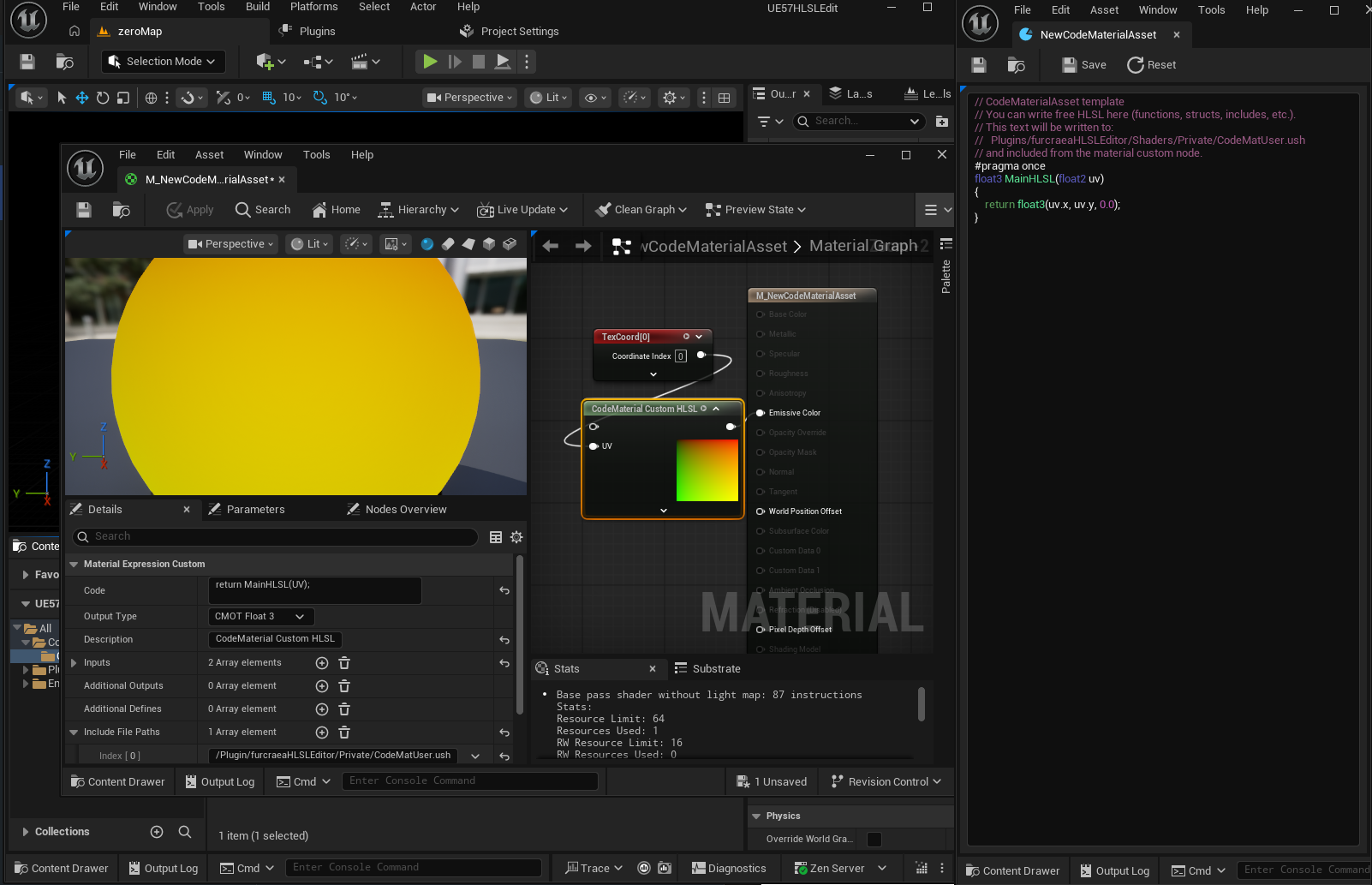
NavMeshを広げておかないとAIキャラクターが歩きにくいみたいです

できたのがこれ、

AIキャラクターが回転しないバグは次のときに説明するみたい。

Unreal Engine C++ Developer: Learn C++ and Make Video Games | Udemy UE4.26 Simple Shooterで自分なりに理解したこと。01200 ~AI Aimining~

Control + P でAIControllerと入力して

UE_4.26\Engine\Source\Runtime\AIModule\Classes\AIController.h

を開きます。

    /* 特定の優先度にフォーカスアクター設定し、結果としてFocalPointを設定します。*/    virtual void SetFocus(AActor* NewFocus, EAIFocusPriority::Type InPriority = EAIFocusPriority::Gameplay);

/ *特定の優先度にフォーカスアクターを設定し、結果としてFocalPointを設定します。 * /
	/* Set Focus actor for given priority, will set FocalPoint as a result. */
	virtual void SetFocus(AActor* NewFocus, EAIFocusPriority::Type InPriority = EAIFocusPriority::Gameplay);


こっちは

指定された優先度のフォーカスをクリアし、結果としてFocalPointもクリアします@paramInPriorityフォーカス優先度をクリアします。 何を使用すればよいかわからない場合は、おそらくEAIFocusPriority :: Gameplay * /を意味します。

  virtual void ClearFocus(EAIFocusPriority::Type InPriority);

	/** 指定された優先度のフォーカスをクリアし、結果としてFocalPointもクリアします
* @paramInPriorityフォーカス優先度をクリアします。 何を使用すればよいかわからない場合は、おそらくEAIFocusPriority :: Gameplay * /を意味します。*/
	virtual void ClearFocus(EAIFocusPriority::Type InPriority);

フォーカスの優先度ってなによってなるので見てみると

その列挙型の定義を見てみると、デフォルトの動きMoveゲームプレイがあることがわかります

そしてそれらは基本的に優先順位の順にリストされています。

//これが通常の列挙型ではなく名前空間である理由は
//ゲーム固有のコードで拡張できるようにする
// @todoこれは少し面倒なので、リファクタリングする必要があります
namespace EAIFocusPriority
{
	typedef uint8 Type;

	const Type Default = 0;
	const Type Move = 1;
	const Type Gameplay = 2;

	const Type LastFocusPriority = Gameplay;
}

struct FFocusKnowledge
{
	struct FFocusItem
	{
		TWeakObjectPtr<AActor> Actor;
		FVector Position;

		FFocusItem()
		{
			Actor = nullptr;
			Position = FAISystem::InvalidLocation;
		}
	};
	
	TArray<FFocusItem> Priorities;
};

私たちは主にこのゲームプレイを使用するので、それらをあまり使用する必要はありませんでした

次に

UE_4.26\Engine\Source\Runtime\Engine\Classes\GameFramework\Actor.h

protected:
	/** Overridable native event for when play begins for this actor. */
	virtual void BeginPlay();

をコピーして

ShooterAIController.hにペーストしてオーバーライドします

// Fill out your copyright notice in the Description page of Project Settings.

#pragma once

#include "CoreMinimal.h"
#include "AIController.h"
#include "ShooterAIController.generated.h"

/**
 * 
 */
UCLASS()
class SIMPLESHOOTERCP2_API AShooterAIController : public AAIController
{
	GENERATED_BODY()
protected:
	virtual void BeginPlay() override;	
};

C:\Program Files\Epic Games\UE_4.26\Engine\Source\Runtime\Engine\Classes\Kismet\GameplayStatics.h

	/** 指定されたプレーヤーインデックスのプレーヤーポーンを返します */
	UFUNCTION(BlueprintPure, Category="Game", meta=(WorldContext="WorldContextObject", UnsafeDuringActorConstruction="true"))
	static class APawn* GetPlayerPawn(const UObject* WorldContextObject, int32 PlayerIndex);

をみると指定されたプレーヤーインデックスのプレーヤーポーンを返しますので

// Fill out your copyright notice in the Description page of Project Settings.


#include "ShooterAIController.h"

#include "Kismet\GameplayStatics.h"

void AShooterAIController::BeginPlay()
{
    Super::BeginPlay();
    APawn* PlayerPawn= UGameplayStatics::GetPlayerPawn(GetWorld(),0);

    SetFocus(PlayerPawn);

}

できたのがこれ