Texturing XYZ で購入したTextureを使用するためのディスプレイスメントツールの使用方法 For Maya2022

この文章は「https://texturing.xyz/pages/texturing-xyz-displacement-tool」を日本語に翻訳し 再編成したものです。

これはRichardTrouveによって作成されたスクリプトで、TexturingXYZワークフローを容易にし、Lookdevシーンの設定にかかる時間を節約します。

リチャードさん、ありがとうございます。

これはMaya2022のPython3に対応されてなかったので個人的に修正してアップしました。
[Maya2022+/ Arnold ]

https://drive.google.com/file/d/1rmbFkdWXMKl0l1gTE_X5XmnOnsLJKjMd/view?usp=sharing

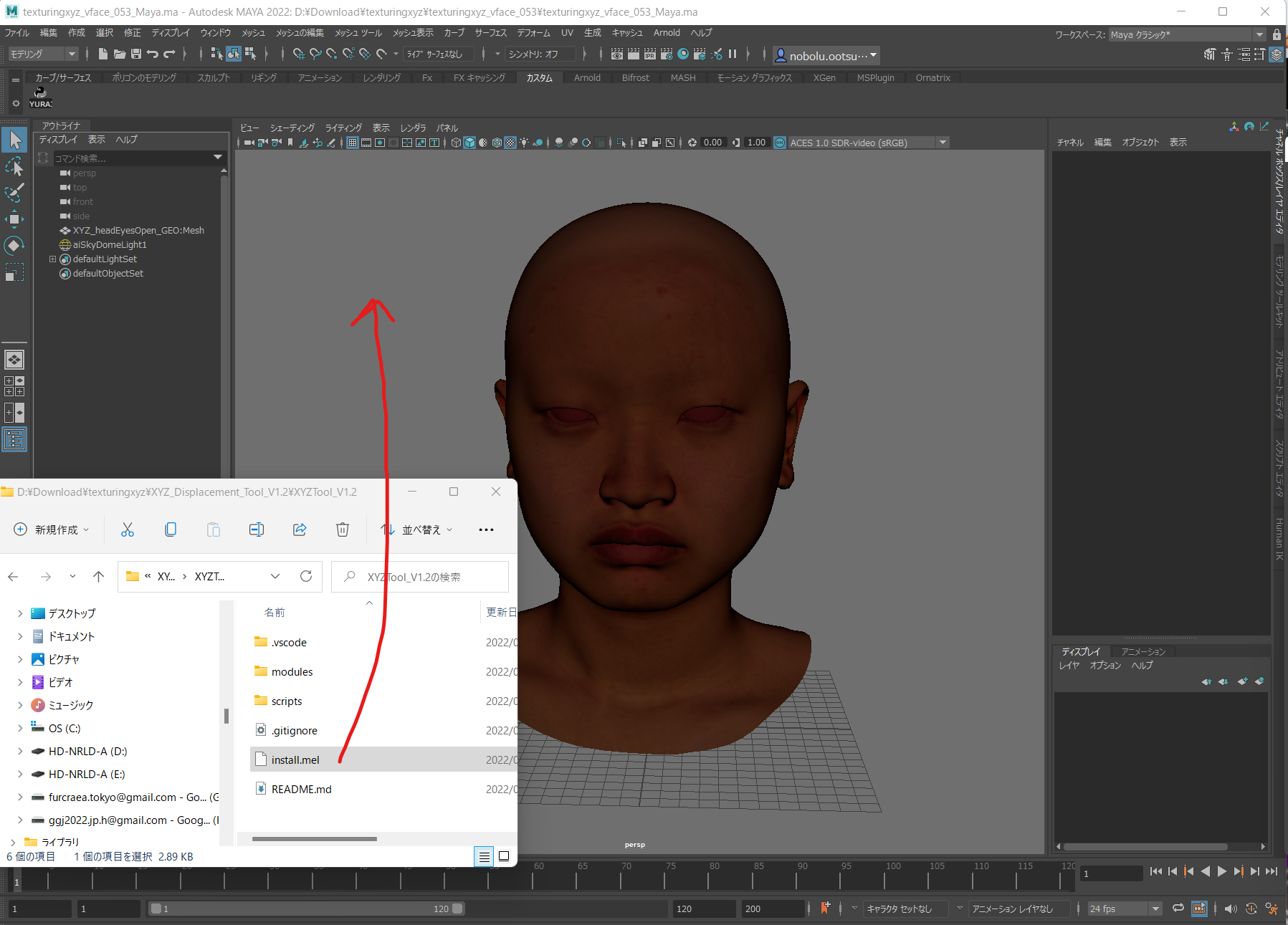
1. ZIPファイルを解凍し、script.melをmayaにドロップして開始します。

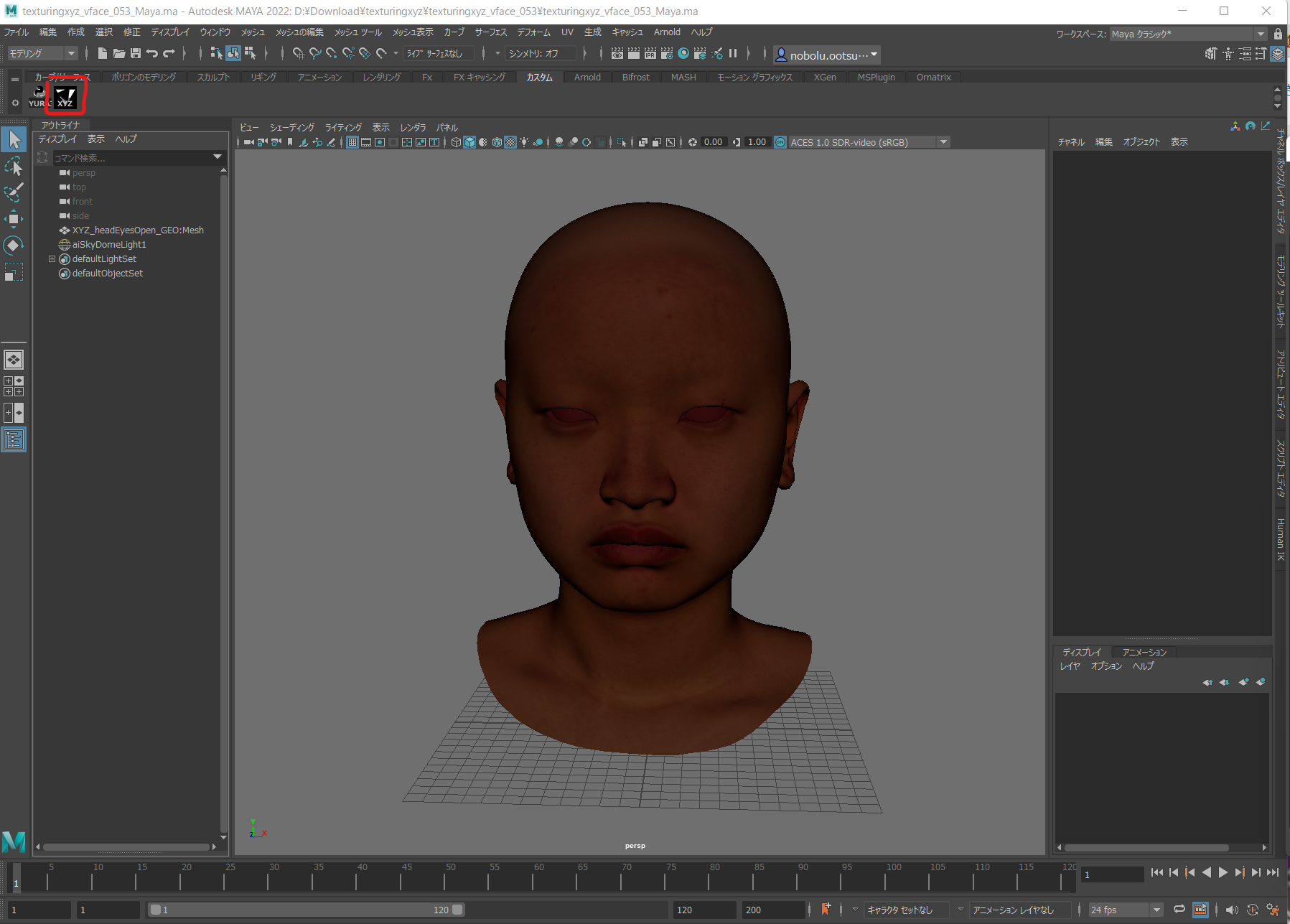
2.これにより、現在のシェルフにXYZロゴが配置されます。

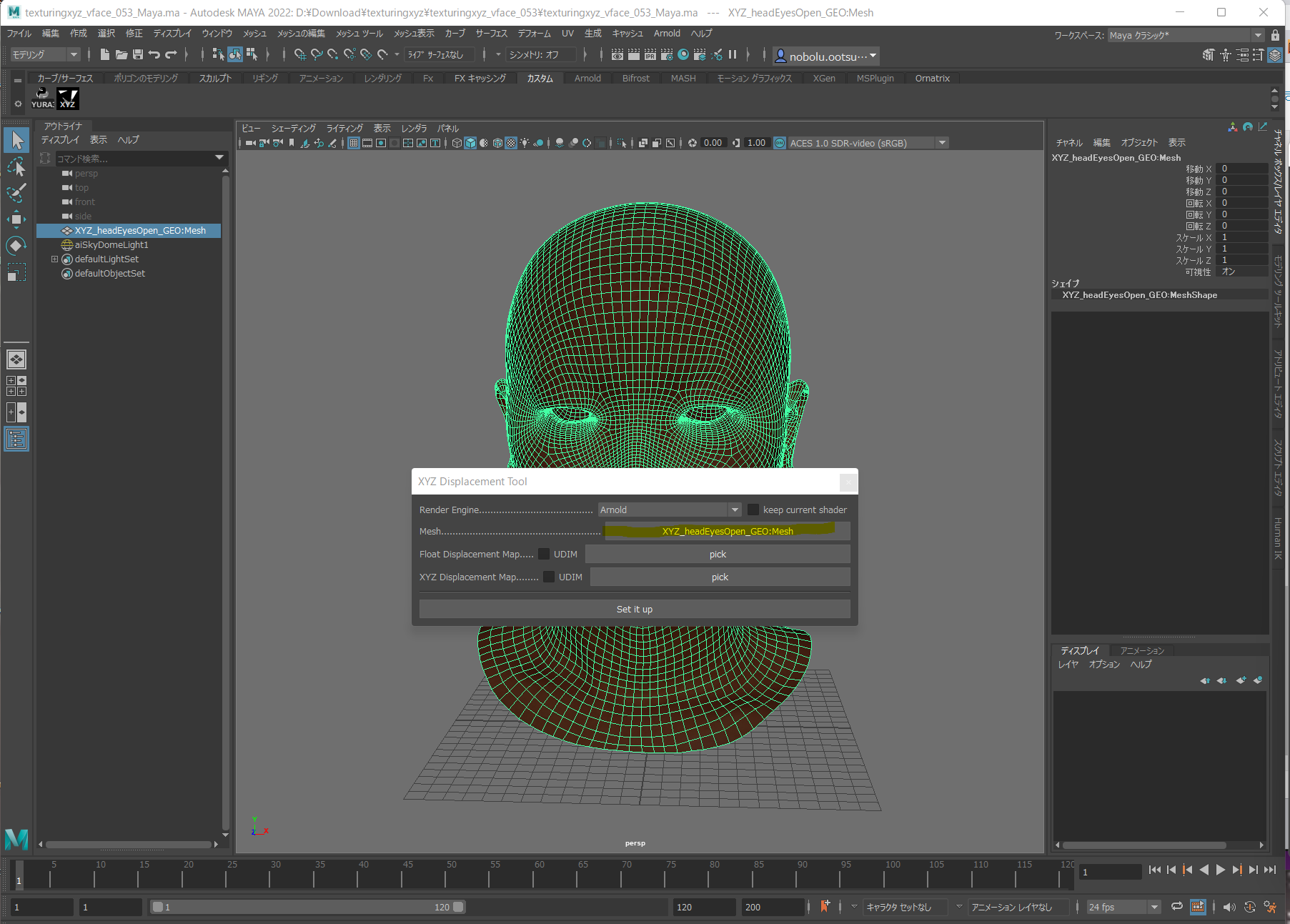
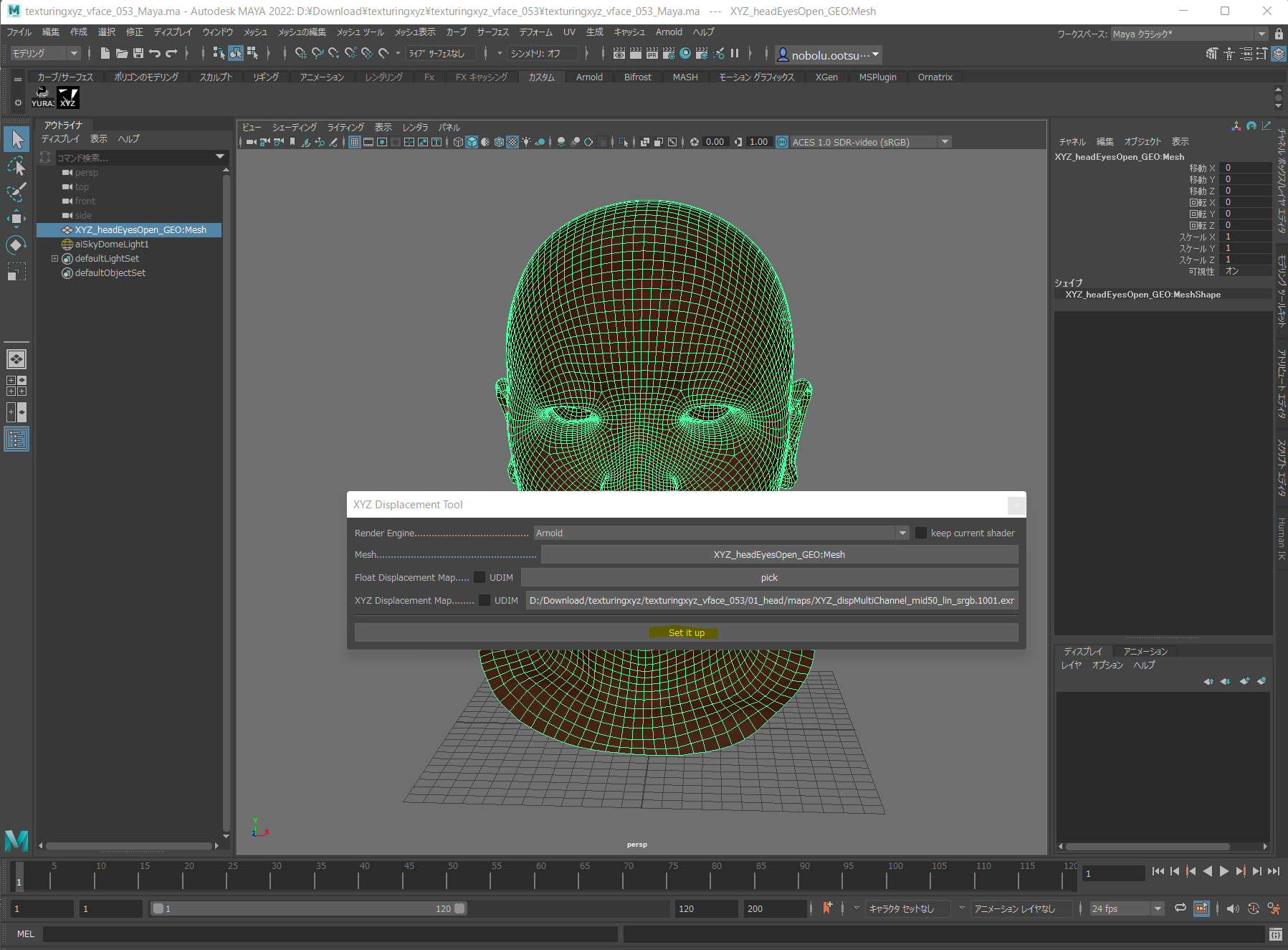
3.スクリプトを開くと、UIが表示されます。

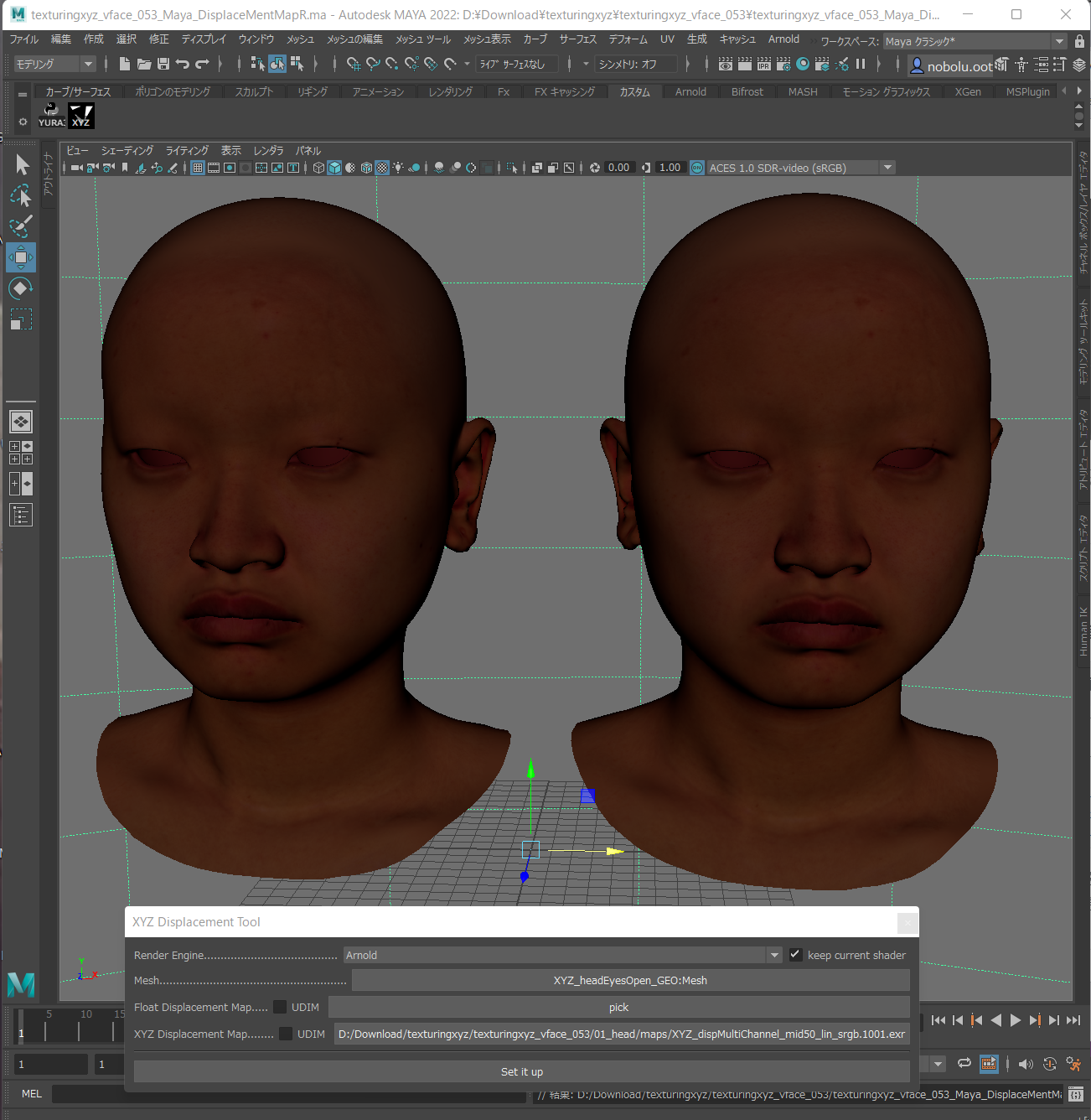
オブジェクトを選択し、[選択]をクリックして、ベースメッシュを選択します。

※:そのオブジェクトのシェーダーが既にある場合は、[現在のシェーダーを保持する]にチェックマークを付けます。

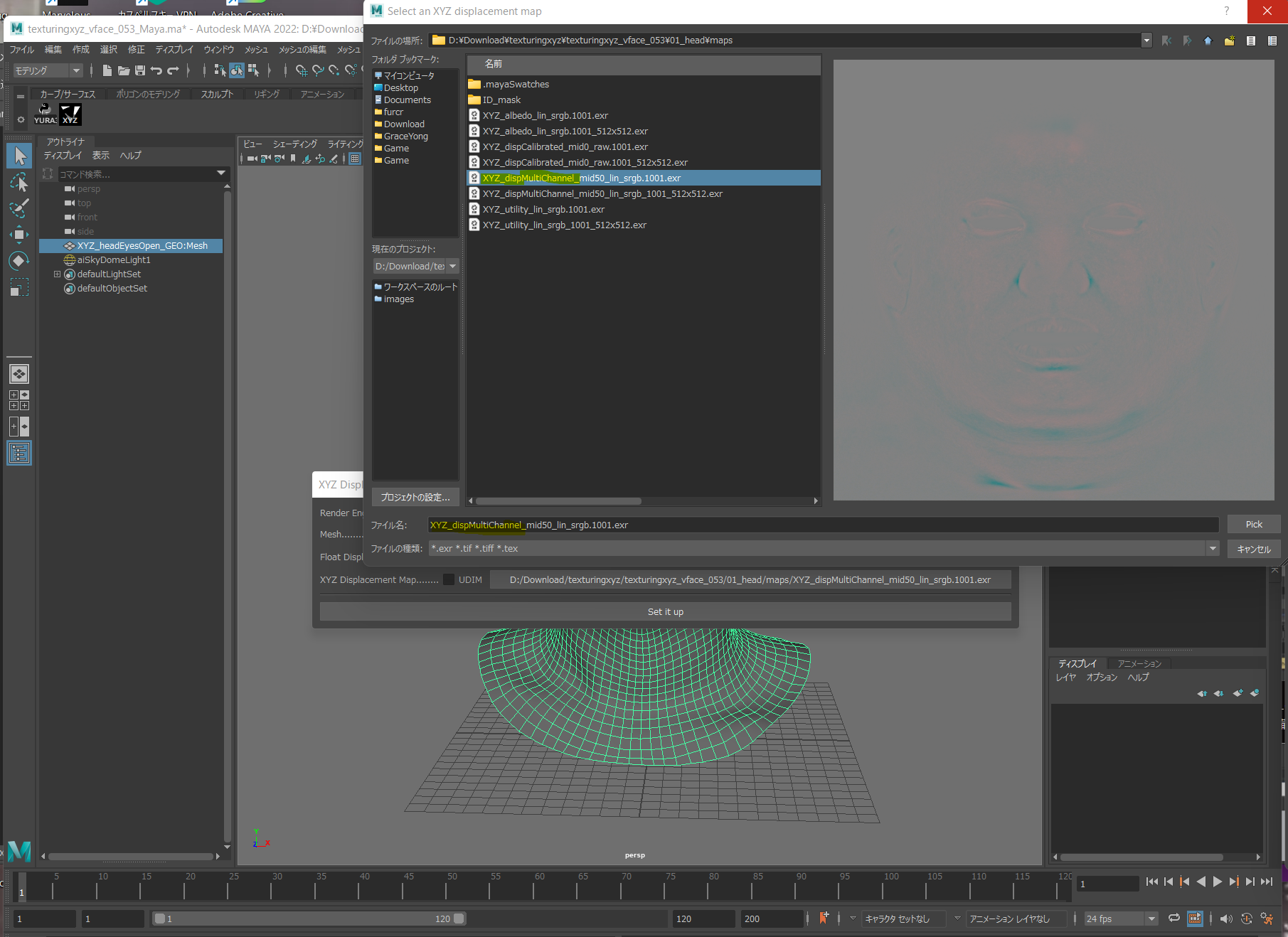
4. texturingXYZディスプレイスメントを選択し
今回は(XYZ_dispMultiChannel_mid50_lin_srgb.1001.exr)
フロートディスプレイスメントがある場合はそれを選択します。(ZbrushまたはMudboxの変位)(今回はなし)

5. [セットアップ]をクリックすると、

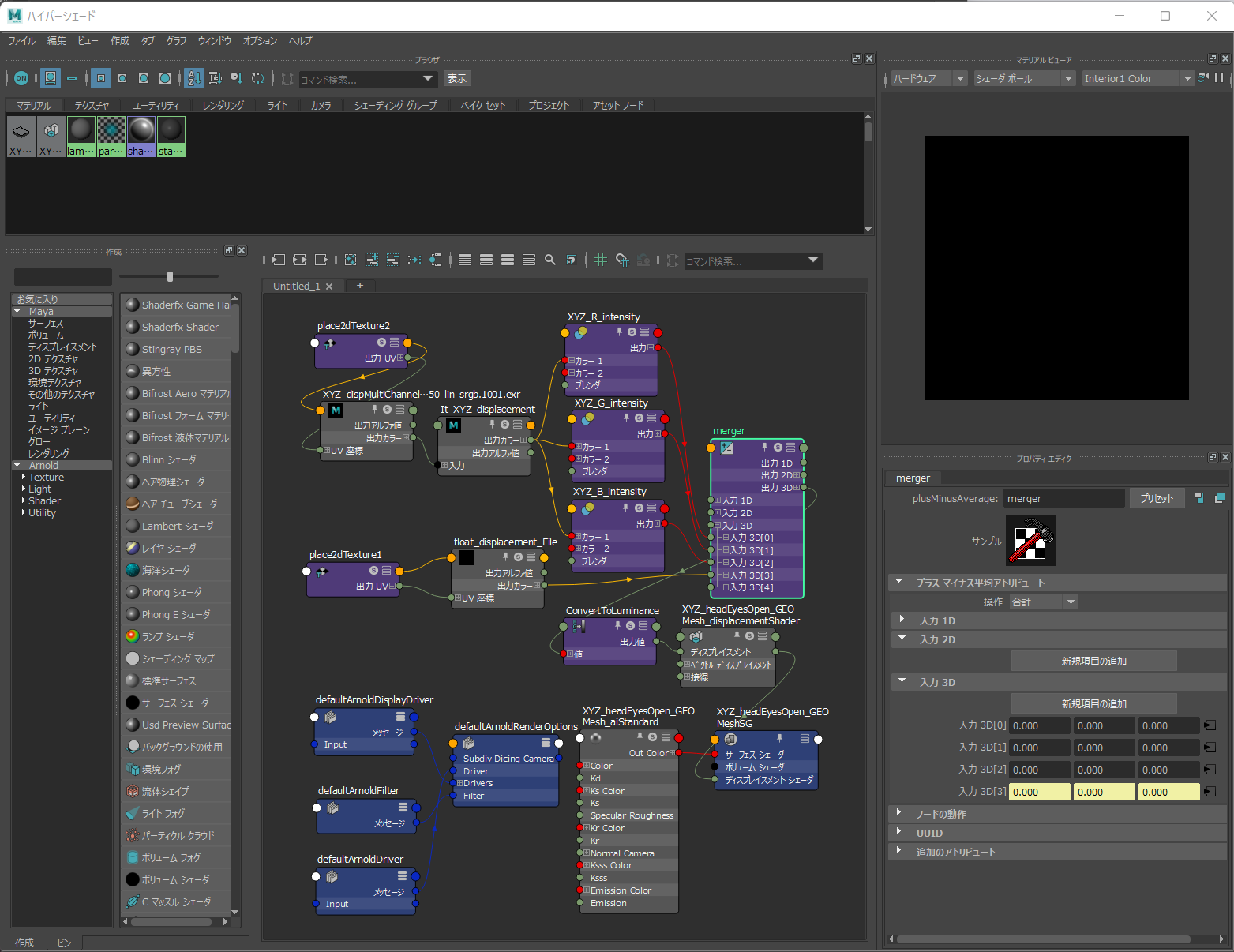
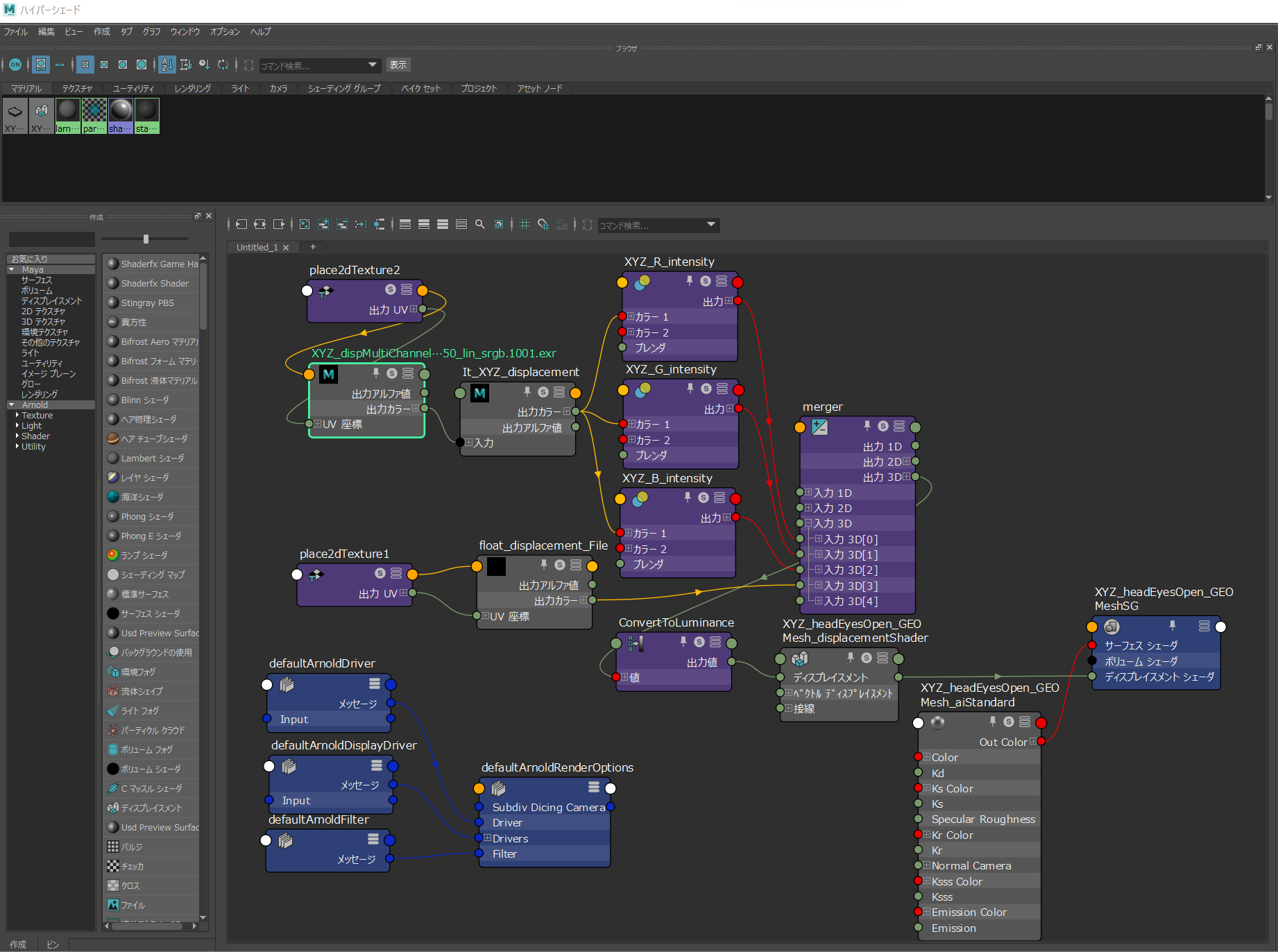
ハイパーシェードですべてのノードが接続され、ベースメッシュの形状のサブディビジョン設定も接続されます。あなたが今する必要があるのはあなたのコンテンツにブレンドを調整することだけであり、あなたは準備ができています!

翻訳はここまで

さーて違いが出ないので、肌のテクスチャ入れてからkeep current shader をオンにしてみた。わからん。

Arnorldでプレビューしないとだめにきまってるやん。

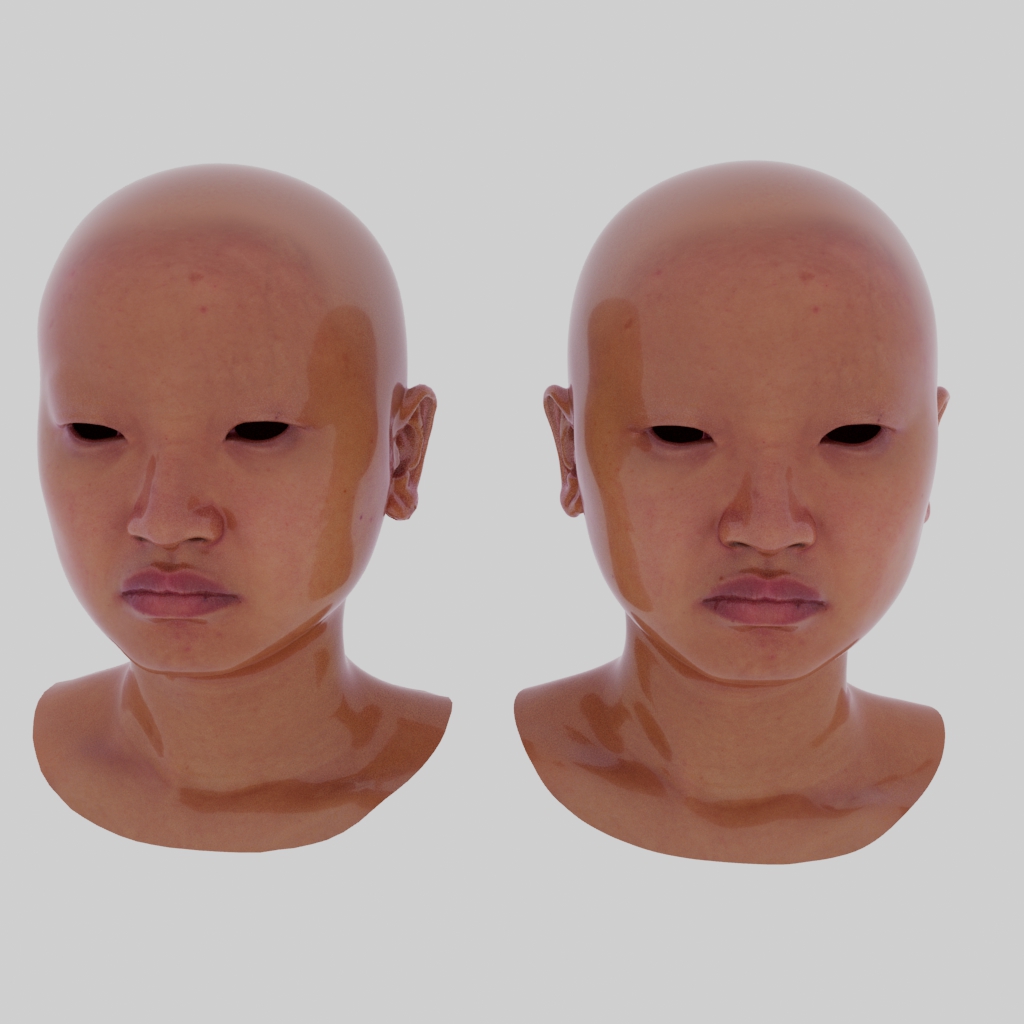
Arnoldでレンダリングしてみた。、違いがわからん。けどきれいやねalbedだけで。
左:albed 右:albed + (今回のtexturingXYZ DisplacementMap)

1行コードを分解するサンプルたくさん。

個人的に大嫌いな1行forや1行ifをつぶしていくサンプルコードたち。

class Acla:
    
    def unite_selection(self):
        #selected = [x for x in cmds.ls(sl=True) if cmds.listRelatives(x, type="mesh")]
        selected=[]
        for x in cmds.ls(sl=True):
            xx= cmds.listRelatives(x, type="mesh")
            if xx:
                selected.append(xx)
        
        
        if not selected:
            print("not selected")
            return
        #invalid_meshes = [x for x in cmds.listRelatives(selected, type="mesh", f=True) if not cmds.listConnections(x)]
        
        invalid_meshes = []
        for x in cmds.listRelatives(selected, type="mesh", f=True):
            xx= cmds.listConnections(x)
            if not xx:
                invalid_meshes.append(xx)
        
        if invalid_meshes:
            print("invalid", invalid_meshes)
            return
        res = cmds.polyUnite(*cmds.ls(sl=True), ch=0, op=True, muv=1)
        print(res)

ClassIns=Acla()
ClassIns.unite_selection()

pyside2 delete QVBoxLayout remove clear

更新機能がめんどくさいPysideの表示リフレッシュのために

レイアウト内をちゃんと削除するために

def clearLayout(self, layout):
    if layout is not None:
        while layout.count():
            item = layout.takeAt(0)
            widget = item.widget()
            if widget is not None:
                widget.deleteLater()
            else:
                self.clearLayout(item.layout())


Maya get Mesh Width Height Depth 幅,高さ、奥行きを測る

バウンディングボックスの関数をつかって測る

あくまでMayaの座標系での話だけど、まあ一緒か。

def get_MeshWidthHeightDepth(MeshName):
    boundingBox=cmds.polyEvaluate(MeshName, boundingBox=True )
    print("boundingBox= "+str(boundingBox))
    tapleX=boundingBox[0]
    tapleY=boundingBox[1]
    tapleZ=boundingBox[2]
    
    minX=tapleX[0]
    maxX=tapleX[1]
    depth=maxX-minX
    print("depth= "+str(depth))

    minY=tapleY[0]
    maxY=tapleY[1]
    height=maxY-minY
    print("height= "+str(height))
    
    minZ=tapleZ[0]
    maxZ=tapleZ[1]
    width=maxZ-minZ
    print("width= "+str(width))
    
    return width,height,depth

width,height,depth = get_MeshWidthHeightDepth("pCube2")

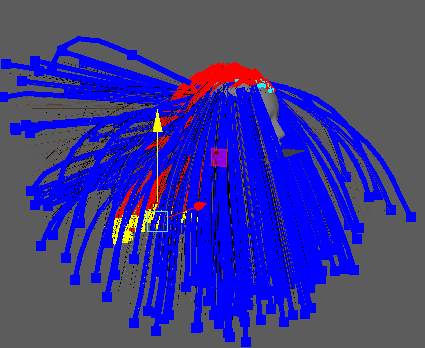
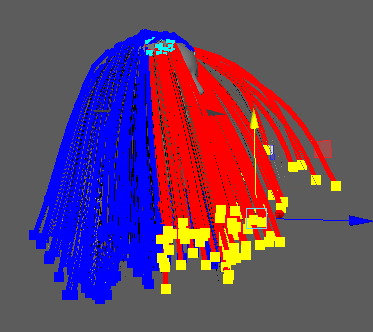
Ornatrix Maya V4 BETA: Tutorial #MetaHuman On #OrnatrixMaya #UnrealEngineHairGroom #UE4.26.2 #UE4 #UE4Study 2022 01

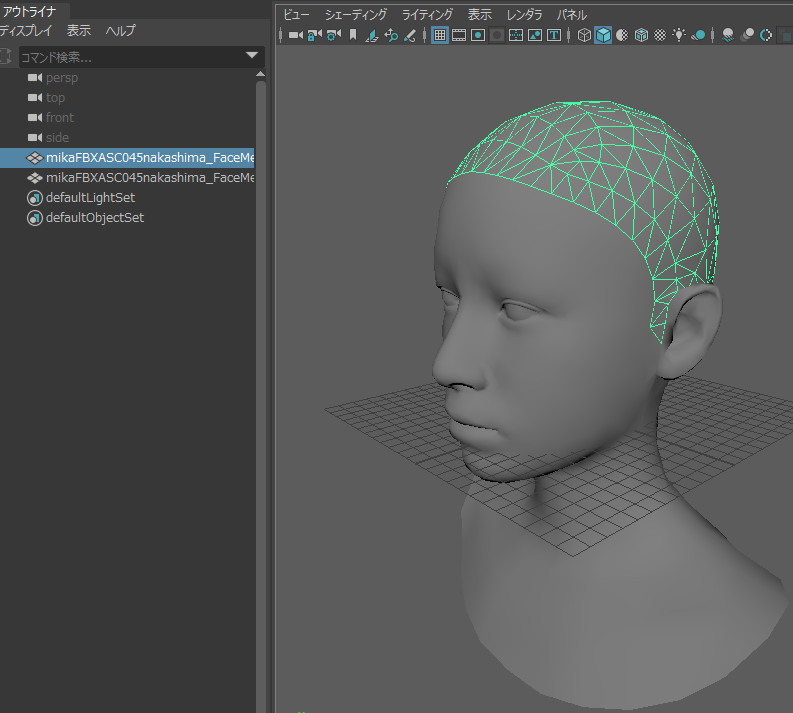
顔のメッシュを用意したら
複製して
頭皮にあたる部分を範囲選択ツールで選択して反転削除します。

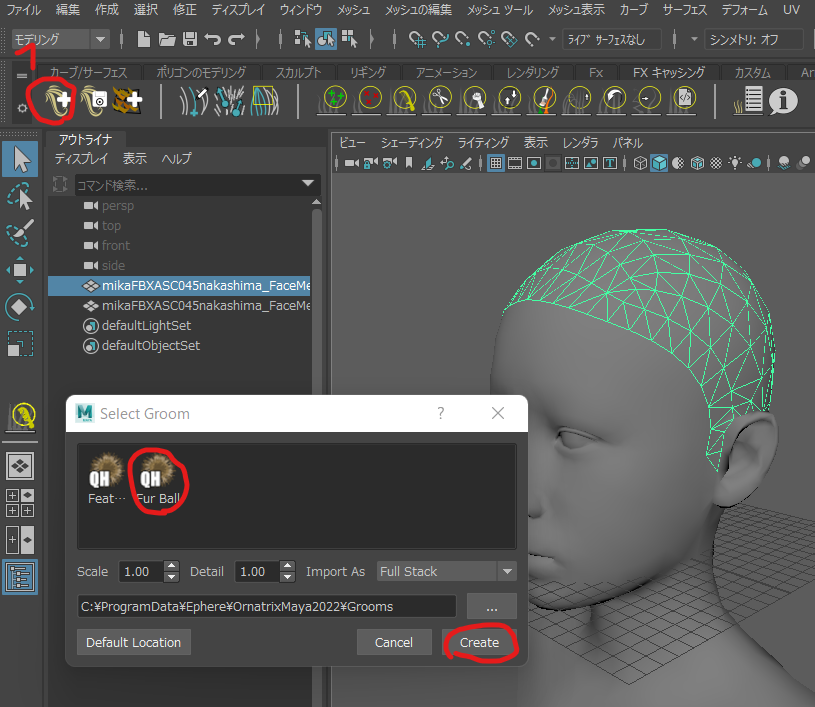
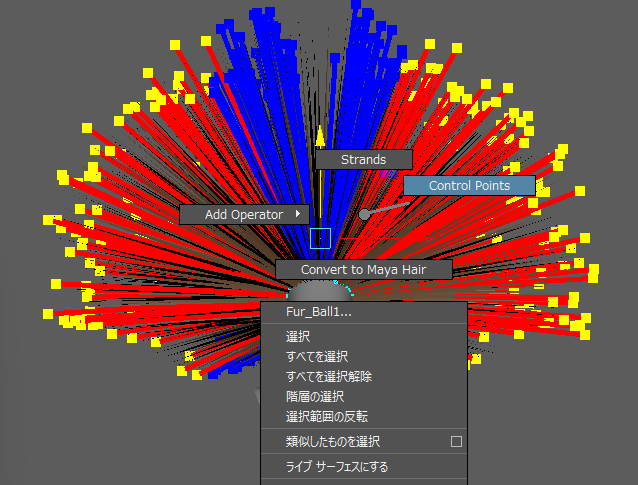
頭皮を分離したら「FurBall」プリセットを適用します。

Ornatrix Oparator Stackから
GuidesFromMesh1を選択
アトリビュートエディタで
Guides > Lengthで長さを調整できます。50.0にしました。
Ornatrix Oparator Stackから
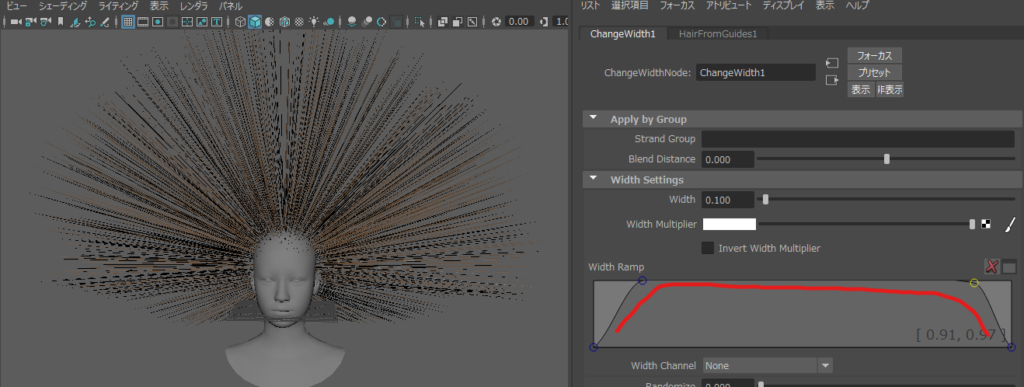
ChangeWidth1>を選択
Width Settings>Width 0.1
Width Rampのカーブを調整します。最初細くて中盤太くて最後細いようにします。

———————————————-動かないのでやめた
//Ornatrix Oparator Stackから
//EditGuides1を選択 このガイドで髪の方向を決められます。
//メニューからEdit Slinksを選択します。
//なにも効果なくブラシもが効かないのでやめた

Ornatrix Oparator Stackから
EditGuides1を選択
ガイドは選択ツールで右クリックしてControlPoint先端を位置調整できる

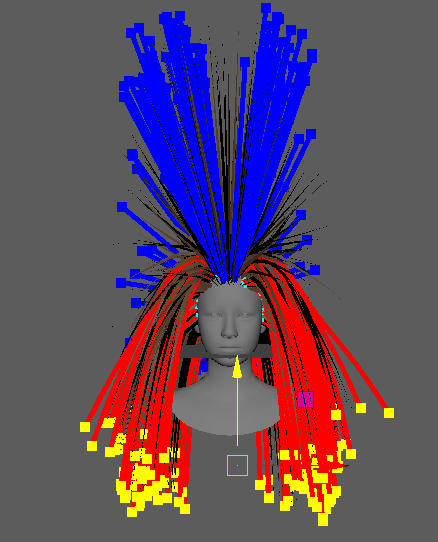
正面からみて、左右のControl Pointをざっくり選択します

移動ツールで下げます。

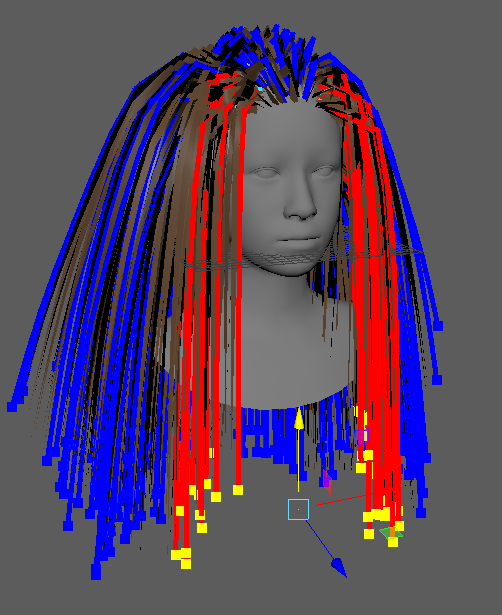
上に残った前髪はControl Pointを選択して後ろに向かって下げます。

(Control Pointでさげると生え際の方向を残したまま下げられます)

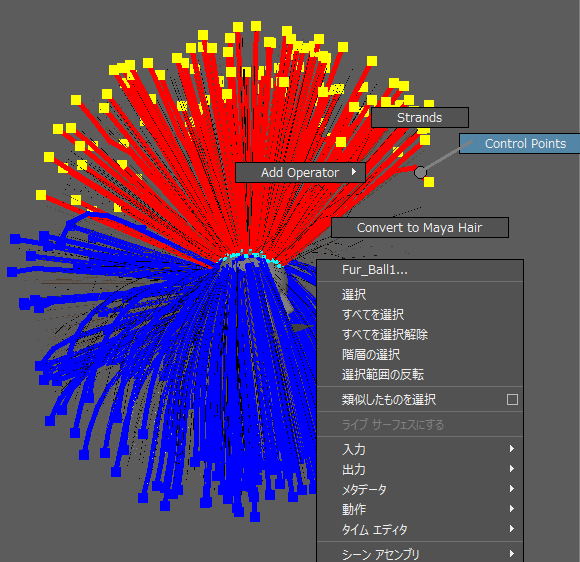
同じく後ろ髪もControl Pointでおろします

おろします

前髪もControllPointを選択しておろします。

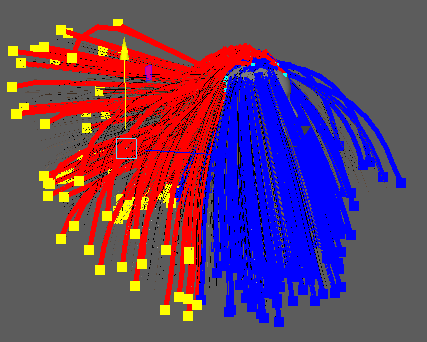
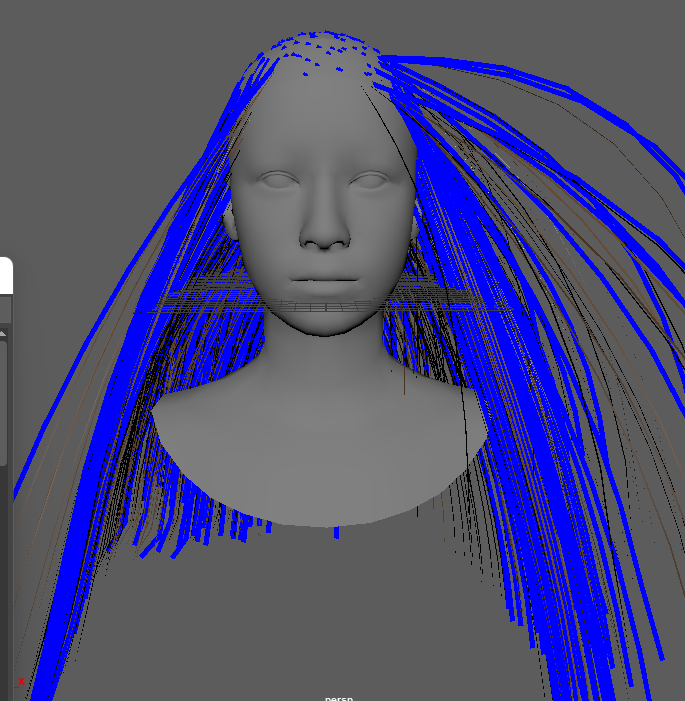
自然な毛流れができました。

ちなみにCombでやると前髪の立ち上がりがなくなってはげ頭になってしまします。

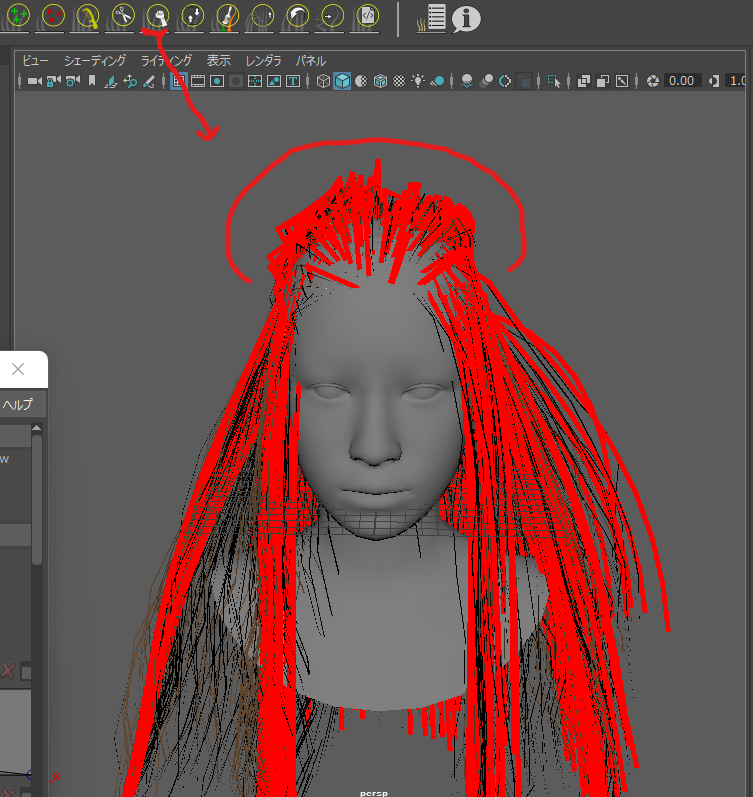
ここからは頭のトップに毛が張り付いているのでGrab Brushにして立ち上げられますがだいたい失敗します。

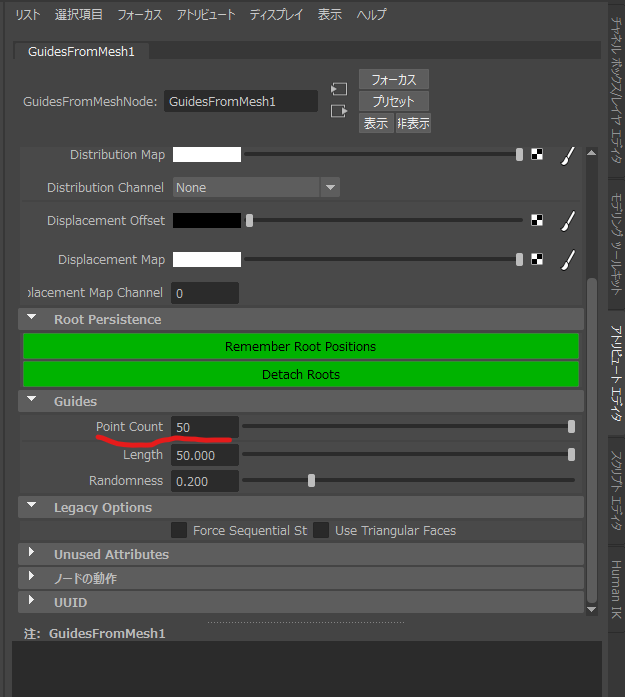
ヘアのトップの髪のカーブがガタガタだったら
Ornatrix Oparator Stackから
GuidesFromMesh1を選択
アトリビュートエディタで
Guides>Point Count10から50ぐらいにあげれば滑らかになる

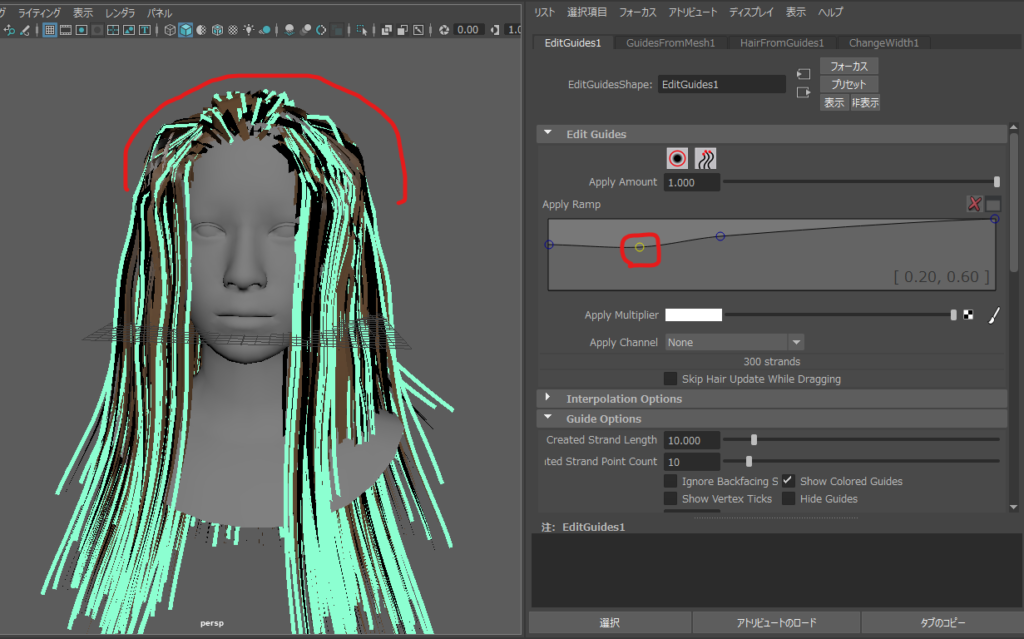
Control Pointの先端だけ持ってきたこの状態だと

Ornatrix Oparator Stackから
EditGuides1を選択して

Edit GuideのApply Rampで生え際の立ち上がり具合を調整できます。

ストレートヘアは完成です。

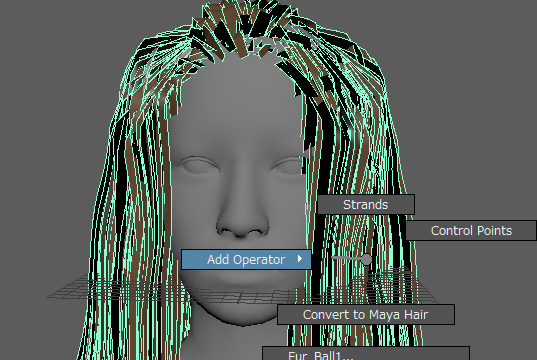
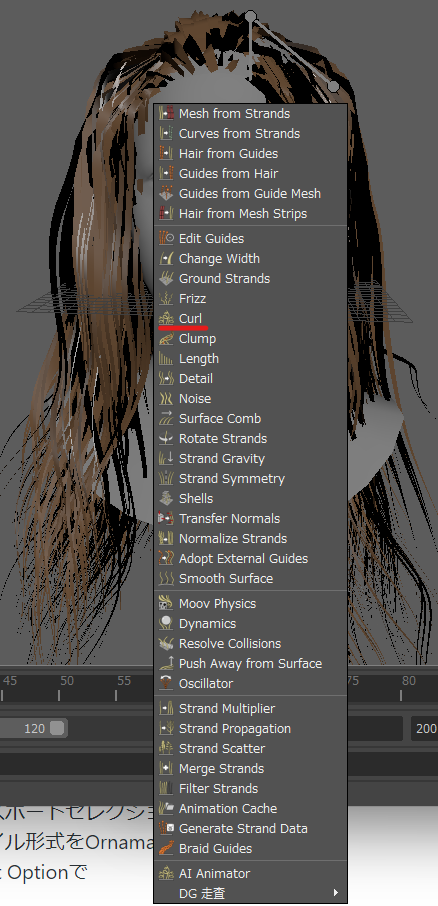
髪を選択して右クリックでAdd Oparater

Curl選択で

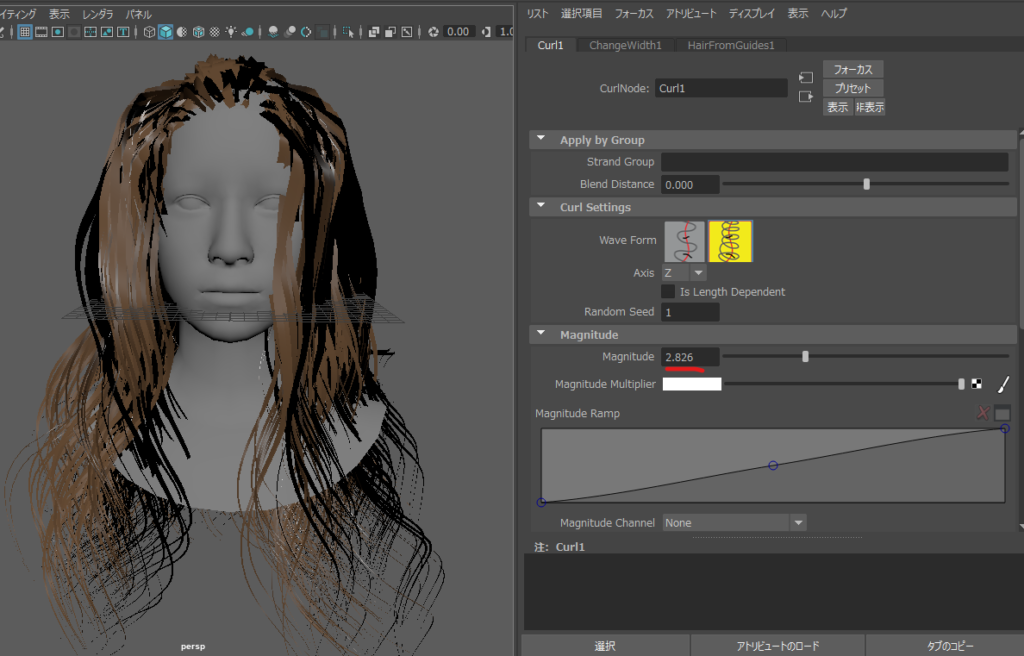
でPerm Hairパーマヘアになる。
Magnitude でカールの具合が設定できる2.8ぐらいにした。

で完成したら
Alembicとしてエクスポートします。

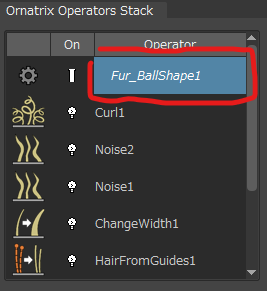
Ornatrix Oparator Stackから
Fur_BallShape1を選択して
を選択して


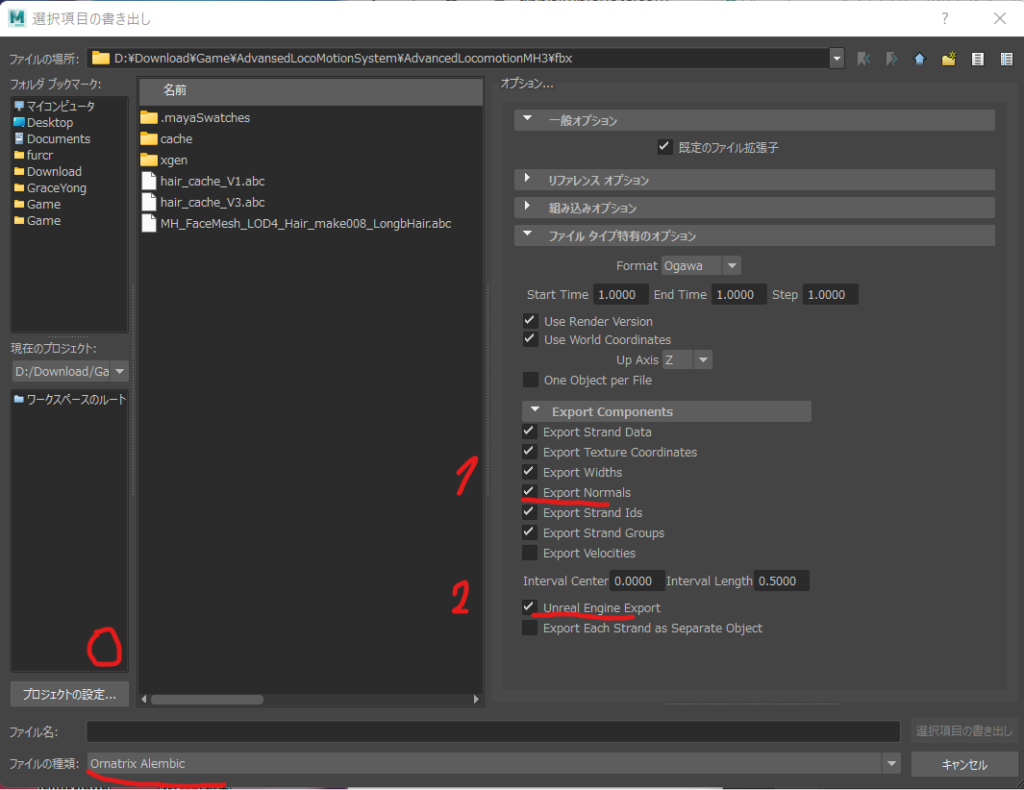
エクスポートセレクションで
ファイル形式をOrnamatrix Alembicを選び
Export Optionで

Export Normalsと

Unreal Engine Exportにチェックを入れます。

あとは

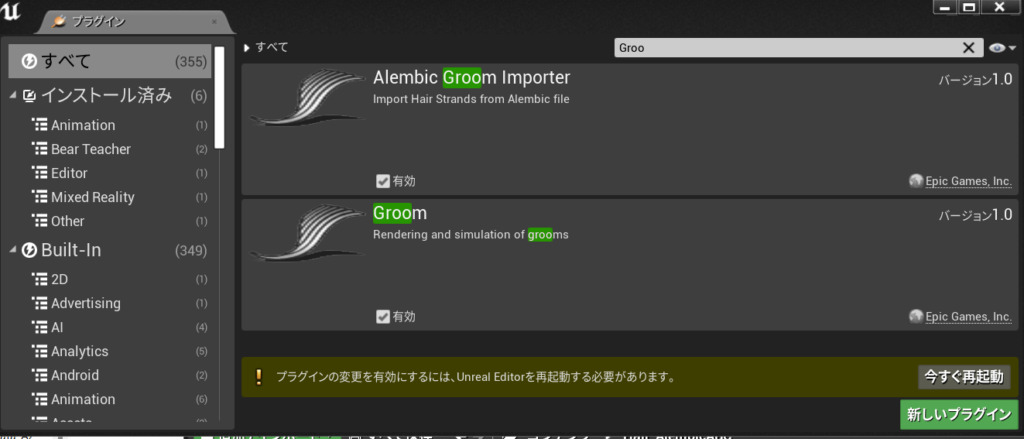
Unreal Engine UE4.26.2 のAlembic Groom Importerをオンにして

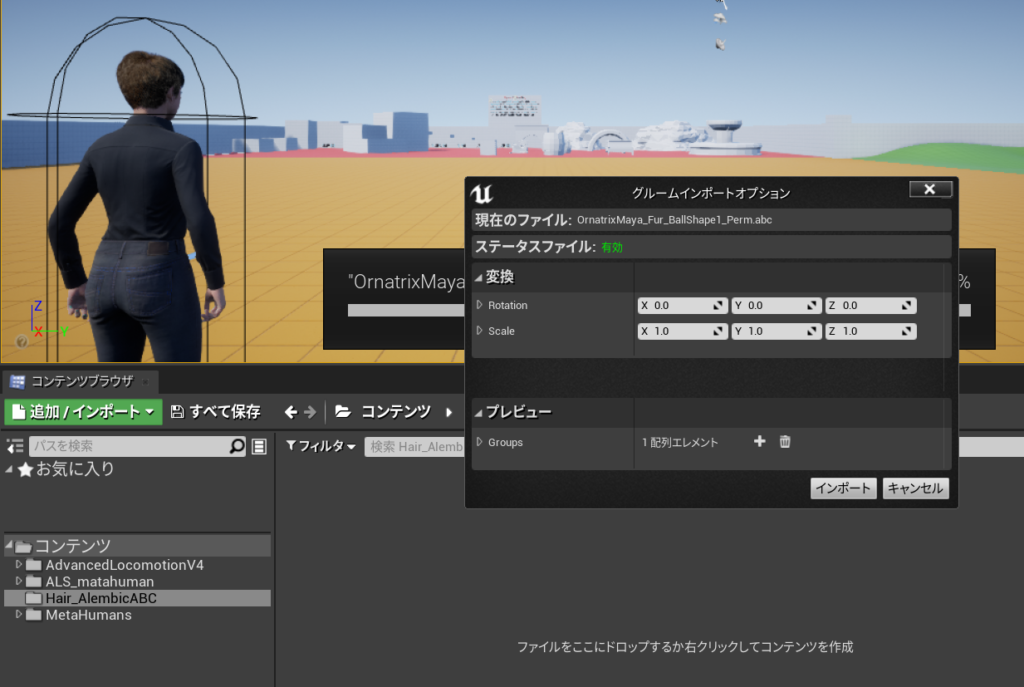
ファイルをコンテンツブラウザにドラッグします。

保存したら

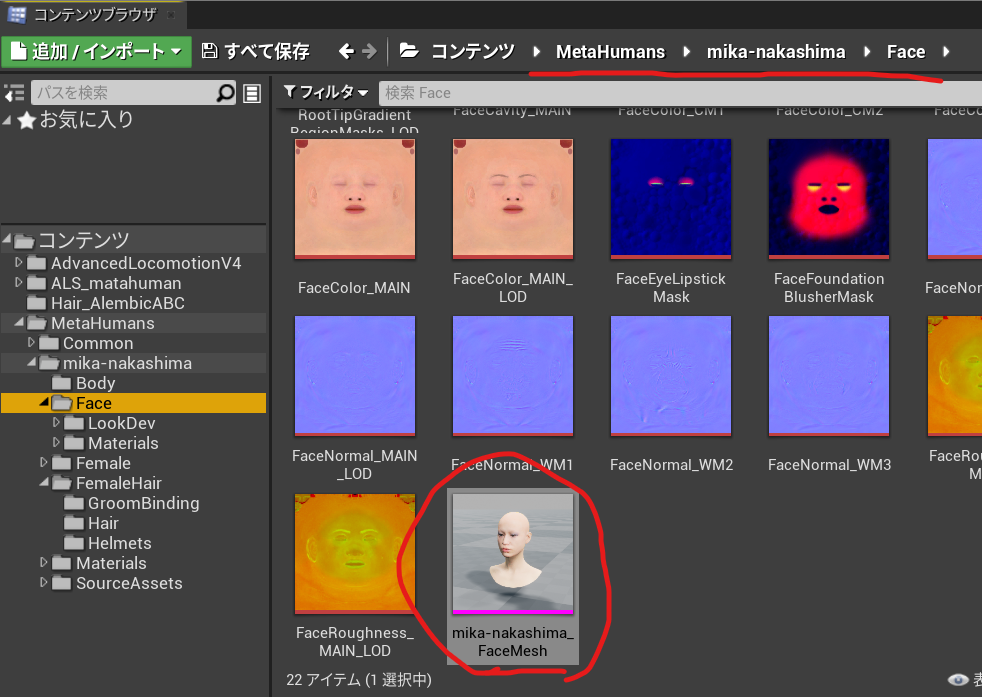
MetaHumanで作成した頭のSkeltalMeshを開いて

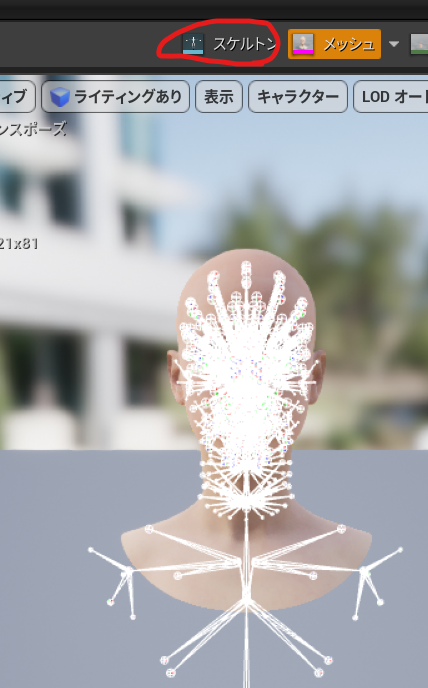
スケルトンへ移動

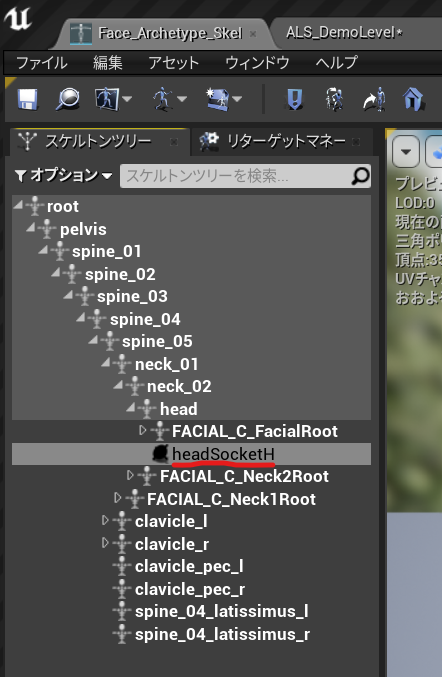
スケルトンツリー>head>ソケットを作成 「headSocket」とし保存

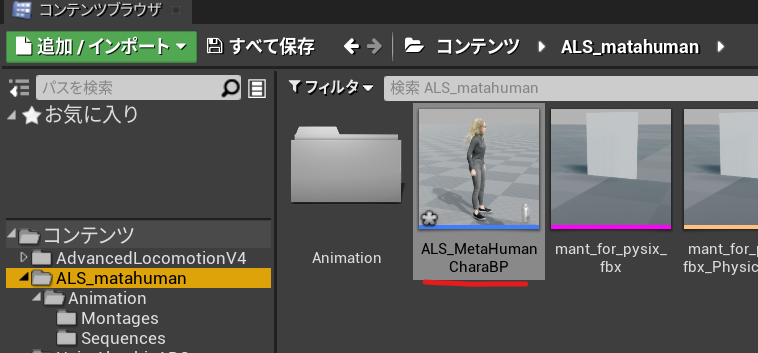
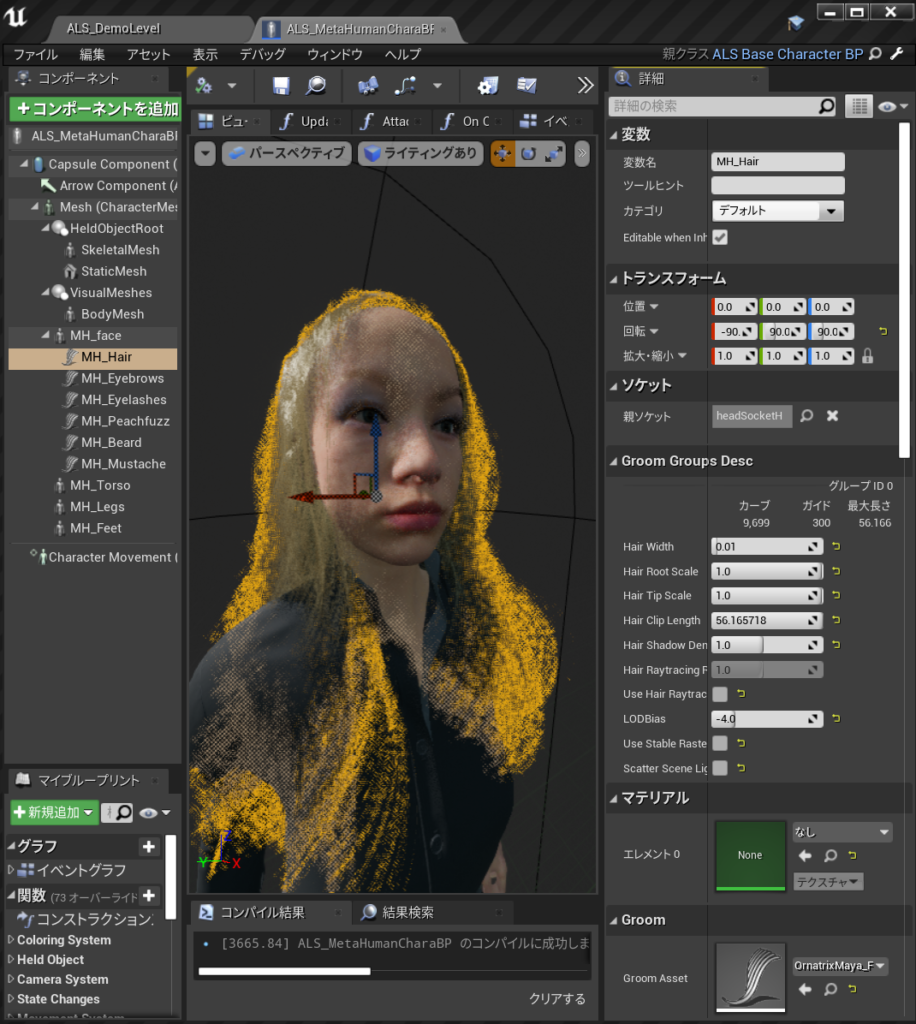
MetaHuman_CharactorBPに移動して(今回はALS_Metahuman_CharacterBP)

Hairを選択しGroomをインポートしたものに変更

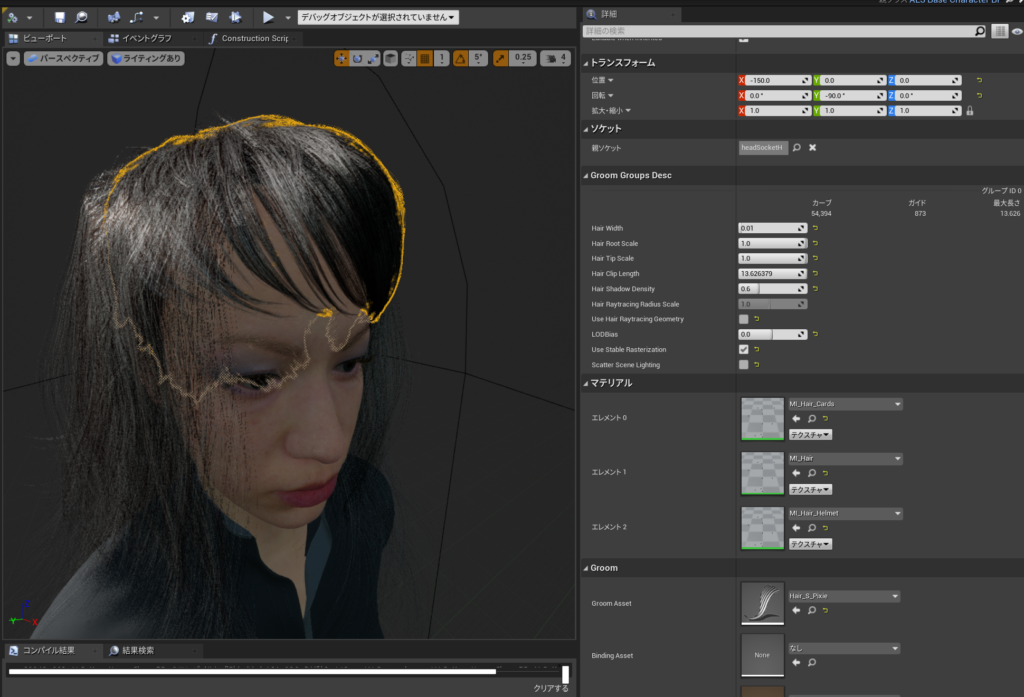
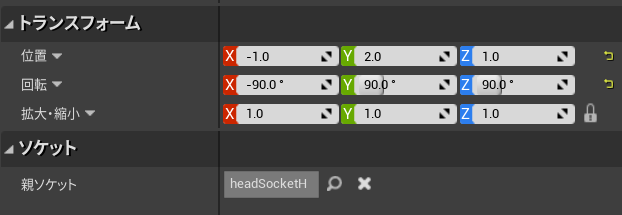
親ソケットにheadSocketを選択し

位置 -1 2 1

回転に -90 90 90 で

ピッタリ頭にくっついた!!

マテリアルはM_hair_v2をあてると透けないみたい。

だがなんだかもっといい感じでもないので

ちゃんと透けなくするため元のmetahumanのHair のGroomComponentをコピーしてきてを

ショートヘアーを重ねた

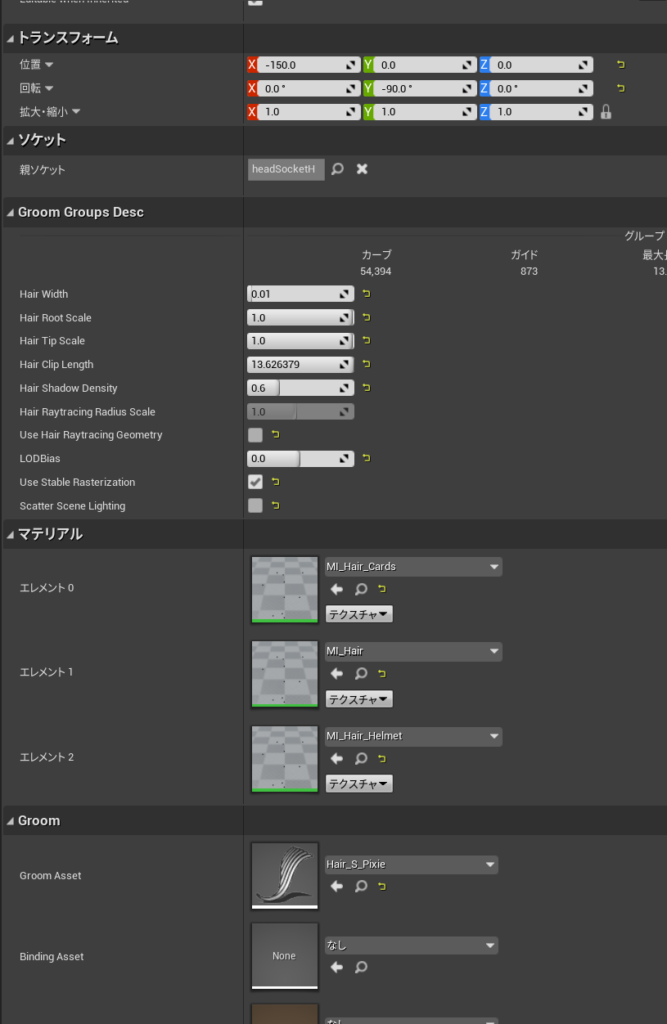
設定はこのように

位置 x:-150

回転 y:-90

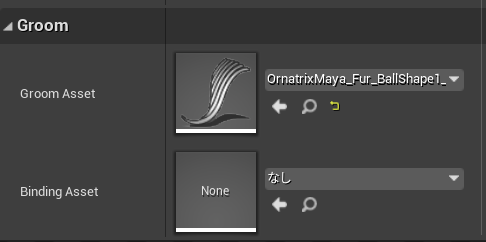
Bnding Assetはクリアした。

完成

走らせると。。。。作ったグルームがファサっとならない。課題はある様子

参考URL

#UE4 #UE4Study とDAIKIN CG Channel Seminar モモちゃんリグで学ぶ!~反動表現~で学んだことと#AdvancedLocomotion への攻撃アクション追加

https://www.comtec.daikin.co.jp/DC/event/202201-toranomaki-rig-sem.html

学んだこと。
1.パンチ、切り付けはパンチ後、軽反動つける
2.軽い武器には反動いらない
3.大剣は地面から押し返す力を受けて体が揺れ
4.力の伝わる順番はパンチ腰→胸→腕
5.パンチ腰の動き下→上→下をパーツごと
6.ヒット後で腰をさらにねじ込むと強くなる
7.腰を入れる、運動連鎖の法則
8.大剣は振り下ろすので腰も同じ動きをする
9.重いので振り下ろす時だけじゃない
10.人間の胴体は重いので1回バウンドのみ
11.人間には脳みそ揺らし過ぎない意識がある
12.大剣はヒット後に胸をねじ込むと強くなる
13.大剣はヒット後、腰に合わせ武器を後ろに
14.ダメージはヒット部位、腰→胸→頭で落ち
15.ダメージは意識がないので脳みそ揺らす
16.ダメージは顔をそむけたり不安定に。
17.バウンドのタイミングずらしてランダム感

UE4 ALS Punch

プロジェクト設定>インプット>アクションマッピング+で追加して
Attack に
・キーボードのR
・ゲームパッドのショルダーのRトリガー
を追加した

A2_CharactorBPで
イベントグラフの下に+で追加して
CharactorInputGraphを追加して
Attackのインプットアクションを配置
イベントグラフでカスタムイベントを追加
Attack_Eventと命名
CharactorInputGraphを追加して
Attackのインプットアクションから>Attack_Eventへつなぐ
使いたい攻撃モーションのアセットを右クリックして作成>AnimMontage
A2_F2_BigSwordSlash4_Montageができたので
CharacterBPで関数を作成して
GetAttackAnimationとリネーム
GetAttackAnimation>switch on ALS_OvarlayState
Get OverlayState >switch on ALS_OvarlayStateへ
switch on ALS_OvarlayStateのDefaultからReturnノードへつなぐ
Returnノードにoutputを追加してReturnValueにして
型をAnim Montageにし
CharacterBPで変数を作成してAttack_Animにした。
型をAnim Montageにした。
Get AttackAnimしてそのデフォルト値にA2_F2_BigSwordSlash4_Montageを追加した。
Get AttackAnimをReturnノードにつないだ

イベントグラフでGet Main Anim instanceして>値を検証済みGETに変更した
Attack_Event>Main Anim instanceとつなぐ。
Main Anim instance>Montage Playを呼ぶ
作った関数GetAttackAnimationを配置してpure純粋化>Montage Playへ接続

A2_F2_BigSwordSlash4から>EnableRootMotionをオンに

A2_F2_BigSwordSlash4_Montagから>スロット>スロット名>
MovementActionGroup BasedLayer

スケルトンにhand_rにhand_r_weaponソケットを追加
hand_r_weaponソケットにプレビューアセットを追加して角度調整
CharacterBPのビューでStatickMesh追加武器メッシュ設定して
一旦完成。

#UE4 #UE4Study Character #HairCloth #HairShadingModel #AdvancedLocomotionSystem ファサっと天使の輪と束感でUEのヘアーの使い方

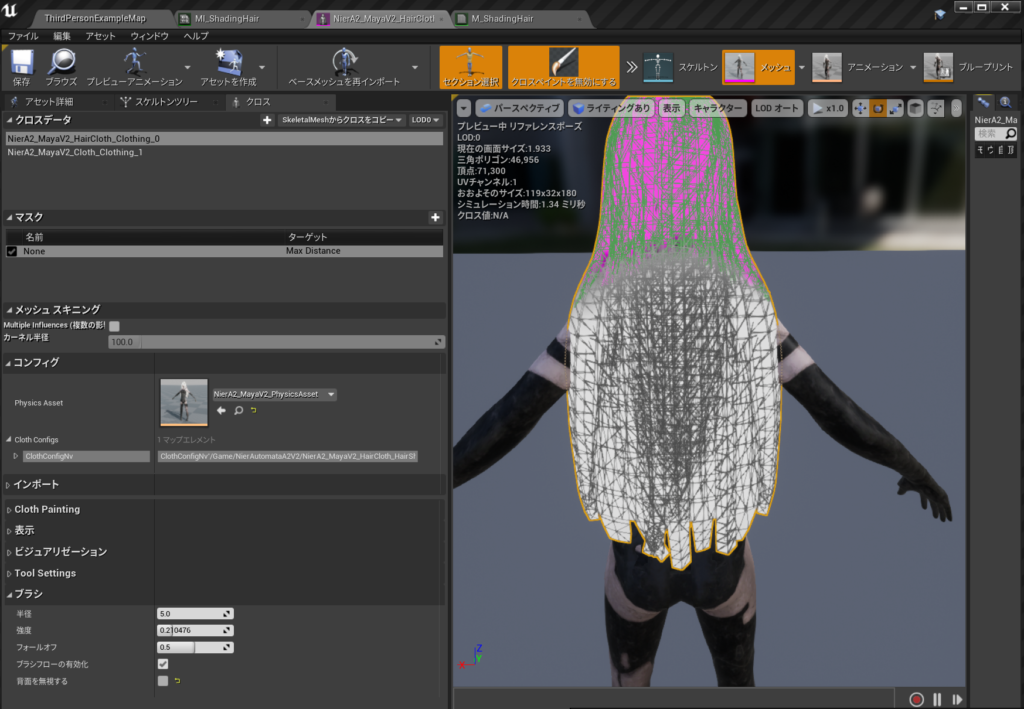
服と髪をなびかせるHair Clothはこれをやった
https://docs.unrealengine.com/4.27/ja/InteractiveExperiences/Physics/Cloth/Overview/
1, [Section Selection (セクション選択)]
2,左クリックを使って、クロスとして使用したいメッシュの一部を選択します。次に右クリックして、コンテキスト メニューを開いて Cloth アセットを作成します。
3,コンテキスト メニューから、[Create Cloth Asset from Selection (選択したものから Cloth アセットを作成)] を選びます。

 A,Asset Name – 後で簡単に見つけられるようにアセットに名前を付けてください。

 B,Remove from Mesh – クロスとして関連付けたい別個のジオメトリのメッシュの構成要素があれば、このオプションを有効にします。そうでなければ、チェックを入れずにこのままにします。

 C,Physics Asset – Cloth アセットがキャラクター用ならば、その Physics アセットを使ってクロス シミュレーションで適切なコリジョンが生じるようにします。

4,[Create] ボタンをクリックします。
5,セクションを再度右クリックして、コンテキスト メニューを表示させて、[Apply Clothing Asset] にマウスをかざし、利用可能なクロス アセットから適用するものを選択します。これで作成した任意のクロス アセットが選択したセクションに関連付けられます。

・ペイント – マウスの左ボタン
・消去 – Shift キー + マウスの左ボタン
・クロスのプレビュー – H キー

[Window] を選択し、リストから [Clothing] を選択します。
[Clothing Data] リストから選択します。

[Activate Cloth Paint] ボタンをクリックして、選択した Cloth アセットをペイントするために使用可能なプロパティを有効にします。

・ブラシの半径を5にして
・強度を0.2
・フォールオフ0.5
でヘアをクリックすると塗れる。ピンクが塗ってない場所

走ってみると

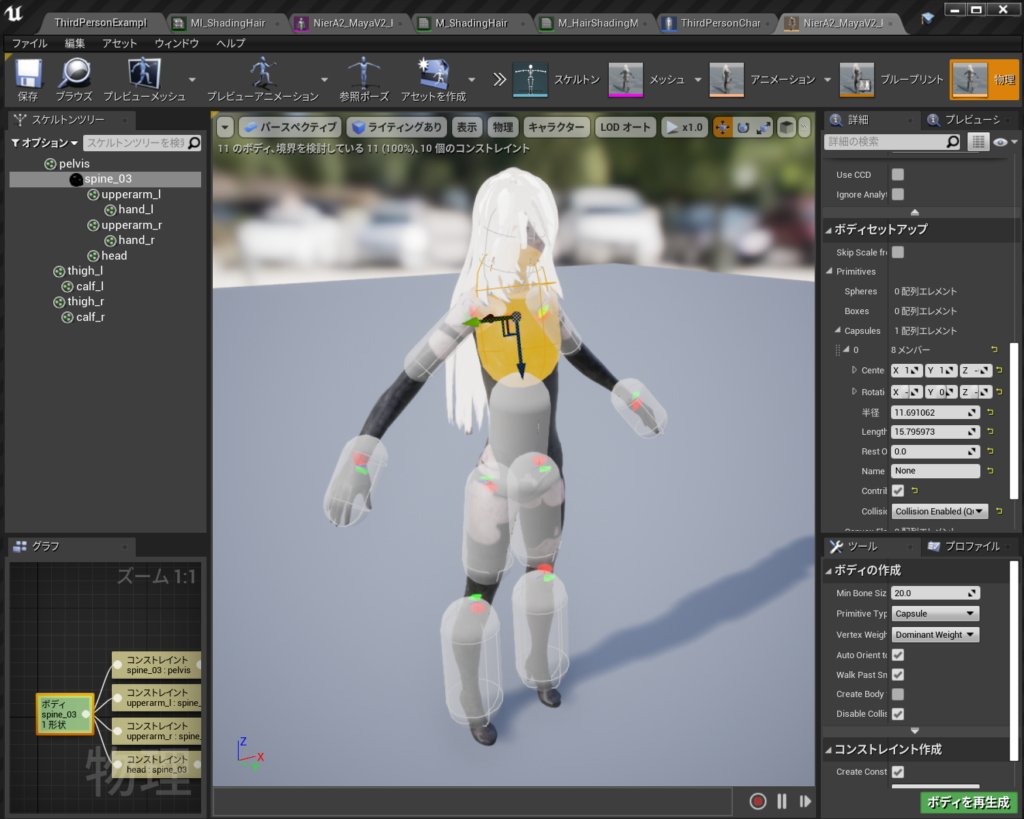
髪が前に来ちゃう

ので

物理ボディを修正した

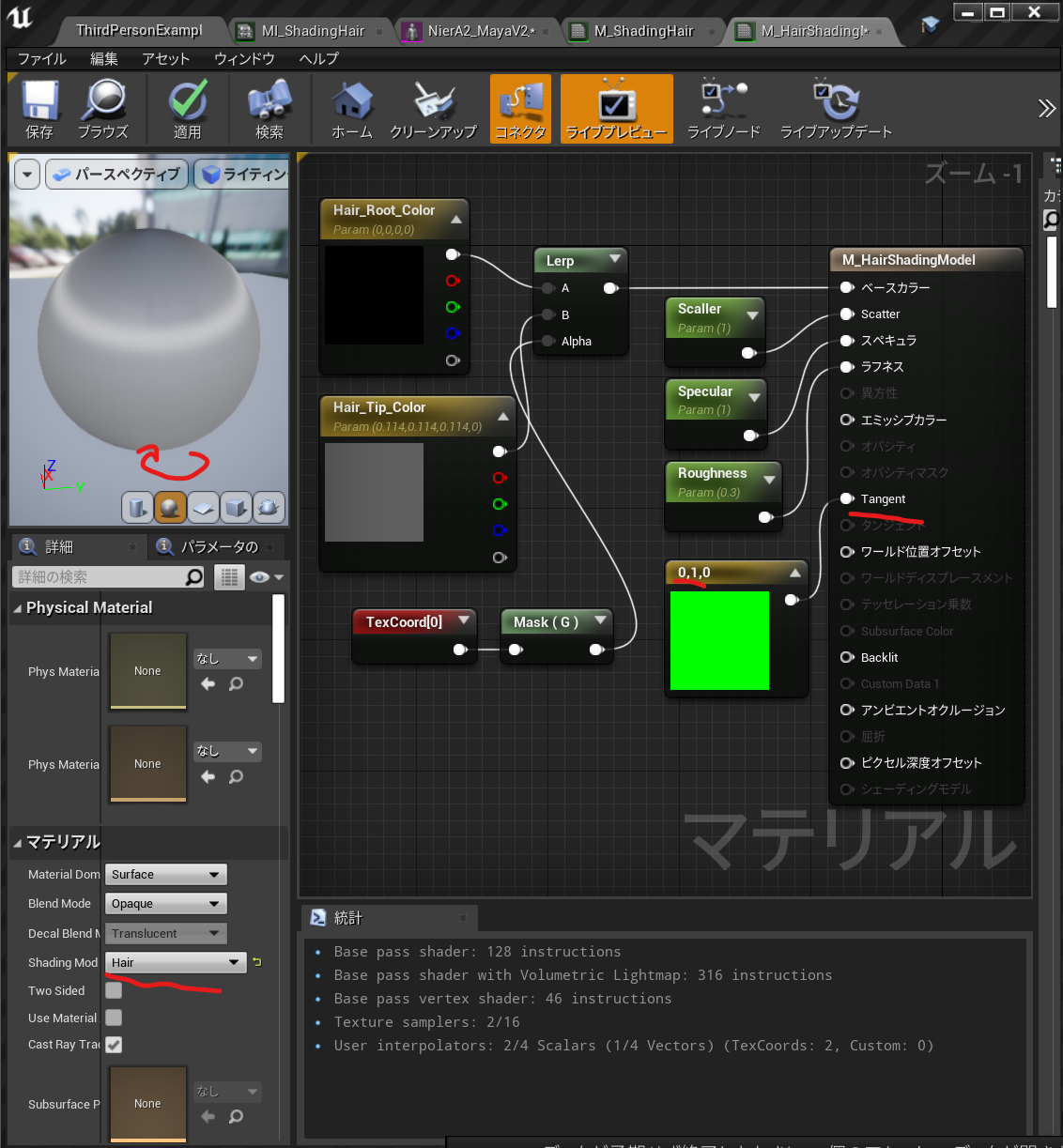
HairShadingModel 基本はこれをやった。

つまりこれで髪の天使の輪みたいなものができる。 (まわしてみないと分からない)

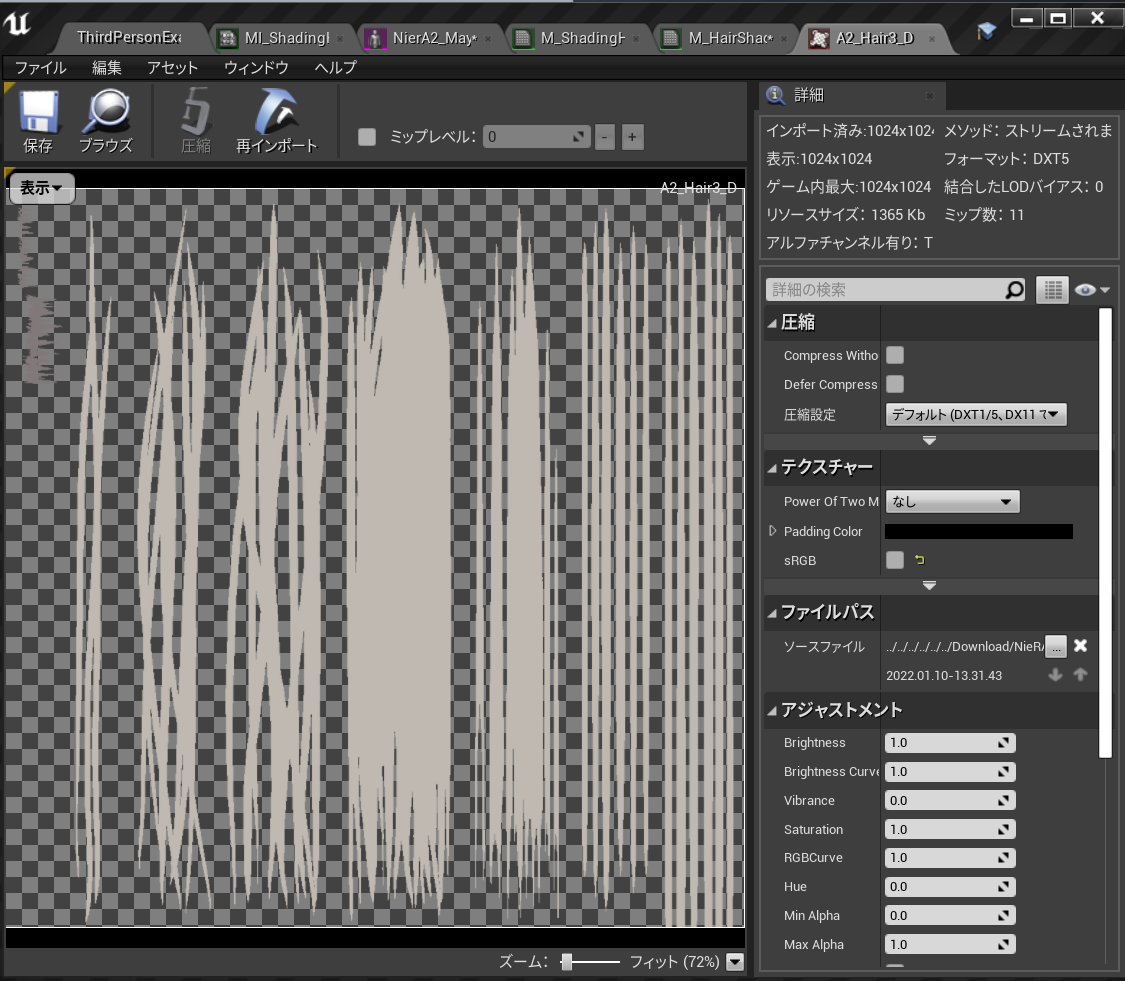
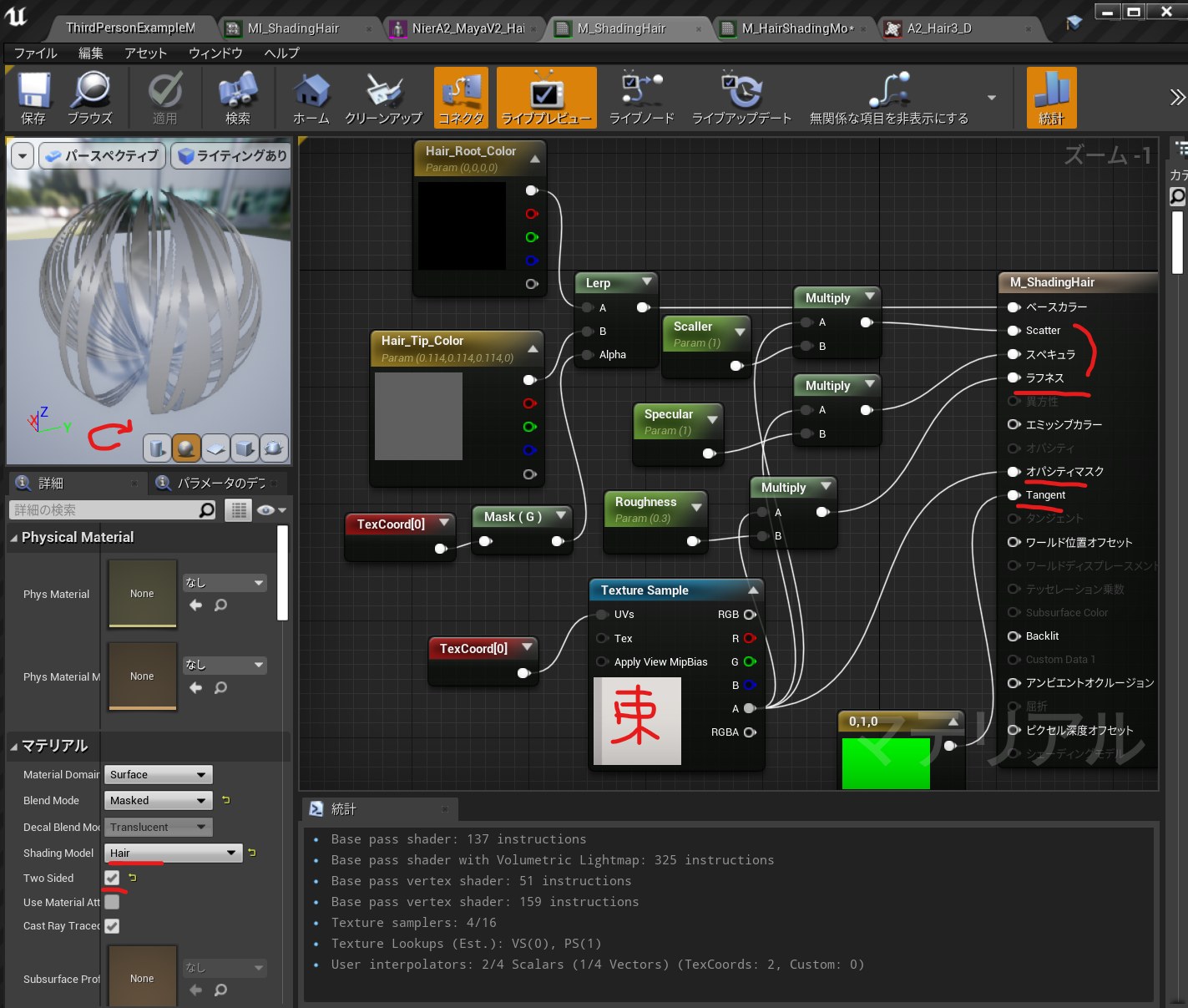
でも髪の束感は出したかったのでOpacityMaskもありにするとこうなる。

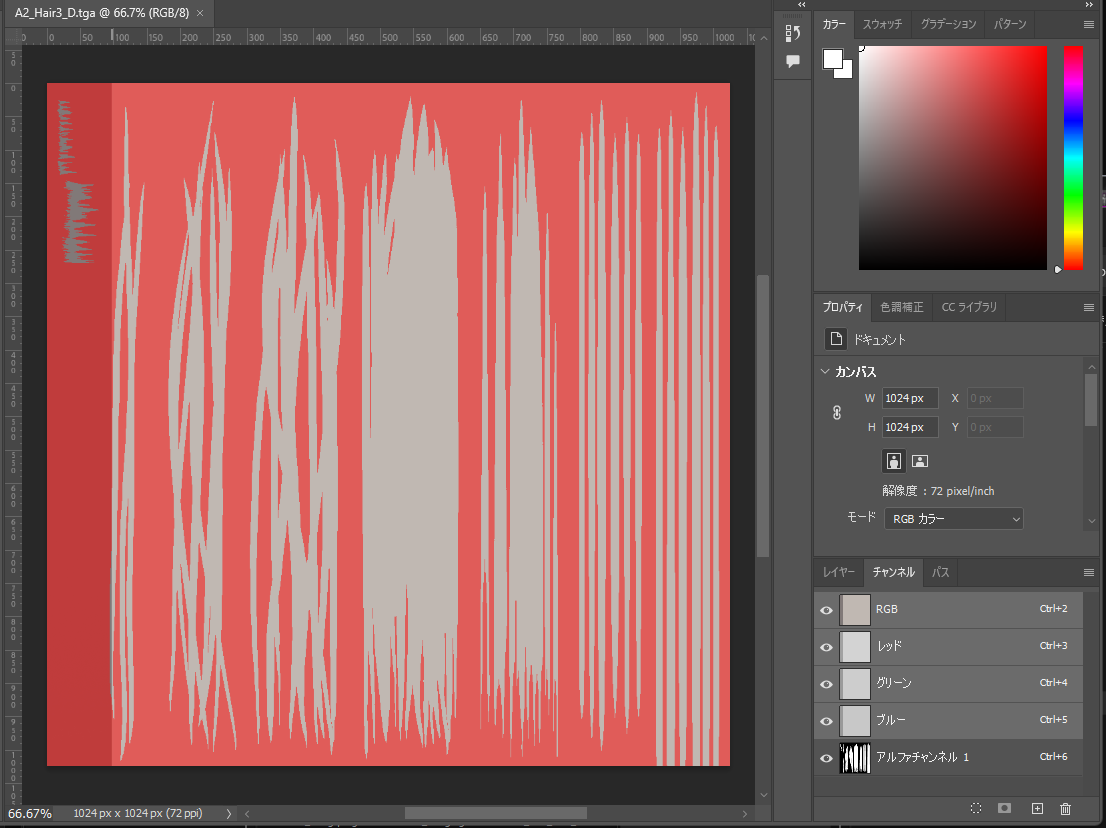
束感のために使ってるテクスチャはこれで

こんな感じにスキャッター、スペキュラ、ラフネスにMultyplyしたらいい感じになった。

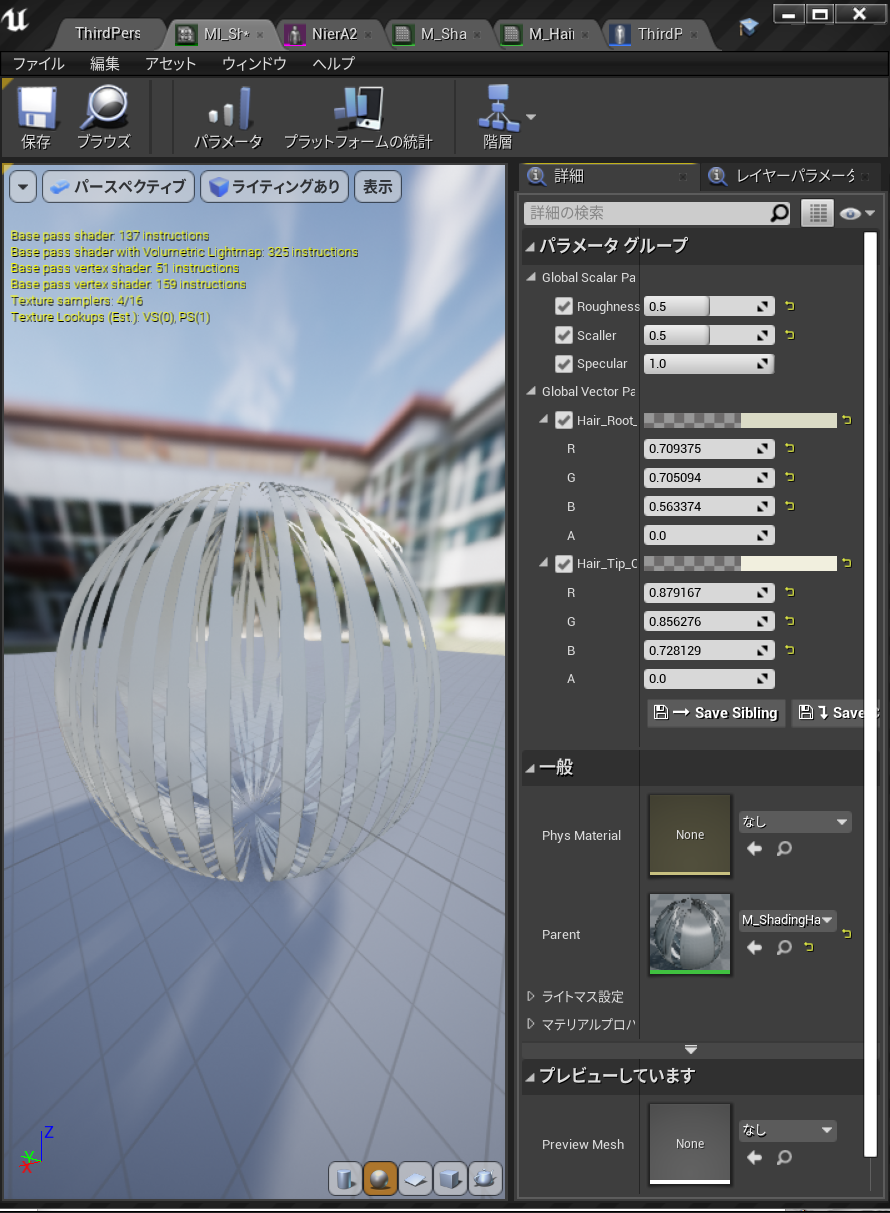
使っているMIでの値はこんな感じ

最後にまたこれをやって

やっとこうなった

SkinWeight Map export/import By FurcraeaTokyo Vol.02

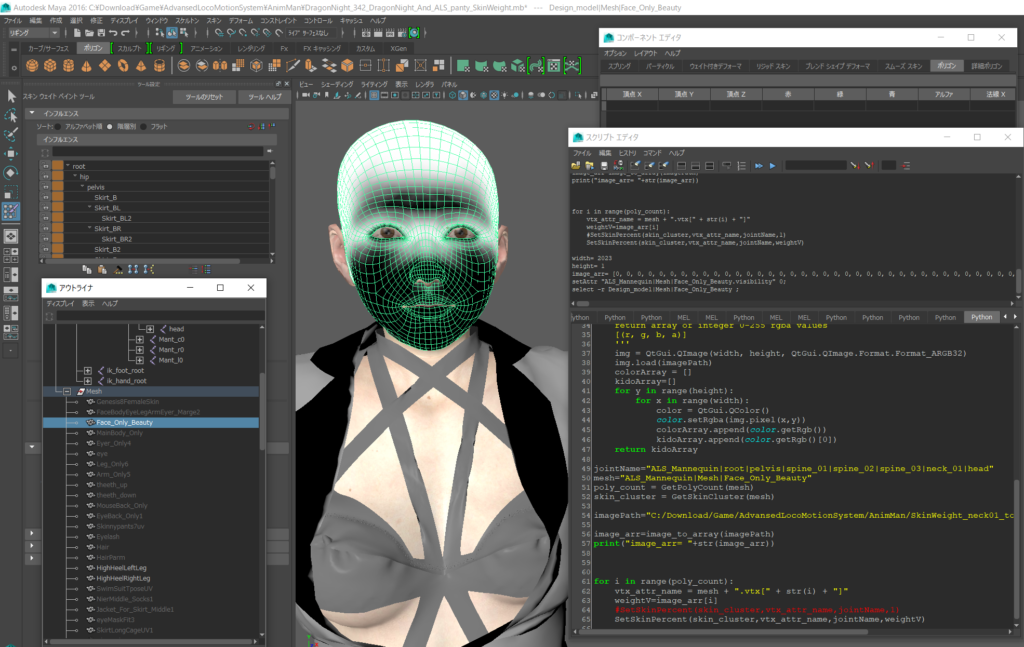
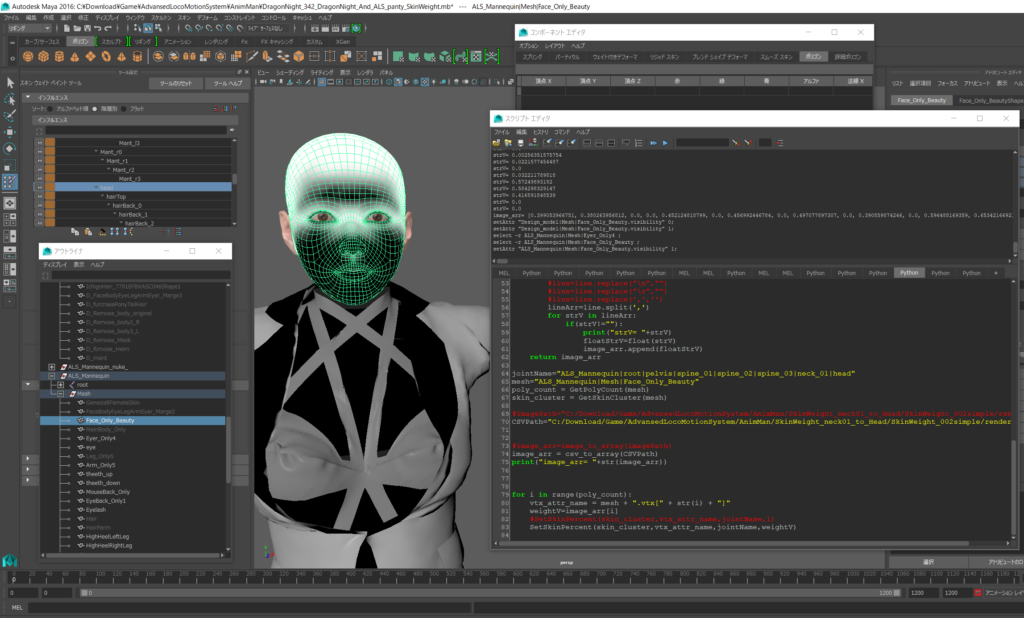
SkinWeight Mapが画像じゃ精度がでないのでCSVにしたらうまくいった。

SkinWeight Map export

def GetSkinCluster(mesh):
	history = cmds.listHistory(mesh)
	for h in history:
		if cmds.objectType(h, isType='skinCluster'):
			return h
	return None
def GetSkinPercent(SkinCluster,vtx,mJoint):
    # vtx[100] の joint1 の weight を取得
    skinWeightV=cmds.skinPercent( SkinCluster, vtx, t= mJoint, query=True, value=True)
    return skinWeightV
    

def GetPolyCount(mesh):
	return cmds.polyEvaluate(mesh, v=True)
	

from PySide.QtCore import QByteArray, QBuffer, QIODevice, QFile
from PySide import QtGui


jointName="neckUpper|head"	
mesh="Design_model|Mesh|Face_Only_Beauty"
poly_count = GetPolyCount(mesh)
skin_cluster = GetSkinCluster(mesh)

imagePath="C:/Download/Game/AdvansedLocoMotionSystem/AnimMan/SkinWeight_neck01_to_Head/SkinWeight_002simple/render.png"


WeightArray=[]
for i in range(poly_count):
    vtx_attr_name = mesh + ".vtx[" + str(i) + "]"
    
    weightV=GetSkinPercent(skin_cluster,vtx_attr_name,jointName)
    WeightArray.append(weightV)


print("WeightArray="+str(WeightArray))
lenWeightArr=len(WeightArray)
print("lenWeightArr= "+str(lenWeightArr))

width=lenWeightArr
height=1
"""
#buffer = QImage(pageSize, QImage.Format_ARGB32)
buffer = QtGui.QImage(width,height,QtGui.QImage.Format_ARGB32_Premultiplied)
def setDrowPixels(MyImage,WeightArray,width,height):
    for x in range(0, width ):
        for y in range(0, height ):
            gValue=0
            if(y==0):
                gValue = WeightArray[x]   
            else:
                gValue = WeightArray[x*y]
            print("x= "+str(x)+" y= "+str(y)+" gValue= "+str(gValue))
            MyImage.setPixel( x, y, QtGui.QColor( gValue, gValue, gValue ).rgb() )
    return MyImage
buffer=setDrowPixels(buffer,WeightArray,width,height)
buffer.save(imagePath)
"""
CSVPath="C:/Download/Game/AdvansedLocoMotionSystem/AnimMan/SkinWeight_neck01_to_Head/SkinWeight_002simple/render.csv"
import codecs
fout = codecs.open(CSVPath, 'w', 'utf_8')
for i in range(poly_count):
    line = str(WeightArray[i])+","
    fout.write(line)

SkinWeight Map import

def GetSkinCluster(mesh):
	history = cmds.listHistory(mesh)
	for h in history:
		if cmds.objectType(h, isType='skinCluster'):
			return h
	return None
def GetSkinPercent(SkinCluster,vtx,mJoint):
    # vtx[100] の joint1 の weight を取得
    skinWeightV=cmds.skinPercent( SkinCluster, vtx, t= mJoint, query=True, value=True)
    return skinWeightV
    
def SetSkinPercent(SkinCluster,vtx,mJoint,skinWeightV):
    # vtx[100] の weight を. joint を指定して設定
    cmds.skinPercent( SkinCluster, vtx, transformValue=[(mJoint, skinWeightV)])
    

def GetPolyCount(mesh):
	return cmds.polyEvaluate(mesh, v=True)
	

from PySide.QtCore import QByteArray, QBuffer, QIODevice, QFile
from PySide import QtGui
"""
def image_to_array(imagePath):
    source = QtGui.QImage(imagePath)

    # バイナリとメタデータを読み込み
    #bits = source.constBits()
    width = source.width()
    height = source.height()
    print("width= "+str(width))
    print("height= "+str(height))
    '''
    return array of integer 0-255 rgba values
    [(r, g, b, a)]
    '''
    img = QtGui.QImage(width, height, QtGui.QImage.Format.Format_ARGB32)
    img.load(imagePath)
    colorArray = []
    kidoArray=[]
    for y in range(height):
        for x in range(width):
            color = QtGui.QColor()
            color.setRgba(img.pixel(x,y))
            colorArray.append(color.getRgb())
            kidoArray.append(color.getRgb()[0])
    return kidoArray
"""
def csv_to_array(CSVPath):
    import codecs
    fin  = codecs.open(CSVPath, 'r', 'utf_8')
    image_arr=[]
    for line in fin:
        #line=line.replace("\n","")
        #line=line.replace("\r","")
        #line=line.replace(',','')
        lineArr=line.split(',')
        for strV in lineArr:
            if(strV!=""):
                print("strV= "+strV)
                floatStrV=float(strV)
                image_arr.append(floatStrV)
    return image_arr
    
jointName="ALS_Mannequin|root|pelvis|spine_01|spine_02|spine_03|neck_01|head"	
mesh="ALS_Mannequin|Mesh|Face_Only_Beauty"
poly_count = GetPolyCount(mesh)
skin_cluster = GetSkinCluster(mesh)

#imagePath="C:/Download/Game/AdvansedLocoMotionSystem/AnimMan/SkinWeight_neck01_to_Head/SkinWeight_002simple/render.png"
CSVPath="C:/Download/Game/AdvansedLocoMotionSystem/AnimMan/SkinWeight_neck01_to_Head/SkinWeight_002simple/render.csv"


#image_arr=image_to_array(imagePath)
image_arr = csv_to_array(CSVPath)
print("image_arr= "+str(image_arr))

ArrLeng=len(image_arr)
for i in range(ArrLeng):
    vtx_attr_name = mesh + ".vtx[" + str(i) + "]"
    weightV=image_arr[i]
    #SetSkinPercent(skin_cluster,vtx_attr_name,jointName,1)
    SetSkinPercent(skin_cluster,vtx_attr_name,jointName,weightV)

元がこう

結果がこれ

ふーばっちりうまくいった様子。やったね!

SkinWeight Map export/import By FurcraeaTokyo

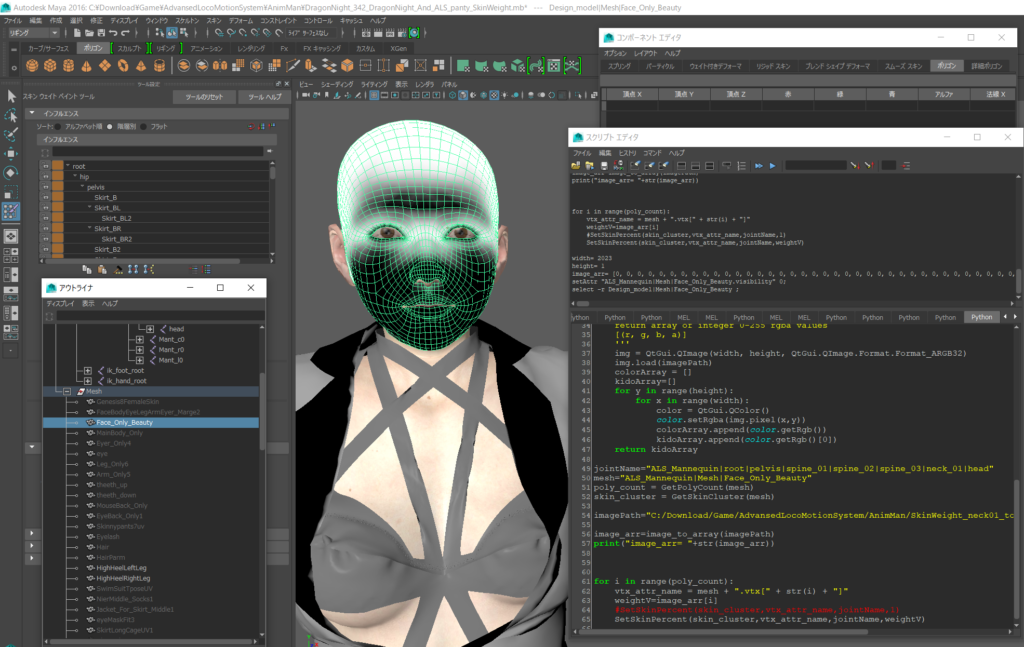
Maya2016でSkinWhight Mapのインポートが壊れているので

SkinWeight Mapのエクスポートとインポートを自作してみた。ほんとテスト段階

SkinWeight Map export

def GetSkinCluster(mesh):
	history = cmds.listHistory(mesh)
	for h in history:
		if cmds.objectType(h, isType='skinCluster'):
			return h
	return None
def GetSkinPercent(SkinCluster,vtx,mJoint):
    # vtx[100] の joint1 の weight を取得
    skinWeightV=cmds.skinPercent( SkinCluster, vtx, t= mJoint, query=True, value=True)
    return skinWeightV
    

def GetPolyCount(mesh):
	return cmds.polyEvaluate(mesh, v=True)
	

from PySide.QtCore import QByteArray, QBuffer, QIODevice, QFile
from PySide import QtGui


jointName="neckUpper|head"	
mesh="Design_model|Mesh|Face_Only_Beauty"
poly_count = GetPolyCount(mesh)
skin_cluster = GetSkinCluster(mesh)

imagePath="C:/Download/Game/AdvansedLocoMotionSystem/AnimMan/SkinWeight_neck01_to_Head/SkinWeight_002simple/render.png"


WeightArray=[]
for i in range(poly_count):
    vtx_attr_name = mesh + ".vtx[" + str(i) + "]"
    weightV=image_arr[i]

    weightV=GetSkinPercent(skin_cluster,vtx_attr_name,jointName)
    WeightArray.append(weightV)


print("WeightArray="+str(WeightArray))
lenWeightArr=len(WeightArray)
print("lenWeightArr= "+str(lenWeightArr))

width=lenWeightArr
height=1

#buffer = QImage(pageSize, QImage.Format_ARGB32)
buffer = QtGui.QImage(width,height,QtGui.QImage.Format_ARGB32_Premultiplied)
def setDrowPixels(MyImage,WeightArray,width,height):
    for x in range(0, width ):
        for y in range(0, height ):
            gValue=0
            if(y==0):
                gValue = WeightArray[x]   
            else:
                gValue = WeightArray[x*y]
            print("x= "+str(x)+" y= "+str(y)+" gValue= "+str(gValue))
            MyImage.setPixel( x, y, QtGui.QColor( gValue, gValue, gValue ).rgb() )
    return MyImage
buffer=setDrowPixels(buffer,WeightArray,width,height)
buffer.save(imagePath)

skinWeight Map import

def GetSkinCluster(mesh):
	history = cmds.listHistory(mesh)
	for h in history:
		if cmds.objectType(h, isType='skinCluster'):
			return h
	return None
def GetSkinPercent(SkinCluster,vtx,mJoint):
    # vtx[100] の joint1 の weight を取得
    skinWeightV=cmds.skinPercent( SkinCluster, vtx, t= mJoint, query=True, value=True)
    return skinWeightV
    
def SetSkinPercent(SkinCluster,vtx,mJoint,skinWeightV):
    # vtx[100] の weight を. joint を指定して設定
    cmds.skinPercent( SkinCluster, vtx, transformValue=[(mJoint, skinWeightV)])
    

def GetPolyCount(mesh):
	return cmds.polyEvaluate(mesh, v=True)
	

from PySide.QtCore import QByteArray, QBuffer, QIODevice, QFile
from PySide import QtGui

def image_to_array(imagePath):
    source = QtGui.QImage(imagePath)

    # バイナリとメタデータを読み込み
    #bits = source.constBits()
    width = source.width()
    height = source.height()
    print("width= "+str(width))
    print("height= "+str(height))
    '''
    return array of integer 0-255 rgba values
    [(r, g, b, a)]
    '''
    img = QtGui.QImage(width, height, QtGui.QImage.Format.Format_ARGB32)
    img.load(imagePath)
    colorArray = []
    kidoArray=[]
    for y in range(height):
        for x in range(width):
            color = QtGui.QColor()
            color.setRgba(img.pixel(x,y))
            colorArray.append(color.getRgb())
            kidoArray.append(color.getRgb()[0])
    return kidoArray

jointName="ALS_Mannequin|root|pelvis|spine_01|spine_02|spine_03|neck_01|head"	
mesh="ALS_Mannequin|Mesh|Face_Only_Beauty"
poly_count = GetPolyCount(mesh)
skin_cluster = GetSkinCluster(mesh)

imagePath="C:/Download/Game/AdvansedLocoMotionSystem/AnimMan/SkinWeight_neck01_to_Head/SkinWeight_002simple/render.png"

image_arr=image_to_array(imagePath)
print("image_arr= "+str(image_arr))


for i in range(poly_count):
    vtx_attr_name = mesh + ".vtx[" + str(i) + "]"
    weightV=image_arr[i]
    #SetSkinPercent(skin_cluster,vtx_attr_name,jointName,1)
    SetSkinPercent(skin_cluster,vtx_attr_name,jointName,weightV)

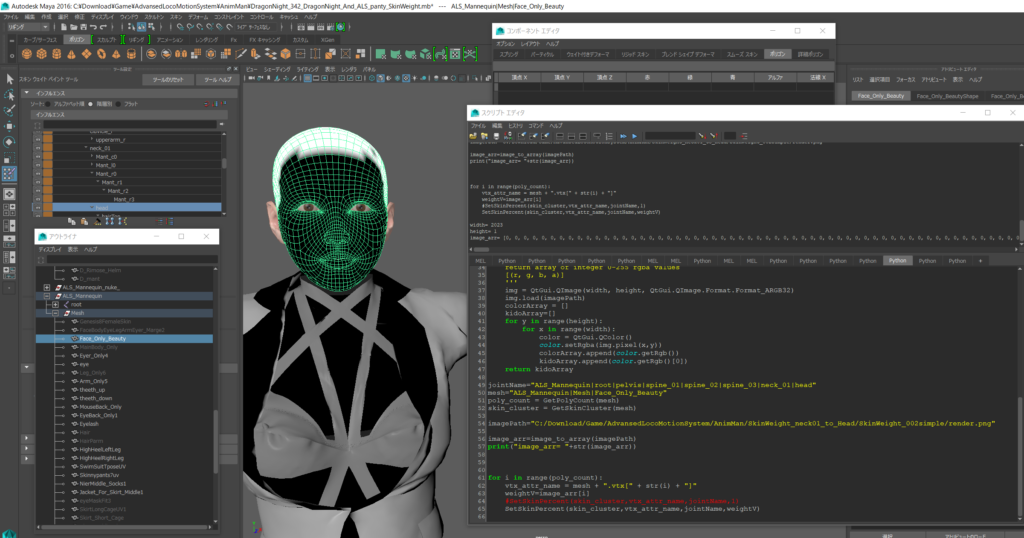
元がこれ

結果がこれ  値が飛んじゃってる気がする。 CSVとかのほうがいいかも

なんだかスムージング処理がいるのかもしれない。

■参考にさせてもらった記事

Maya python で, 特定の mesh 頂点の 特定の joint の skin weight の値を取得, 設定する – Qiita

https://qiita.com/syoyo/items/5252ac7244b4f40b2cac

Python API 2.0 MImage

https://forums.autodesk.com/t5/maya-programming/python-api-2-0-mimage/td-p/6340749

Python QImage.fill Examples

https://python.hotexamples.com/examples/PySide.QtGui/QImage/fill/python-qimage-fill-method-examples.html

QtDesigner Pyside Qtab Resizable リサイズ可能な 可変 のタブ

短く書けばこれだ。

          <widget class="QTabWidget" name="tabWidget_1">
           <property name="currentIndex">
            <number>0</number>
           </property>
           <widget class="QWidget" name="tab_3">
            <attribute name="title">
             <string>Tab 1</string>
            </attribute>
            <layout class="QGridLayout" name="gridLayout_4">
             <item row="0" column="0">
              <widget class="QDateTimeEdit" name="dateTimeEdit_2"/>
             </item>
             <item row="1" column="0">
              <widget class="QDateTimeEdit" name="dateTimeEdit"/>
             </item>
            </layout>
           </widget>
           <widget class="QWidget" name="tab_4">
            <attribute name="title">
             <string>Tab 2</string>
            </attribute>
            <layout class="QGridLayout" name="gridLayout_5">
             <item row="0" column="0">
              <widget class="QCheckBox" name="checkBox_2">
               <property name="text">
                <string>CheckBox</string>
               </property>
              </widget>
             </item>
             <item row="1" column="0">
              <widget class="QCheckBox" name="checkBox">
               <property name="text">
                <string>CheckBox</string>
               </property>
              </widget>
             </item>
            </layout>
           </widget>
          </widget>

ファイルとして成立させるならこうだ。

<?xml version="1.0" encoding="UTF-8"?>
<ui version="4.0">
 <class>MainWindow</class>
 <widget class="QMainWindow" name="MainWindow">
  <property name="geometry">
   <rect>
    <x>0</x>
    <y>0</y>
    <width>1146</width>
    <height>794</height>
   </rect>
  </property>
  <property name="windowTitle">
   <string>MainWindow</string>
  </property>
  <widget class="QWidget" name="centralwidget">
   <layout class="QVBoxLayout" name="verticalLayout_2">
    <item>
     <layout class="QVBoxLayout" name="verticalLayout">
      <item>
       <layout class="QHBoxLayout" name="horizontalLayout">
        <item>
         <widget class="QGroupBox" name="groupBox">
          <property name="title">
           <string>GroupBox</string>
          </property>
          <layout class="QVBoxLayout" name="verticalLayout_9">
           <item>
            <layout class="QVBoxLayout" name="verticalLayout_6">
             <item>
              <widget class="QLabel" name="label_3">
               <property name="text">
                <string>TextLabel</string>
               </property>
              </widget>
             </item>
             <item>
              <widget class="QLabel" name="label_4">
               <property name="text">
                <string>TextLabel</string>
               </property>
              </widget>
             </item>
            </layout>
           </item>
          </layout>
         </widget>
        </item>
       </layout>
      </item>
      <item>
       <layout class="QHBoxLayout" name="horizontalLayout_2">
        <item>
         <widget class="QGroupBox" name="groupBox_2">
          <property name="title">
           <string>GroupBox</string>
          </property>
          <layout class="QVBoxLayout" name="verticalLayout_8">
           <item>
            <layout class="QVBoxLayout" name="verticalLayout_7">
             <item>
              <widget class="QLabel" name="label">
               <property name="text">
                <string>TextLabel</string>
               </property>
              </widget>
             </item>
             <item>
              <widget class="QLabel" name="label_2">
               <property name="text">
                <string>TextLabel</string>
               </property>
              </widget>
             </item>
            </layout>
           </item>
          </layout>
         </widget>
        </item>
       </layout>
      </item>
      <item>
       <layout class="QHBoxLayout" name="horizontalLayout_3">
        <item>
         <widget class="QGroupBox" name="groupBox_3">
          <property name="title">
           <string>GroupBox</string>
          </property>
          <layout class="QVBoxLayout" name="verticalLayout_3">
           <item>
            <layout class="QVBoxLayout" name="verticalLayout_4">
             <item>
              <widget class="QLabel" name="label_6">
               <property name="text">
                <string>TextLabel</string>
               </property>
              </widget>
             </item>
             <item>
              <layout class="QVBoxLayout" name="verticalLayout_5"/>
             </item>
             <item>
          <widget class="QTabWidget" name="tabWidget_1">
           <property name="currentIndex">
            <number>0</number>
           </property>
           <widget class="QWidget" name="tab_3">
            <attribute name="title">
             <string>Tab 1</string>
            </attribute>
            <layout class="QGridLayout" name="gridLayout_4">
             <item row="0" column="0">
              <widget class="QDateTimeEdit" name="dateTimeEdit_2"/>
             </item>
             <item row="1" column="0">
              <widget class="QDateTimeEdit" name="dateTimeEdit"/>
             </item>
            </layout>
           </widget>
           <widget class="QWidget" name="tab_4">
            <attribute name="title">
             <string>Tab 2</string>
            </attribute>
            <layout class="QGridLayout" name="gridLayout_5">
             <item row="0" column="0">
              <widget class="QCheckBox" name="checkBox_2">
               <property name="text">
                <string>CheckBox</string>
               </property>
              </widget>
             </item>
             <item row="1" column="0">
              <widget class="QCheckBox" name="checkBox">
               <property name="text">
                <string>CheckBox</string>
               </property>
              </widget>
             </item>
            </layout>
           </widget>
          </widget>
             </item>
             <item>
              <widget class="QLabel" name="label_5">
               <property name="text">
                <string>TextLabel</string>
               </property>
              </widget>
             </item>
            </layout>
           </item>
          </layout>
         </widget>
        </item>
       </layout>
      </item>
     </layout>
    </item>
   </layout>
  </widget>
  <widget class="QMenuBar" name="menubar">
   <property name="geometry">
    <rect>
     <x>0</x>
     <y>0</y>
     <width>1146</width>
     <height>26</height>
    </rect>
   </property>
  </widget>
  <widget class="QStatusBar" name="statusbar"/>
 </widget>
 <resources/>
 <connections/>
</ui>

元ネタはこちら

https://stackoverflow.com/questions/6221551/qtabwidget-refusing-to-auto-resize