#UE4 #UE4Study CostomノードのHLSLで円を描く三平方の定理で円を色分け

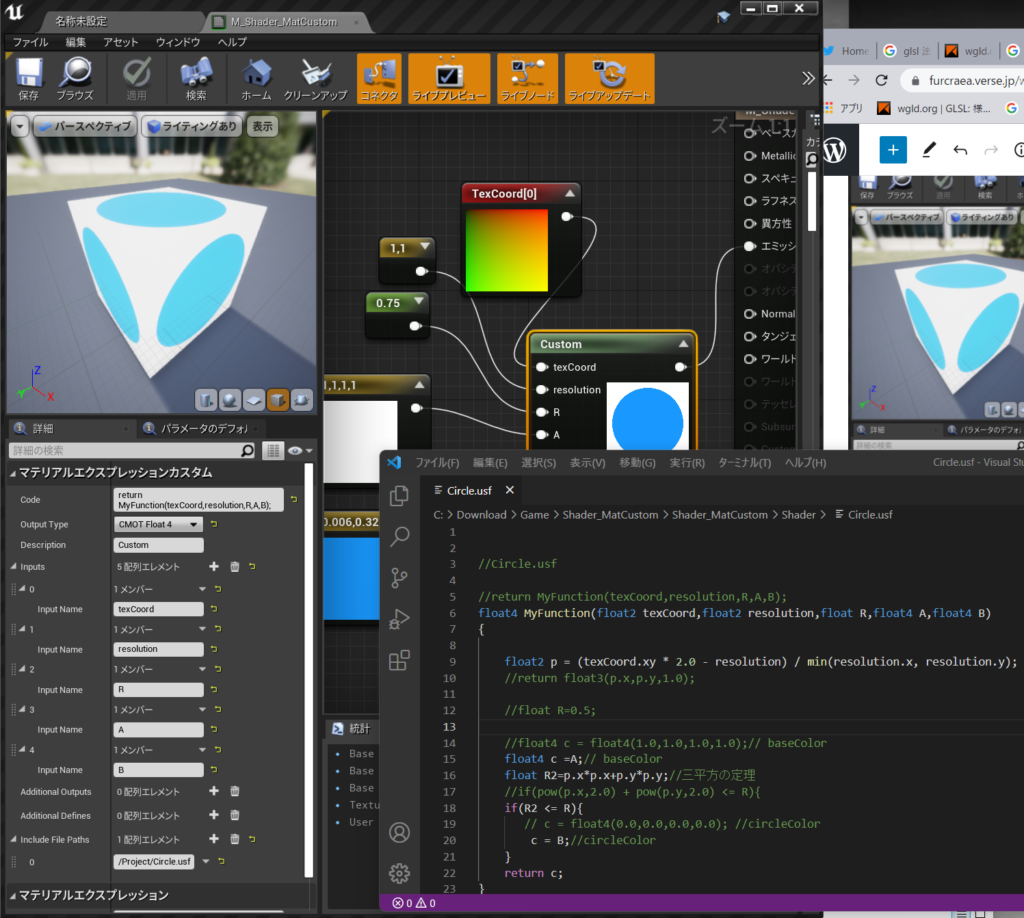
三平方の定理で円を色分け

Code: return MyFunction(texCoord,resolution,R,A,B);

OutputType:Float4

Inputs: texCoord,resolution,R,A,B

Input File Paths: /Project/Circle.usf

pow(V,2.0)でVの2乗って意味

https://docs.microsoft.com/en-us/windows/win32/direct3dhlsl/dx-graphics-hlsl-pow

つかわないでみた。

float R2=p.x*p.x+p.y*p.y;//三平方の定理


//Circle.usf

//return MyFunction(texCoord,resolution,R,A,B);
float4 MyFunction(float2 texCoord,float2 resolution,float R,float4 A,float4 B)
{
	
	float2 p = (texCoord.xy * 2.0 - resolution) / min(resolution.x, resolution.y);
	//return float3(p.x,p.y,1.0);
	
    //float R=0.5;

    //float4 c = float4(1.0,1.0,1.0,1.0);// baseColor
    float4 c =A;// baseColor
    float R2=p.x*p.x+p.y*p.y;//三平方の定理
    //if(pow(p.x,2.0) + pow(p.y,2.0) <= R){
    if(R2 <= R){
       // c = float4(0.0,0.0,0.0,0.0); //circleColor
        c = B;//circleColor
    }
    return c;
}

参考

UE4 Shader MaterialのCustomノードが進化してincludeFilePathでのファイル参照ができるようになっていた件

失敗1、2020年になってCustomノードが安定してきたみたいで

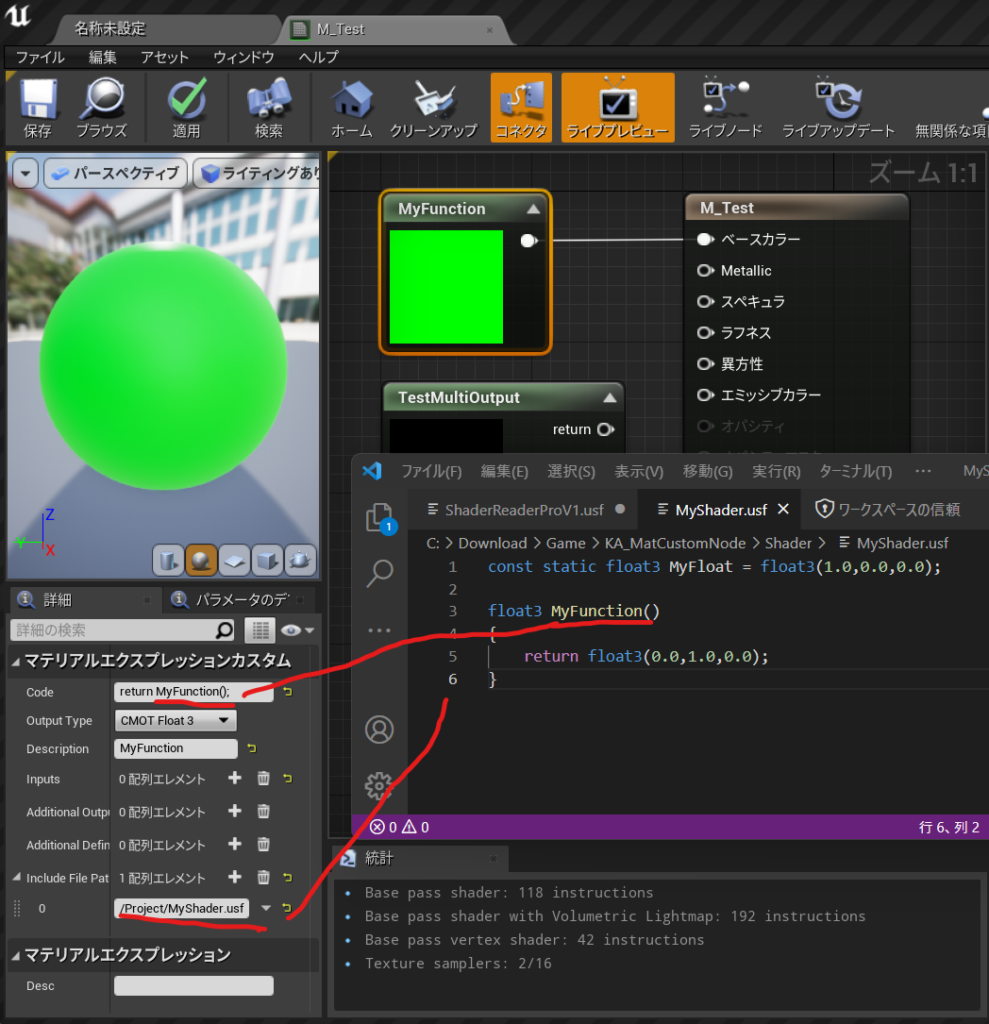
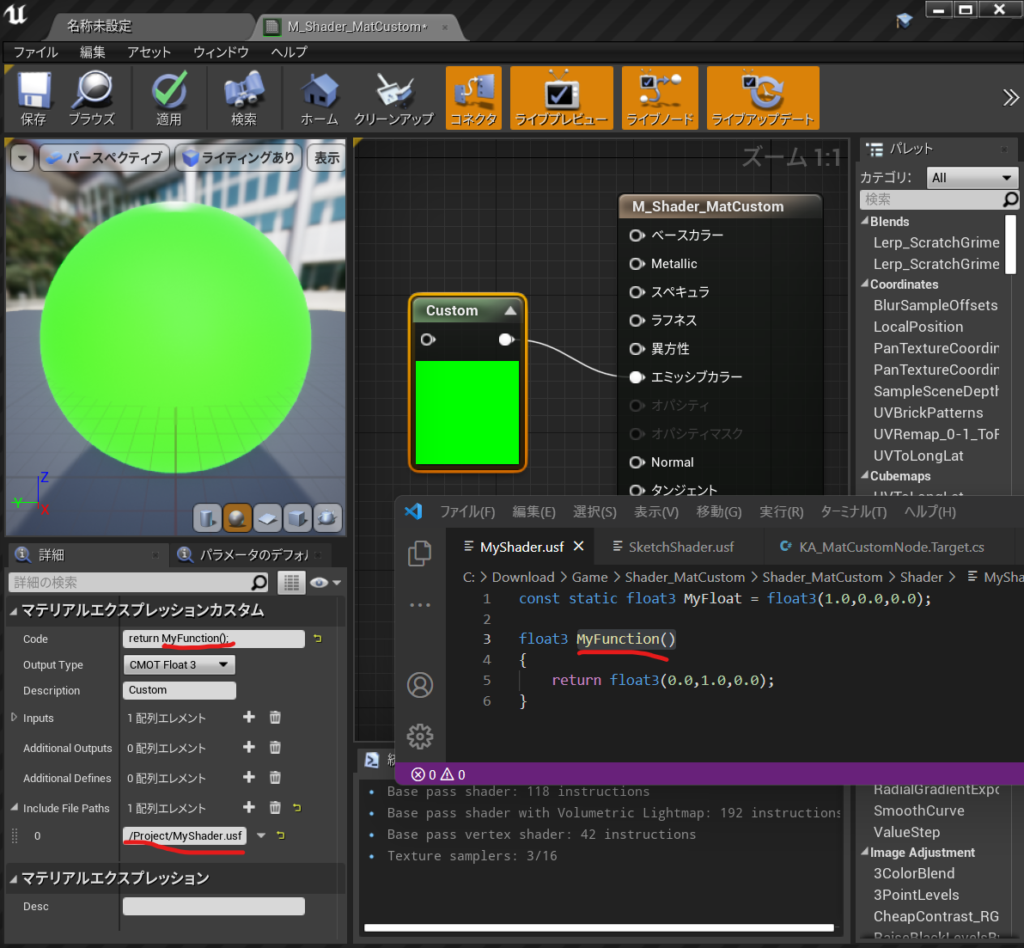
constで宣言しておくとそのままMyFloat使える

Codeにreturn MyFloat;で使える。

CodeにMyreturn MyFunction();で関数を呼び出せる。

const static float3 MyFloat = float3(1.0,0.0,0.0);

float3 MyFunction()
{
	return float3(0.0,1.0,0.0);
}

TestOutput1 = float3(0,0,1);
return 0.0;

Additional Output :TestOutput1

OutputType CMOT Float1

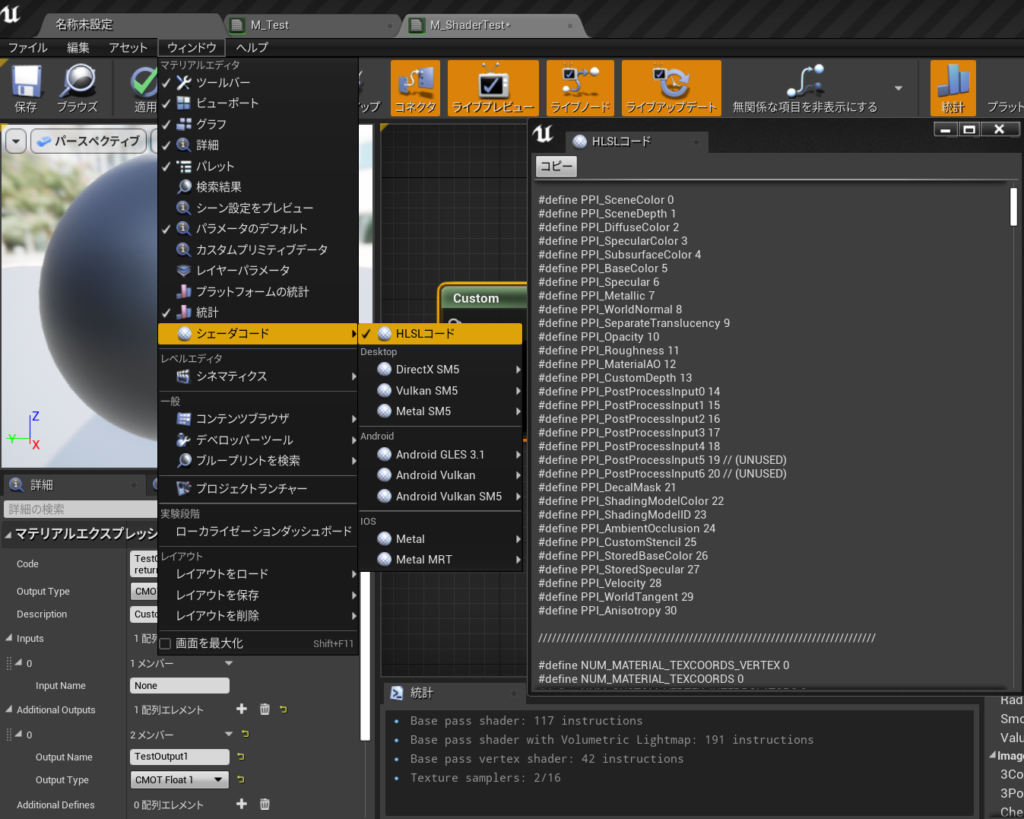
コンパイルされて自動生成されたHLSLコードの中身は

エラーコードで出てくるこれは

/Engine/Generated/Material.ush

マテリアルエディタのメニュー「ウインドウ>シェーダーコード>HLSL コード」を選択。

すると HLSL コードのウインドウが開き、コンパイルされた全マテリアルの内容が HLSL で表示される。

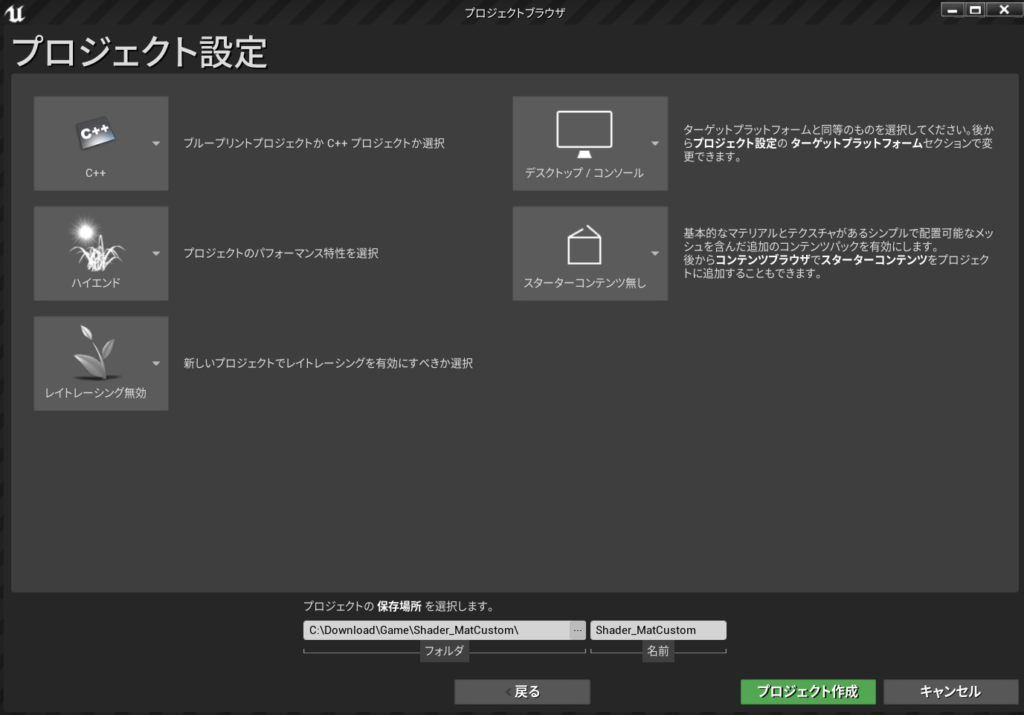
このプロジェクトの作り方は

【UE4】USF(Unreal Shader File) をすぐに始める環境設定 Project編さん

でのShaderフォルダの読み込み設定が必要だった。。50個ぐらいエラーがでるので見ない方がいいかも

今回はプロジェクト名は:Shader_MatCustomにしたよ

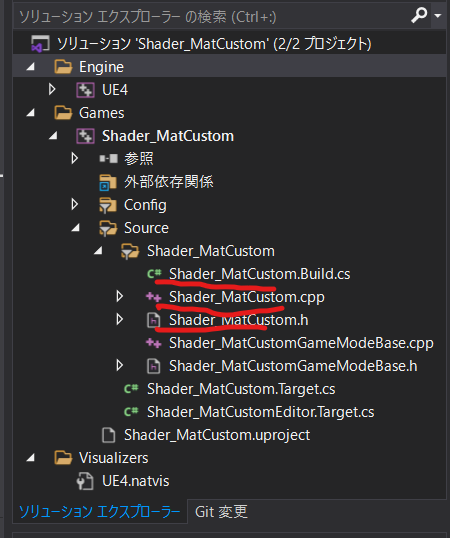
プロジェクト設定でCPP

Shader_MatCustom.h

// Copyright Epic Games, Inc. All Rights Reserved.

#pragma once

#include "CoreMinimal.h"

#include "Modules/ModuleManager.h"

class FShader_MatCustom : public IModuleInterface
{
public:
    virtual void StartupModule() override;
    virtual void ShutdownModule() override;


};

Shader_MatCustom.cpp

// Copyright Epic Games, Inc. All Rights Reserved.

#include "Shader_MatCustom.h"
#include "Modules/ModuleManager.h"

IMPLEMENT_PRIMARY_GAME_MODULE( FShader_MatCustom, Shader_MatCustom, "Shader_MatCustom" );//3つの書き換え


void FShader_MatCustom::StartupModule()
{
    FString ShaderDirectory = FPaths::Combine(FPaths::ProjectDir(), TEXT("Shader"));
    if (!AllShaderSourceDirectoryMappings().Contains("/Project"))
    {
        AddShaderSourceDirectoryMapping("/Project", ShaderDirectory);
    }

}

void FShader_MatCustom::ShutdownModule()
{
}

Shader_MatCustom.Build.cs

// Copyright Epic Games, Inc. All Rights Reserved.

using UnrealBuildTool;

public class Shader_MatCustom : ModuleRules  // ←クラス名リネーム
{
	public Shader_MatCustom(ReadOnlyTargetRules Target) : base(Target)  // ←クラス名リネーム
	{
		PCHUsage = PCHUsageMode.UseExplicitOrSharedPCHs;
	
		PublicDependencyModuleNames.AddRange(new string[] {  //改行して展開した。
			"Core",
			"CoreUObject",
			"Engine",
			"InputCore",
			"RenderCore",  // ←追記
			"RHI"         // ←あとで必要になるので追記(パス追加に関係ない)
		});

		PrivateDependencyModuleNames.AddRange(new string[] {  });


		// Uncomment if you are using Slate UI
		// PrivateDependencyModuleNames.AddRange(new string[] { "Slate", "SlateCore" });
		
		// Uncomment if you are using online features
		// PrivateDependencyModuleNames.Add("OnlineSubsystem");

		// To include OnlineSubsystemSteam, add it to the plugins section in your uproject file with the Enabled attribute set to true
	}
}


VSでビルドをしてコンパイル

Shaderフォルダ作成

マテリアル作成

CustomNode作成

MyShader.usf作成

IncludeFilePathに/Project/MyShader.usf

MyShader.usf

const static float3 MyFloat = float3(1.0,0.0,0.0);

float3 MyFunction()
{
	return float3(0.0,1.0,0.0);
}

やっとうまくいったので

C++サンプルプロジェクトは丸ごとだ。.slnも入ってるよ

https://drive.google.com/file/d/1-ClY_v2cudLARAkMmAfPGrAnFndNnWIX/view?usp=sharing

参照

キンアジさんのところで見つけてしまった。

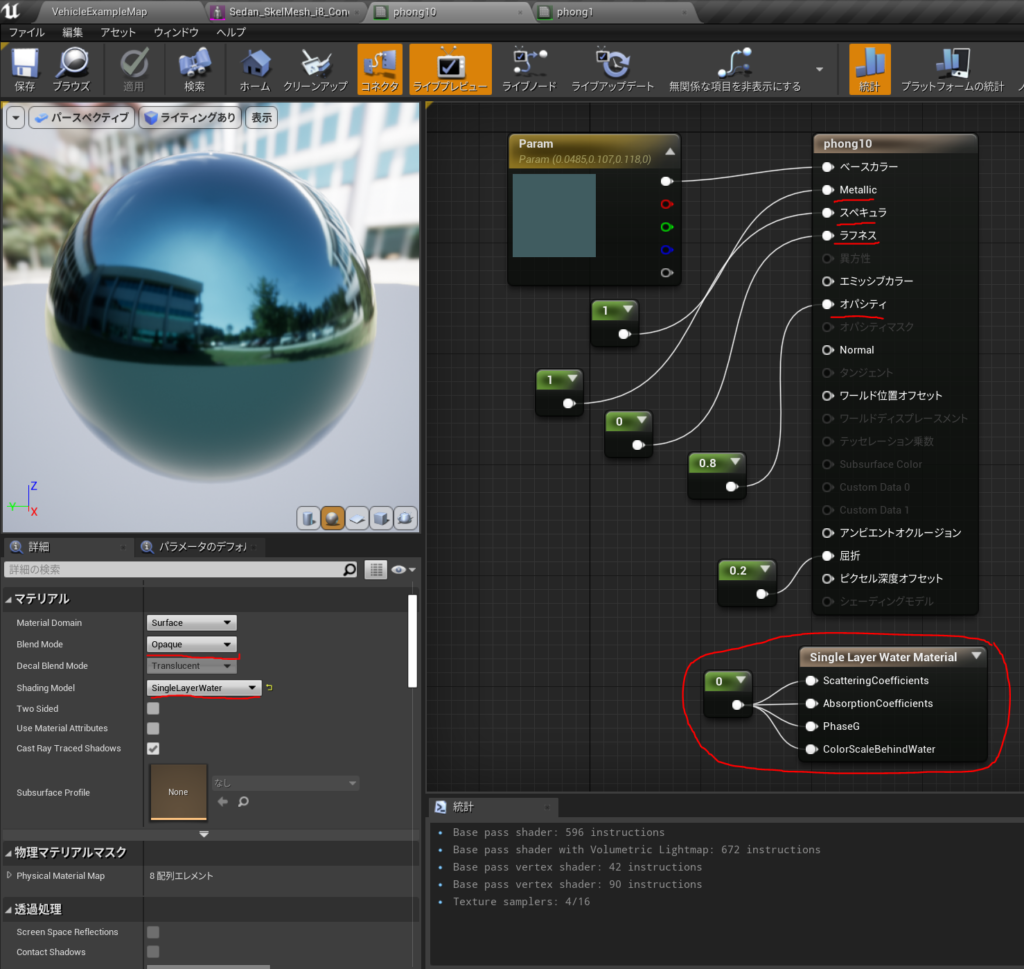
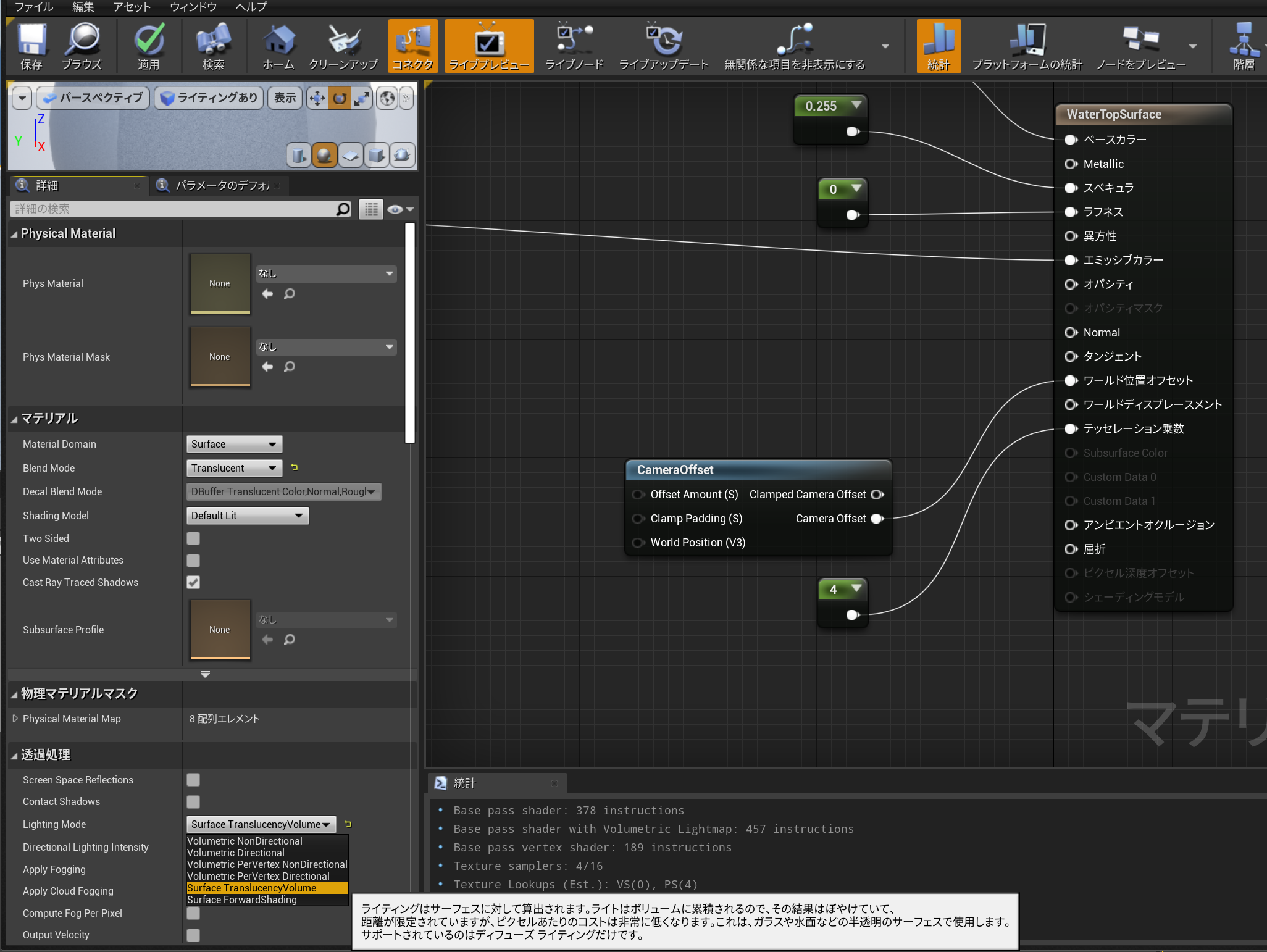
UE4 Single Layer Water Material 透明で、かつ光沢のあるマテリアル

プレヴューだとわからないが

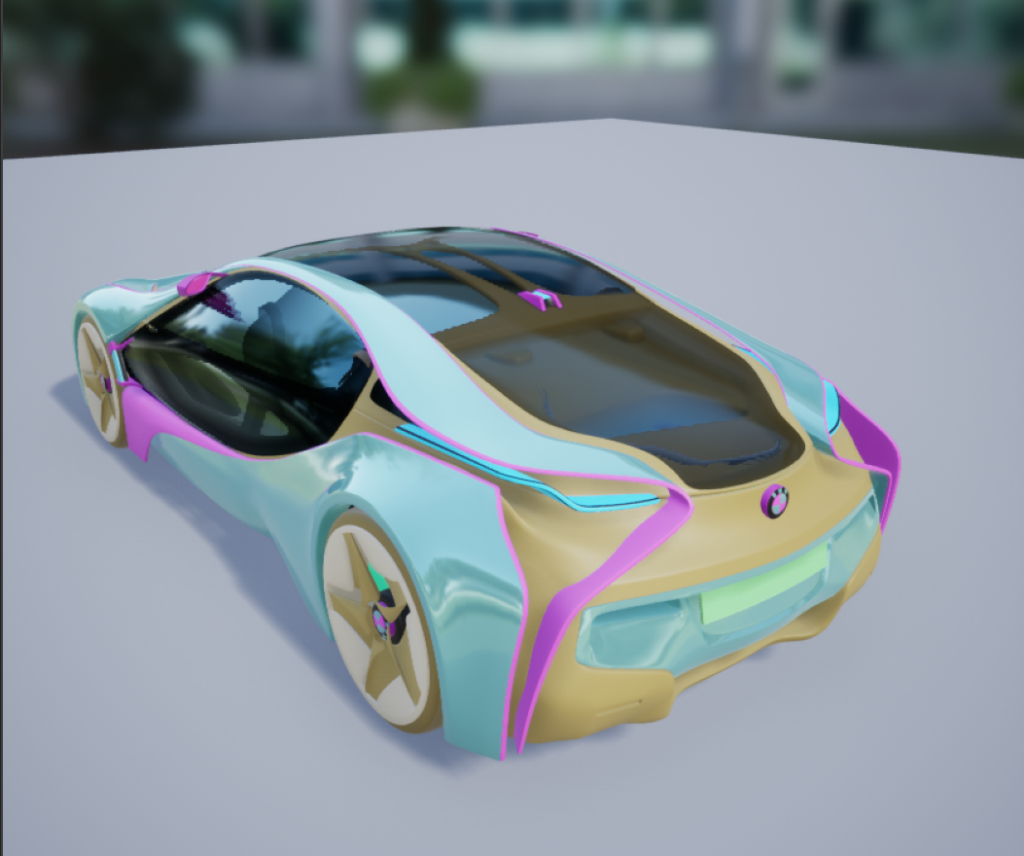
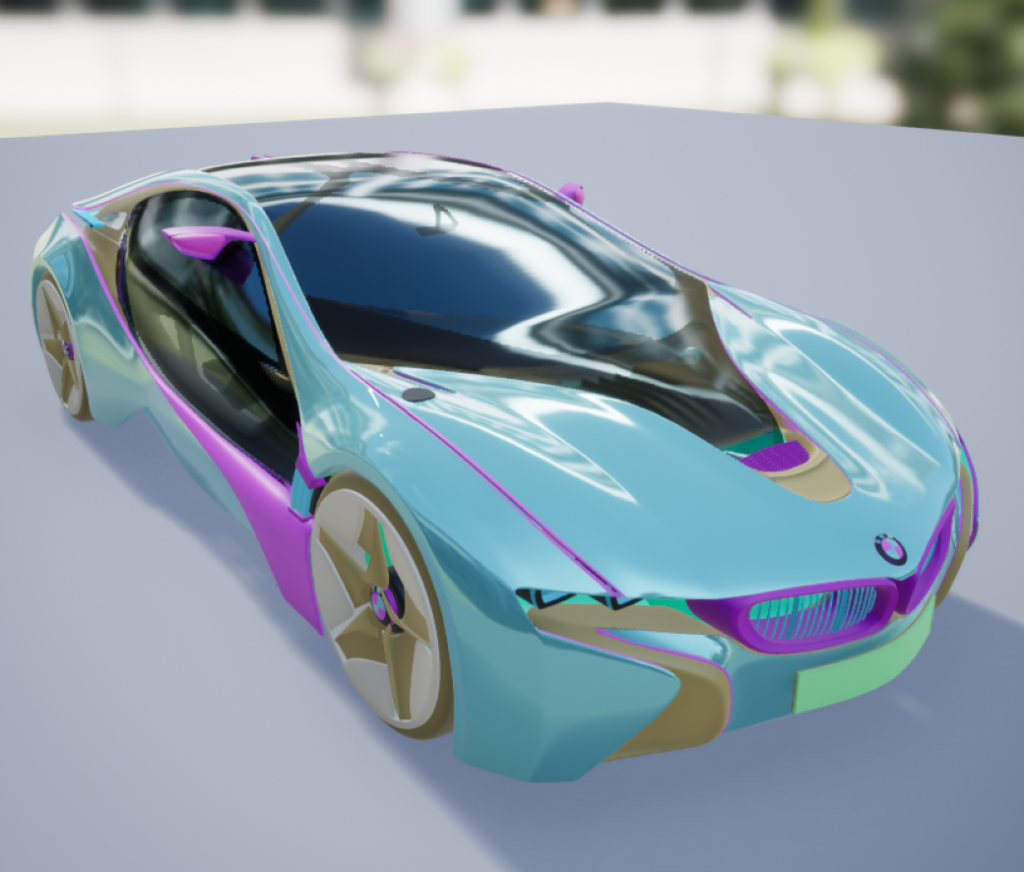
メッシュプレビューだとわかる。 車のガラス面に使ってみた。

opacity 0.8でもあんまり透けない

BMW i8 Concept のプレヴュー

参考URL

https://docs.unrealengine.com/4.27/ja/RenderingAndGraphics/Materials/MaterialProperties/LightingModels/SingleLayerWater/

もっとやりかたがあった。

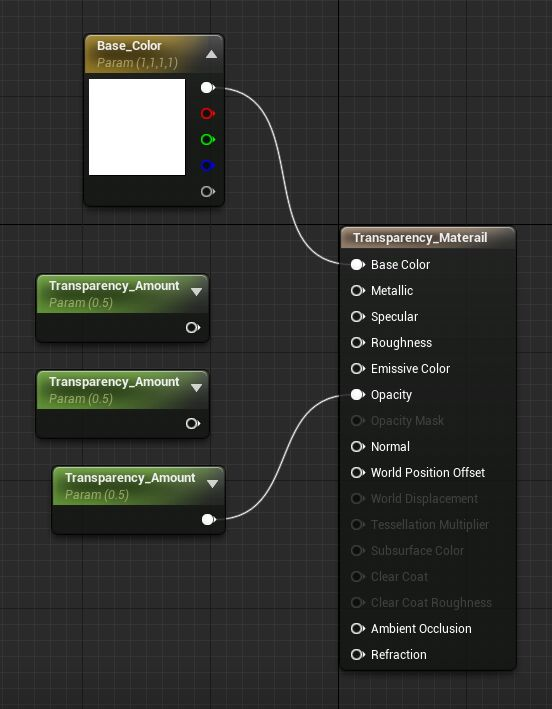
https://docs.unrealengine.com/4.27/en-US/RenderingAndGraphics/Materials/HowTo/Transparency/

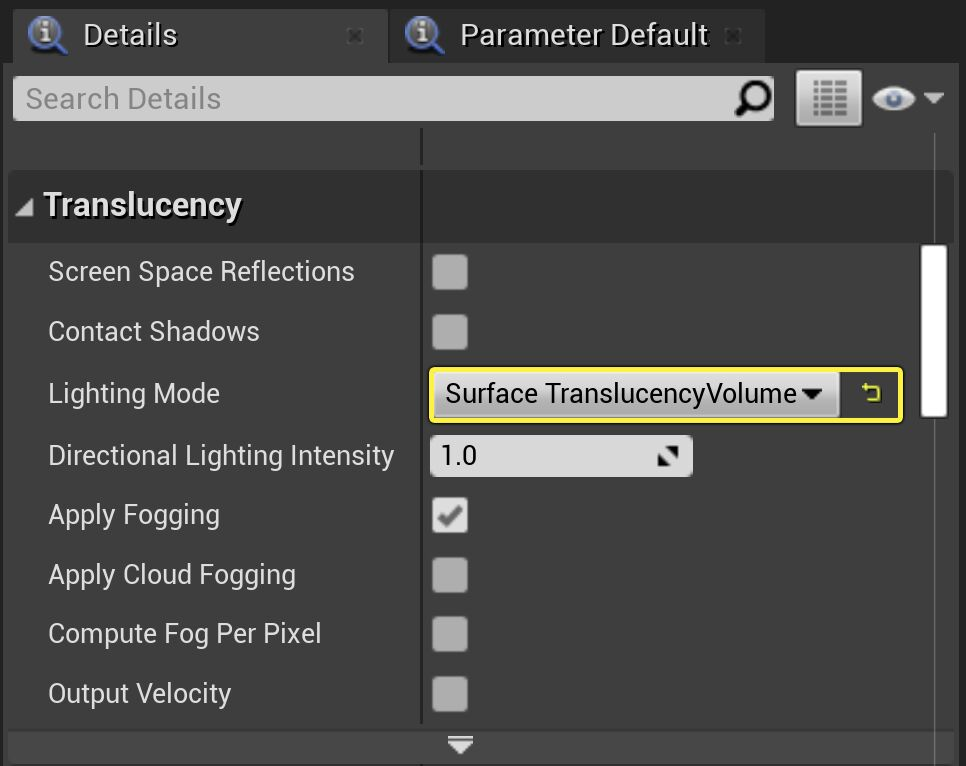
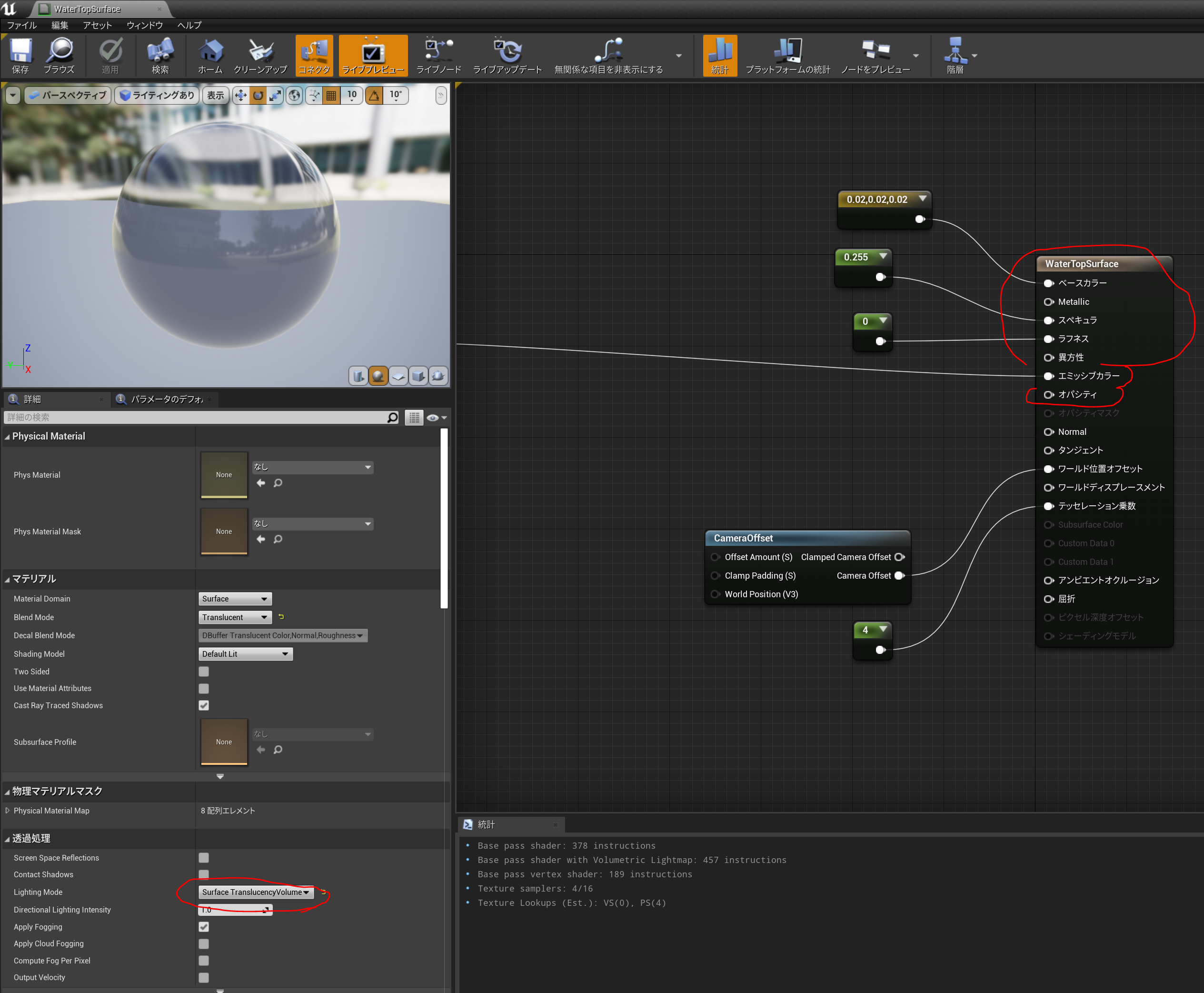
作成したTransparency_Materialをコンテンツ ブラウザでダブルクリックして開きます。開いたら、 Translucencyカテゴリの[Details]パネルで、 [ Lighting Mode ]をVolumetric NonDirectionalからSurface TranslucencyVolumeに変更します。

すると