
Unreal Engine C++ Developer: Learn C++ and Make Video Games | Udemy UE4.25 Simple Shooterで自分なりに理解したこと。00500 ~ヒットした場所にパーティクル~

UE4/Engine/Source/Runtime/Engine/Classes/Kismet/GameplayStatics.h

static UParticleSystemComponent* SpawnEmitterAtLocation(const UObject* WorldContextObject, UParticleSystem* EmitterTemplate, FVector Location, FRotator Rotation = FRotator::ZeroRotator, FVector Scale = FVector(1.f), bool bAutoDestroy = true, EPSCPoolMethod PoolingMethod = EPSCPoolMethod::None, bool bAutoActivateSystem = true);

デフォルト引数あるやつ消すとこう

static UParticleSystemComponent* SpawnEmitterAtLocation(const UObject* WorldContextObject, UParticleSystem* EmitterTemplate, FVector Location);

をつかった

Gun.hに これを追加して

	UPROPERTY(EditAnyWhere)
	UParticleSystem* ImpactEffect;

Gun.cppに実際にはShotDirection でショット方向をコントロールしてる

FVector ShotDirection = -Rotation.Vector();
UGameplayStatics::SpawnEmitterAtLocation(GetWorld(), ImpactEffect, Hit.Location,ShotDirection.Rotation() );

	if(bSuccess==true)
	{
		UE_LOG(LogTemp,Warning,TEXT("HitWall!! "));
		DrawDebugPoint(GetWorld(), Hit.Location,40.0 ,FColor::Red , bPersistentLines2);
		FVector ShotDirection = -Rotation.Vector();
		UGameplayStatics::SpawnEmitterAtLocation(GetWorld(), ImpactEffect, Hit.Location,ShotDirection.Rotation() );

	}

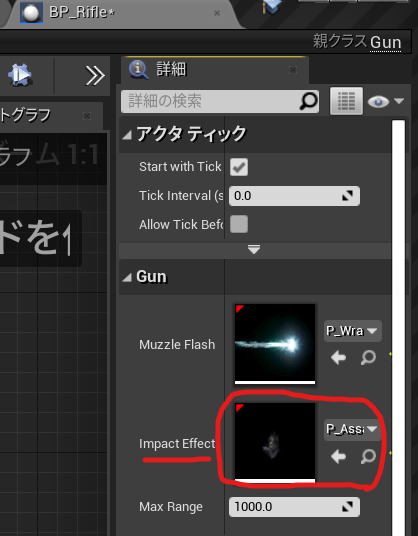
で作ったプロパティ、ImpactEffectに設定
今回の状態 全文
Gun.h

// Fill out your copyright notice in the Description page of Project Settings.

#pragma once

#include "CoreMinimal.h"
#include "GameFramework/Actor.h"
#include "Gun.generated.h"

UCLASS()
class SIMPLESHOOTERCP2_API AGun : public AActor
{
	GENERATED_BODY()
	
public:	
	// Sets default values for this actor's properties
	AGun();

	void PullTrigger();

protected:
	// Called when the game starts or when spawned
	virtual void BeginPlay() override;

public:	
	// Called every frame
	virtual void Tick(float DeltaTime) override;
private:
	UPROPERTY(VisibleAnyWhere)
	USceneComponent* Root;

	UPROPERTY(VisibleAnyWhere)
	USkeletalMeshComponent* Mesh;

	UPROPERTY(EditAnyWhere)
	UParticleSystem* MuzzleFlash;

	UPROPERTY(EditAnyWhere)
	UParticleSystem* ImpactEffect;

	UPROPERTY(EditAnyWhere)
	float MaxRange = 1000;
};

Gun.cpp

// Fill out your copyright notice in the Description page of Project Settings.


#include "Gun.h"

#include "Components/SkeletalMeshComponent.h"
#include "Kismet/GameplayStatics.h"
#include "DrawDebugHelpers.h"
// Sets default values
AGun::AGun()
{
 	// Set this actor to call Tick() every frame.  You can turn this off to improve performance if you don't need it.
	PrimaryActorTick.bCanEverTick = true;

	Root = CreateDefaultSubobject<USceneComponent>(TEXT("Root"));
	SetRootComponent(Root);

	Mesh = CreateDefaultSubobject<USkeletalMeshComponent>(TEXT("Mesh"));
	Mesh->SetupAttachment(Root);


}
void AGun::PullTrigger()
{
	UE_LOG(LogTemp,Warning,TEXT("You have been shot!! "));
	//MuzzleFlashSocket
	UGameplayStatics::SpawnEmitterAttached(MuzzleFlash, Mesh, TEXT("MuzzleFlashSocket"));
    
	APawn* OwnerPawn = Cast<APawn>(GetOwner());
	if(OwnerPawn==nullptr)
	{
		return;
	}
	AController* OwnerController= OwnerPawn ->GetController();
	if(OwnerController==nullptr)
	{
		return;
	}
	FVector Location= OwnerPawn->GetActorLocation();
	FRotator Rotation;
	OwnerController->GetPlayerViewPoint(  Location, Rotation );
	FVector End = Location + Rotation.Vector() * MaxRange;
	// TOTO: LineTrace

	float FOVDeg=90;
	float Scale=2.f;
	FColor const& Color=FColor::Blue;
	bool bPersistentLines=true;
	float LifeTime=-1.f;
	uint8 DepthPriority = 0;
	//DrawDebugCamera(GetWorld(), Location, Rotation, FOVDeg, Scale, Color, bPersistentLines, LifeTime, DepthPriority);

	float Size2 = 20.0;
	FColor const& Color2= FColor::Green;
	bool bPersistentLines2 = true;
	float LifeTime2 = -1.f;
	uint8 DepthPriority2 = 0;
	//DrawDebugPoint(GetWorld(), Location,Size2 ,Color2 , bPersistentLines2, LifeTime2, DepthPriority2);
	//DrawDebugPoint(GetWorld(), Location,Size2 ,Color2 , bPersistentLines2);
    //DrawDebugDirectionalArrow(GetWorld(), Location, End, 3.0, FColor::Blue, bPersistentLines);

	FHitResult Hit;
	ECollisionChannel TraceChannel = ECollisionChannel::ECC_GameTraceChannel1;
	bool bSuccess = GetWorld()->LineTraceSingleByChannel(Hit,Location,End,TraceChannel);
	if(bSuccess==true)
	{
		UE_LOG(LogTemp,Warning,TEXT("HitWall!! "));
		//DrawDebugPoint(GetWorld(), Hit.Location,40.0 ,FColor::Red , bPersistentLines2);
		FVector ShotDirection = -Rotation.Vector();
		UGameplayStatics::SpawnEmitterAtLocation(GetWorld(), ImpactEffect, Hit.Location,ShotDirection.Rotation() );

	}
	//DrawDebugPoint(GetWorld(), End,Size2 ,FColor::Red , bPersistentLines2);
}

// Called when the game starts or when spawned
void AGun::BeginPlay()
{
	Super::BeginPlay();
	
}

// Called every frame
void AGun::Tick(float DeltaTime)
{
	Super::Tick(DeltaTime);

}

でできたのがこれ
Unreal Engine C++ Developer: Learn C++ and Make Video Games | Udemy UE4.25 Simple Shooterで自分なりに理解したこと。00400 ~チャネルによるライントレース~

world.h>LineTraceTestと検索

LineTraceTestByChannel

/ **
*特定のチャネルを使用して世界に対して光線をトレースし、ブロッキングヒットが見つかった場合に戻ります。
* @paramStart光線の開始位置
* @paramEnd光線の終了位置
* @paramTraceChannelこの光線が含まれる「チャネル」。ヒットするコンポーネントを決定するために使用されます。
* @paramParamsトレースに使用される追加のパラメーター
*このトレースに使用される@paramResponseParam ResponseContainer
* @ returnブロッキングヒットが見つかった場合はTRUE
* /	

// LINE TRACE

	/**
	 *  Trace a ray against the world using a specific channel and return if a blocking hit is found.
	 *  @param  Start           Start location of the ray
	 *  @param  End             End location of the ray
	 *  @param  TraceChannel    The 'channel' that this ray is in, used to determine which components to hit
	 *  @param  Params          Additional parameters used for the trace
	 * 	@param 	ResponseParam	ResponseContainer to be used for this trace
	 *  @return TRUE if a blocking hit is found
	 */
	bool LineTraceTestByChannel(const FVector& Start,const FVector& End,ECollisionChannel TraceChannel, const FCollisionQueryParams& Params = FCollisionQueryParams::DefaultQueryParam, const FCollisionResponseParams& ResponseParam = FCollisionResponseParams::DefaultResponseParam) const;
	

LineTraceSingleByChannel

/ **
*特定のチャネルを使用して世界に対して光線をトレースし、最初のブロッキングヒットを返します
* @paramOutHit最初のブロッキングヒットが見つかりました
* @paramStart光線の開始位置
* @paramEnd光線の終了位置
* @paramTraceChannelこの光線が含まれる「チャネル」。ヒットするコンポーネントを決定するために使用されます。
* @paramParamsトレースに使用される追加のパラメーター
*このトレースに使用される@paramResponseParam ResponseContainer
* @ returnブロッキングヒットが見つかった場合はTRUE
* /	

/**
	 *  Trace a ray against the world using a specific channel and return the first blocking hit
	 *  @param  OutHit          First blocking hit found
	 *  @param  Start           Start location of the ray
	 *  @param  End             End location of the ray
	 *  @param  TraceChannel    The 'channel' that this ray is in, used to determine which components to hit
	 *  @param  Params          Additional parameters used for the trace
	 * 	@param 	ResponseParam	ResponseContainer to be used for this trace	 
	 *  @return TRUE if a blocking hit is found
	 */
	bool LineTraceSingleByChannel(struct FHitResult& OutHit,const FVector& Start,const FVector& End,ECollisionChannel TraceChannel,const FCollisionQueryParams& Params = FCollisionQueryParams::DefaultQueryParam, const FCollisionResponseParams& ResponseParam = FCollisionResponseParams::DefaultResponseParam) const;

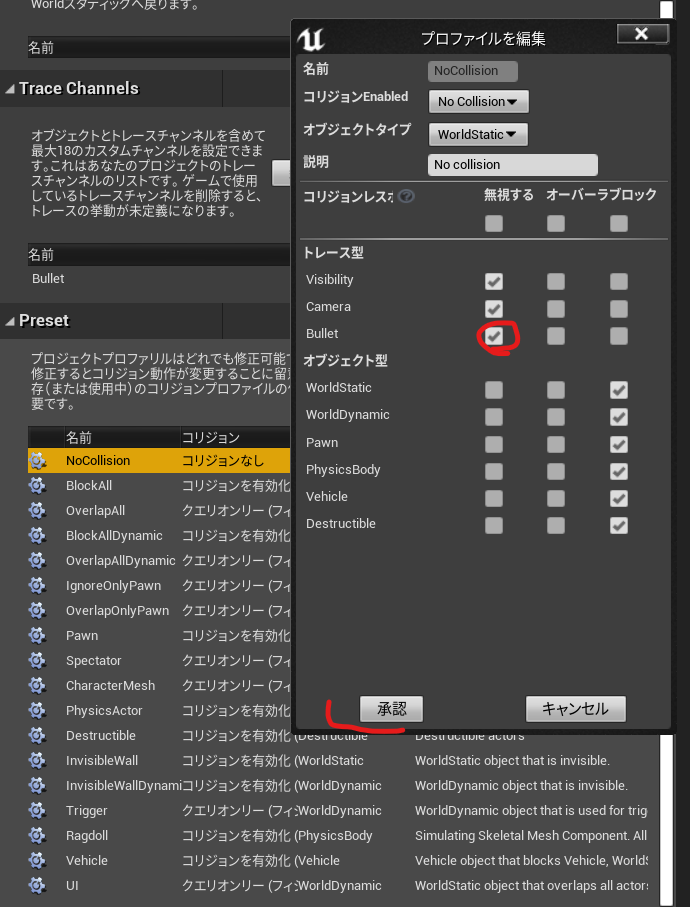
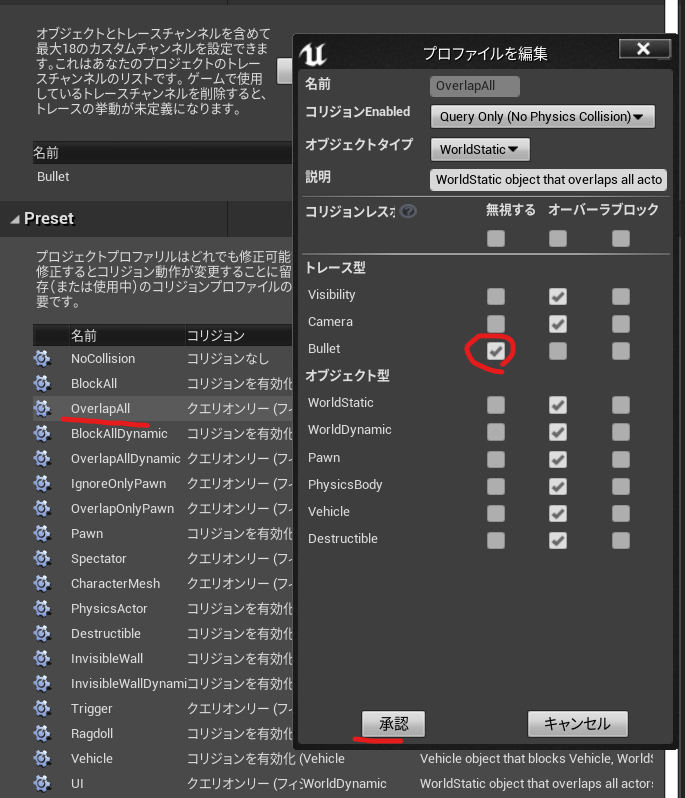
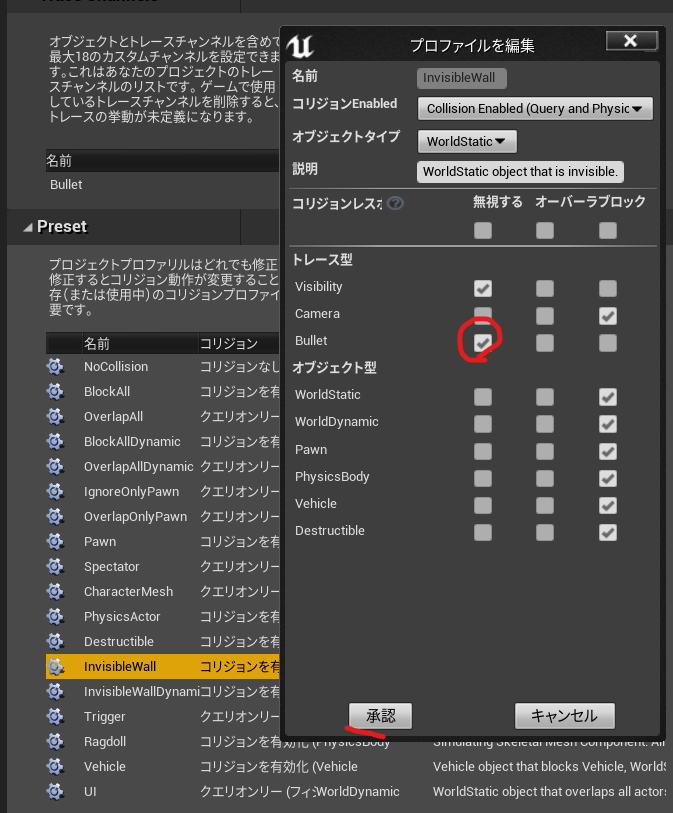
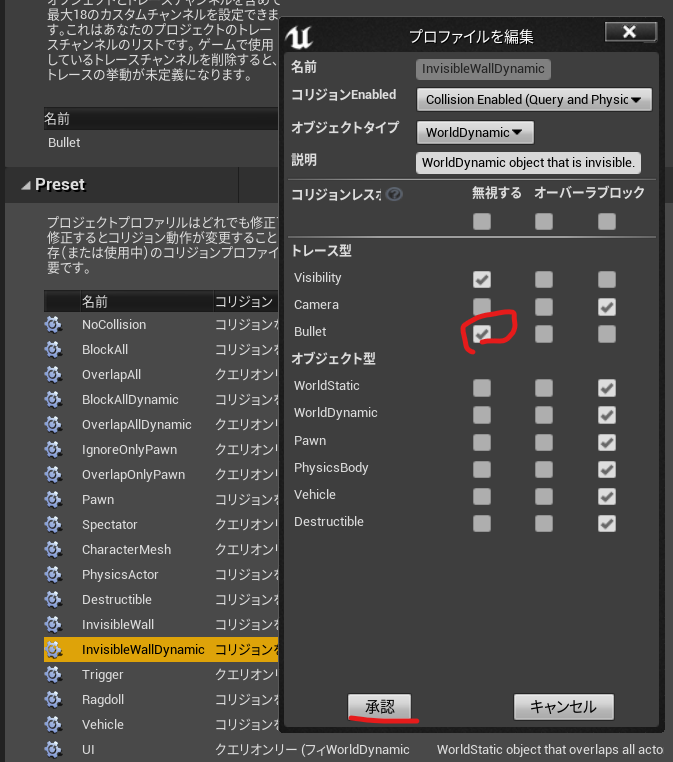
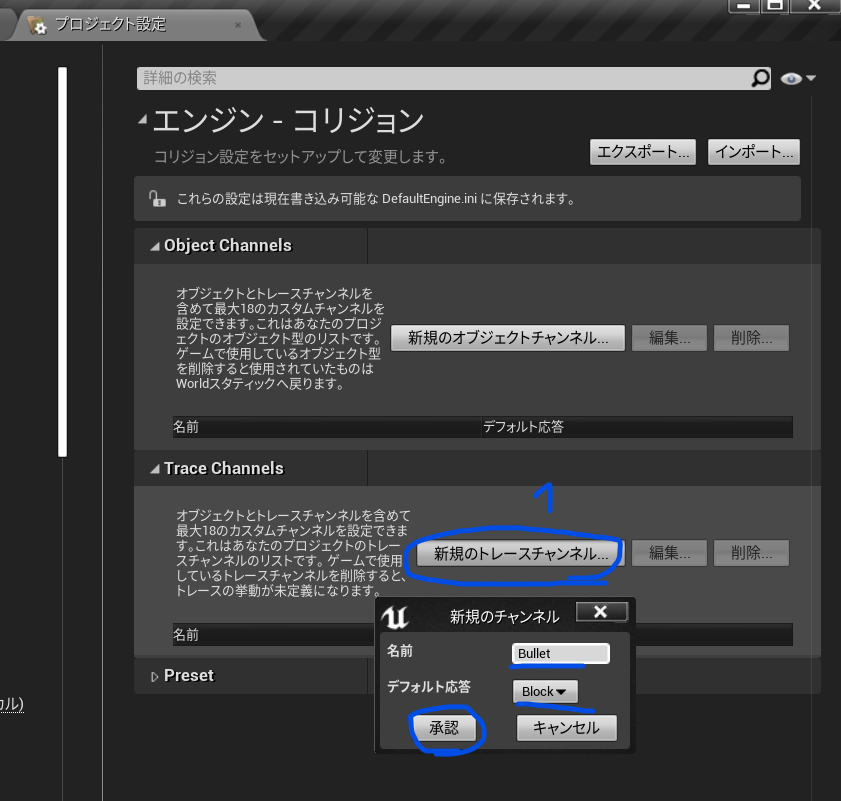
TraceChannelの設定はこう

LineTraceSingleByChannelの引数にはECollisionChannel がある

LineTraceSingleByChannel(struct FHitResult& OutHit,const FVector& Start,const FVector& End,ECollisionChannel TraceChannel,const FCollisionQueryParams& Params = FCollisionQueryParams::DefaultQueryParam, const FCollisionResponseParams& ResponseParam = FCollisionResponseParams::DefaultResponseParam) const;

ECollisionChannel の定義を開く

Config/DefaultEngine.ini ひらくとさっき設定したものがデータになってる

+EditProfiles=(Name="NoCollision",CustomResponses=((Channel="Bullet",Response=ECR_Ignore)))
+EditProfiles=(Name="OverlapAll",CustomResponses=((Channel="Bullet",Response=ECR_Ignore)))
+EditProfiles=(Name="InvisibleWall",CustomResponses=((Channel="Bullet",Response=ECR_Ignore)))
+EditProfiles=(Name="InvisibleWallDynamic",CustomResponses=((Channel="Bullet",Response=ECR_Ignore)))

Gun.hに

	UPROPERTY(EditAnyWhere)
	float MaxRange = 1000;

Gun.cppに戻る

UE4/Engine/Sounce/Runtime/Engine/Public/DrawDebugHelpers.h

DrawDebugPointを使う

	FVector End = Location + Rotation.Vector() * MaxRange;
	// TOTO: LineTrace
  / **デバッグポイントを描画します* /
  /** Draw a debug point */
	float Size=20.0;
	FColor PointColor::Red;
	bool bPersistentLines = true;
	float LifeTime = -1.f;
	uint8 DepthPriority = 0;
	DrawDebugPoint(GetWorld(), Location,Size ,Color , bPersistentLines, LifeTime, DepthPriority)
	

なんか右にでる

LineTraceSingleByChannelを使う

UE4/Engine/Source/Runtime/Engine/Classes/Engine/world.hにある

/ **
*特定のチャネルを使用して世界に対して光線をトレースし、最初のブロッキングヒットを返します
* @paramOutHit最初のブロッキングヒットが見つかりました
* @paramStart光線の開始位置
* @paramEnd光線の終了位置
* @paramTraceChannelこの光線が含まれる「チャネル」。ヒットするコンポーネントを決定するために使用されます。
* @paramParamsトレースに使用される追加のパラメーター
*このトレースに使用される@paramResponseParam ResponseContainer
* @ returnブロッキングヒットが見つかった場合はTRUE
* /	
/**
	 *  Trace a ray against the world using a specific channel and return the first blocking hit
	 *  @param  OutHit          First blocking hit found
	 *  @param  Start           Start location of the ray
	 *  @param  End             End location of the ray
	 *  @param  TraceChannel    The 'channel' that this ray is in, used to determine which components to hit
	 *  @param  Params          Additional parameters used for the trace
	 * 	@param 	ResponseParam	ResponseContainer to be used for this trace	 
	 *  @return TRUE if a blocking hit is found
	 */
	bool LineTraceSingleByChannel(struct FHitResult& OutHit,const FVector& Start,const FVector& End,ECollisionChannel TraceChannel,const FCollisionQueryParams& Params = FCollisionQueryParams::DefaultQueryParam, const FCollisionResponseParams& ResponseParam = FCollisionResponseParams::DefaultResponseParam) const;

Gun.hはこんなんで

// Fill out your copyright notice in the Description page of Project Settings.

#pragma once

#include "CoreMinimal.h"
#include "GameFramework/Actor.h"
#include "Gun.generated.h"

UCLASS()
class SIMPLESHOOTERCP2_API AGun : public AActor
{
	GENERATED_BODY()
	
public:	
	// Sets default values for this actor's properties
	AGun();

	void PullTrigger();

protected:
	// Called when the game starts or when spawned
	virtual void BeginPlay() override;

public:	
	// Called every frame
	virtual void Tick(float DeltaTime) override;
private:
	UPROPERTY(VisibleAnyWhere)
	USceneComponent* Root;

	UPROPERTY(VisibleAnyWhere)
	USkeletalMeshComponent* Mesh;

	UPROPERTY(EditAnyWhere)
	UParticleSystem* MuzzleFlash;

	UPROPERTY(EditAnyWhere)
	float MaxRange = 1000;
};

Gun.cppはこんな感じになった

// Fill out your copyright notice in the Description page of Project Settings.


#include "Gun.h"

#include "Components/SkeletalMeshComponent.h"
#include "Kismet/GameplayStatics.h"
#include "DrawDebugHelpers.h"
// Sets default values
AGun::AGun()
{
 	// Set this actor to call Tick() every frame.  You can turn this off to improve performance if you don't need it.
	PrimaryActorTick.bCanEverTick = true;

	Root = CreateDefaultSubobject<USceneComponent>(TEXT("Root"));
	SetRootComponent(Root);

	Mesh = CreateDefaultSubobject<USkeletalMeshComponent>(TEXT("Mesh"));
	Mesh->SetupAttachment(Root);


}
void AGun::PullTrigger()
{
	UE_LOG(LogTemp,Warning,TEXT("You have been shot!! "));
	//MuzzleFlashSocket
	UGameplayStatics::SpawnEmitterAttached(MuzzleFlash, Mesh, TEXT("MuzzleFlashSocket"));
    
	APawn* OwnerPawn = Cast<APawn>(GetOwner());
	if(OwnerPawn==nullptr)
	{
		return;
	}
	AController* OwnerController= OwnerPawn ->GetController();
	if(OwnerController==nullptr)
	{
		return;
	}
	FVector Location= OwnerPawn->GetActorLocation();
	FRotator Rotation;
	OwnerController->GetPlayerViewPoint(  Location, Rotation );
	FVector End = Location + Rotation.Vector() * MaxRange;
	// TOTO: LineTrace

	float FOVDeg=90;
	float Scale=2.f;
	FColor const& Color=FColor::Blue;
	bool bPersistentLines=true;
	float LifeTime=-1.f;
	uint8 DepthPriority = 0;
	DrawDebugCamera(GetWorld(), Location, Rotation, FOVDeg, Scale, Color, bPersistentLines, LifeTime, DepthPriority);

	float Size2 = 20.0;
	FColor const& Color2= FColor::Green;
	bool bPersistentLines2 = true;
	float LifeTime2 = -1.f;
	uint8 DepthPriority2 = 0;
	//DrawDebugPoint(GetWorld(), Location,Size2 ,Color2 , bPersistentLines2, LifeTime2, DepthPriority2);
	DrawDebugPoint(GetWorld(), Location,Size2 ,Color2 , bPersistentLines2);
    DrawDebugDirectionalArrow(GetWorld(), Location, End, 3.0, FColor::Blue, bPersistentLines);

	FHitResult Hit;
	ECollisionChannel TraceChannel = ECollisionChannel::ECC_GameTraceChannel1;
	bool bSuuccess = GetWorld()->LineTraceSingleByChannel(Hit,Location,End,TraceChannel);
	if(bSuuccess==true)
	{
		UE_LOG(LogTemp,Warning,TEXT("HitWall!! "));
		DrawDebugPoint(GetWorld(), Hit.Location,40.0 ,FColor::Red , bPersistentLines2);
	}
	DrawDebugPoint(GetWorld(), End,Size2 ,FColor::Red , bPersistentLines2);
}

// Called when the game starts or when spawned
void AGun::BeginPlay()
{
	Super::BeginPlay();
	
}

// Called every frame
void AGun::Tick(float DeltaTime)
{
	Super::Tick(DeltaTime);

}

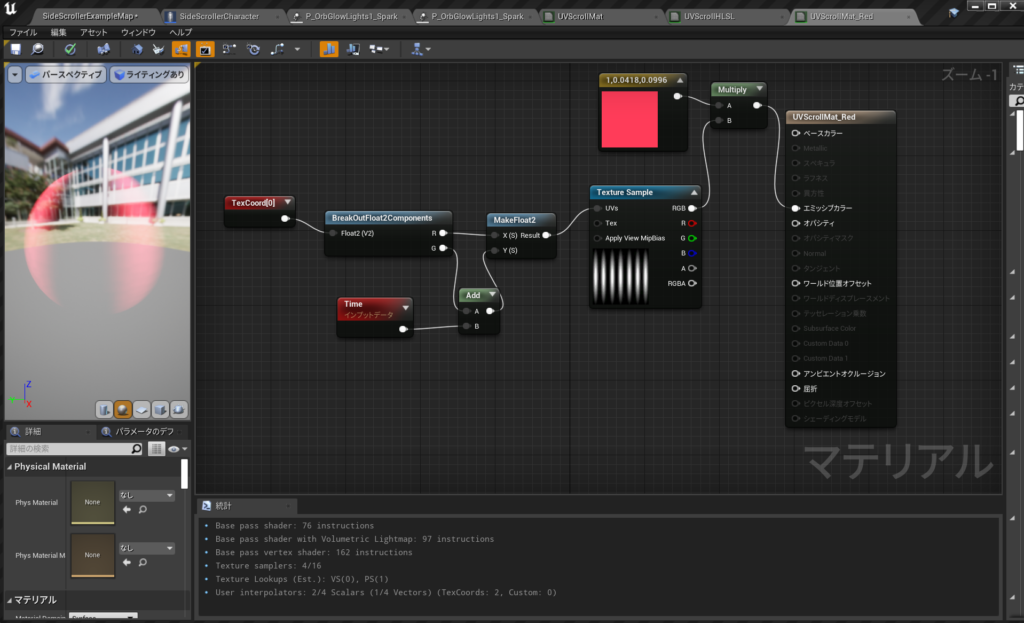
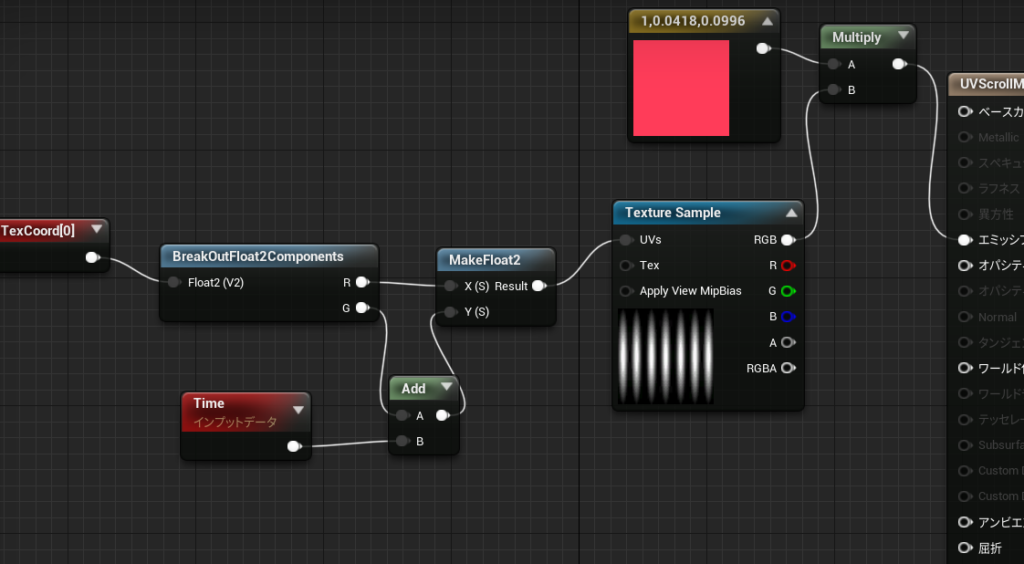
#UE4 #UE4Study ちゃんとびったりUVスクロールする方法

あー基本をわすることなかれ.

遠まわりして、深夜の3時まで悩んでしまった。

BreakOutFloat2Componentsも初見

MakeFloat2も1度見たことあったかどうか

なぜだかHLSLでこうしても動かなかった

return float2(texCoord.x,texCoord.y+Time);

参考

https://answers.unrealengine.com/questions/409094/how-to-make-a-scroll-view-in-materialany-direction.html

Unreal Engine C++ Developer: Learn C++ and Make Video Games | Udemy UE4.25 Simple Shooterで自分なりに理解したこと。00200 ~ParticleSystemスポーン~

勉強したこと

Gun.hで

/// Indicates that this property can be edited by property windows in the editor        EditAnywhere,

/////このプロパティがエディタのプロパティウィンドウで編集できることを示します

スポーンするものはポインタで。

	UPROPERTY(EditAnyWhere)
	UParticleSystem* MuzzleFlash;

Gun.cppで

//簡単な方法

static UParticleSystemComponent* SpawnEmitterAttached(class UParticleSystem* EmitterTemplate, class USceneComponent* AttachToComponent, FName AttachPointName = NAME_None);


// Backwards compatible version of SpawnEmitterAttached for C++ without Scale   
//スケールなしのC ++用のSpawnEmitterAttachedの下位互換バージョン
//デフォルト引数がなくて多く使いずらいもの

static UParticleSystemComponent* SpawnEmitterAttached(class UParticleSystem* EmitterTemplate, class USceneComponent* AttachToComponent, FName AttachPointName, FVector Location, FRotator Rotation, EAttachLocation::Type LocationType);

#include "Kismet/GameplayStatics.h"
UGameplayStatics::SpawnEmitterAttached(MuzzleFlash, Mesh, TEXT("MuzzleFlashSocket"));

そしたらエディタでエミッタを設定する

Unreal Engine C++ Developer: Learn C++ and Make Video Games | Udemy UE4.25 Simple Shooterで自分なりに理解したこと。00100 ~SkeletalMesh銃のスポーン~

このチュートリアルは長いので先にやりたいものをやることにした

Simple Shooter をやれればいいので、さきにやってみた。UE4.25が必要だ。
Pythonは実務レベルだけどUEC++はあまちゃんです。まちがいもあるかも。。。

勉強したこと
1,あらかじめ”Gun”というクラスをUEエディタでC++クラスのActorとして作成しておく。
  Gun.hにはAGun

  class SIMPLESHOOTERCP2_API AGun : public AActor
  {
  ~省略~
  }

  ここでAGunというアクターのサブクラスを作成したことになる

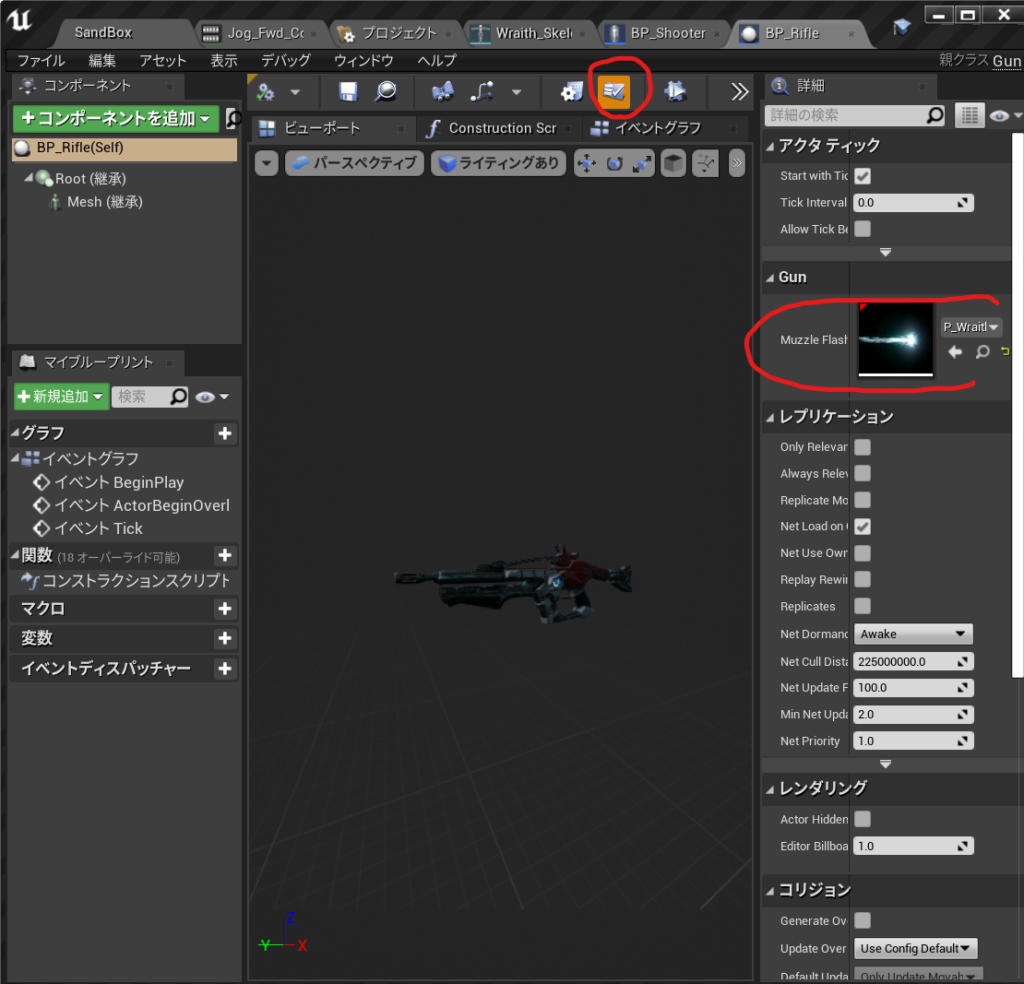
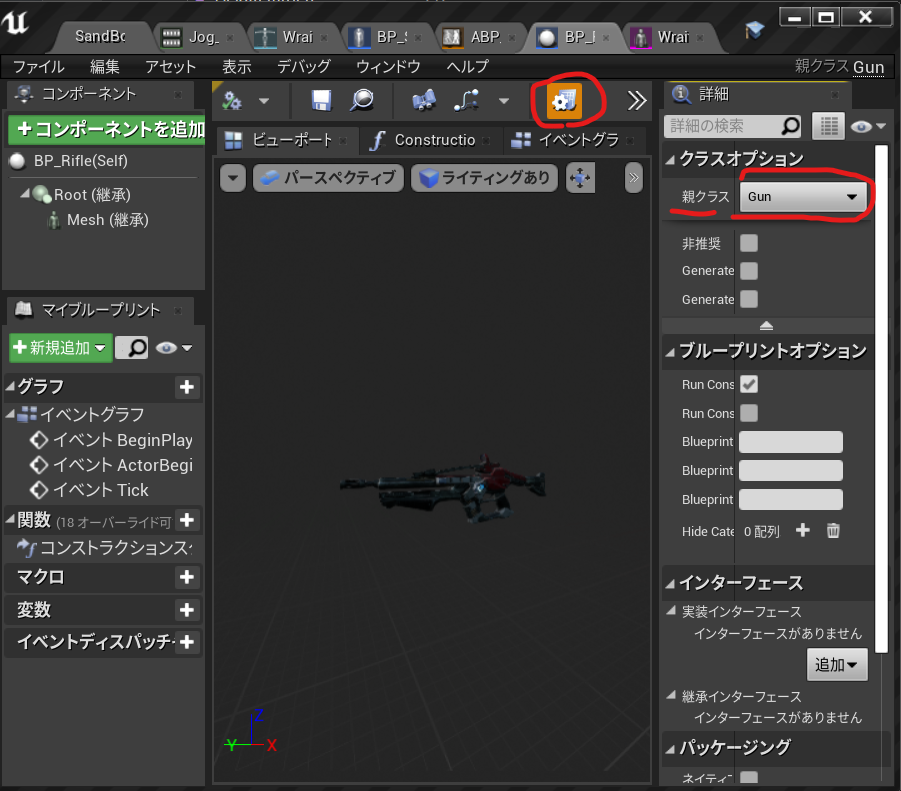
2,BP_Gunというブループリントを作成する。
3,BP_Gunの親クラスの設定をGunにする。画像参照

Gun持たせたいキャラクターの.hで   
クラス自体 とAGun型の変数を宣言

UnrealEngineで作ったサブクラスの参照を持ちたいときは
class AGun;//AGunというクラスをつかいますよ宣言
//UE用プロパティをデフォルトの時だけ編集する
//TClassType型を型安全性で渡すことができるテンプレート
//AGun型のクラス自体を宣言
UPROPERTY(EditDefaultOnly)    
TSubclassOf<AGun> GunClass
//銃の実際のインスタンスを指していないので、これはポインタにはなりません。この変数で
//取得しているのは、クラス自体です。

//UE用のプロパティ宣言 
//AGun型のUEのスポーン用インスタンスの参照を持ちたいときはポインタ
UPROPERTY()    
AGun* Gun;//AGun型の変数を宣言

Gun持たせたいキャラクターの.cppで インスタンス化するときこんな感じ

//AGunクラスのGun変数にワールドのSpawnActorメソッドにAGun型クラス自体を渡す
Gun = GetWorld()->SpawnActor<AGun>(GunClass);

そんなこんなで今回のもってる銃を隠して持たせるコードはこう。

//AGunクラスのGun変数にワールドクラスのSpawnActorメソッドにAGun型とクラスを渡す	
Gun = GetWorld()->SpawnActor<AGun>(GunClass);//銃をワールドに配置
//ボーン名からSkinMeshを隠します
GetMesh()->HideBoneByName(TEXT("weapon_r"),EPhysBodyOp::PBO_None );
//MeshのSocket名の場所に相対的な位置をキープしてで配置します。
Gun->AttachToComponent(GetMesh(), FAttachmentTransformRules::KeepRelativeTransform, TEXT("weaponSocket"));
//オーナーの設定これを使用して、後で所有するキャラクターへの参照を取得できます。
Gun->SetOwner(this);

すばらしい参考
[UE4] C++で動的にアクターを生成(スポーン)する方法で一番実用的だった方法https://qiita.com/Kuroyanagi96/items/7849dfaed83fc8df5741

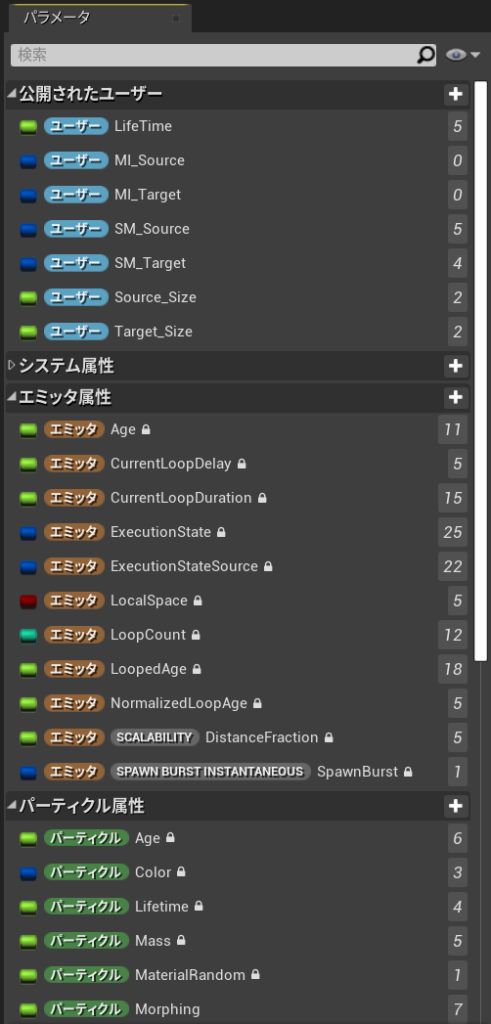
#UE4 #UE4Study UE4.26 AdvancedLocomotionV4 #Niagara #Morph Sword

Tutorial Video Unreal Engine 4.26.1 Niagara Morphing Tutorial Part 1

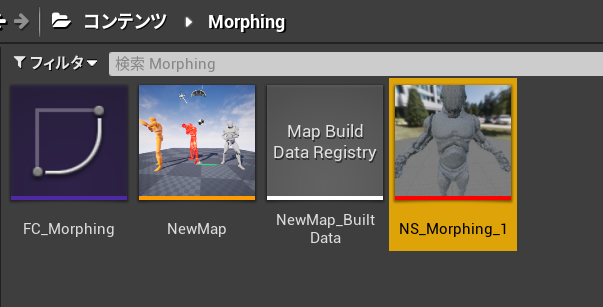
Morphingのやりかたは色々ありそうだけど、UE4.26.2ではこのチュートリアルが確実にできた。

エミッタのアセットは使わないタイプ。

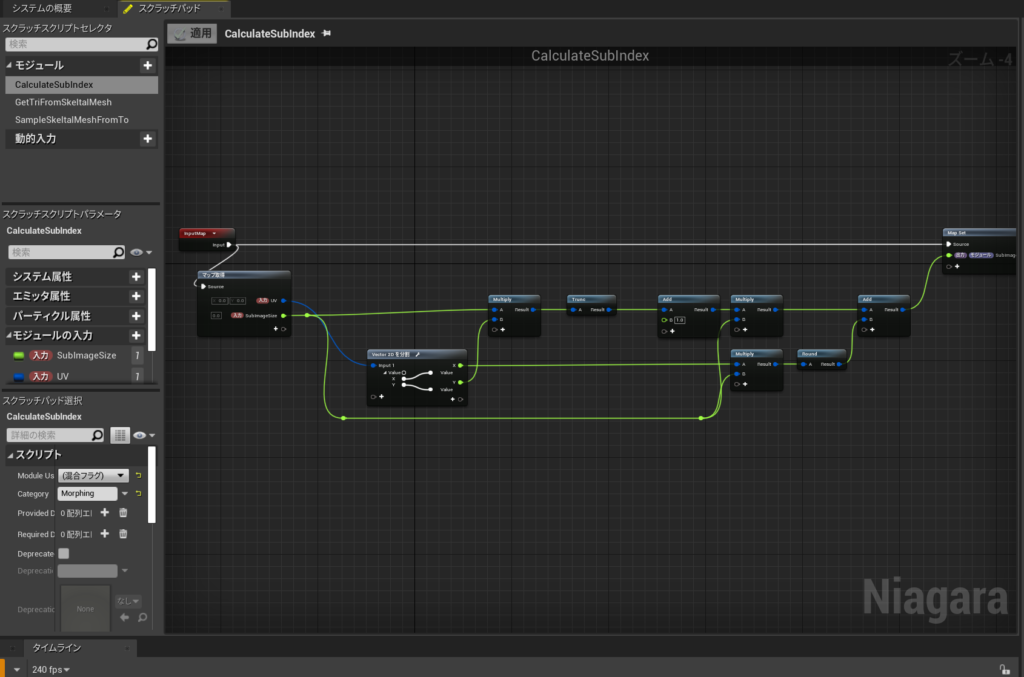
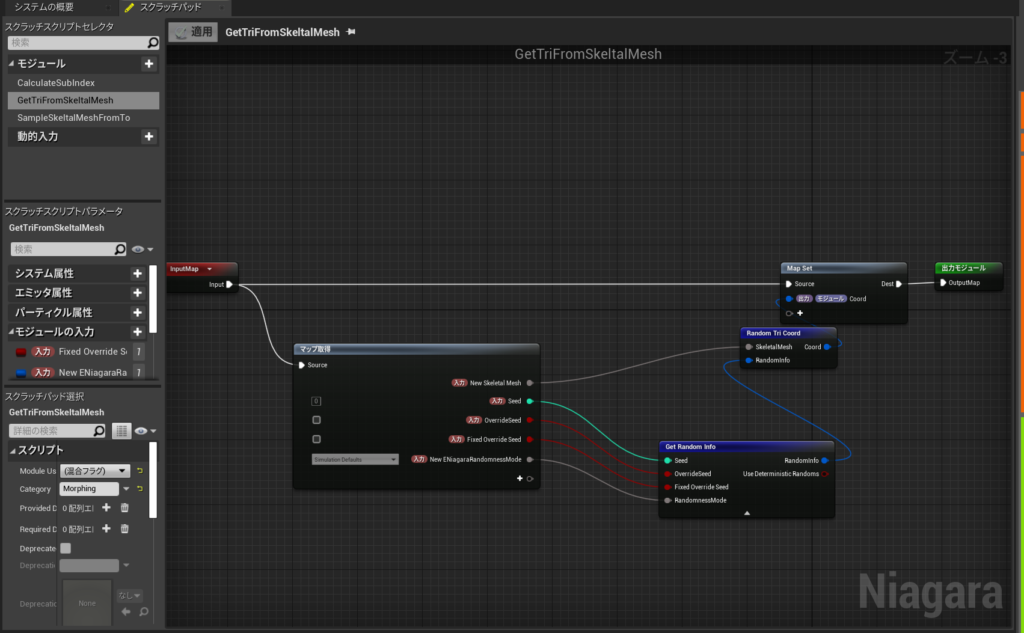
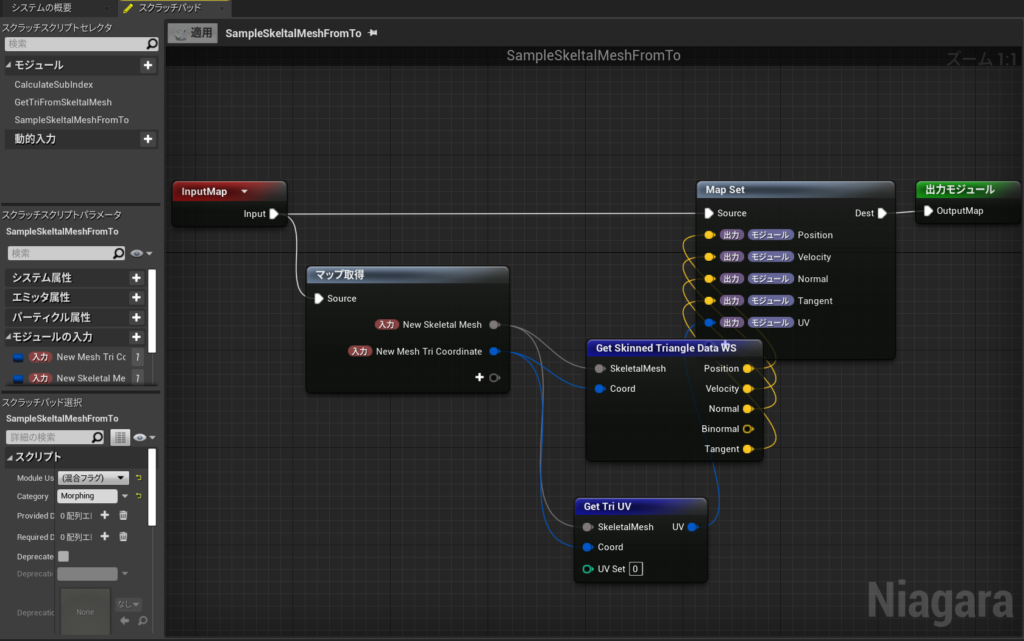
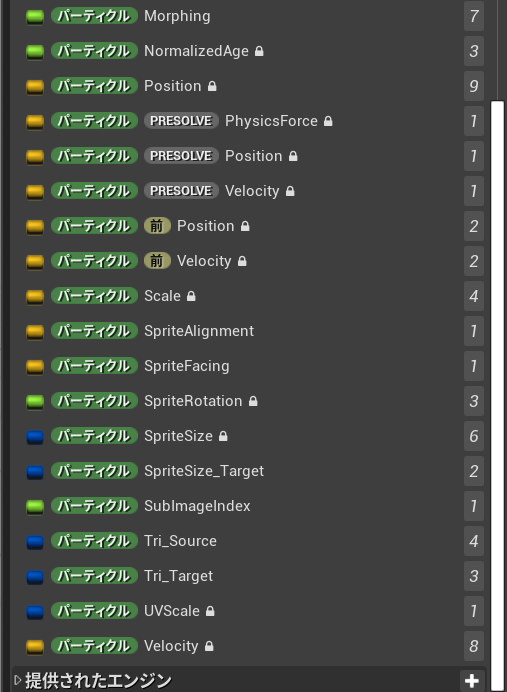
SM_SourceとSM_Targetのスケルタルメッシュ引数でブループリントから渡せるようになる。

ナイアガラ用のノードを作成するためにスクラッチパッドで3つグラフを作ることになる

パラメーターもめっちゃ多いので大変だった。丸2日かかった。おつかれした。

チュートリアルを提供してくれたArt Hitecaさんに感謝。修行並みだけど

#UE4 #UE4Study とDAIKIN CG Channel Seminar モモちゃんリグで学ぶ!~反動表現~で学んだことと#AdvancedLocomotion への攻撃アクション追加

https://www.comtec.daikin.co.jp/DC/event/202201-toranomaki-rig-sem.html

学んだこと。
1.パンチ、切り付けはパンチ後、軽反動つける
2.軽い武器には反動いらない
3.大剣は地面から押し返す力を受けて体が揺れ
4.力の伝わる順番はパンチ腰→胸→腕
5.パンチ腰の動き下→上→下をパーツごと
6.ヒット後で腰をさらにねじ込むと強くなる
7.腰を入れる、運動連鎖の法則
8.大剣は振り下ろすので腰も同じ動きをする
9.重いので振り下ろす時だけじゃない
10.人間の胴体は重いので1回バウンドのみ
11.人間には脳みそ揺らし過ぎない意識がある
12.大剣はヒット後に胸をねじ込むと強くなる
13.大剣はヒット後、腰に合わせ武器を後ろに
14.ダメージはヒット部位、腰→胸→頭で落ち
15.ダメージは意識がないので脳みそ揺らす
16.ダメージは顔をそむけたり不安定に。
17.バウンドのタイミングずらしてランダム感

UE4 ALS Punch

プロジェクト設定>インプット>アクションマッピング+で追加して
Attack に
・キーボードのR
・ゲームパッドのショルダーのRトリガー
を追加した

A2_CharactorBPで
イベントグラフの下に+で追加して
CharactorInputGraphを追加して
Attackのインプットアクションを配置
イベントグラフでカスタムイベントを追加
Attack_Eventと命名
CharactorInputGraphを追加して
Attackのインプットアクションから>Attack_Eventへつなぐ
使いたい攻撃モーションのアセットを右クリックして作成>AnimMontage
A2_F2_BigSwordSlash4_Montageができたので
CharacterBPで関数を作成して
GetAttackAnimationとリネーム
GetAttackAnimation>switch on ALS_OvarlayState
Get OverlayState >switch on ALS_OvarlayStateへ
switch on ALS_OvarlayStateのDefaultからReturnノードへつなぐ
Returnノードにoutputを追加してReturnValueにして
型をAnim Montageにし
CharacterBPで変数を作成してAttack_Animにした。
型をAnim Montageにした。
Get AttackAnimしてそのデフォルト値にA2_F2_BigSwordSlash4_Montageを追加した。
Get AttackAnimをReturnノードにつないだ

イベントグラフでGet Main Anim instanceして>値を検証済みGETに変更した
Attack_Event>Main Anim instanceとつなぐ。
Main Anim instance>Montage Playを呼ぶ
作った関数GetAttackAnimationを配置してpure純粋化>Montage Playへ接続

A2_F2_BigSwordSlash4から>EnableRootMotionをオンに

A2_F2_BigSwordSlash4_Montagから>スロット>スロット名>
MovementActionGroup BasedLayer

スケルトンにhand_rにhand_r_weaponソケットを追加
hand_r_weaponソケットにプレビューアセットを追加して角度調整
CharacterBPのビューでStatickMesh追加武器メッシュ設定して
一旦完成。

#UE4 #UE4Study Character #HairCloth #HairShadingModel #AdvancedLocomotionSystem ファサっと天使の輪と束感でUEのヘアーの使い方

服と髪をなびかせるHair Clothはこれをやった
https://docs.unrealengine.com/4.27/ja/InteractiveExperiences/Physics/Cloth/Overview/
1, [Section Selection (セクション選択)]
2,左クリックを使って、クロスとして使用したいメッシュの一部を選択します。次に右クリックして、コンテキスト メニューを開いて Cloth アセットを作成します。
3,コンテキスト メニューから、[Create Cloth Asset from Selection (選択したものから Cloth アセットを作成)] を選びます。

 A,Asset Name – 後で簡単に見つけられるようにアセットに名前を付けてください。

 B,Remove from Mesh – クロスとして関連付けたい別個のジオメトリのメッシュの構成要素があれば、このオプションを有効にします。そうでなければ、チェックを入れずにこのままにします。

 C,Physics Asset – Cloth アセットがキャラクター用ならば、その Physics アセットを使ってクロス シミュレーションで適切なコリジョンが生じるようにします。

4,[Create] ボタンをクリックします。
5,セクションを再度右クリックして、コンテキスト メニューを表示させて、[Apply Clothing Asset] にマウスをかざし、利用可能なクロス アセットから適用するものを選択します。これで作成した任意のクロス アセットが選択したセクションに関連付けられます。

・ペイント – マウスの左ボタン
・消去 – Shift キー + マウスの左ボタン
・クロスのプレビュー – H キー

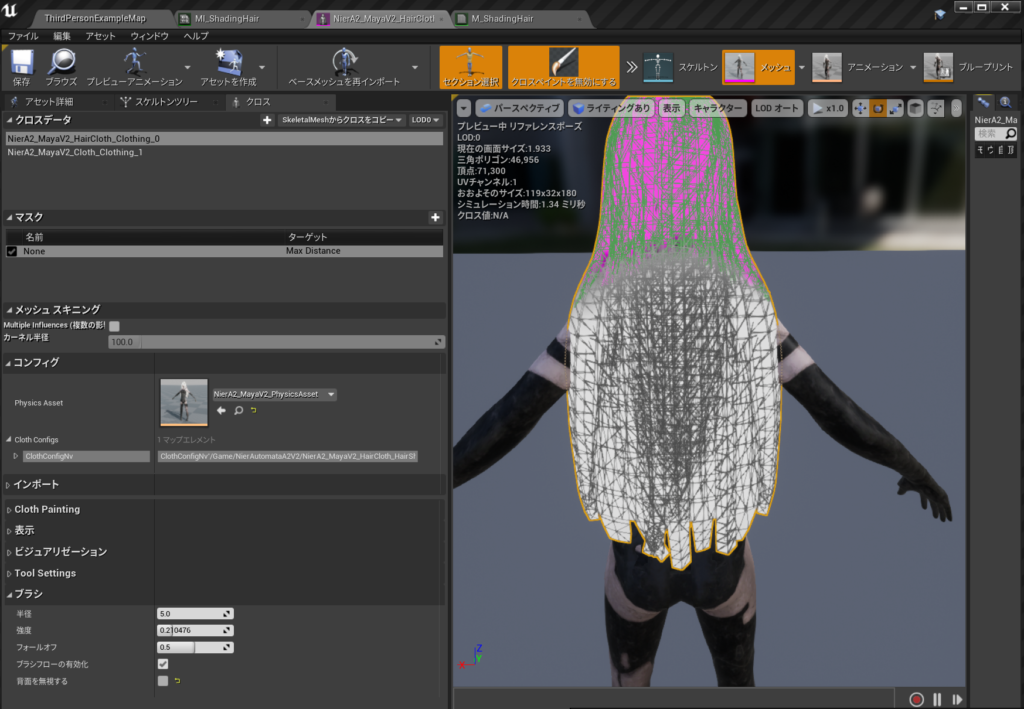
[Window] を選択し、リストから [Clothing] を選択します。
[Clothing Data] リストから選択します。

[Activate Cloth Paint] ボタンをクリックして、選択した Cloth アセットをペイントするために使用可能なプロパティを有効にします。

・ブラシの半径を5にして
・強度を0.2
・フォールオフ0.5
でヘアをクリックすると塗れる。ピンクが塗ってない場所

走ってみると

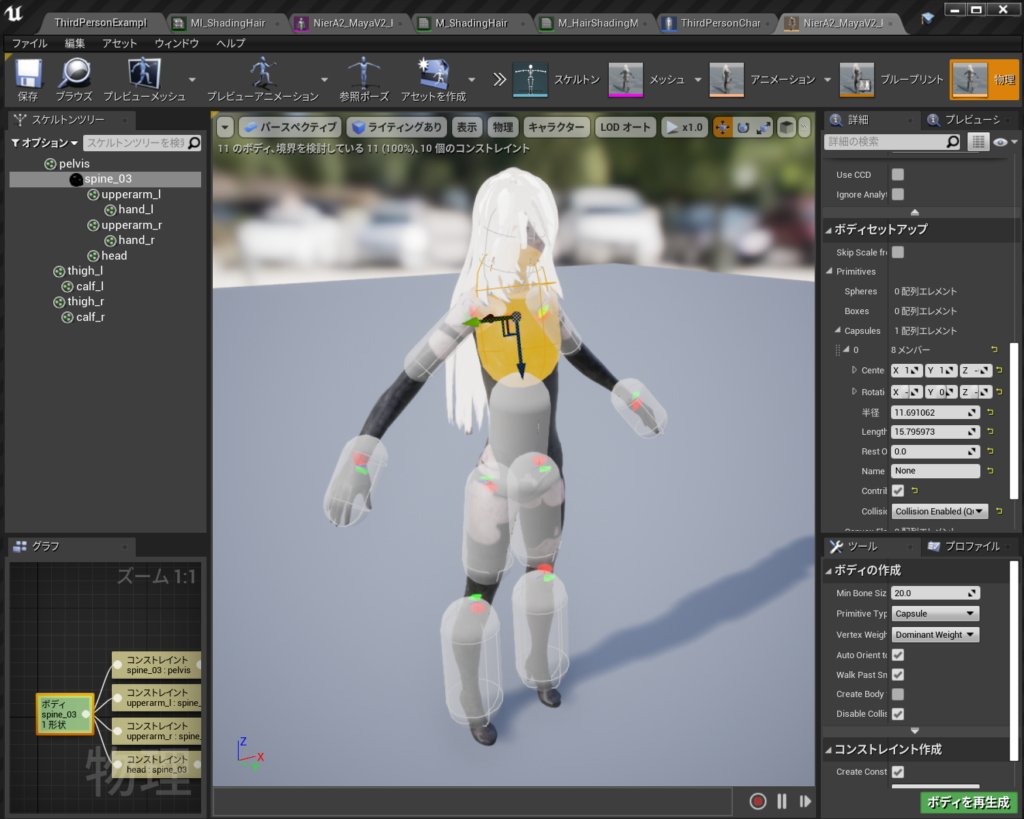
髪が前に来ちゃう

ので

物理ボディを修正した

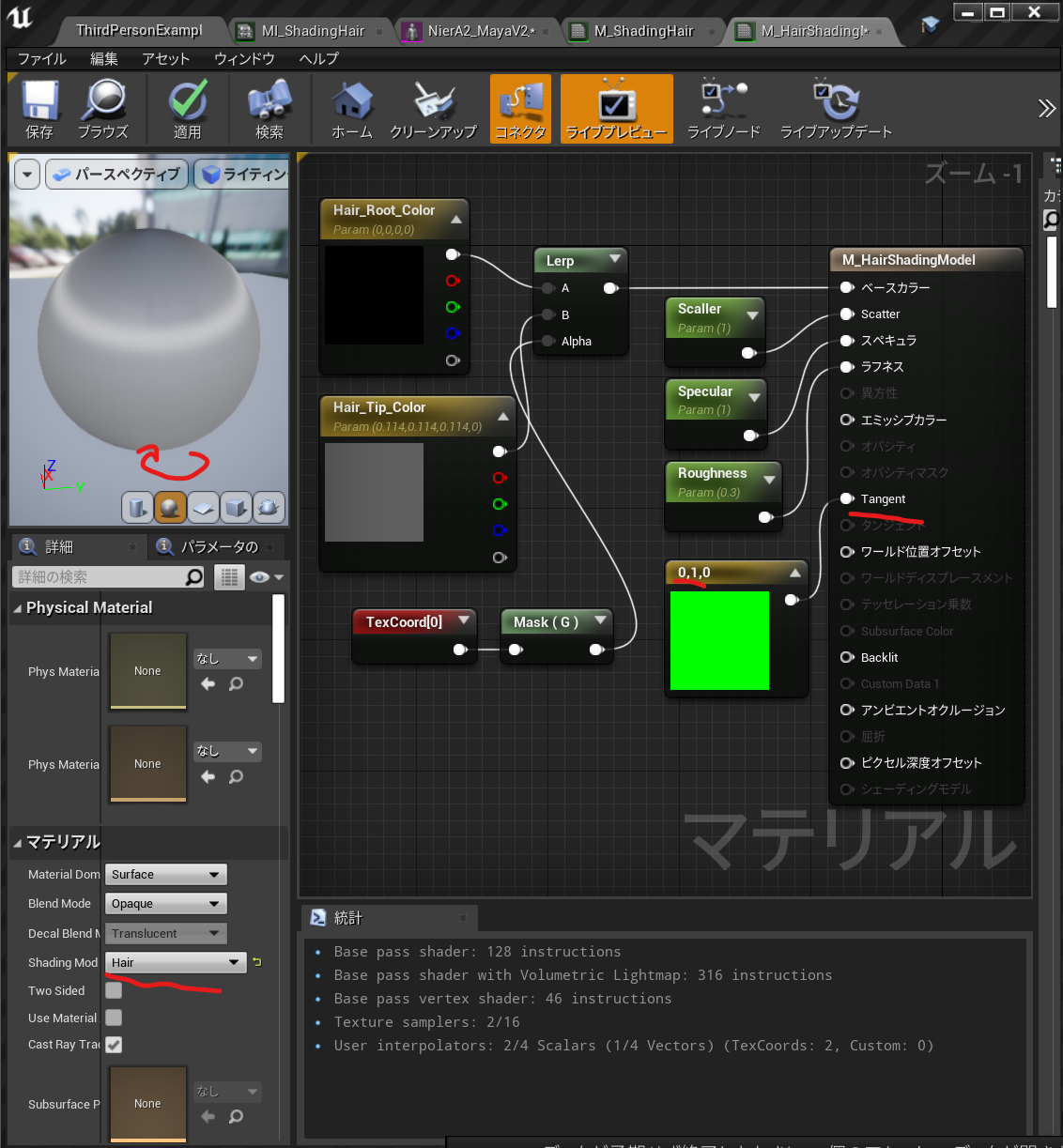
HairShadingModel 基本はこれをやった。

つまりこれで髪の天使の輪みたいなものができる。 (まわしてみないと分からない)

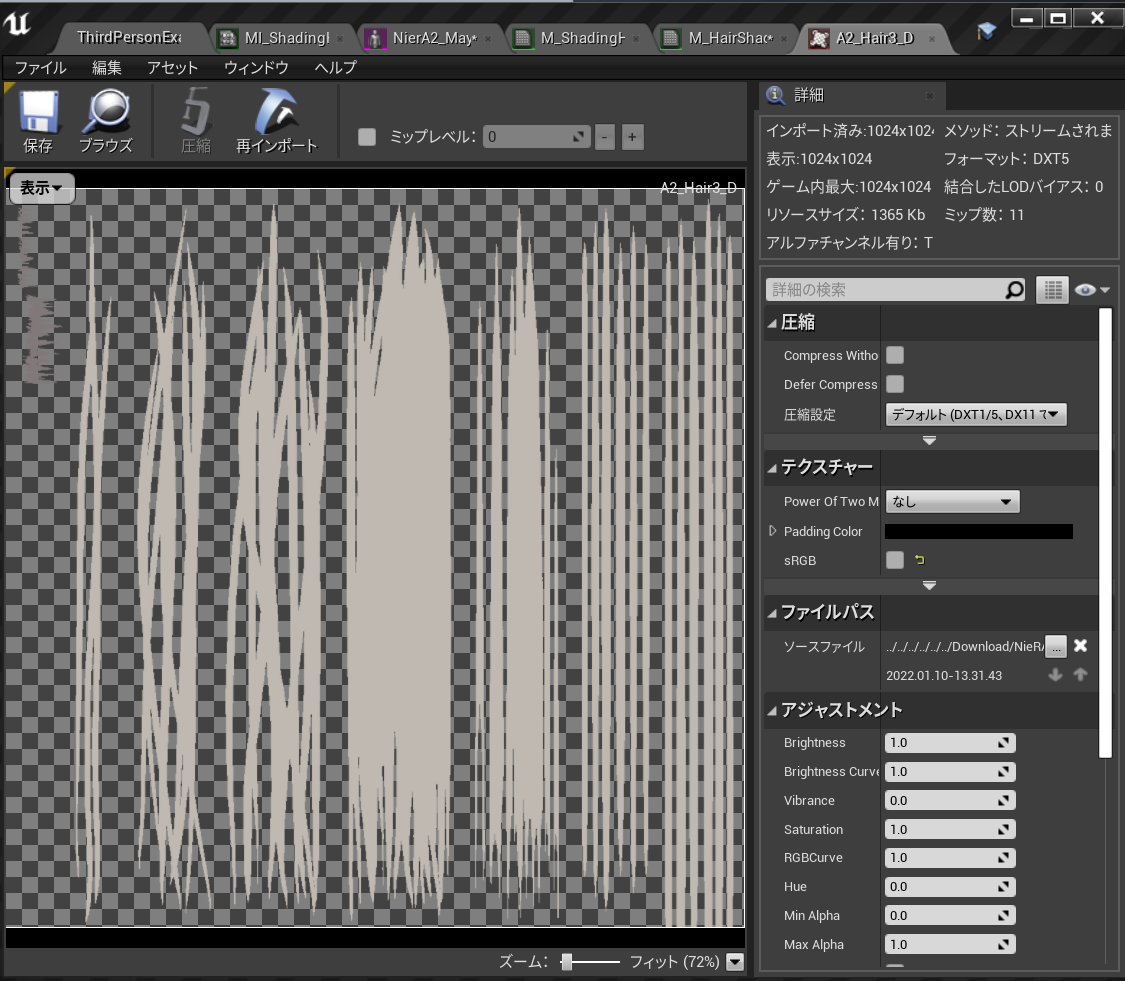
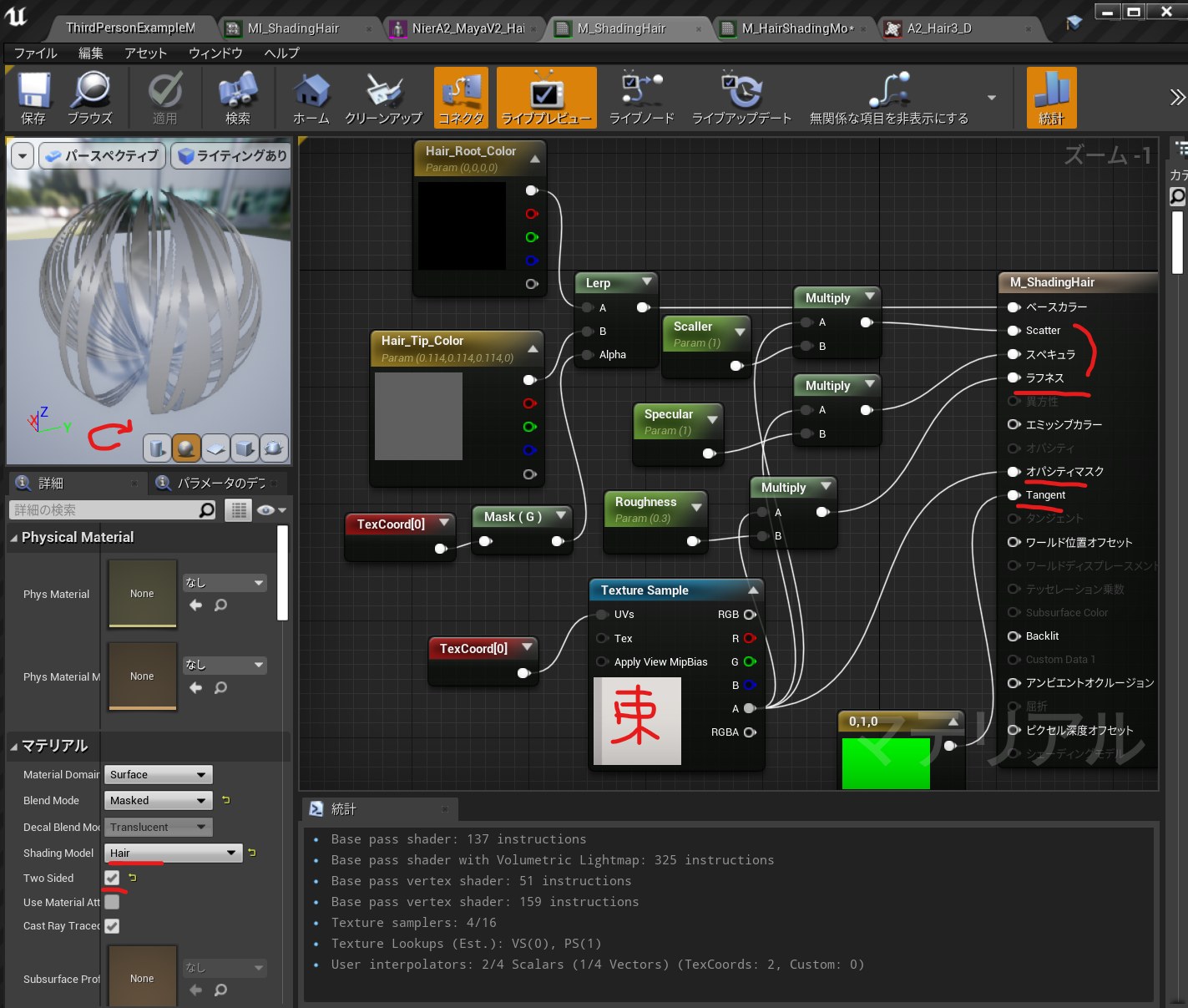
でも髪の束感は出したかったのでOpacityMaskもありにするとこうなる。

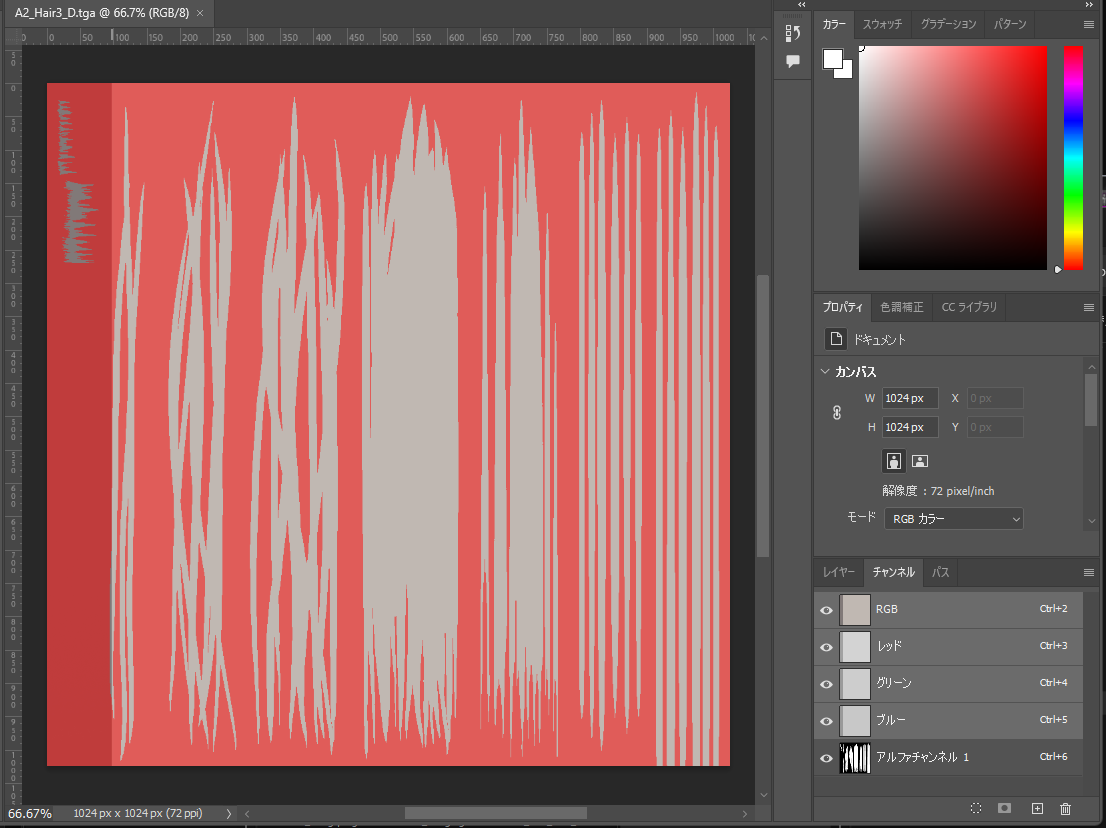
束感のために使ってるテクスチャはこれで

こんな感じにスキャッター、スペキュラ、ラフネスにMultyplyしたらいい感じになった。

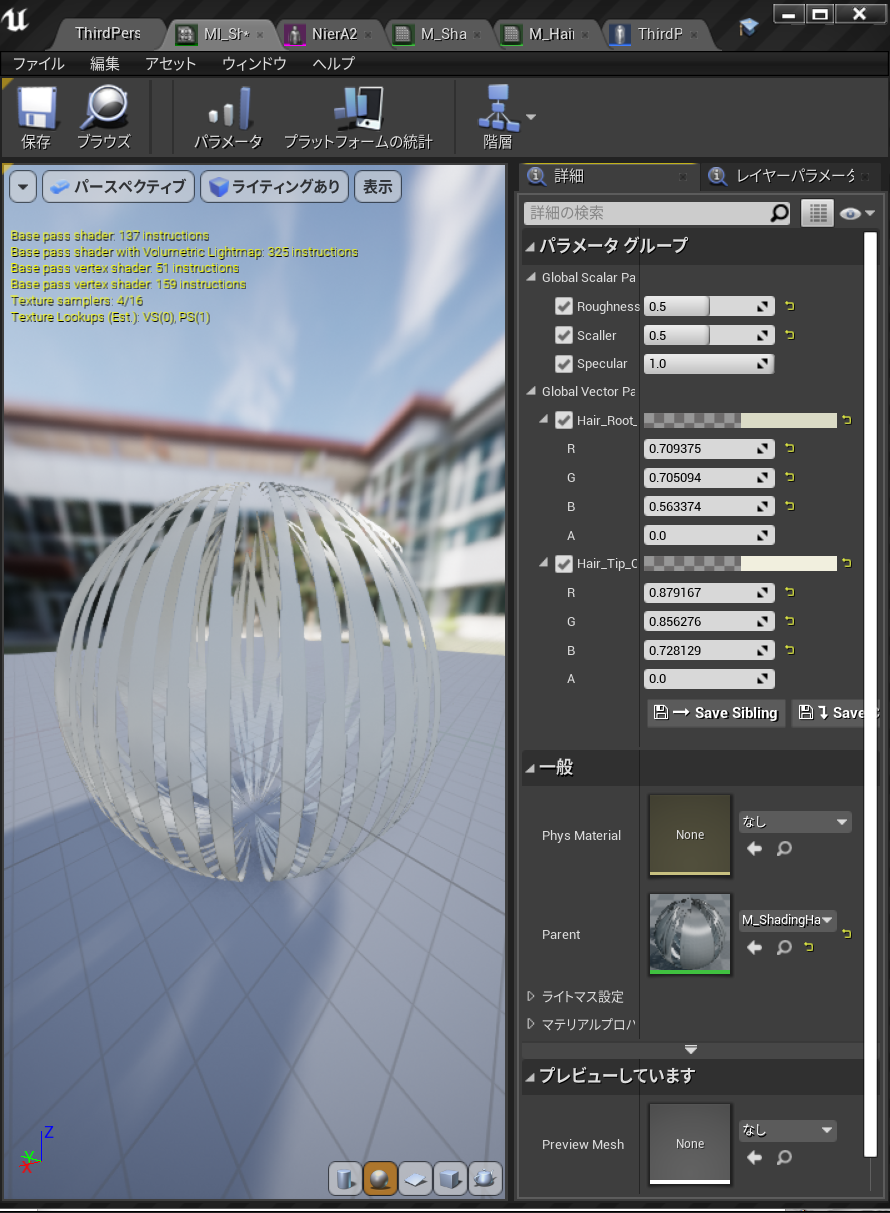
使っているMIでの値はこんな感じ

最後にまたこれをやって

やっとこうなった

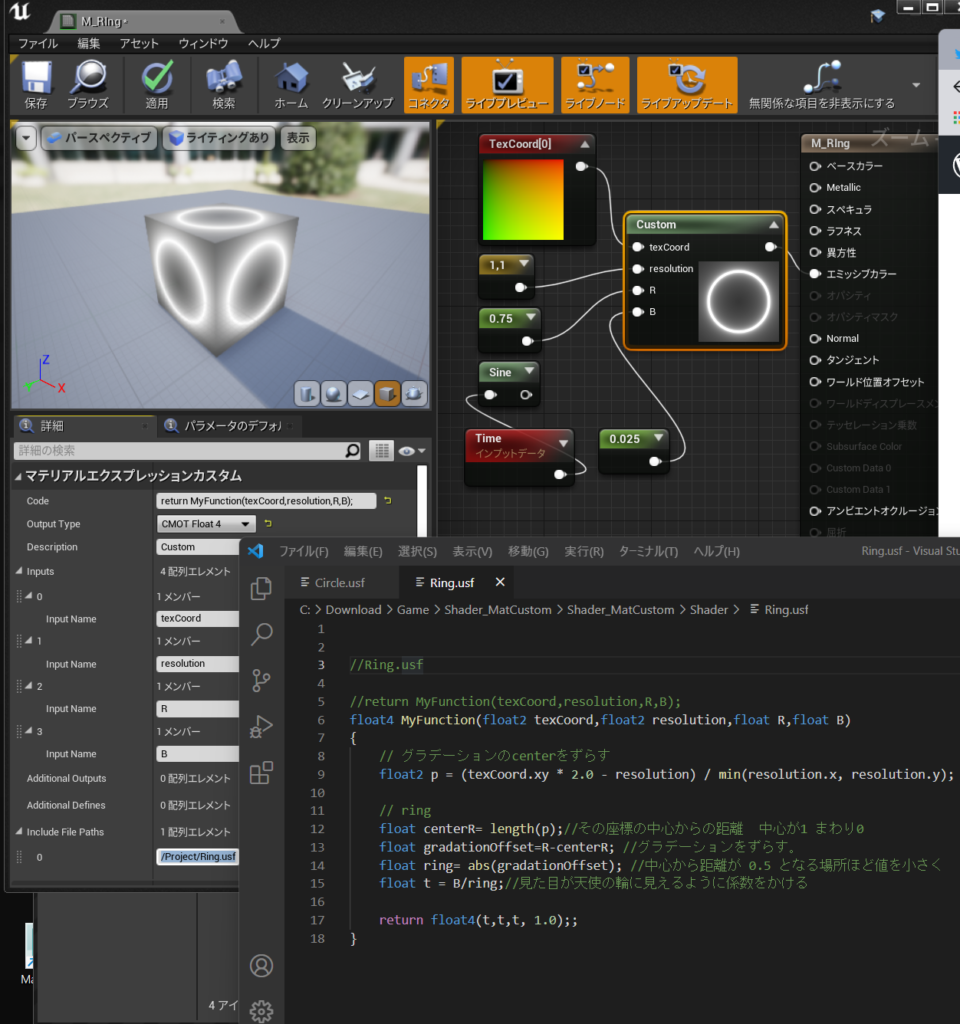
#UE4 #UE4Study 半径変更可能なRingをHLSLで描く #Shader #HLSL

Code : return MyFunction(texCoord,resolution,R);

OutputType: Float4

Inputs : texCoord,resolution,R,B

IncludeFilePath:/Project/Ring.usf

// ring
float centerR= length(p);//その座標の中心からの距離  中心が1 まわり0
float gradationOffset=R-centerR; //グラデーションをずらす。
float ring= abs(gradationOffset); //中心から距離が 0.5 となる場所ほど値を小さく
float t = B/ring;//見た目が天使の輪に見えるように係数をかける
//Ring.usf

//return MyFunction(texCoord,resolution,R,B);
float4 MyFunction(float2 texCoord,float2 resolution,float R,float B)
{
    // グラデーションのcenterをずらす
	float2 p = (texCoord.xy * 2.0 - resolution) / min(resolution.x, resolution.y);
	
    // ring
    float centerR= length(p);//その座標の中心からの距離  中心が1 まわり0
    float gradationOffset=R-centerR; //グラデーションをずらす。
    float ring= abs(gradationOffset); //中心から距離が 0.5 となる場所ほど値を小さく
    float t = B/ring;//見た目が天使の輪に見えるように係数をかける

    return float4(t,t,t, 1.0);;
}

参考

https://wgld.org/d/glsl/g004.html

UE4 Shader MaterialのCustomノードが進化してincludeFilePathでのファイル参照ができるようになっていた件

失敗1、2020年になってCustomノードが安定してきたみたいで

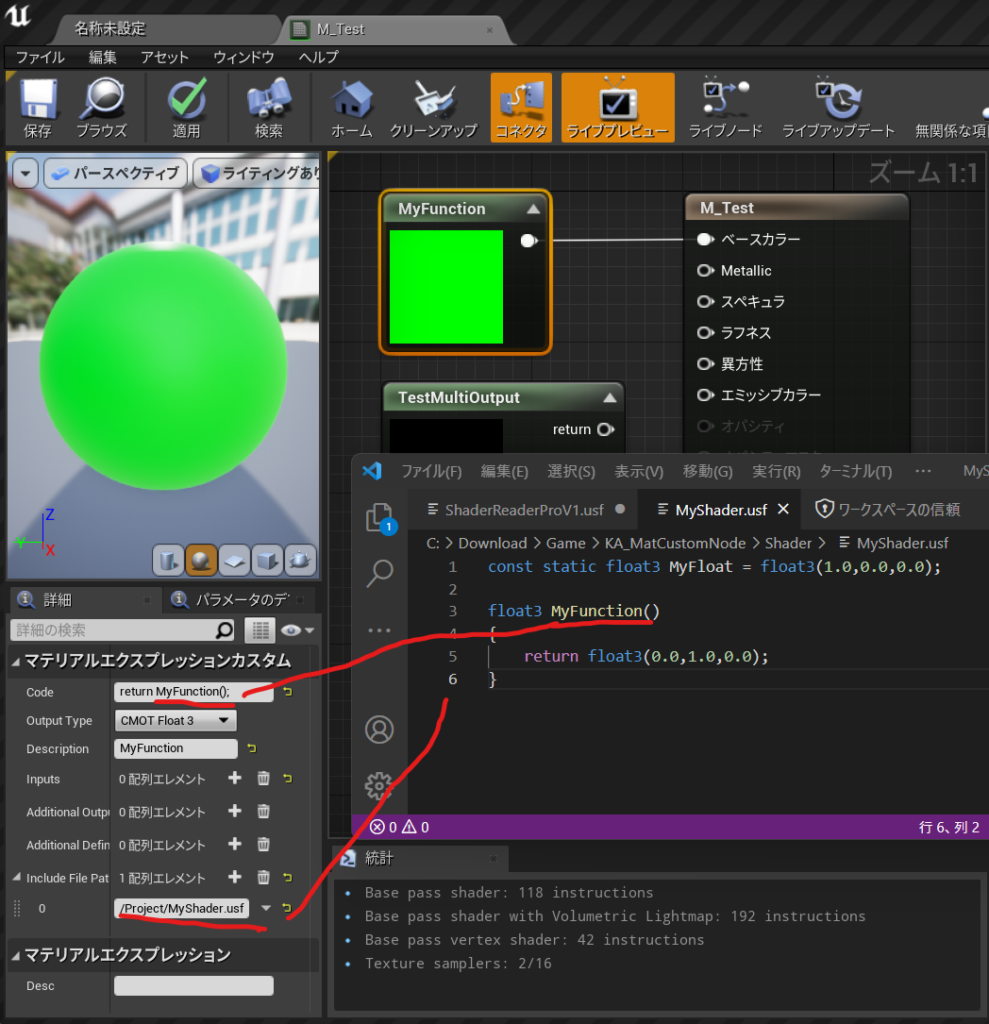
constで宣言しておくとそのままMyFloat使える

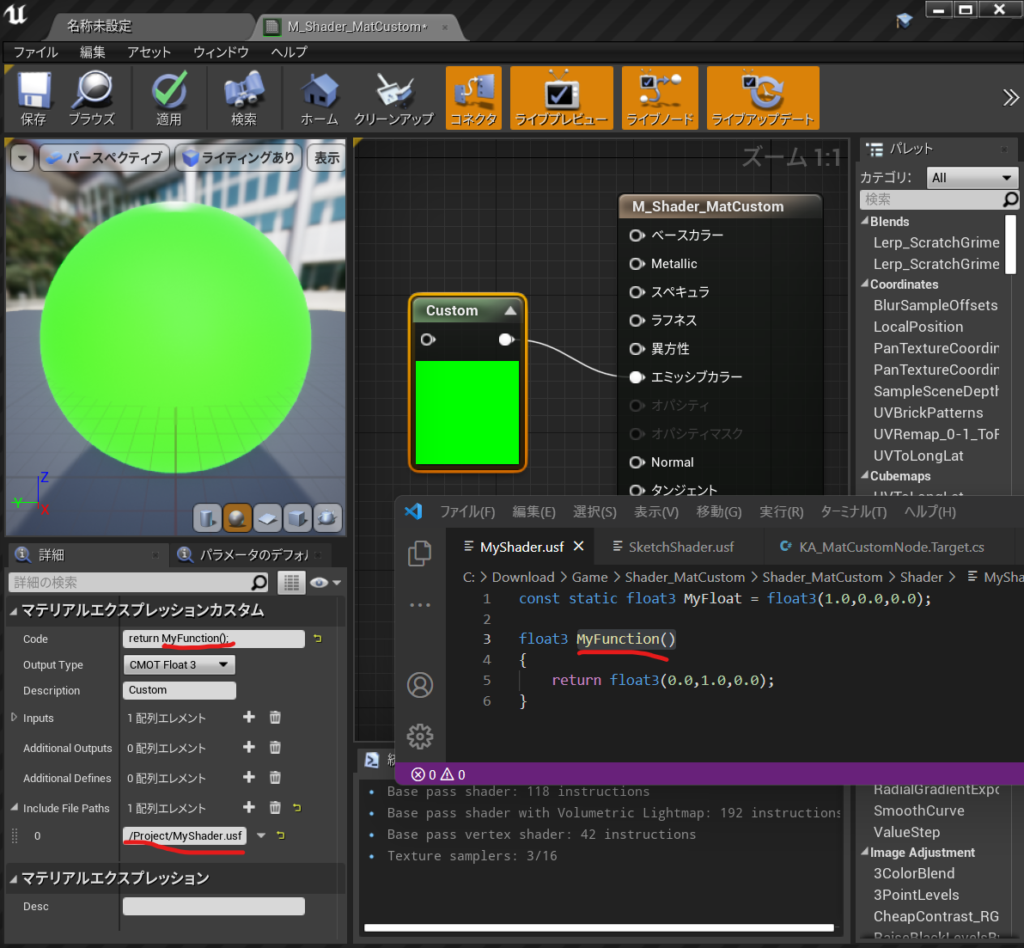
Codeにreturn MyFloat;で使える。

CodeにMyreturn MyFunction();で関数を呼び出せる。

const static float3 MyFloat = float3(1.0,0.0,0.0);

float3 MyFunction()
{
	return float3(0.0,1.0,0.0);
}

TestOutput1 = float3(0,0,1);
return 0.0;

Additional Output :TestOutput1

OutputType CMOT Float1

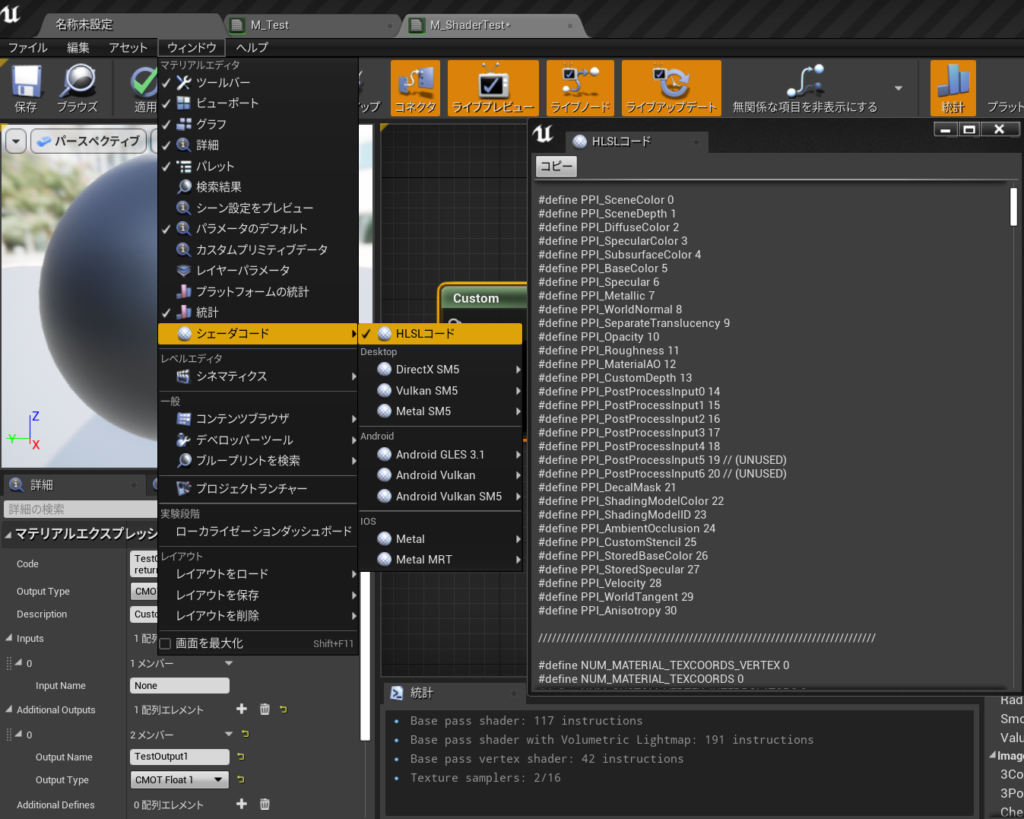
コンパイルされて自動生成されたHLSLコードの中身は

エラーコードで出てくるこれは

/Engine/Generated/Material.ush

マテリアルエディタのメニュー「ウインドウ>シェーダーコード>HLSL コード」を選択。

すると HLSL コードのウインドウが開き、コンパイルされた全マテリアルの内容が HLSL で表示される。

このプロジェクトの作り方は

【UE4】USF(Unreal Shader File) をすぐに始める環境設定 Project編さん

でのShaderフォルダの読み込み設定が必要だった。。50個ぐらいエラーがでるので見ない方がいいかも

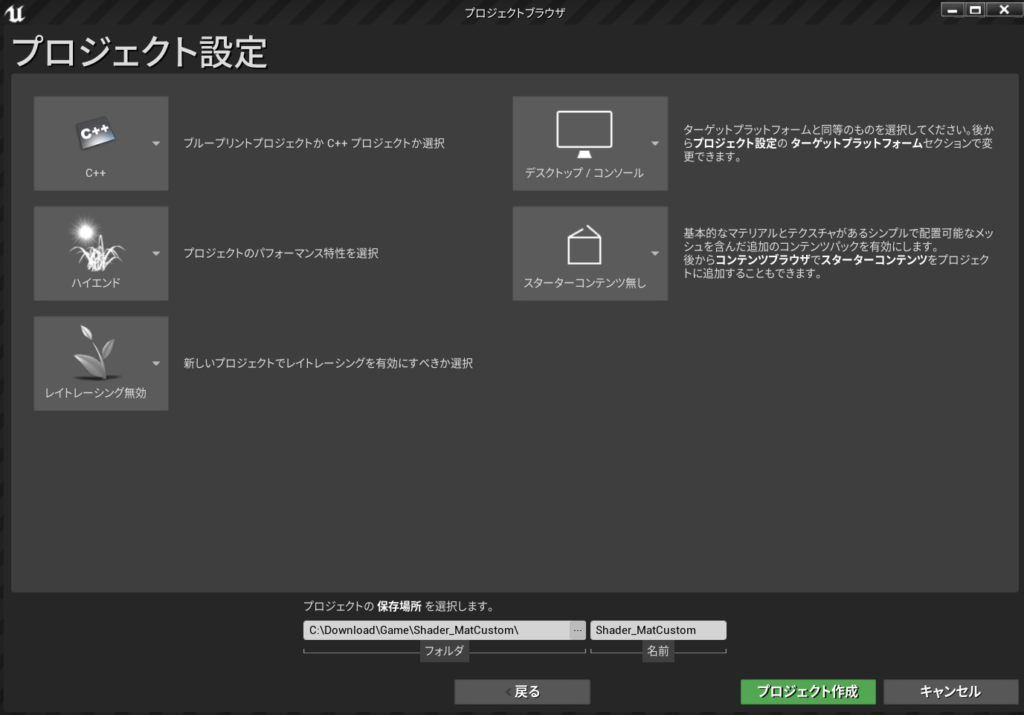
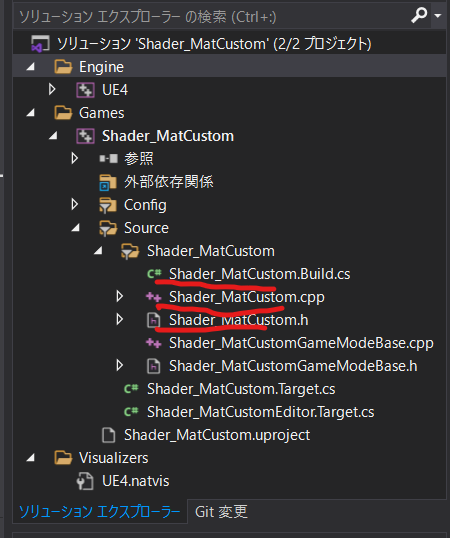
今回はプロジェクト名は:Shader_MatCustomにしたよ

プロジェクト設定でCPP

Shader_MatCustom.h

// Copyright Epic Games, Inc. All Rights Reserved.

#pragma once

#include "CoreMinimal.h"

#include "Modules/ModuleManager.h"

class FShader_MatCustom : public IModuleInterface
{
public:
    virtual void StartupModule() override;
    virtual void ShutdownModule() override;


};

Shader_MatCustom.cpp

// Copyright Epic Games, Inc. All Rights Reserved.

#include "Shader_MatCustom.h"
#include "Modules/ModuleManager.h"

IMPLEMENT_PRIMARY_GAME_MODULE( FShader_MatCustom, Shader_MatCustom, "Shader_MatCustom" );//3つの書き換え


void FShader_MatCustom::StartupModule()
{
    FString ShaderDirectory = FPaths::Combine(FPaths::ProjectDir(), TEXT("Shader"));
    if (!AllShaderSourceDirectoryMappings().Contains("/Project"))
    {
        AddShaderSourceDirectoryMapping("/Project", ShaderDirectory);
    }

}

void FShader_MatCustom::ShutdownModule()
{
}

Shader_MatCustom.Build.cs

// Copyright Epic Games, Inc. All Rights Reserved.

using UnrealBuildTool;

public class Shader_MatCustom : ModuleRules  // ←クラス名リネーム
{
	public Shader_MatCustom(ReadOnlyTargetRules Target) : base(Target)  // ←クラス名リネーム
	{
		PCHUsage = PCHUsageMode.UseExplicitOrSharedPCHs;
	
		PublicDependencyModuleNames.AddRange(new string[] {  //改行して展開した。
			"Core",
			"CoreUObject",
			"Engine",
			"InputCore",
			"RenderCore",  // ←追記
			"RHI"         // ←あとで必要になるので追記(パス追加に関係ない)
		});

		PrivateDependencyModuleNames.AddRange(new string[] {  });


		// Uncomment if you are using Slate UI
		// PrivateDependencyModuleNames.AddRange(new string[] { "Slate", "SlateCore" });
		
		// Uncomment if you are using online features
		// PrivateDependencyModuleNames.Add("OnlineSubsystem");

		// To include OnlineSubsystemSteam, add it to the plugins section in your uproject file with the Enabled attribute set to true
	}
}

VSでビルドをしてコンパイル

Shaderフォルダ作成

マテリアル作成

CustomNode作成

MyShader.usf作成

IncludeFilePathに/Project/MyShader.usf

MyShader.usf

const static float3 MyFloat = float3(1.0,0.0,0.0);

float3 MyFunction()
{
	return float3(0.0,1.0,0.0);
}

やっとうまくいったので

C++サンプルプロジェクトは丸ごとだ。.slnも入ってるよ

https://drive.google.com/file/d/1-ClY_v2cudLARAkMmAfPGrAnFndNnWIX/view?usp=sharing

参照

キンアジさんのところで見つけてしまった。